Your iPad sends you a whole lot of daily notifications, but probably the most annoying pop-up you’ll ever get is the Storage Almost Full alert. Yes, unfortunately, your iPad storage isn’t infinite and can run out over time. Once it does, you’re faced with one of the hardest decisions you ever have to make: which apps, files, photos, and other whatnot have to go.
It’s not an option to ignore cleaning up your storage. Without enough space on your device, you can’t save new files from the internet, capture new photos and videos, and install more apps. The worst part is that you can no longer download updates, which can compromise the overall usability of your iPad.
But how exactly do you start managing your iPad storage to free up some space? Don’t fret — we’ve put together a few iPad tips and tricks to help you declutter your device’s full storage. And conveniently enough, most of it can be done right in the Settings app.
Delete messages and attachments automatically and manually

While a single message consumes a very tiny portion of your iPad storage, messages can easily add up over time, especially when paired with attachments. Going through all your messages to delete them one by one is tedious work, though. Instead of doing so, you can quickly free up space on your iPad by automatically deleting old messages and attachments from the Settings app. This permanently removes both messages and attachments from your iPad and all other devices signed into the same Apple account. Once deleted, you can no longer retrieve these messages and attachments, so make sure to proceed with caution. Here’s how to enable auto-cleanup for your messages:
- Launch Settings.
- Scroll down to the very bottom of the page.
- Select Apps.
- Go to Messages.
- Under Message History, tap on Keep Messages.
- Choose either 30 Days or 1 Year.
- Press Delete to confirm.
If instead of deleting everything after a while, you prefer to have control over what messages get deleted, you can manage them in the iPad Storage menu instead. Here’s how:
- In Settings, navigate to General.
- Open iPad Storage.
- Select Messages from the list of apps.
- To delete entire conversations, go to Top Conversations.
- To remove specific types of attachments (e.g., Photos, Videos, GIFs and Stickers), pick the file type under Documents.
- Press Edit at the top.
- Mark the items for removal.
- Hit the trash icon in the top-right.
If your messages are using a significant portion of your iPad storage, you might see a “Review Large Attachments” option when you open Messages from the iPad Storage menu. This lists your big attachments, so you won’t have to find them manually in the Documents section.
Offload and delete apps
Trying new free iPad apps is fun, but once the excitement wears off, they usually end up abandoned. This eventually leads to your storage running low faster than you realize. To free up space on your iPad, it’s a good idea to declutter your apps every now and then. There are two ways to do so: offloading and deleting. Both essentially remove the app from your device, but they’re different in their own right.
When you offload an app, only the app itself — not its data — is deleted from your device. You would still find it in your App Library, though, and tapping on the app icon will restore the app, complete with its previous data. App offloading can come in handy when you currently don’t need an app but still plan to use it in the future. For the apps you no longer use or want, you can delete them instead. This completely uninstalls them from your iPad, along with their data. To offload or delete apps, follow these steps:
- Go to Settings.
- Select General.
- Open iPad Storage.
- In the apps list, tap on Size.
- Change the sort order to Last Used Date to easily find the apps you don’t use often. They should be on the bottom of the list.
- Choose the app you want to offload or delete.
- To offload it, press Offload App and confirm your choice in the pop-up to proceed.
- To delete it, tap Delete App and confirm by selecting Delete in the pop-up.
Besides manually offloading apps, you can set your iPad to automatically do it for you when your storage is getting close to full. This feature is available in the iPad Storage menu, under Recommendations. Just press Enable next to Offload Unused Apps, and you should be good to go.
Go through your On My iPad files
Every time you’re done working on an offline file — say, a presentation for a client, or a text file for your journal — it’s easy to forget about it afterward. That is until you realize that your iPad is out of storage due to old files. The next logical thing to do is look through your Files app and delete the outdated items one by one. Just change the view layout from Icons to List, display the file size, and sort the files by size. But this takes much more effort than necessary, especially since the files aren’t permanently removed right away. They go to the Recently Deleted folder instead, which you also have to empty yourself.
A quicker alternative to deleting your files is right in the iPad Storage in Settings. Deleting the files from here will remove them permanently from your iPad. Plus, there’s a one-tap button for purging your trash. Here’s how to find this menu:
- Open the Settings app.
- Head over to General.
- Choose iPad Storage.
- From the app list, find On My iPad.
- Under Documents, open the folders where you want to delete some files.
- Go to Edit in the upper right corner.
- Press the red minus icon next to the file.
- Tap the Delete button that pops up to the right.
- Hit Delete again to confirm.
- Rinse and repeat until you remove all the unwanted files.
- Hit the checkmark at the top.
To purge your Recently Deleted folder, simply go back to the On My iPad menu and press Empty Trash. When prompted, tap Delete in the pop-up to confirm the action.
Make use of Google Photos
Photos and videos are almost always the number one culprit eating up your iPad storage. If you need more space on your iPad, it’s best to move them off your device. One of the places to store your media is on Google Photos. It’s pretty easy to set up after installation, and all you need is a Google account that you can make for free. Once configured, Google Photos automatically backs up your photos and videos to the cloud, making them accessible even after you delete them from your iPad.
While iCloud does upload your media to the cloud too, we don’t recommend using it. It isn’t a separate backup system like Google Photos is. What it does is only sync your photos and videos across your Apple devices and the iCloud Photos website. If you delete anything from your iPad, it will sync and be deleted everywhere else, including the website. Between Google Photos and iCloud, Google Photos also offers 10GB more free storage than iCloud, so you can store more without shelling out a cent.
After backing up your photos and videos to Google Photos — and triple-checking that they’re there — you can proceed with removing the large items from your iPad. Here’s how to do so:
- In the Settings app, choose General.
- Go to iPad Storage.
- Under Recommendations, tap on Review Your Photos & Videos (might only show up if you’re already running low).
- Open the section (e.g., Videos, Screenshots, Duplicates) where you want to delete items.
- Hit Select in the top-right corner.
- Tap on the items you want to delete from your iPad.
- Press the trash icon.
- Hit Delete From This iPad to proceed.
Physical hard drives can also be great storage alternatives if you don’t trust cloud services.
Follow your iPad’s storage management recommendations
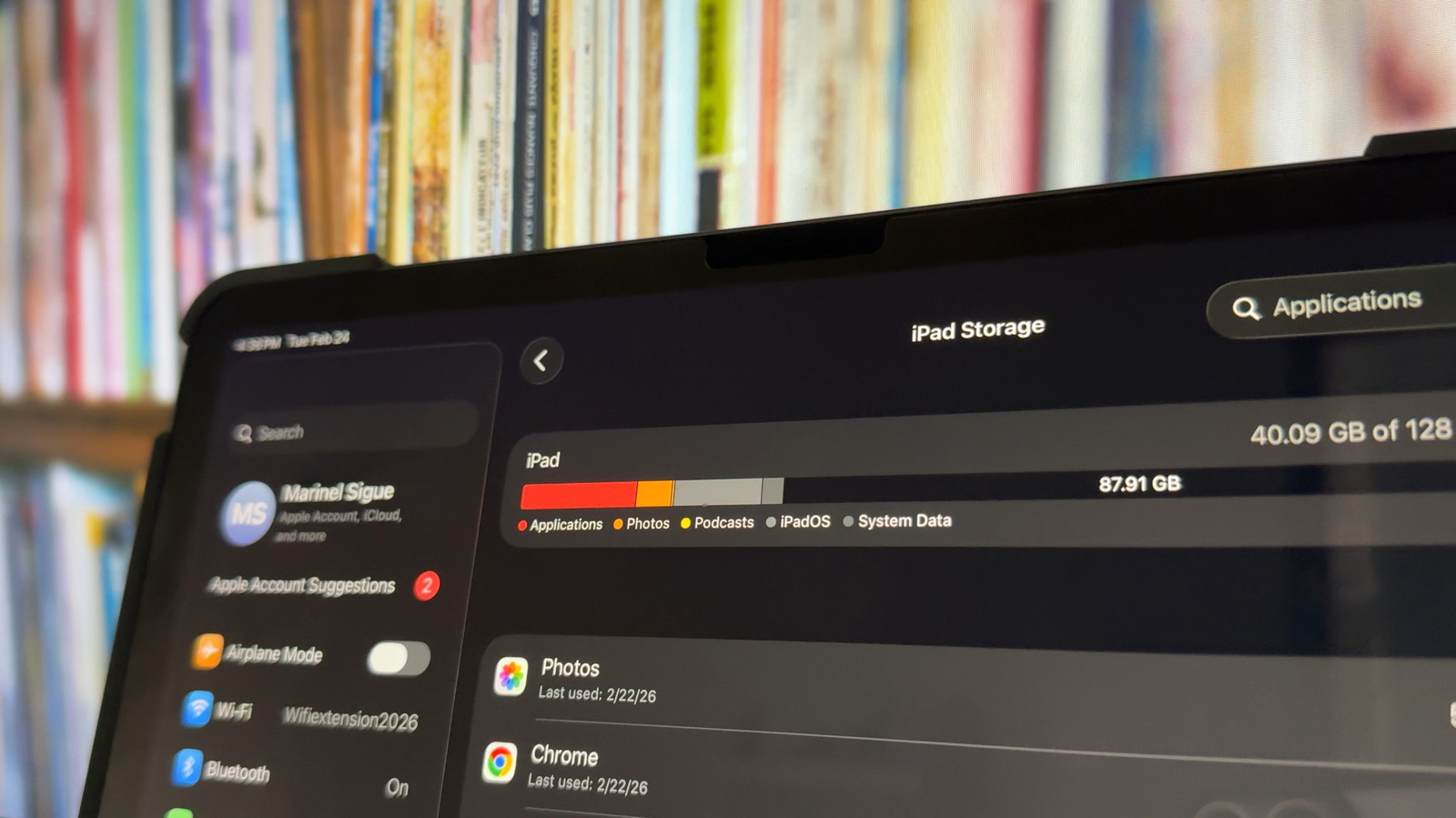
As mentioned before, the iPad Storage menu in the Settings displays an overview of how much certain types of content (e.g., Applications, Photos, System Data) eat up, along with some recommendations on the next best steps to free up the most space fast.
These recommendations can range from simple settings to turn on to more involved reviews of your files, media, and messages. For the settings, you might see recommendations like Enable iCloud Photos (which uploads your photos and videos to iCloud), Offload Unused Apps (which removes unused apps but keeps their data), and Auto Delete Old Conversations (which automatically purges messages older than one year). The review recommendations, on the other hand, can include Review Large Attachments in your Messages app and Review Your Photos and Videos in your Photos app.
To see Apple’s recommendations for freeing up your iPad storage, follow this quick guide:
- Open Settings.
- Press General.
- Head over to iPad Storage.
At the top of the screen, you’ll find the Recommendations section. Hit Show All to view all the recommendations available for your specific device. Read the description of each one and tap on a recommendation you want to use. Some recommendations have an Enable button you can press to activate it quickly, while others offer you a list of items you can consider deleting. It’s important to note, though, that the iPad Storage recommendations won’t always appear and won’t be the same for every device. They’re largely dependent on how you use your storage.