




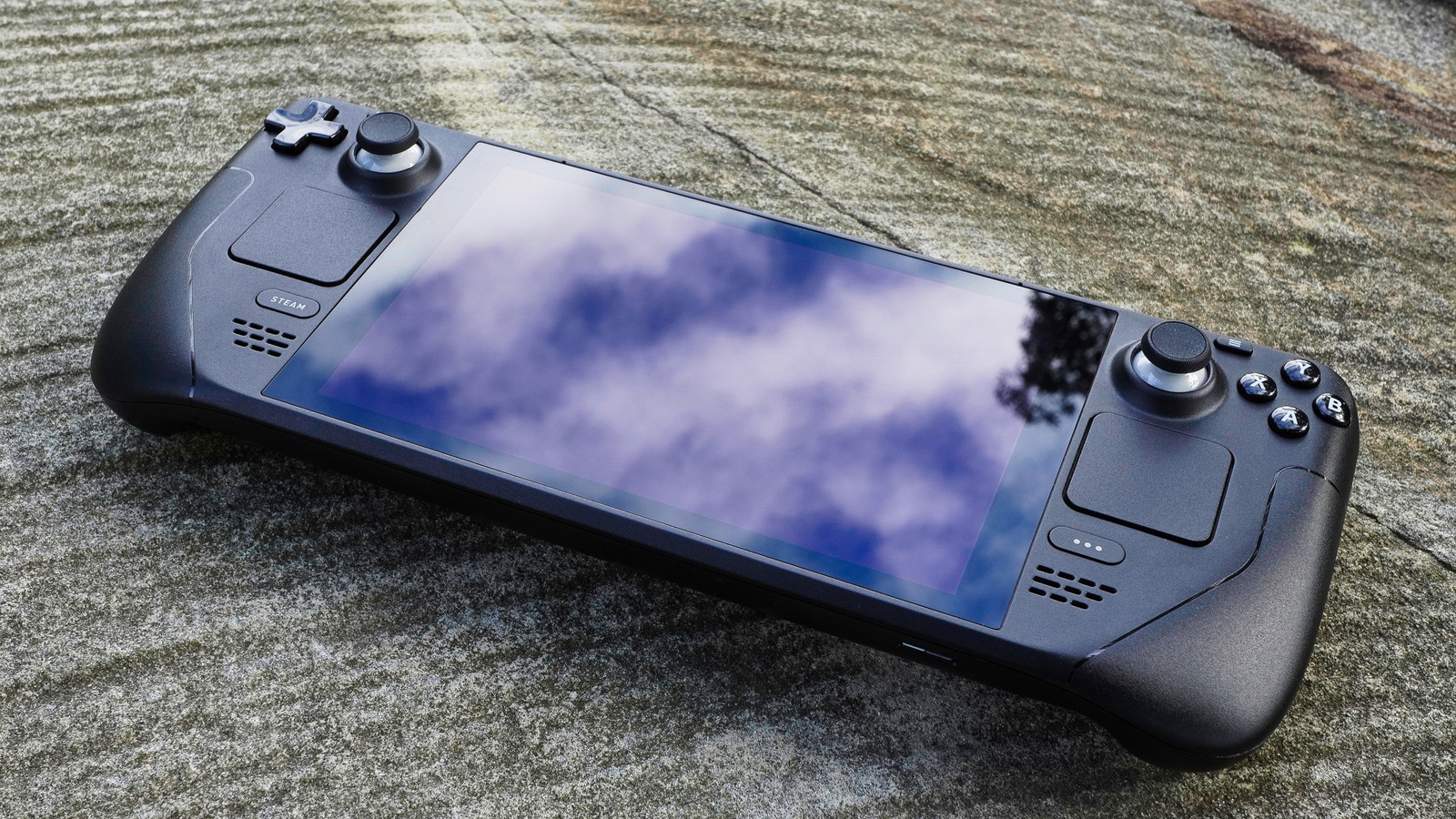
It’s safe to say handheld gaming is seeing a huge resurgence. Kicked off by the Nintendo Switch in 2017, and now cemented by the Steam Deck with its launch in 2022, there is no shortage of handhelds to choose from. Examples range from Android-powered devices like the Retroid Pocket, to Linux-based systems like the Steam Deck.
It’s honestly never been a better time to be a handheld gamer, but that doesn’t mean you can’t extend the life of your gear with some awesome apps. Now that the Steam Deck has secured its place in the market, plenty of apps have been released to further dial in the handheld’s gaming experience. The question is, which apps are actually worth using? Well, that’s precisely what we are here for today: We’ve rounded up the top five apps every Steam Deck gamer should install on their hardware. From unified game launchers to game streaming apps, BGR has you covered.
Heroic Games Launcher
The Steam Deck offers a fairly straightforward UI, and while you can sideload apps and games to launch from your Steam library, there are easier ways to go about keeping everything in one place.
The Heroic Games Launcher is one of the top choices to corral your multi-store library of games. Not only is the app open source (just like the rest of the software built into the Steam Deck), but it also supports software from a multitude of stores. From Steam, to GOG, to Epic, to Amazon Prime Games, the Heroic Games Launcher supports them all.
It’s handy to use a third-party launcher like Heroic to gather everything in one place, but it’s also the perfect launcher to gather the free games you’ve been collecting from the likes of Epic and Amazon. Both companies offer freebies every month, and many gamers often leave those freebies unused. This no longer needs to be the case with the Heroic Games Launcher: It’s the perfect excuse to stop sitting on your backlog and get gaming, with the help of a launcher that supports all of the major PC gaming stores and puts all your games in the same place.
Decky Loader
Now that you have a launcher set up to easily launch all of your games, you’re going to want to install Decky Loader to gain access to a wide world of Steam Deck plugins. Accessible from a single button press, Decky Loader is basically a Swiss Army Knife for the Steam Deck. Plugins range from customizing with new visuals and sounds, to tweaking your games’ performance on a per-game basis, even including games you emulate with apps like EmuDeck (more on that later).
Decky Loader is fairly simple to install, and since it’s just a collection of scripts running in the background, it’s also non-destructive and easy to uninstall. Decky Loader is also open source, which means you can contribute to the project, and no company has exclusive control of the app. Community control is a very good thing when it comes to extending the functionality of your Steam Deck. This is especially true if you are deep into the world of emulation, or utilize any other features that could run afoul of the mess that is copyright law around the world.
Whether you’d like to theme your deck to look and sound like a PS2, or simply wish to improve the colors of your screen with a plugin like VibrantDeck, the world is your oyster with Decky Loader.
EmuDeck
EmuDeck is an all-in-one emulation station for the Steam Deck, doing the heavy lifting for you so that you can spend your time gaming instead of tinkering. The app integrates directly into your Steam library, and you can even add the games to third-party launchers like Heroic Launcher. Dealing with a large library of games across a wide selection of consoles can get messy fast, which is why EmuDeck is highly recommended for all you Steam Deck emulation fanatics out there.
Now, if you’re familiar with emulation, you know you’ll have to supply your own BIOS and games, and EmuDeck doesn’t change this. What it does do is make this process much easier than if you were using a handful of standalone emulators. You can easily check if your BIOS is supported from a quick menu, you can compress your games to save room, you can back up your saves to the cloud, and you can even take advantage of the Steam Deck’s gyroscope for titles/emulators that support the feature. Best of all, you can choose which emulators you use, should you find one that supports the ROMs you’re trying to play better than another.
Moonlight
Up next is Moonlight, an open-source game-streaming app that connects to your PC to stream installed titles over your network to your Steam Deck handheld. It’s like a non-commercial version of GeForce Now or Xbox Cloud Gaming; which is more accurate than it sounds, since Moonlight is literally built on top of Nvidia’s GameStream protocol.
Moonlight supports streams at up to 4K, and it includes HDR support. While you won’t get much use out of streaming at such a high resolution on the Steam Deck, the HDR support is great for all of you OLED owners out there. Moonlight also supports high-FPS streams, up to 120Hz, another win for anyone using the OLED model that supports high framerates.
Of course, if you need another reason to check out Moonlight for your game streaming needs, the fact that it is free is surely a huge benefit, especially with the wide range of features it offers. You’ll be hard-pressed to find any other streaming service that offers high FPS support without charging you for it (looking at you, GeForce Now). While game streaming has yet to take off with the mainstream, thanks to uneven performance that’s reliant on a stable network, at least you won’t be out any funds by giving Moonlight a go to test its wide range of capabilities.
ProtonUp-Qt
One of the great things about Steam OS and the Steam Deck is that you can easily change your Proton versions on a per-game basis. You may want to do this to find a Proton version that performs better in a game than the default option. The thing is, despite how many versions of Proton are out there, you are limited to a handful on the default Steam Deck setup. This is where ProtonUp-Qt comes into the picture: This tool makes it easy to install Proton-GE, a community-made fork that offers extra patches for extended compatibility, thanks to its friendly graphical user interface.
By using ProtonUp-Qt, you can ensure you have Proton-GE installed for your Steam Deck games to access, and you can even choose what versions, should you need an older variant to get a game working. Once you’ve installed your Proton-GE version of choice, you’ll be able to select that Proton version just as you would with the defaults already available on Steam.
ProtonUp-Qt is one of the easiest ways to extend game compatibility on the Steam Deck, and since it’s available on the Linux app store Flathub as a Flatpak, it’s also easy to install. Steam OS supports Flatpaks from Flathub out of the box within the default Discover Software Center. Simply boot into the Desktop Mode, open Discover, and search for ProtonUp-Qt to install it. Easy-peasy, just as handheld gaming was meant to be.


