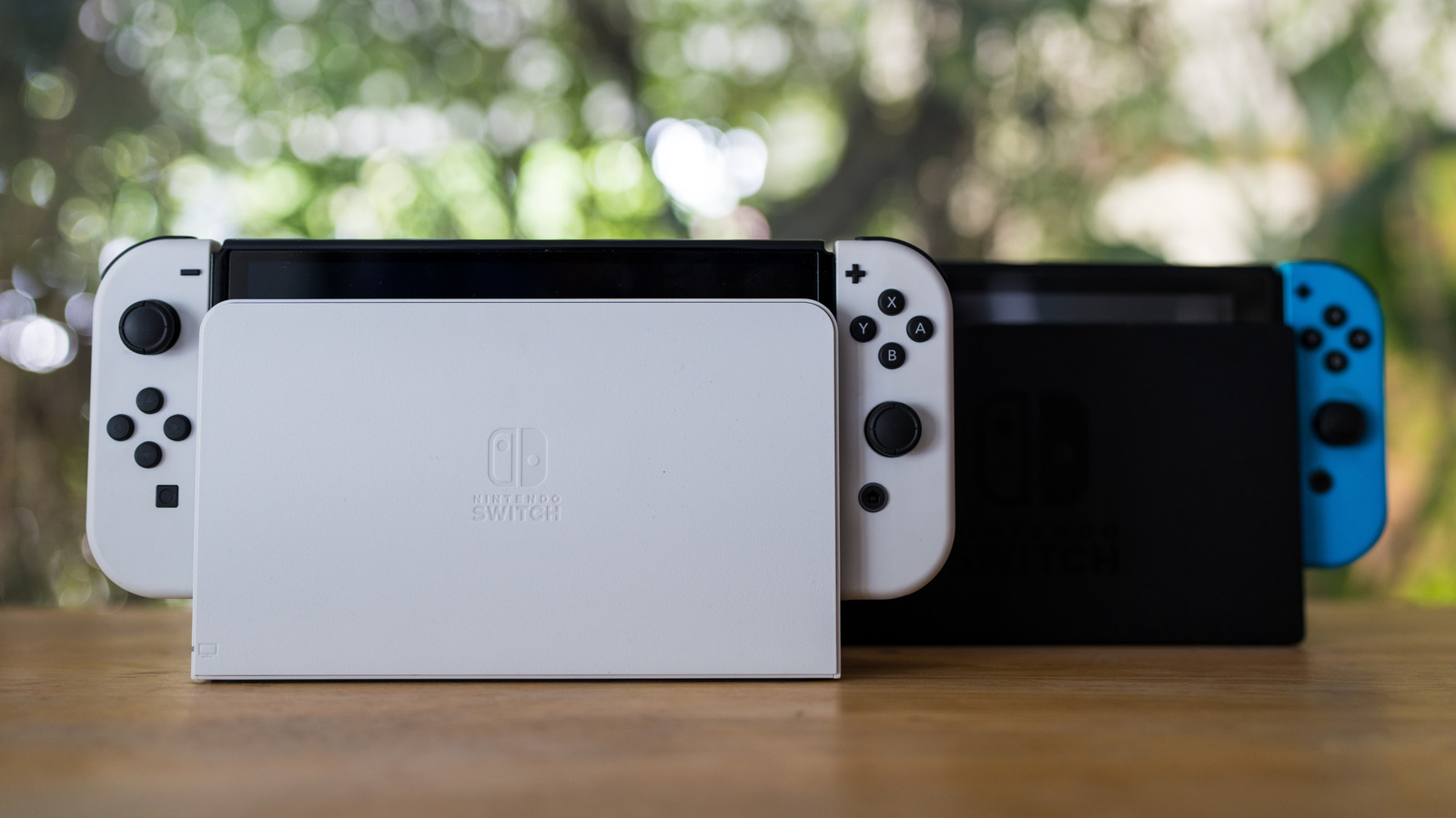
A Nintendo Switch has more capabilities than you may think. The little hybrid console is great for connecting to a television for Nintendo staples like “Pokémon Scarlet and Violet” or “Super Mario Galaxy,” but being able to disconnect it from its dock and take it wherever you want to go for some mobile gaming offers its share of fun, as well. Even if there are some big changes coming to Nintendo in 2026, there’s still plenty to uncover with the original Nintendo Switch, and we’ve got some insights into features that you may not have known about.
Whether you’re aiming to expand the capabilities of your Joy-Con controllers or want to play games from other regions, we’ve got a couple of tricks that can help get some additional mileage out of your Nintendo system. Most of these tricks can be accomplished pretty quickly, but there’s at least one scenario where you may need to download additional software, depending on your setup.
Of course, there’s plenty to be excited about with the Nintendo Switch 2, but that doesn’t mean the original is ready to be put out to pasture just yet. Check out the list of tips below to see if any of them can help expand the capabilities of your first-gen Nintendo Switch.
Joy-Cons that can be paired with other devices

Believe it or not, you can use Nintendo Switch Joy-Con controllers with PC, Mac, and Android. With a Joy-Con being relatively small, it can be great for carrying around with a smartphone for some mobile gaming, but it’s also never a bad thing for a controller to offer wide device compatibility. Since Joy-Con controllers have Bluetooth 3.0 capabilities, connecting them to another device can be as simple as pairing any other accessory.
To get this going with a smartphone, all you really need to do is locate the Sync button on the flat side of a Joy-Con controller. It’s small, round, and positioned in between the SL and SR buttons. Hold the button for a few seconds, then the controller should be discoverable within the Bluetooth settings menu of your device (be sure to check the “Nearby Devices” list if your phone has one). So long as your device has support for gamepads, you may even be able to pair two Joy-Cons and have them operate individually.
For Macs, the process is just as easy. Press and hold the Sync button on the controller and then find it in your Bluetooth menu under System Settings. However, note that you must pair both Joy-Cons to use them as one controller — you will not be able to use them separately. For PC, you will still discover the Joy-Cons through your Bluetooth menu, but you will need third-party software to map the buttons, such as JoytoKey, which is shareware software.
Remappable controller buttons
Along with being able to connect your Joy-Con controllers to other devices, you also have the option to reconfigure the buttons when using the controllers with a Nintendo Switch. You can even remap the buttons on a Nintendo Switch Pro Controller as well as a Nintendo Switch Lite controller through the following method. However, be aware you cannot map the Home, Sync, or Power buttons. Also note that, for Joy-Cons, the remapping will only work when using them vertically.
To remap the face buttons or shoulder buttons on your Joy-Cons, simply follow these steps:
-
Select “System Settings” from the Home menu.
-
Choose “Controllers and Sensors.”
-
Select “Change Button Mapping.”
-
Choose a controller from the left side of the screen.
-
Select “Change.”
-
Choose the button you’d like to change from the list, then choose a new function.
-
Repeat the process as necessary.
-
Select “Back” and then “Done” to confirm your changes.
An option for switching regions and accessing different eShops
There are some pretty cool things you can do from the System Settings menu on your Switch. For starters, there’s an option for changing the region of your Switch, which can be useful for playing region-specific games or accessing different eShops.
Before you do this, however, you may want to create a separate Nintendo account, as there are some caveats. Certain subscriptions or unspent balances that are active on your account may prevent region switching, and you may be unable to spend your Gold Points in the new region.
If you’re okay with those caveats, here’s how to change the default region on your original Nintendo Switch:
-
Select “System Settings” from the Home menu.
-
Choose “System.”
-
Select “Region” on the right-hand side.
-
Choose a region from the following options: The Americas, Europe, Japan, Australia/New Zealand, or Hong Kong/Taiwan/South Korea.
-
Choose “Next” to continue.
-
Select “View End-User License Agreement.”
-
Observe the EULA and hit “Accept.”
The ability to control your TV automatically
Another cool thing you can find in the System Settings menu on an original Nintendo Switch is the ability to match the power state of your television. This means that when you power on the console or wake it from sleep, the device will send a signal to your TV that will also turn it on. Similarly, shutting off your Switch or putting it into sleep mode will power the TV off. This is made possible by HDMI-CEC, which is a feature available on the vast majority of HDMI-enabled TVs — though note that you may also need to enable the functionality on your TV to take advantage of the Switch’s “Match TV Power State” feature.
Once you’ve gotten the TV side of things squared away, follow these steps to have your Switch start controlling your television’s power state:
-
Choose “System Settings” from the Home menu.
-
Select “TV Settings.”
-
Enable “Match TV Power State.” You may need to perform a system update before enabling.
Game archives for saving storage space
With the original Nintendo Switch having 32 GB of space (technically less, as the operating system takes up some of that), finding space for your games and other data can eventually become taxing. While there is support for microSDXC and microSDHC cards (up to 2TB) and the OLED model bumps base storage up to 64 GB, users should be aware that there is a way to archive games to help save storage.
In essence, this means you can delete a game, but keep your save data as well as the Home screen icon, making it easy to redownload the game later. Even better, there’s a way to do this quickly with multiple games.
To archive games one at a time, follow these steps:
-
Hover over a game on your Home screen.
-
Press the (+) button on your Joy-Con.
-
Select “Manage Software.”
-
Select “Archive Software.”
To archive multiple games at once, use these steps instead:
-
Select “System Settings” from the Home screen.
-
Choose “Data Management” from the left-hand column.
-
Click “Quick Archive.”
-
Select games to archive, then choose “Archive Data.”
-
Click “Archive.”
If you decide you want to play the game in the future, you just need to select it from the Home screen, at which point the system will download the game again. Since the OG Switch might continue to get new games until 2030, this is a good trick to know for saving space.
A system-wide dark mode for gaming at night
Just like most smartphones, computers, and internet browsers, it’s possible to enable a dark mode on your Nintendo Switch. Making the jump to dark mode will change the look of your system, including certain app icons, folders, menus, and even the Home screen. This can be useful if you find the white look to be a bit too bright, or it can just give the UI on your Switch a cool new look.
Enabling dark mode on the original Nintendo Switch is pretty straightforward. Simply follow these steps:
-
Open “System Settings” from the Home screen.
-
Select “Themes” from the left-hand side.
-
Choose “Basic Black.”
From here, you’ll now have a darker UI that may be easier on the eyes. Many people find that enabling dark mode is particularly helpful when using a screen at night, as the contrast between the device and the world around you isn’t quite as stark.