




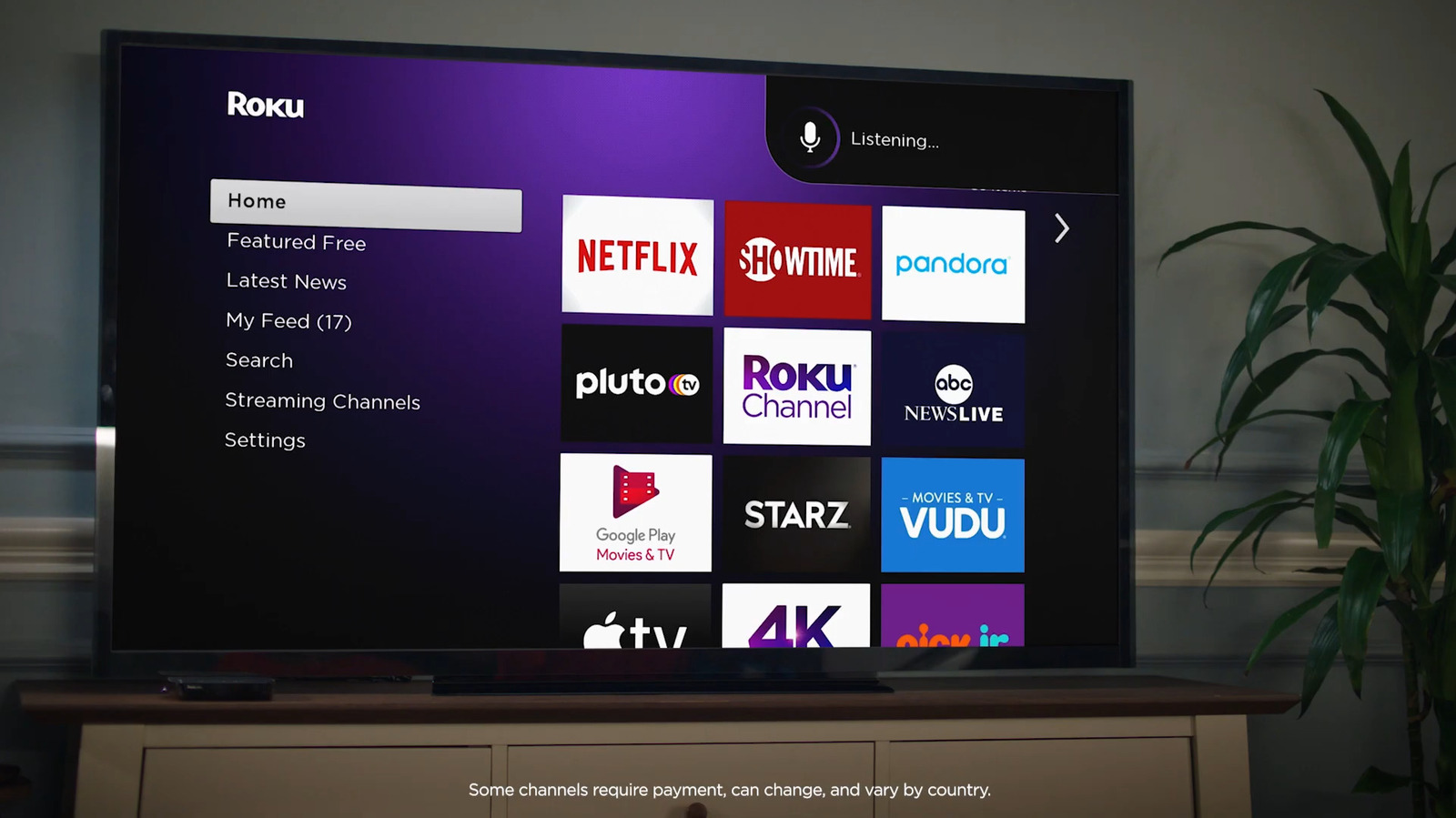
Some of the standard Roku voice commands you’ll likely end up using the most are for searching and playing video and audio content. To look for a TV show or movie on Roku, start with the keywords “find,” “search for,” or “show me.” Then, you can follow up with either the title, actor, or genre. For instance, you can say, “Find me scary TV shows,” or “Search for Morgan Freeman movies.” You can also use a shortcut and say, “Play [show/movie title] in [specific app].” To stream audio content on your Roku, you’ll want to remember the keywords “play,” “listen to,” and “launch. “Similar to video content, you can name the artist, genre, radio station, podcast, or music app after the keyword. Just say, “play The Beatles,” or “listen to country music.” Other than finding content quickly, Roku lets you access your essential Roku TV apps easily as well. Start the command with, “launch,” “start,” and “open.” If the app is missing, say, “Install [app].”
You can also do playback and volume control. Both are pretty intuitive. You have commands like pause, play, stop, and fast forward for shows and movies, and shuffle, next, loop, and skip for songs and podcasts. For volume control, you have a few ways to say it. You can simply say “Volume up/down,” “Turn it up/down,” or “Mute/unmute.” Specific volume levels like 15% or 40% work too. Say, “Set the volume to 80%,” or “Turn volume up/down to 55.” Saying the shortcut “Volume” plus the level, like “Volume 18,” will do the same thing too. If you want to better understand the dialog, Roku has a quick and easy voice command to show/hide captions. Just tell your Roku remote, “Turn on captions,” or “Hide captions.”


