




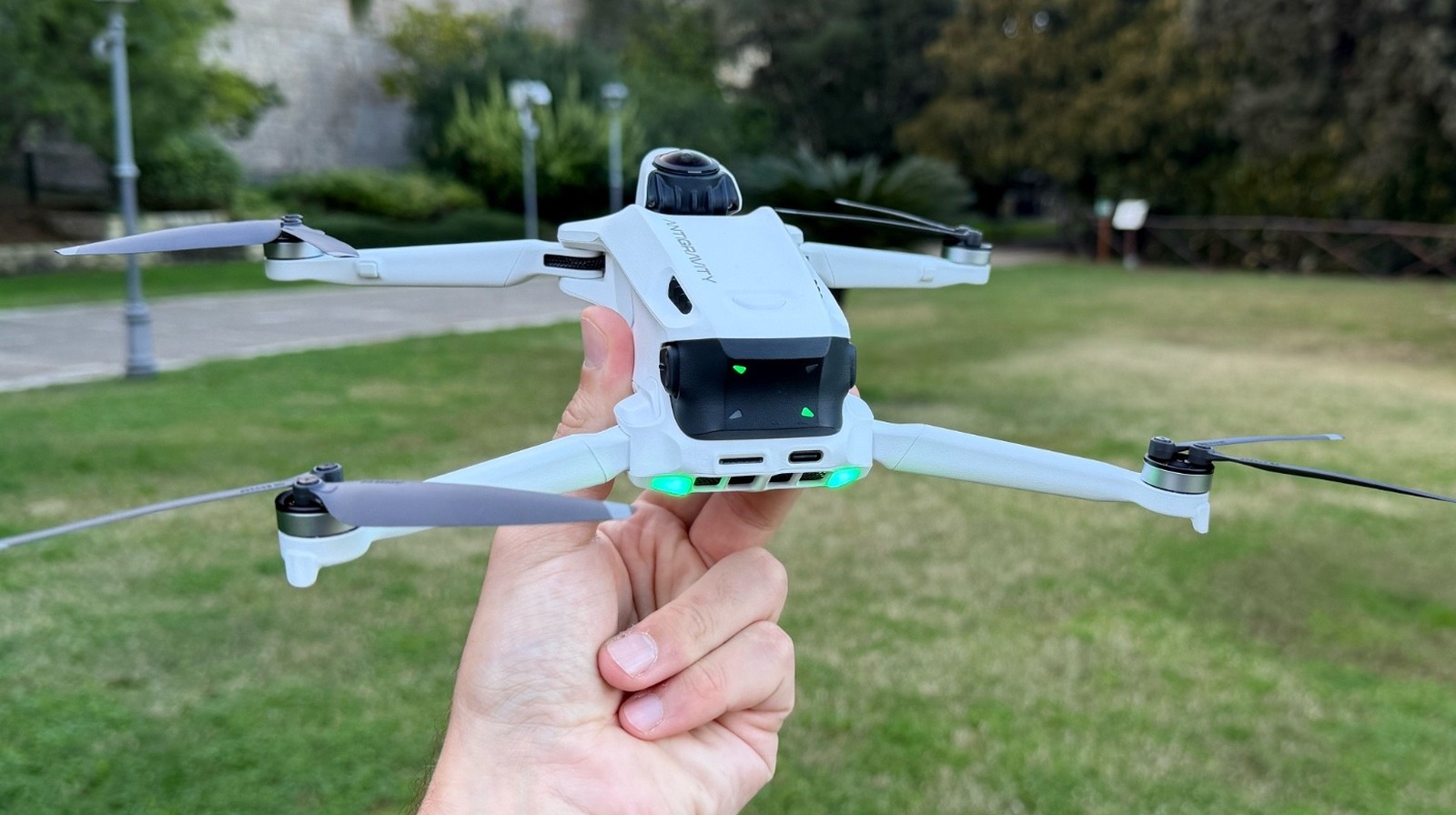
Antigravity released its first 8K 360-degree drone — which was one of our highlights of IFA 2025 — at the end of last year. Unlike other models, this one offers a one-of-a-kind controller, a small form factor, and a powerful camera which is able to record at up to 8K and 360 degrees around, which means users never miss a single detail of a shot.
However, more interestingly than that, the Antigravity A1 drone offers a unique way of immersing the pilot and other people around in the flying experience. The futuristic goggles that ship with the drone have high-definition displays inside which give you a full, 360-degree view of what the drone is viewing, while an outer display lets other people see what the pilot is seeing.
With a very straightforward flying process, decent battery life, and plenty of accessories, we have been testing the Antigravity A1 for the past few weeks. Here’s what it was like to pilot one of the most innovative drones of 2025, and why it should still be a top choice throughout 2026.
Antigravity A1 design

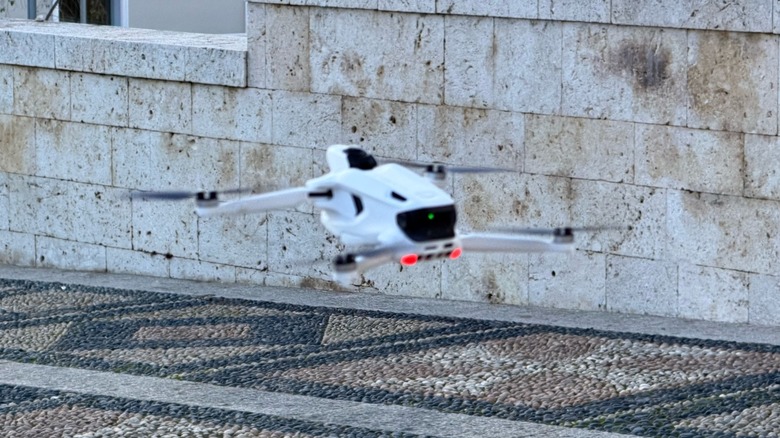
Antigravity A1 follows a similar design to most modern drones. Weighing in at 249g with a battery included, this quadcopter doesn’t have to be registered with the FAA or elsewhere as it complies with the sub-250g regulations.
With a white finish, it has lights that blink on the front and back of the drone when it’s on to help users understand what’s going on. The removable battery is easy to attach and detach, and it features an 8K30fps 360-degree camera, which we will discuss in greater depth shortly.
Unlike other drones, the A1 is headset-first drone, and relies on its Vision goggles and a Grip controller to maneuver. This differentiates the Antigravity A1 from its competition, as controlling the drone requires a one-stick controller instead of the traditional dual-stick drones. That said, you can’t use your phone to control the drone, and the whole package is key to offering the best flying experience with this drone.
Vision goggles and Grip controller
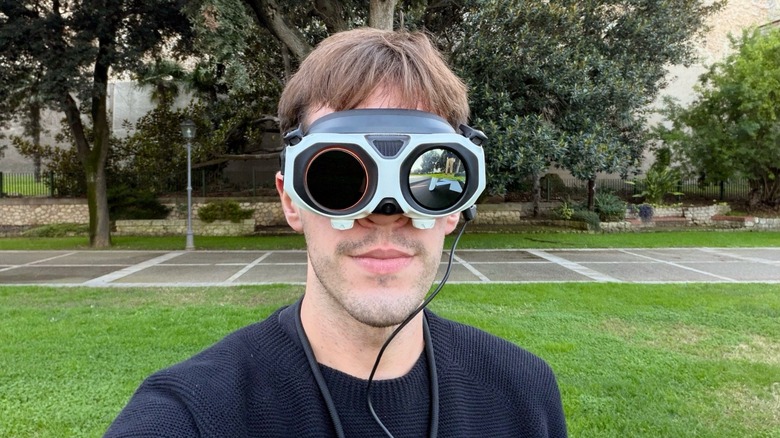
It’s impossible to talk about Antigravity A1 without mentioning the Vision goggles and Grip controller. After all, they are vital to the unique piloting experience this drone offers. The Vision goggles have dual 1-inch micro-OLED displays, in addition to an outer display, which shows what the pilot is seeing. The goggles are easily adjustable on your face, and they look very futuristic, especially with the drone antennas.
The Grip controller looks like a flight sim joystick you might use for “Microsoft Flight Simulator.” Besides the basic commands to make the drone fly, the controller also allows users to change the direction they’re looking, start to record footage, and speed up or slow down the Antigravity A1.

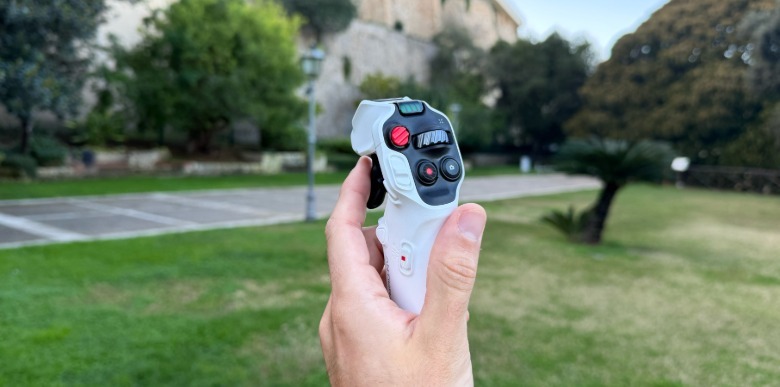
All of these accessories have been smartly designed, and the learning curve isn’t steep. By the second time I was took the drone out to fly it around, I felt much more confident about how to control it. Plus, even though you’re not looking at the Grip controller while you fly the drone, it’s easy to differentiate the buttons from one another after you’ve gotten some practice with it.
Flying the Antigravity A1 drone
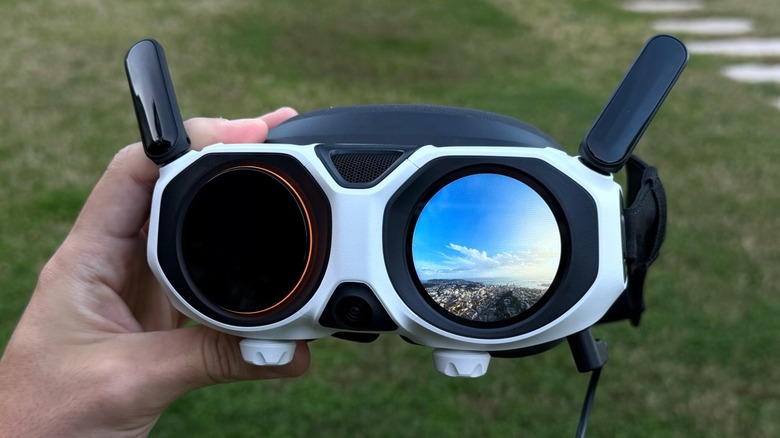
I haven’t piloted many drones in my life, but flying the Antigravity A1 drone was a truly immersive experience thanks to the Vision goggles and the Grip controller. Before trying the pilot the A1, I was pretty sure I would get motion sick, because I’m very sensitive when it comes to wearing AR/VR glasses, but the experience was surprisingly smooth.
Even though Antigravity offers a lengthy tutorial explaining how to fly its drone, I was still a bit confused the first time I flew it, because I thought I had to move my body around to have the 360-degree experience, so my friend would constantly see me looking down or spinning in circles. By the second flight, I realized that not only is the drone controlled by pointing to a direction, but a wheel button on the controller allows me to easily look around without having to move my body.
Besides that, if you repeatedly travel on a specific route, you can use a Sky Path system that lets you create, save, and automate complex flight routes. Once you do that, you can hand the Vision goggles to others so they can experience this immersive flying experience with the Antigravity A1. Additionally, the drone offers 360-degree maneuvers like Orbit, Spiral, and Comet with just a single tap on the Grip controller. Users can also take advantage of Insta360’s Deep Track feature, which lets you lock the camera onto a subject and follow it around.
Antigravity A1 camera quality

The Antigravity A1 features a dual-lens 1/1.28-inch sensor system, which can record up to 8K30fps, 5.2K60fps, or 4k100fps in 360 degrees. What makes this drone stand out is the fact that Antigravity is always recording everything all the time, which makes it easy to record first and edit later.
There’s only 20GB of storage onboard, but you can add a microSD card of up to 1TB for more storage. For testing purposes, I kept most of my footage at 4k30fps, because the intention was to see how the drone flew and controlled. Streaming 8K content is still nearly impossible anyway, and getting it running on supported smart TVs is complicated. While you can see for yourself some of my footage in the video above, the image sometimes flickered and the color would occasionally change a bit during flight, but the output is still solid.
Still, for trained eyes, the drone is good enough for specific shots, and you can always correct possible image issues in post-production. In this case, I decided to leave you with the raw video without correction, so you could see exactly what the drone captured.
Antigravity A1’s app is a vital tool
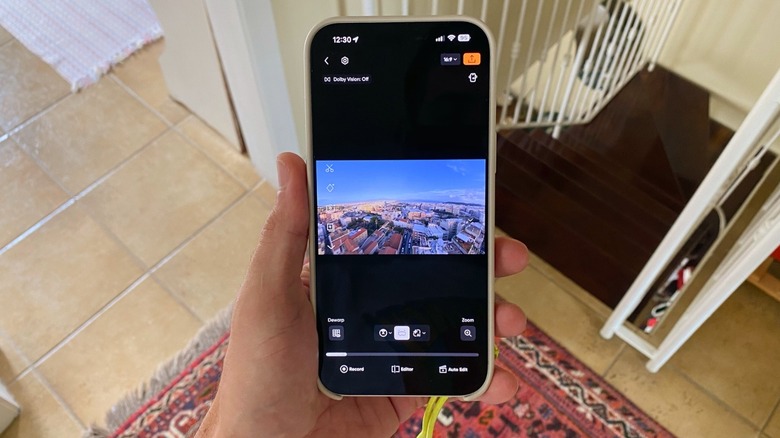
Besides all the accessories available with the Antigravity drone, one of the most important parts of the experience relies on its app. Not only will you need it to pair the drone, but you can also use it watch footage back and export it to another device.
In addition to that, the app offers the best way to see the 360-degree content you recorded, whether through an AI edit, how you would see it in the goggles, or with a forward-locked direction. You can improve the camera’s distortion through the app, zoom in and out, and even use a built-in editor to improve your footage. With a built-in tracking feature, you can even set a subject while editing, and the image will stay focused on that, no matter what else you recorded.
Users can also change the format ratio, whether they want to use the footage for YouTube videos or social media posts. Once you’re happy with the resulting video, you can save it on your iPhone or Android media gallery.
Should you get the Antigravity A1 drone?
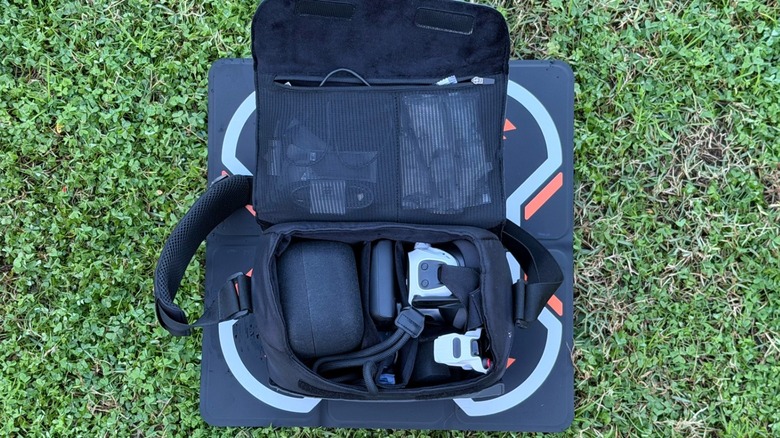
The Antigravity A1 drone is expensive. Starting at $1,599 for the standard bundle, you can spend up to $1,999 on the Infinity bundle, which offers three high-capacity flight batteries, a charging hub, a carry case, a sling bag, and eight spare propellers. Antigravity also offers care plans in case you lose the drone or if it crashes or suffers water damage.
While I had a lot of fun with this drone, I would only recommend it to content creators who actually require the freedom of recording first and framing later. After all, it’s great to not have to worry about what’s being recorded, since the drone is capturing everything around it at all times while in flight.
With around 20 to 30 minutes of flying and recording time, the only downside of the drone is the amount of accessories you need to charge, as you’ll consistently be replacing drone batteries, charging the Vision goggles’ battery pack, and charging the Grip controller. That said, setting up the drone for the first time can be overwhelming, but as you get the hang of it, not only will you learn when to charge each accessory, but piloting becomes second nature.


