




Every enterprise .NET application that processes documents will eventually need OCR (Optical Character Recognition). The wrong library choice costs months. The best OCR library for your needs can elevate your entire workflow. I spent six weeks evaluating 14 OCR libraries across the .NET ecosystem—open-source wrappers, commercial SDKs, and cloud APIs—running them against the same corpus of scanned invoices, handwritten forms, multilingual contracts, and degraded TIFFs. This is the comparison I wished existed when I started.
Disclosure: This article is sponsored by Iron Software, makers of IronOCR. I tested every library in this comparison using the same evaluation criteria, and I call out limitations honestly—including IronOCR’s. The sponsorship funded the time to do this thoroughly, not the conclusions.
The .NET OCR landscape in 2026 splits into three categories: open-source engines (free, flexible, requires effort), commercial .NET SDKs (polished, costly, opinionated), and cloud services (accurate, scalable, ongoing spend). Each category solves different problems. A startup digitizing receipts has entirely different constraints than an insurance company processing 500,000 claims per month.
Here’s what most comparison articles get wrong: they benchmark accuracy on clean, high-resolution images. Real production documents are skewed, faded, photographed at angles, multilingual, and arrive in formats your pipeline didn’t anticipate. I tested accordingly.
This comparison covers all 14 libraries with working C# OCR code (targeting .NET 8 LTS with top-level statements), honest assessments of where each library excels and falls short, and a decision framework you can use to narrow the field in under five minutes.
If you’re short on time, here’s the fastest path: skip to the Architecture Decision Framework section. Four questions will eliminate 10 of these 14 libraries for your specific situation, leaving you with 2-3 finalists to evaluate seriously.
Code Example: Text Extraction from Input PDF Using IronOCR
// The simplest possible OCR test — every library in this article can do this.
// The question is: what happens when your documents aren't this clean?
using IronOcr;

var ocr = new IronTesseract();

using var input = new OcrInput("invoice.pdf");

var result = ocr.Read(input);

Console.WriteLine(result.Text);

// Output: extracted text from all pages
Scanned PDF Extracted Output
For context: the .NET OCR ecosystem has matured significantly since 2024. Tesseract 5’s LSTM engine is now the baseline for most commercial wrappers. Cloud services have moved beyond raw text extraction into structured document understanding. And the gap between “works on demo images” and “works on your production documents” remains the single most important variable in library selection. This article focuses on that gap.
Evaluation Criteria
I evaluated each library across seven dimensions that matter in production:
Accuracy was tested on four document types: clean printed text (baseline), degraded/skewed scans, handwritten content, and multilingual documents (English, Mandarin, Arabic, Hindi). Integration effort measures time-to-first-result for a .NET 8 developer, NuGet install to working extraction. Preprocessing covers built-in image correction (deskew, denoise, binarization) versus requiring external tooling. Deployment flexibility tracks where the library runs: Windows, Linux, macOS, Docker, Azure/AWS. Scalability assesses threading model, memory behavior under batch loads, and IHostedService compatibility for background processing. Language support counts both the number and quality of language models. Total cost of ownership calculates what you’ll actually pay at 1K, 10K, 100K, and 1M pages per month.
No single metric determines the “best” library. An open-source engine with good preprocessing can match a commercial SDK’s accuracy on clean documents, but the gap widens dramatically on degraded inputs.
One methodology note: I tested all libraries against the same set of 200 documents spanning four categories (50 each). Clean printed invoices served as the baseline (every library should handle these). Degraded scans included faded receipts, photocopied contracts, and skewed forms typical of mobile phone capture. Handwritten content ranged from block-printed forms to cursive notes. Multilingual documents mixed English with Mandarin, Arabic, and Hindi within the same page. I tracked not just whether text was extracted, but whether the extracted text was accurate enough to parse programmatically, because OCR that produces text you can’t reliably regex or parse is OCR that hasn’t done its job.
Master Comparison Table
| Library | Type | Engine | Languages | .NET 8/10 | Linux/Docker | Handwriting | Preprocessing | Starting Price |
|—-|—-|—-|—-|—-|—-|—-|—-|—-|
| Tesseract OCR | Open-source | Tesseract 5 LSTM | 100+ | ✅/✅ | ✅ | Limited | External | Free (Apache 2.0) |
| PaddleOCR | Open-source | PaddleOCR/PP-OCR | 80+ | ✅/✅ | ✅ | Limited | Built-in | Free (Apache 2.0) |
| Windows.Media.Ocr | Platform | Windows OCR | 25+ | ✅/✅ | ❌ | ❌ | ❌ | Free (Windows) |
| IronOCR | Commercial | Tesseract 5+ | 127 | ✅/✅ | ✅ | ✅ | Built-in | $749 (perpetual) |
| Aspose.OCR | Commercial | AI/ML custom | 140+ | ✅/✅ | ✅ | ✅ | Built-in | ~$999/yr |
| Syncfusion OCR | Commercial | Tesseract-based | 60+ | ✅/✅ | ✅ | ❌ | Limited | Free < $1M rev |
| LEADTOOLS | Commercial | Multi-engine | 100+ | ✅/⚠️ | ✅ | ✅ | Built-in | ~$3,000+ |
| Nutrient (Apryse) | Commercial | ML-powered | 30+ | ✅/⚠️ | ✅ | Limited | Built-in | Custom quote |
| Dynamsoft | Commercial | Tesseract-based | 20+ | ✅/⚠️ | ❌ | ❌ | Limited | ~$1,199/yr |
| ABBYY FineReader | Commercial | ABBYY AI/ADRT | 200+ | ⚠️/❌ | ✅ | ✅ | Built-in | Custom (enterprise) |
| VintaSoft OCR | Commercial | Tesseract 5 | 60+ | ✅/✅ | ✅ | Digits only | Plugin req. | ~$599 |
| Azure Doc Intelligence | Cloud | Microsoft AI | 100+ | ✅/✅ | N/A | ✅ | Automatic | ~$1.50/1K pages |
| Google Cloud Vision | Cloud | Google AI | 200+ | ✅/✅ | N/A | ✅ | Automatic | ~$1.50/1K images |
| AWS Textract | Cloud | AWS ML | 15+ | ✅/✅ | N/A | ✅ | Automatic | ~$1.50/1K pages |
⚠️ = Partial or unverified support. Pricing reflects entry-level tiers as of early 2026 and varies by license type.
Open-Source Libraries
Tesseract OCR (via .NET Wrappers)
Tesseract is the gravity well of open-source OCR. Originally developed at HP Labs and now maintained by Google, version 5 introduced LSTM neural networks that significantly improved accuracy over the legacy pattern-matching engine. In .NET, you access Tesseract through wrappers like Tesseract (the most popular NuGet package) or TesseractSharp.
The core strength is maturity: 100+ language models, great text recognition capabilities, extensive documentation, and a massive community. If your problem has been solved in OCR before, someone has solved it with Tesseract.
// Tesseract via the Tesseract NuGet wrapper
using Tesseract;

using var engine = new TesseractEngine(@"./tessdata", "eng", EngineMode.Default);

using var img = Pix.LoadFromFile("scanned-invoice.png");

using var page = engine.Process(img);

Console.WriteLine($"Confidence: {page.GetMeanConfidence():P0}");

Console.WriteLine(page.GetText());
Tesseract OCR Output: Input Image vs. Extracted Output

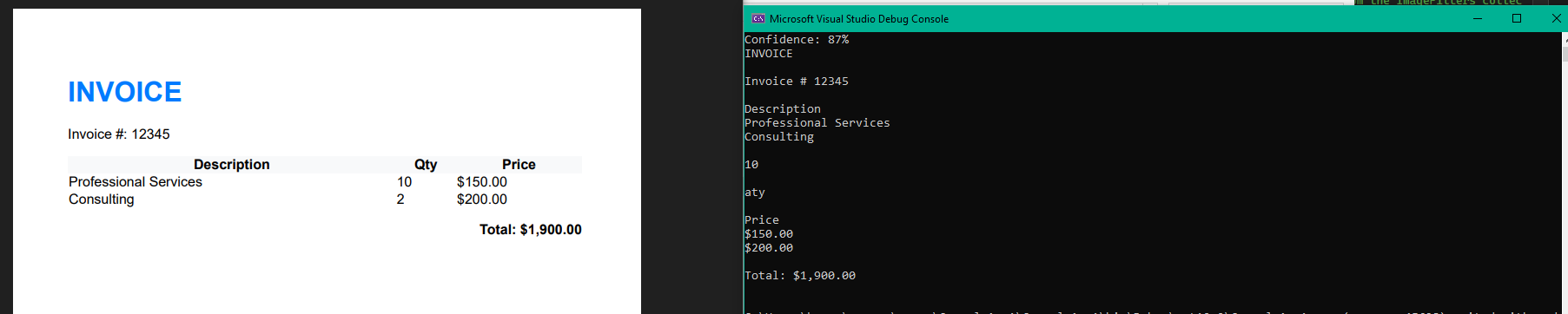
The limitations are real, though. Tesseract expects clean, upright, well-lit images. Skewed scans, low-contrast documents, or photographed pages will produce garbled output unless you build a preprocessing pipeline yourself, typically involving ImageSharp or OpenCV bindings for deskew, binarization, and noise reduction. The .NET wrappers also lack the polish of a commercial SDK: error messages can be cryptic, native binary management across platforms requires care, and there’s no built-in PDF input support (you’ll need a separate library to rasterize PDFs first).
Best for: Teams with image format processing expertise who need zero licensing cost and full control over the pipeline. Not ideal if you need “just works” out of the box.
One practical note on Tesseract wrappers: the Tesseract NuGet package (by Charles Weld) is the most downloaded, but it bundles native binaries for each platform that can inflate your deployment. For Docker containers, you’ll often get better results installing Tesseract via apt-get in your Dockerfile and using the CLI, then calling it via Process.Start, ugly but effective. The NuGet wrapper shines for Windows desktop apps where managed code is strongly preferred.
PaddleOCR (via PaddleSharp)
PaddleOCR is Baidu’s deep-learning OCR system, and it deserves more attention in the .NET world than it currently gets. Accessed through the PaddleSharp and PaddleOCR NuGet packages, it uses a fundamentally different architecture than Tesseract: a detection-recognition-classification pipeline where each stage is a trained neural network.
The practical result is stronger performance on non-Latin scripts – particularly Chinese, Japanese, and Korean – and better handling of text at arbitrary angles. Where Tesseract’s LSTM engine assumes roughly horizontal text lines, PaddleOCR’s detection network finds text regions regardless of orientation.
// PaddleOCR via PaddleSharp
using PaddleOCRSharp;

var ocrEngine = new PaddleOCREngine(null, new OCRParameter());

var result = ocrEngine.DetectText("delivery-note-chinese.jpg");

foreach (var region in result.TextBlocks)
{
    Console.WriteLine($"[{region.Score:F2}] {region.Text}");
}
Basic OCR Output for PaddleOCR


The tradeoff is ecosystem maturity. Documentation is often Chinese-first, the .NET wrapper community is smaller, GPU acceleration setup on Windows requires CUDA configuration, and model file management adds deployment complexity. CPU inference is significantly slower than Tesseract for simple Latin text. You’re trading convenience for capability.
Best for: Applications processing CJK documents or text in varied orientations. Strong choice for logistics companies handling multilingual shipping documents.
Worth watching: PaddleOCR v4 (PP-OCRv4) brought meaningful accuracy improvements, and the PaddleSharp wrapper is actively maintained. If your use case involves East Asian languages, this library is worth the setup investment even if the initial configuration takes longer than alternatives.
Windows.Media.Ocr
The most overlooked option in most comparisons. Windows.Media.Ocr is a built-in UWP/WinRT API available on Windows 10+ that provides OCR with zero dependencies, zero cost, and zero configuration. It uses the same engine that powers Windows Search and OneNote’s text extraction.
// Windows.Media.Ocr — zero NuGet packages required (Windows 10+ only)
using Windows.Media.Ocr;
using Windows.Graphics.Imaging;
using Windows.Storage;

var file = await StorageFile.GetFileFromPathAsync(@"C:docsreceipt.png");

using var stream = await file.OpenAsync(FileAccessMode.Read);

var decoder = await BitmapDecoder.CreateAsync(stream);

var bitmap = await decoder.GetSoftwareBitmapAsync();

var ocrEngine = OcrEngine.TryCreateFromUserProfileLanguages();

var ocrResult = await ocrEngine.RecognizeAsync(bitmap);

Console.WriteLine(ocrResult.Text);
Output for Extracting text with Windows.Media.Ocr

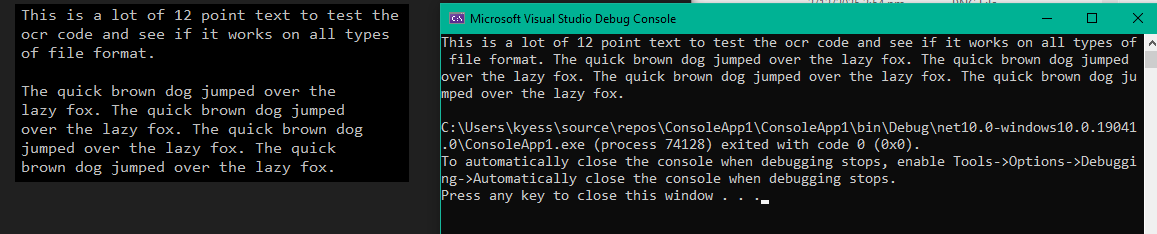
Accuracy on clean, printed English text is competitive with Tesseract. The deal-breakers are obvious: Windows-only (no Linux, no Docker containers on Linux), no preprocessing, no PDF support, limited to languages installed on the host OS, and no batch processing API. It’s a quick-win for Windows desktop apps that need basic OCR without adding dependencies.
There’s also a .NET interop consideration: accessing WinRT APIs from standard .NET (non-UWP) requires the Microsoft.Windows.SDK.NET.Ref package or the Windows.winmd reference. In .NET 8+, this works smoothly via the TargetFramework element specifying a Windows platform version (e.g., net8.0-windows10.0.19041.0). But this platform-specific target framework prevents cross-compilation—your project can’t build for Linux at all, which may affect CI/CD pipelines and multi-platform deployment strategies.
Best for: Windows desktop applications (WPF/WinForms) needing lightweight, dependency-free text extraction. Not viable for server or cross-platform deployments.
Creating Searchable PDFs: The Universal OCR Use Case
Before diving into commercial libraries, it’s worth examining the single most common OCR task across all industries: converting scanned PDFs into searchable PDFs. Nearly every enterprise OCR pipeline ends here. The scanned file retains its visual appearance, but an invisible searchable text layer is added so that users can search, select, and copy text. The implementation varies dramatically across libraries, and this is where integration differences become tangible.
With IronOCR’s advanced ML engine, searchable PDF generation is a single method call:
// IronOCR: scanned PDF → searchable PDF in three lines
using IronOcr;

var ocr = new IronTesseract();

using var input = new OcrInput("scanned-document.pdf");

input.Deskew();

var result = ocr.Read(input);

result.SaveAsSearchablePdf("searchable-output.pdf");
Searchable PDF Output

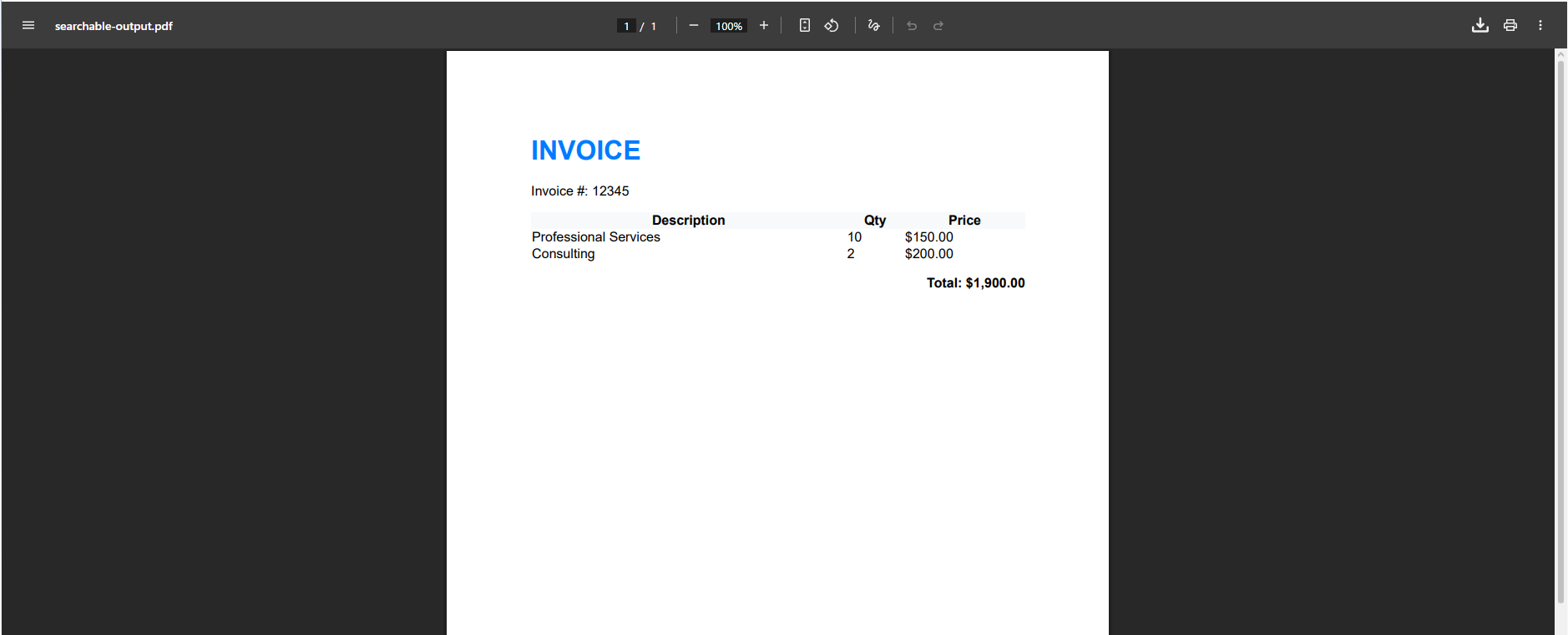
With raw Tesseract, you need a separate PDF library (such as iTextSharp or PdfSharp) to rasterize the input PDF, then pass each page image to Tesseract, then reconstruct the output PDF with a text layer, typically 40-60 lines of code plus error handling for page rotation, DPI detection, and memory management on large documents.
Syncfusion’s approach is elegant if you’re already in their ecosystem, the PerformOCR method modifies the loaded PDF document in place, adding a text layer to each page. LEADTOOLS offers similar inline modification. Aspose.OCR requires a separate Aspose.PDF license to produce the final searchable PDF, effectively doubling your licensing cost for this common workflow.
Cloud services return extracted text but don’t produce PDF files. You’ll need a client-side PDF library to reconstruct the document with a text layer from the API response, adding another dependency and another point of failure.
This workflow difference is a practical litmus test: if searchable PDF generation is your primary use case, test it end-to-end with each finalist library. The number of lines of code, external dependencies, and edge cases (rotated pages, mixed-orientation documents, embedded images) tells you more about real integration effort than any feature matrix.
Commercial .NET Libraries
IronOCR
IronOCR wraps Tesseract 5 but layers substantial value on top: built-in image preprocessing (automatic deskew, denoise, binarization, contrast enhancement), native PDF/TIFF input, 127 languages, and cross-platform .NET support including Docker on Linux. It also provides the tools to enhance resolution on input image files, recognize text with just a few lines of code, and work across most .NET environments. These key features help IronOCR stand out as a powerful OCR library for your .NET projects.
Recent additions include handwriting recognition, an AdvancedScan extension allows IronOCR to read scans of specialized document types (passports, license plates, screenshots), and a streaming architecture that reduced TIFF processing memory usage by 98%, a critical improvement for enterprises processing large multi-page TIFFs that previously caused out-of-memory crashes.
// IronOCR with preprocessing and batch processing via IHostedService
using IronOcr;

var ocr = new IronTesseract();

ocr.Language = OcrLanguage.English;

ocr.Configuration.ReadBarCodes = true;

using var input = new OcrInput();

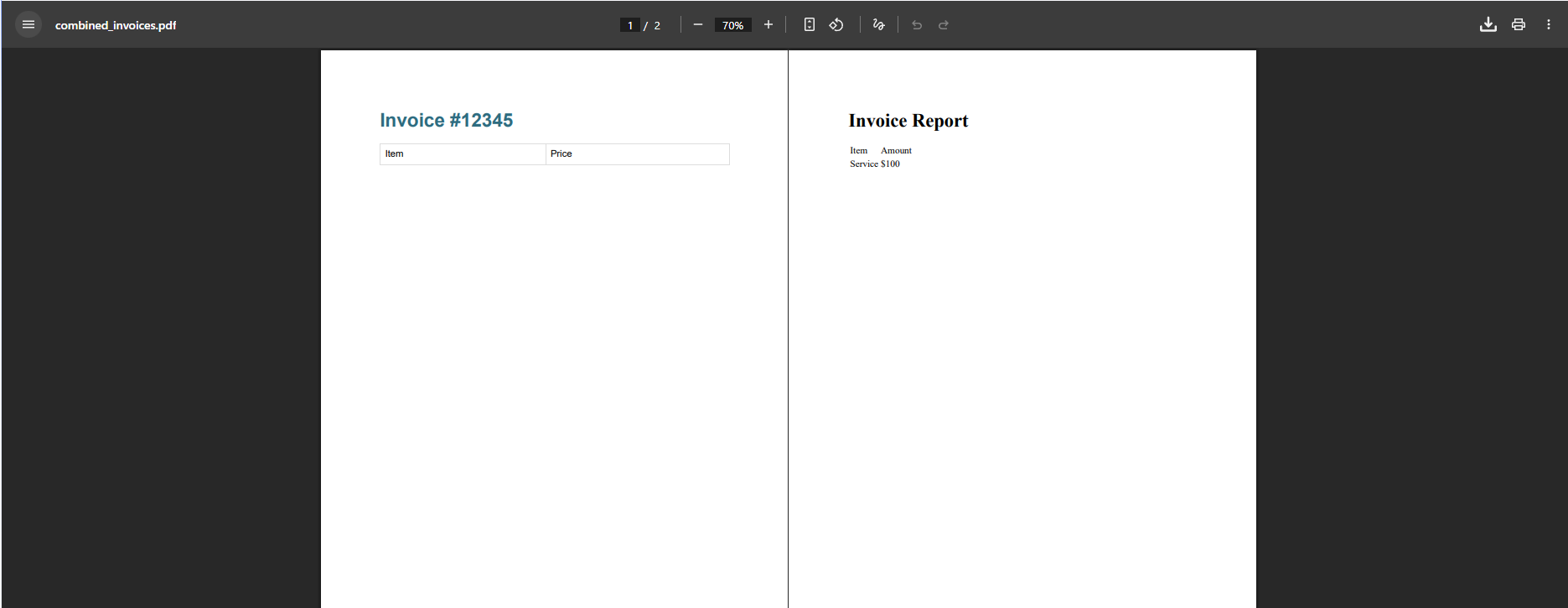
input.LoadPdf("batch-invoices.pdf");

// Built-in preprocessing — no external libraries needed
input.Deskew();
input.DeNoise();

var result = ocr.Read(input);

foreach (var page in result.Pages)
{
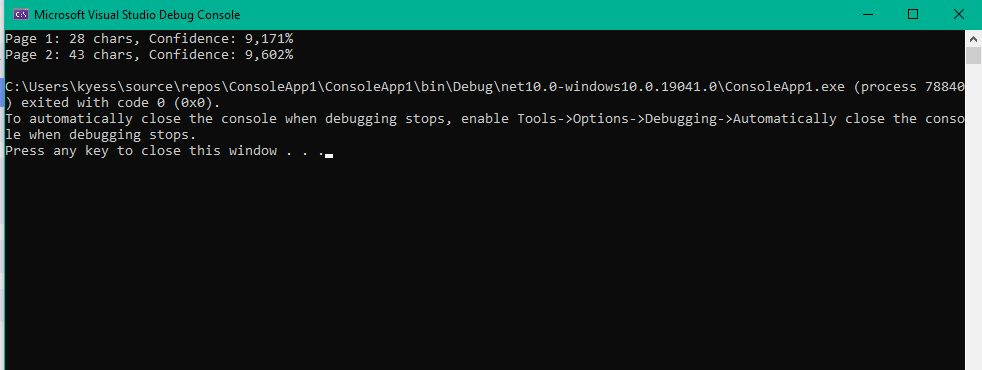
    Console.WriteLine($"Page {page.PageNumber}: {page.Text.Length} chars, " +
                      $"Confidence: {page.PageConfidence:P0}");
    foreach (var barcode in page.Barcodes)
        Console.WriteLine($"  Barcode: {barcode.Value}");
}
Input PDF

OCR Results

In production, IronOCR’s strength is the gap between “install NuGet package” and “processing documents in production.” At Digitec Galaxus, Switzerland’s largest online retailer, integrating IronOCR into their logistics pipeline cut delivery note processing from 90 seconds to 50 seconds per parcel, nearly halving the time across hundreds of suppliers with different document layouts. Opyn Market, a healthcare services company, automated invoice extraction that previously required 40 hours per week of manual data entry, reducing it to 45 minutes and saving $40,000 annually. iPAP, the largest refrigerated redistribution company in the US, saved $45,000 per year by automating purchase order processing that had been entirely manual.
The limitation is that at its core, it’s still Tesseract. On documents where Tesseract fundamentally struggles – heavily stylized fonts, extremely low-resolution captures, or dense handwriting – IronOCR’s preprocessing helps but can’t close the gap entirely against cloud AI services. Paid licenses start at $749 perpetual for a single developer, which is competitive against subscription-based alternatives but still a meaningful line item for small teams.
For enterprise deployments, AscenWork Technologies demonstrated another IronOCR strength: SharePoint integration. They built a document processing pipeline where IronOCR runs on Azure, automatically converting uploaded scanned PDFs into searchable documents at the point of upload. Their implementation handles bulk uploads of 80+ page legal documents in Hindi, Marathi, and Tamil, with 90-95% accuracy across languages, without building separate multilingual handling logic. The IronOCR module is now included by default in all of AscenWork’s document management system deployments across government and enterprise clients in South Asia.
Best for: .NET teams that need production-ready OCR with minimal integration effort. The preprocessing pipeline alone saves weeks compared to building your own on top of raw Tesseract.
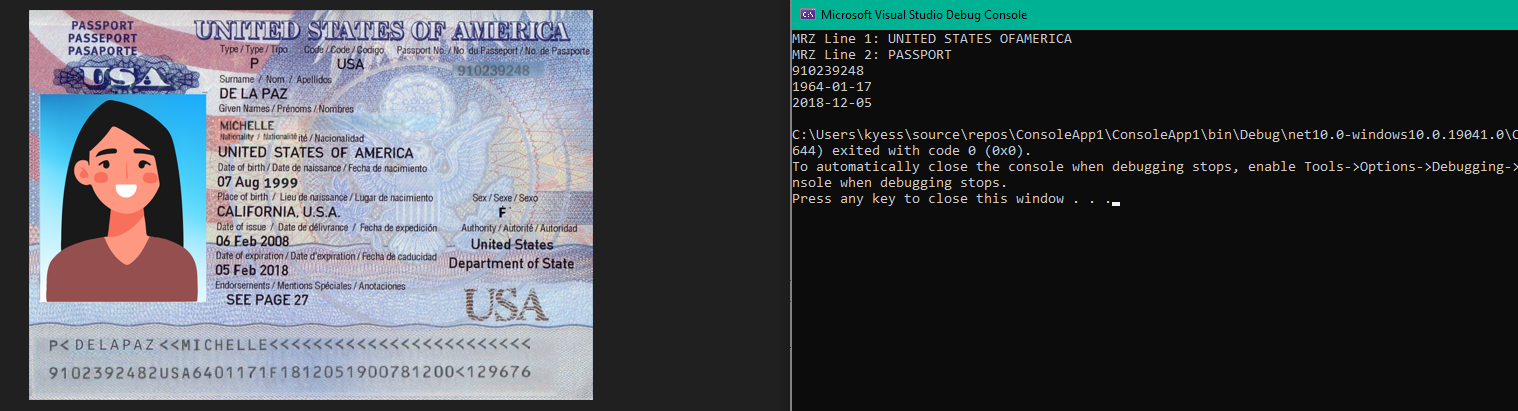
One feature worth highlighting specifically: the AdvancedScan extension handles specialized document types that standard OCR engines routinely fail on. Passports and identity documents contain Machine Readable Zones (MRZ) with OCR-B fonts that confuse standard models. License plates use reflective materials and non-standard spacing. Screenshots mix UI elements with text at varying DPI. The AdvancedScan module includes models trained specifically for these document categories:
// IronOCR AdvancedScan — specialized document type recognition
using IronOcr;
using IronOcr.Extension.AdvancedScan;

var ocr = new IronTesseract();
using var inputPassport = new OcrInput();

inputPassport.LoadImage("Passport.jpg");
// Perform OCR
OcrPassportResult result = ocr.ReadPassport(inputPassport);

Console.WriteLine($"MRZ Line 1: {result.Text.Split('n')[0]}");
Console.WriteLine($"MRZ Line 2: {result.Text.Split('n')[1]}");

Console.WriteLine(result.PassportInfo.PassportNumber);
Console.WriteLine(result.PassportInfo.DateOfBirth);
Console.WriteLine(result.PassportInfo.DateOfExpiry);
IronOCR Specialized Document OCR Output

The AdvancedScan extension runs on Linux and macOS (not just Windows), which matters for server-side identity verification pipelines common in fintech and travel tech. This is a differentiator versus VintaSoft’s MICR/MRZ support, which covers similar use cases but through a different API design.
Aspose.OCR for .NET
Aspose takes a different approach from the Tesseract-based libraries: their engine uses proprietary AI/ML models trained on Aspose’s own datasets. This means different accuracy characteristics—often better on degraded documents and handwriting, sometimes worse on edge cases that Tesseract’s community has specifically addressed.
// Aspose.OCR — AI/ML engine with built-in spell check
using Aspose.OCR;

var api = new AsposeOcr();

var settings = new RecognitionSettings
{
    Language = Aspose.OCR.Language.Eng,
    DetectAreasMode = DetectAreasMode.TABLE
};

var input = new Aspose.OCR.OcrInput(Aspose.OCR.InputType.SingleImage);
input.Add("ocrTest.png");
var output = api.Recognize(input, settings);

// Print the recognized text from each RecognitionResult in OcrOutput
foreach (var result in output)
{
    Console.WriteLine(result.RecognitionText);
}
Aspose.OCR Output

The standout feature is structured data extraction: Aspose.OCR handles tables, forms, and receipts with dedicated detection modes that preserve layout relationships. When you set DetectAreasMode.TABLE, the engine identifies cell boundaries and returns text mapped to its position within the table structure, not just a flat text dump. For documents where the spatial relationship between data points matters (which column a number belongs to, which label maps to which value), this is significantly more useful than raw text extraction followed by heuristic parsing.
The spell-check integration catches common OCR errors in post-processing—”rn” misread as “m”, “1” confused with “l”, “0” confused with “O”. These corrections happen automatically without custom dictionaries, though you can provide industry-specific vocabularies for better results. Supporting 140+ languages, it has the broadest language coverage of any commercial on-premise library.
The pricing model, subscription-based around $999/year for the smallest tier, compounds over time compared to perpetual licenses. Over a three-year horizon, Aspose costs roughly $3,000 versus IronOCR’s $749 one-time. The library is also heavier than most alternatives (the NuGet package pulls in ML model files), and processing speed on large batches trails behind Tesseract-based solutions by a measurable margin. Documentation quality is mixed; the API surface is extensive but examples for advanced scenarios (custom model training, batch pipeline orchestration) are sparse compared to what you’ll find for Tesseract or IronOCR.
Best for: Healthcare, legal, and financial services applications where structured data extraction from forms and tables is the primary use case.
Syncfusion OCR
Syncfusion’s OCR is part of their Essential PDF library, which means it’s tightly coupled to their PDF processing pipeline. Under the hood, it uses Tesseract, but the integration with Syncfusion’s broader component ecosystem (grids, viewers, editors) makes it compelling for teams already invested in that stack.
// Syncfusion OCR — integrated with Essential PDF
using Syncfusion.OCRProcessor;
using Syncfusion.Pdf.Parsing;

using var processor = new OCRProcessor();

processor.Settings.Language = Languages.English;

using var stream = File.OpenRead("invoice.pdf");

using var pdfDoc = new PdfLoadedDocument(stream);

processor.PerformOCR(pdfDoc);

pdfDoc.Save("searchable-invoice.pdf");
Syncfusion OCR Output

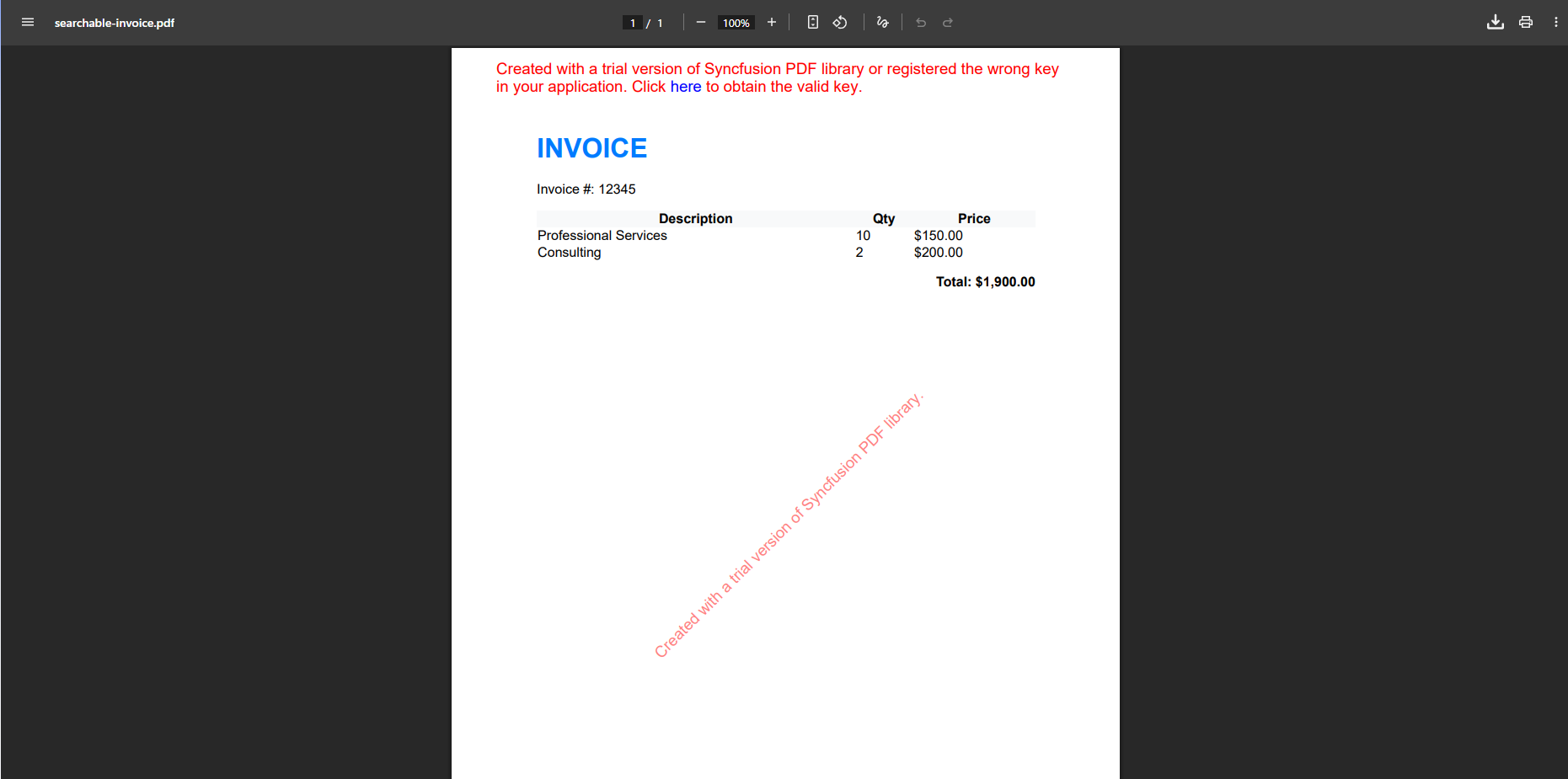
The community license is the headline: free for individuals and companies with less than $1M in annual revenue. That’s a legitimate zero-cost path for startups and small businesses. The catch is ecosystem lock-in, Syncfusion OCR doesn’t exist as a standalone product, so you’re adopting the Syncfusion way of handling PDFs and documents broadly.
Preprocessing is more limited than IronOCR or Aspose, you’ll need to handle deskew and noise reduction yourself for degraded inputs. Handwriting recognition is absent. Language support covers around 60 languages, sufficient for most Western business use cases but thin for CJK or right-to-left scripts. The Tesseract engine bundled with Syncfusion also tends to lag behind the latest Tesseract release by several months, so you may miss recent accuracy improvements.
That said, for its target use case, converting scanned PDFs to searchable PDFs within a .NET application, Syncfusion delivers with minimal code and clean API design. The integration with their PDF viewer component is seamless if you’re building a document management UI.
Best for: Teams already using Syncfusion components, or startups qualifying for the community license who need OCR as part of a PDF processing workflow.
LEADTOOLS OCR
LEADTOOLS is the enterprise heavyweight: a massive imaging SDK that’s been in continuous development since the 1990s. Its OCR module supports multiple engines (LEAD’s proprietary engine, OmniPage, and Tesseract), zone-based recognition for structured form processing, and the deepest set of image preprocessing filters in any library I tested.
// LEADTOOLS — multi-engine OCR with zone-based recognition
using Leadtools;
using Leadtools.Ocr;

var ocrEngine = OcrEngineManager.CreateEngine(OcrEngineType.LEAD);

ocrEngine.Startup(null, null, null, @"C:LEADTOOLSOcrRuntime");

var ocrPage = ocrEngine.CreatePage(

    ocrEngine.RasterCodecsInstance.Load("insurance-form.tif", 1),

    OcrImageSharingMode.AutoDispose);

ocrPage.Recognize(null);

var text = ocrPage.GetText(0);

Console.WriteLine(text);

ocrEngine.Shutdown();
The power is undeniable: zone templates let you define exactly where on a page to look for specific fields (claim numbers, dates, amounts), then extract them into structured data. For high-volume form processing, this is faster and more accurate than full-page OCR followed by parsing. Instead of extracting all text from an insurance claim form and then writing regex to find the claim number in position X, you define a zone at the exact pixel coordinates where the claim number appears and extract only that region. When processing millions of identical forms, this precision eliminates parsing errors entirely.
The zone-based approach also enables a powerful production pattern: process only the regions that matter. On a 10-page insurance form where you need data from 15 specific fields, zone OCR processes 15 small image regions instead of 10 full pages, dramatically faster and with higher accuracy because each region contains only the text you’re looking for, with no layout ambiguity.
The cost of entry is high, both financially (licenses start around $3,000+ and can reach $10,000+ depending on modules) and in integration effort. The API reflects decades of evolution, and the learning curve is steeper than any other library here. You’ll spend significant time reading documentation before writing productive code. That documentation is thorough but overwhelming, the SDK includes hundreds of classes across imaging, OCR, DICOM medical imaging, multimedia, and more. .NET 10 support typically lags behind other libraries by several months after release.
For teams already processing documents at enterprise scale in LEADTOOLS, the OCR module is a natural addition. For teams evaluating OCR from scratch, the onboarding cost is hard to justify unless zone-based form extraction is a core requirement that simpler libraries can’t address.
Best for: Insurance, government, and banking organizations processing millions of standardized forms where zone-based extraction directly maps to business workflows.
Nutrient .NET SDK (formerly Apryse/PDFTron)
Nutrient positions itself as a document platform rather than an OCR library, with OCR as one module alongside annotation, editing, redaction, and viewing. The OCR engine uses ML models rather than Tesseract, and its enterprise customer base (Disney, Autodesk, DocuSign) signals maturity at scale.
The integration model is fundamentally different from standalone OCR libraries: Nutrient’s SDK processes documents holistically—load a scanned PDF, OCR it, redact sensitive content, add annotations, and save—all within a single API and a single document model. For document-heavy workflows, this reduces the number of libraries in your dependency chain and eliminates the format conversion overhead of piping output from one library to another.
OCR accuracy on printed text is competitive with Tesseract-based solutions. The ML engine handles degraded inputs better than raw Tesseract but doesn’t reach ABBYY or cloud service levels on handwriting. Language support (around 30 languages) is narrower than most alternatives, which limits its applicability for global deployments. Pricing is quote-based and typically enterprise-tier (think $10,000+ annually), making it impractical for smaller projects. The OCR module is an add-on to the base SDK, not a standalone product—you’re buying into the full document platform, not just OCR.
Best for: Enterprise document platforms where OCR is one step in a broader document lifecycle (viewing, annotation, redaction, compliance).
Dynamsoft OCR
Dynamsoft’s strength is scanner integration. Their TWAIN SDK has been a staple of document capture applications for years, and the OCR module extends that capture pipeline with text extraction. The Tesseract-based engine is straightforward, and the value proposition is tight coupling between physical scanning hardware and OCR processing—acquire an image from a scanner, clean it up, extract text, and save as a searchable PDF, all without the document leaving the scanning workstation.
The constraints are significant for modern architectures: Windows-only (no Linux or macOS), desktop-focused (no ASP.NET Core server deployment), and the TWAIN dependency limits it to environments with scanner hardware or virtual TWAIN drivers. Language support is limited to around 20 languages, and the OCR engine itself doesn’t bring preprocessing beyond what the TWAIN scanning pipeline provides. Pricing starts around $1,199/year for a developer license.
If you’re building a browser-based or server-side application, Dynamsoft’s OCR module isn’t a fit. But for desktop document capture in industries still reliant on paper (legal, healthcare, government filing), the scanner-to-searchable-PDF pipeline is tighter than anything you’ll assemble from separate libraries.
Best for: Desktop document scanning applications (WinForms/WPF) that need hardware-integrated capture-to-OCR workflows. Not suitable for server-side or cloud deployments.
ABBYY FineReader Engine SDK
ABBYY has been building OCR technology longer than most companies on this list have existed. Their FineReader Engine is arguably the most accurate on-premise OCR engine available, using proprietary AI and their Adaptive Document Recognition Technology (ADRT) that analyzes both individual page layouts and overall document structure.
The numbers back it up: 200+ languages, handwriting and checkmark recognition (ICR/OMR), barcode reading, and the industry’s deepest set of predefined processing profiles (speed-optimized and quality-optimized variants for common scenarios). Government agencies and enterprise-scale document processing operations frequently choose ABBYY when accuracy cannot be compromised.
The .NET story is less polished. ABBYY’s SDK is primarily C++/COM-based, with .NET access through interop layers or their Cloud OCR SDK (REST API). The on-premise engine works, but it’s not the native NuGet-install-and-go experience that IronOCR, Aspose, or Syncfusion provide. Deployment involves native binary management (the engine is over 1GB), license activation, and careful platform configuration. The Cloud OCR SDK simplifies integration via REST API but introduces the same data sovereignty concerns as other cloud services.
Pricing is enterprise-tier with per-page volume commitments—expect five-figure annual costs for meaningful production workloads. Developer licenses and runtime licenses are separate. The per-page pricing structure means costs scale with volume, unlike perpetual licenses. There’s no publicly listed price; you’ll need a sales conversation. For organizations with existing ABBYY relationships (common in banking and government), the integration cost is lower because internal teams already understand the deployment model.
Best for: Organizations where OCR accuracy is the non-negotiable top priority and budget/integration complexity are secondary concerns. Common in government, legal, and regulated industries.
VintaSoft OCR .NET Plug-in
VintaSoft takes a modular approach: OCR is a plug-in for their broader Imaging .NET SDK. It wraps Tesseract 5 (updated to 5.5.0) and adds a document cleanup plug-in for preprocessing, forms processing for OMR, and a separate ML-based handwritten digit recognition module.
// VintaSoft OCR — plug-in architecture with Tesseract 5.5
using Vintasoft.Imaging;
using Vintasoft.Imaging.Ocr;
using Vintasoft.Imaging.Ocr.Tesseract;

using var ocrEngine = new TesseractOcr("tessdata/");

ocrEngine.Init(new OcrEngineSettings(OcrLanguage.English));

var image = new VintasoftImage("receipt.png");

var ocrResult = ocrEngine.Recognize(image);

foreach (var line in ocrResult.Pages[0].Lines)

    Console.WriteLine(line.Text);
The plug-in model is both strength and limitation. You get clean separation of concerns, add only the modules you need, but you also accumulate dependencies if you need OCR + cleanup + PDF output + forms processing. Platform support is strong: .NET 6 through .NET 10 on Windows and Linux, plus .NET Framework 3.5+ for legacy applications.
VintaSoft supports about 60 languages and handles MICR/MRZ text recognition for banking and identity documents, a niche feature that most competitors lack or charge extra for. Pricing is more accessible than enterprise-tier alternatives, starting around $599 for the OCR plug-in (the base Imaging SDK is a separate purchase), and the company’s responsiveness to support requests is consistently praised in reviews and testimonials. AG Insurance, GoScan, and other enterprise users specifically cite VintaSoft’s support quality as a decision factor
The user base is smaller than IronOCR’s, Aspose’s, or Tesseract’s, which means fewer community examples, Stack Overflow answers, and third-party tutorials. If you hit an edge case, you’re more likely to depend on VintaSoft’s direct support rather than community resources. The SDK also has a unique characteristic: it supports both modern .NET (6-10) and legacy .NET Framework all the way back to 3.5, making it one of the few OCR options for teams maintaining old applications that can’t be migrated.
Best for: Teams building modular document imaging systems who want fine-grained control over their dependency chain, especially in insurance or banking contexts requiring MICR/MRZ support.
Cloud OCR Services
Cloud services shift the model entirely: instead of managing an OCR engine, you send images to an API and receive structured results. The accuracy advantage comes from ML models trained on billions of documents that no on-premise library can match in raw model sophistication. The tradeoffs are latency (network round-trip adds 200-2,000ms per page), ongoing cost (predictable but volume-sensitive), data sovereignty (documents leave your infrastructure), and availability dependency (API outages halt your pipeline).
For the right use case, variable volume, standard document types, no data residency constraints, cloud services deliver the best accuracy with the least engineering effort. For the wrong use case, high volume, sensitive data, latency-sensitive workflows, they’re an expensive mistake.
Azure AI Document Intelligence
Microsoft’s offering has evolved from “Computer Vision OCR” into a comprehensive document understanding platform. The key differentiator is prebuilt models: instead of generic text extraction, you can use specialized models for invoices, receipts, identity documents, W-2 tax forms, and business cards that return structured key-value pairs directly mapped to business fields.
// Azure AI Document Intelligence — prebuilt invoice model
using Azure.AI.DocumentIntelligence;
using Azure;

var client = new DocumentIntelligenceClient(
    new Uri("https://your-instance.cognitiveservices.azure.com"),
    new AzureKeyCredential("your-key"));

using var stream = File.OpenRead("vendor-invoice.pdf");

var operation = await client.AnalyzeDocumentAsync(
    WaitUntil.Completed, "prebuilt-invoice", stream);

var result = operation.Value;

foreach (var doc in result.Documents)
{
    Console.WriteLine($"Vendor: {doc.Fields["VendorName"].Content}");
    Console.WriteLine($"Total: {doc.Fields["InvoiceTotal"].Content}");
}
Handwriting recognition is strong. The .NET SDK is well-maintained and follows Azure SDK conventions. Pricing is straightforward at roughly $1.50 per 1,000 pages for the read model, scaling down with committed volumes.
The prebuilt models are the real draw, they eliminate weeks of post-processing logic for common document types. Instead of extracting raw text and writing regex/parsing logic to find the vendor name, invoice total, and line items, the prebuilt invoice model returns these as structured fields with confidence scores. Custom model training lets you extend this to your own document formats, though the training process requires labeled datasets (minimum 5 documents per type, 50+ recommended for production accuracy).
For .NET developers, the integration experience is the best of the three cloud services. The Azure.AI.DocumentIntelligence NuGet package provides strongly-typed models, proper async patterns, and integration with Azure Identity for managed identity authentication in production—no API keys hardcoded in config files.
Best for: Organizations already in the Azure ecosystem processing standard business documents (invoices, receipts, IDs) where prebuilt models eliminate custom parsing logic.
Google Cloud Vision OCR
Google Cloud Vision provides two OCR endpoints: basic text detection and full document text detection. The latter uses a more sophisticated model that preserves paragraph structure and handles multi-column layouts. Across my testing, Google’s accuracy on handwritten text was marginally the best of the three cloud services.
// Google Cloud Vision OCR — via REST (no native .NET SDK)
using System.Net.Http.Json;

var requestBody = new
{
    requests = new[]
    {
        new
        {
            image = new { content = Convert.ToBase64String(
                File.ReadAllBytes("handwritten-note.jpg")) },
            features = new[] { new { type = "DOCUMENT_TEXT_DETECTION" } }
        }
    }
};

using var httpClient = new HttpClient();
var response = await httpClient.PostAsJsonAsync(
    $"https://vision.googleapis.com/v1/images:annotate?key=YOUR_KEY",
    requestBody);
var result = await response.Content.ReadAsStringAsync();

Console.WriteLine(result);
Note the integration pattern: Google doesn’t ship a purpose-built .NET OCR SDK. You’re working with REST APIs and JSON parsing, which means more boilerplate than Azure’s typed SDK. The Google.Cloud.Vision.V1 NuGet package provides a gRPC-based client, but it’s generated from Google’s universal API definitions and doesn’t feel like a .NET-native library in the way Azure’s SDK does. Language support is the broadest of any service at 200+ languages, and pricing aligns with the other cloud providers at approximately $1.50 per 1,000 images.
One advantage that’s easy to overlook: Google’s OCR models handle photographed text (not just scanned documents) particularly well. If your input comes from mobile phone cameras rather than flatbed scanners, Google Cloud Vision consistently outperformed the other cloud services in my testing on that input type.
Best for: Handwriting-heavy workloads, multilingual document processing exceeding 100 languages, or teams already operating in the Google Cloud ecosystem.
AWS Textract
Textract’s differentiation is structural understanding. While all three cloud services can extract text, Textract’s table and form extraction models return data with spatial relationships intact, cells mapped to headers, form labels mapped to values. For document types where layout carries meaning (financial statements, medical forms, government applications), this eliminates substantial post-processing.
// AWS Textract — table and form extraction
using Amazon.Textract;
using Amazon.Textract.Model;

using var client = new AmazonTextractClient();

var response = await client.AnalyzeDocumentAsync(new AnalyzeDocumentRequest
{
    Document = new Document
    {
        Bytes = new MemoryStream(File.ReadAllBytes("financial-statement.pdf"))
    },
    FeatureTypes = new List<string> { "TABLES", "FORMS" }
});

foreach (var block in response.Blocks.Where(b => b.BlockType == "TABLE"))
    Console.WriteLine($"Table detected: {block.RowCount} rows × {block.ColumnCount} cols");
Language support is narrower than Azure or Google (around 15 languages), which limits international applicability. The AWS SDK for .NET is mature and follows standard AWS patterns (async-first, credential chain, region configuration). Pricing is comparable to the other cloud services but varies by feature, basic text detection (DetectDocumentText) is cheaper than table/form extraction (AnalyzeDocument), which is cheaper than query-based extraction (AnalyzeDocument with Queries). For applications processing primarily English-language financial documents within AWS infrastructure, Textract is the strongest cloud option.
Best for: Financial services and insurance applications where table and form structure extraction is the primary requirement, especially within existing AWS infrastructure.
A notable Textract feature that’s underappreciated: Queries. Instead of extracting all text and parsing it, you can ask natural language questions about the document (“What is the patient name?”, “What is the total amount due?”) and Textract returns the answer with a confidence score. This is conceptually similar to Azure’s prebuilt models but more flexible, you define the questions, not the schema. For semi-structured documents that don’t fit Azure’s prebuilt categories, Queries can eliminate substantial post-processing logic. The tradeoff is higher per-page cost and slightly higher latency versus standard extraction.
The Preprocessing Gap: Why It Matters More Than Engine Choice
Before reaching the architecture decision framework, there’s a variable that determines more of your real-world accuracy than which engine you pick: image preprocessing. In my testing, applying deskew + binarization + noise reduction to degraded scans improved Tesseract’s accuracy by 15-30 percentage points. The difference between a “bad” OCR library and a “good” one is often just the preprocessing pipeline.
Libraries handle this differently. IronOCR, Aspose, and LEADTOOLS include comprehensive built-in preprocessing. Tesseract and VintaSoft require external tooling or companion plug-ins. Cloud services handle preprocessing automatically on their servers. Windows.Media.Ocr and Dynamsoft offer minimal correction.
This matters for library selection because the preprocessing story determines your total integration effort. If you choose raw Tesseract, budget 20-40 hours for building a preprocessing pipeline with ImageSharp or SkiaSharp. If you choose a library with built-in preprocessing, that time drops to near zero—call .Deskew() and .DeNoise() and move on.
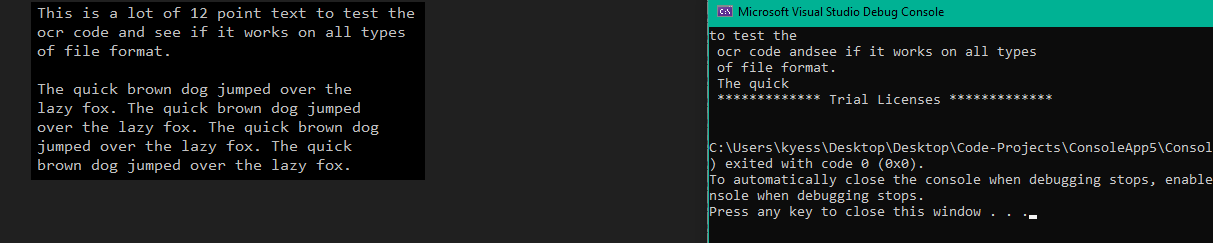
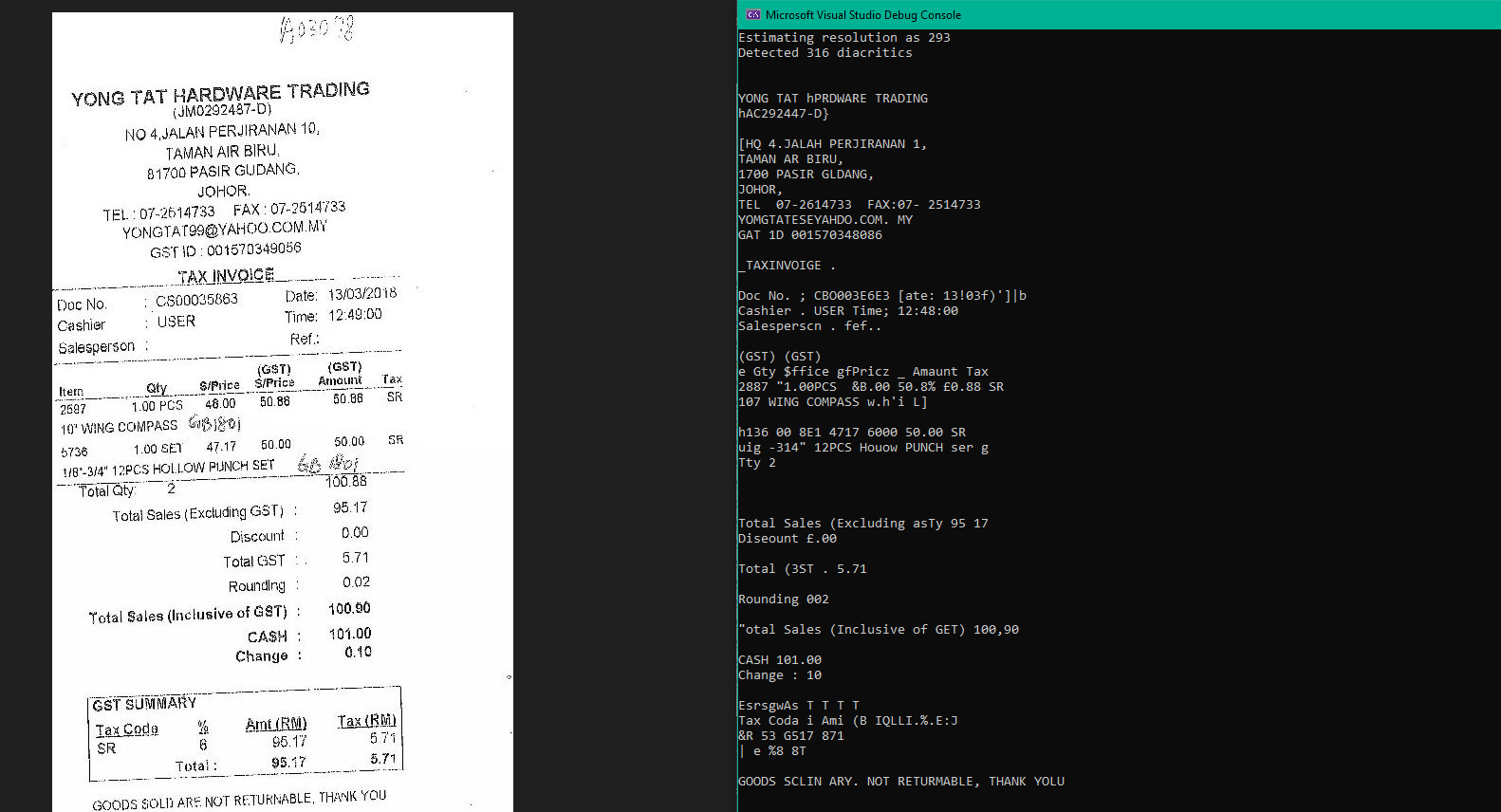
To make this concrete, here’s what preprocessing looks like with raw Tesseract versus a library with built-in support:
// Raw Tesseract: manual preprocessing with ImageSharp (20+ lines)
using SixLabors.ImageSharp;
using SixLabors.ImageSharp.Processing;
using Tesseract;

// Step 1: Load and correct the image manually
using var image = Image.Load("skewed-receipt.jpg");
image.Mutate(x => x
    .AutoOrient()           // Fix EXIF rotation
    .Resize(image.Width * 2, image.Height * 2)  // Upscale for better OCR
    .BinaryThreshold(0.5f)  // Binarization
    .GaussianSharpen(3));   // Sharpen text edges

// Step 2: Save to temp file (Tesseract can't read ImageSharp objects)
image.SaveAsPng("preprocessed-temp.png");

// Step 3: Now run OCR
using var engine = new TesseractEngine("./tessdata", "eng", EngineMode.Default);
using var pix = Pix.LoadFromFile("preprocessed-temp.png");
using var page = engine.Process(pix);

Console.WriteLine(page.GetText());

// Step 4: Clean up temp file
File.Delete("preprocessed-temp.png");
// Missing: deskew (ImageSharp doesn't have built-in deskew — need OpenCV or custom code)
Tesseract Output

// IronOCR: same preprocessing in 5 lines
using IronOcr;

var ocr = new IronTesseract();

using var input = new OcrInput("skewed-receipt.jpg");

input.Deskew();    // Automatic angle detection and correction

input.DeNoise();   // Adaptive noise reduction

input.Binarize();  // Otsu's method binarization

var result = ocr.Read(input);

Console.WriteLine(result.Text);
IronOCR Output

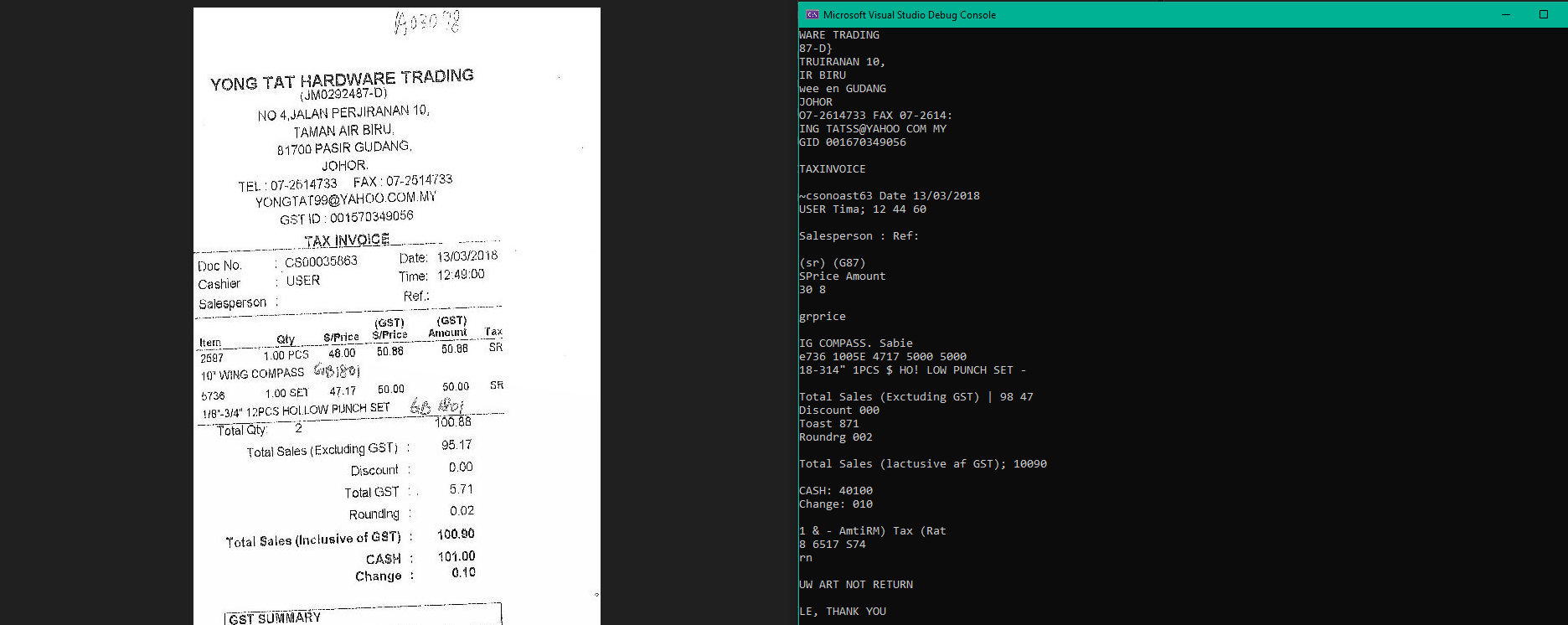
The raw Tesseract approach requires two additional NuGet packages, temporary file I/O, manual memory management, and still doesn’t include deskew, the single most impactful preprocessing step for photographed documents. This is the integration cost gap that makes “free” Tesseract expensive in practice.
A practical example: Sangkar Sari Teknologi, an international consultancy serving banking clients in Holland and Indonesia, switched to IronOCR specifically because its image filters handled poorly scanned documents automatically. Their previous setup generated three times more support tickets due to OCR failures on low-quality inputs. After switching, they reported that the automatic adjustment of poorly scanned input documents eliminated most accuracy-related support issues, and the setup performed without crashes under massive task loads.
Architecture Decision Framework
Choosing an OCR library is fundamentally an architecture decision, not a feature comparison. Here’s how to narrow the field quickly.
Multilingual OCR: What the Language Counts Don’t Tell You
Every library advertises a language count, 127, 140+, 200+. These numbers are misleading. What matters is accuracy per language, not total count. A library that claims 200 languages but delivers 60% accuracy on Arabic is worse than one claiming 50 languages that delivers 90% accuracy on Arabic.
In practice, Latin-script languages (English, French, German, Spanish, Portuguese) work well across all libraries. The divergence begins with CJK (Chinese, Japanese, Korean), right-to-left scripts (Arabic, Hebrew, Farsi), and Indic scripts (Hindi, Tamil, Marathi).
For CJK text, PaddleOCR consistently outperformed Tesseract-based libraries in my testing, unsurprising given Baidu’s training data. Google Cloud Vision was the most accurate overall for multilingual documents, particularly those mixing scripts on the same page. IronOCR’s 127 language models are Tesseract-derived and perform well for most Latin and Cyrillic scripts, with reasonable CJK accuracy. ABBYY’s 200+ language claim is backed by decades of training data and represents the broadest accurate coverage of any on-premise engine.
A practical consideration: multilingual documents (a contract with English paragraphs and Chinese signatures, or an Indian government document mixing Hindi and English) require the OCR engine to detect and switch languages mid-page. Not all libraries handle this equally. IronOCR and Aspose support specifying multiple languages simultaneously. Tesseract requires explicit language specification, if you pass eng and the document contains Chinese, those characters become garbage. Cloud services detect languages automatically, which is both a strength (zero configuration) and a weakness (you can’t force a specific language when auto-detection gets it wrong)
Decision 1: Can your data leave your infrastructure? If regulatory requirements (HIPAA, GDPR, financial compliance) prohibit sending documents to external services, eliminate cloud options immediately. This leaves on-premise libraries only. AscenWork Technologies, a Microsoft-focused consultancy in Mumbai, specifically chose IronOCR over cloud alternatives because their government and real estate clients required on-premise processing of sensitive legal documents, achieving 90-95% accuracy on multilingual content (Hindi, Marathi, Tamil) without any data leaving the local environment.
Decision 2: What’s your deployment target? If you’re deploying to Linux containers (Docker/Kubernetes), eliminate Windows.Media.Ocr and Dynamsoft. If targeting .NET Framework legacy applications, check each library’s framework support, VintaSoft and LEADTOOLS have the broadest .NET Framework coverage.
Decision 3: What’s your document complexity? For clean, printed, Latin-script text, Tesseract with good preprocessing matches commercial accuracy, I measured less than 2% accuracy difference in my clean document testing. As document complexity increases (handwriting, degraded quality, multilingual, structured forms), the gap between free and commercial/cloud solutions widens materially. On my degraded scan corpus, commercial libraries with built-in preprocessing scored 15-25% higher than raw Tesseract, and cloud services scored 5-10% higher still. If your worst-case documents are truly challenging, free options will cost you more in engineering time than a license.
Decision 4: What’s your volume and budget? At low volumes (< 1K pages/month), cloud services offer the best accuracy with negligible cost, $1.50 per month isn’t worth optimizing. At medium volumes (1K-100K pages/month), commercial perpetual licenses amortize within the first month of operation compared to equivalent cloud spend. At high volumes (100K+ pages/month), on-premise solutions dominate cost calculations, at 1M pages/month, Azure Document Intelligence costs approximately $18,000/year versus a one-time $749 for IronOCR. The math is unambiguous at scale.
There’s a fifth, often overlooked, decision: What’s your team’s OCR expertise? If you have engineers experienced with image preprocessing, Tesseract wrappers, and the quirks of OCR pipelines, open-source options become dramatically more viable. If OCR is a feature you need to ship quickly without deep domain expertise, commercial libraries with built-in preprocessing justify their cost in reduced integration time. Sangkar Sari Teknologi’s experience is instructive: their banking clients’ prior OCR setup generated frequent support tickets from accuracy failures on low-quality scans. After switching to a library with built-in image correction, support tickets dropped by two-thirds—not because the OCR engine changed, but because the preprocessing eliminated failures before they reached the engine.
For ASP.NET Core server applications processing documents at scale, the pattern that consistently works best is an IHostedService background processor with an on-premise engine. This separates the HTTP request lifecycle from the potentially slow OCR operation, prevents thread pool starvation under load, and gives you natural backpressure handling:
// Production pattern: IHostedService batch OCR processor
public class OcrBackgroundService : BackgroundService
{
    private readonly Channel<OcrJob> _jobs;
    private readonly IronTesseract _ocr;
    public OcrBackgroundService(Channel<OcrJob> jobs)
    {
        _jobs = jobs;
        _ocr = new IronTesseract();
        _ocr.Language = OcrLanguage.English;
    }
    protected override async Task ExecuteAsync(CancellationToken ct)
    {
        await foreach (var job in _jobs.Reader.ReadAllAsync(ct)
        {
            using var input = new OcrInput(job.FilePath);
            input.Deskew();
            input.DeNoise();
            var result = _ocr.Read(input);
            await job.OnCompleted(result.Text, result.Confidence);
        }
    }
}
Register it in Program.cs with bounded capacity to prevent memory growth under burst loads:
// ASP.NET Core DI registration for background OCR processing

var channel = Channel.CreateBounded<OcrJob>(new BoundedChannelOptions(100)

{

    FullMode = BoundedChannelFullMode.Wait

});

builder.Services.AddSingleton(channel);

builder.Services.AddHostedService<OcrBackgroundService>();
This pattern decouples document intake from OCR processing, handles backpressure naturally via the bounded channel, and keeps the OCR engine warm across requests, avoiding the overhead of repeated engine initialization. It works with any on-premise library, swap IronTesseract for Aspose, LEADTOOLS, or raw Tesseract based on your evaluation. For cloud services, replace the synchronous OCR call with an async HTTP request and add retry logic with exponential backoff for transient failures.
Docker Deployment: Practical Considerations
Modern .NET applications increasingly deploy as Linux containers, and OCR libraries present unique containerization challenges because they depend on native binaries (Tesseract, Leptonica, ICU) that aren’t part of the base .NET runtime images.
Tesseract requires apt-get install tesseract-ocr plus language data files in your Dockerfile. The tessdata files for all languages total over 4GB, include only the languages you need. A minimal English-only Tesseract layer adds approximately 35MB to your image.
IronOCR ships as a self-contained NuGet package that includes native dependencies for Linux. No apt-get installation required. This is one of its strongest deployment advantages, your Dockerfile stays clean and your CI pipeline doesn’t need to manage native packages. The package does add approximately 100MB to your image size due to bundled Tesseract binaries and language data.
Aspose.OCR follows a similar self-contained model via NuGet, but the ML model files add significant weight. Expect 200-300MB added to your container image.
ABBYY requires manual native binary installation and license activation within the container, significantly more complex than NuGet-based libraries. Many teams using ABBYY in containers end up building custom base images maintained by their platform team.
For all on-premise libraries in Docker, two practical tips: mount language data and model files as external volumes rather than baking them into the image (faster rebuilds, easier updates), and set appropriate memory limits on your containers, OCR is memory-intensive, and Kubernetes OOM kills will silently destroy your processing pipeline if limits are too low.
Production Gotchas: Lessons From Real Deployments
After evaluating these libraries and talking to teams running OCR at scale, several recurring failure patterns emerge. These aren’t in any vendor’s documentation, but they’ll save you significant debugging time.
Memory leaks from undisposed OcrInput objects. Most .NET OCR libraries load images into unmanaged memory. If you process documents in a loop without properly disposing of input objects, memory grows linearly until your process crashes, often after hours of apparent stability. Always use using statements or explicit Dispose() calls, and monitor your process’s working set in production, not just during testing.
// WRONG — memory leak in batch processing
foreach (var file in Directory.GetFiles("./inbox", "*.pdf"))
{
    var input = new OcrInput(file); // Never disposed!
    var result = ocr.Read(input);
    SaveResult(result);
}

// CORRECT — deterministic cleanup
foreach (var file in Directory.GetFiles("./inbox", "*.pdf"))
{
    using var input = new OcrInput(file);
    input.Deskew();
    var result = ocr.Read(input);
    SaveResult(result);
} // input disposed here, unmanaged memory freed
DPI mismatches silently destroy accuracy. OCR engines are trained on images at specific DPI ranges (typically 200-300 DPI). If your scanner captures at 72 DPI or your PDF rasterizer defaults to 96 DPI, accuracy drops by 20-40% with no error message. Tesseract silently processes the low-DPI image and returns confident but wrong results. IronOCR and Aspose attempt automatic DPI detection and correction; raw Tesseract does not. If you’re piping images from an upstream system, always verify DPI before OCR processing.
Concurrent Tesseract engine instances crash on Linux. The underlying Tesseract C# library is not fully thread-safe. Multiple TesseractEngine instances running simultaneously in the same process can cause segmentation faults on Linux, a particularly nasty failure mode because it kills the entire process without a managed exception. The solution is to use a single engine instance per thread (or a pool), or use a library like IronOCR that manages engine lifecycle internally. The IHostedService pattern shown earlier naturally avoids this by using a single engine instance.
PDF page rotation metadata is ignored by most libraries. PDFs store page rotation as metadata, not by actually rotating the pixel data. A page that appears upright in Adobe Reader may have a 90° or 270° rotation flag that some OCR libraries ignore, processing the image sideways and returning garbled text. Test your library with rotated PDFs specifically. IronOCR and Aspose handle rotation metadata; raw Tesseract wrappers generally do not.
Cloud service rate limits hit without warning at scale. Azure, Google, and AWS all impose per-second and per-minute rate limits on their OCR APIs. At low volumes you’ll never hit them. At 10,000+ pages per hour, you’ll start getting 429 (Too Many Requests) responses. Build retry logic with exponential backoff from day one, don’t wait until production volume exposes the gap. The Polly NuGet package is the standard .NET solution for this.
Licensing & Cost Analysis
Cost modeling for OCR libraries requires thinking in three dimensions: upfront license cost, per-page operational cost, and integration/maintenance cost. Here’s how the economics stack at different scales.
| Scale | Open-Source (Tesseract) | IronOCR | Aspose.OCR | Azure Doc Intelligence |
|—-|—-|—-|—-|—-|
| 1K pages/month | $0 license + dev time | $749 one-time | ~$999/yr | ~$18/yr |
| 10K pages/month | $0 license + dev time | $749 one-time | ~$999/yr | ~$180/yr |
| 100K pages/month | $0 license + dev time | $749 one-time | ~$999/yr | ~$1,800/yr |
| 1M pages/month | $0 license + dev time | $749 one-time | ~$999/yr | ~$18,000/yr |
The pattern is clear: perpetual licenses (IronOCR) and open-source are volume-insensitive, your cost stays flat regardless of pages processed. Subscription licenses (Aspose) add predictable annual cost. Cloud services scale linearly with volume, compelling at low volumes, expensive at high ones.
What this table doesn’t capture is integration cost. Building preprocessing, PDF handling, and error recovery around raw Tesseract typically requires 40-80 hours of engineering time. Commercial libraries ship that functionality built-in. At a loaded developer cost of $100-200/hour, the “free” option quickly costs $4,000-16,000 in integration effort, dwarfing a $749 license.
Syncfusion’s community license deserves special mention: genuinely free for qualifying organizations (< $1M revenue, ≤ 5 developers), making it the only commercial-grade option at zero cost for early-stage companies.
ABBYY and LEADTOOLS sit at the enterprise end of the spectrum. Neither publishes prices; both require sales conversations and typically involve annual commitments in the $5,000-50,000+ range depending on volume and modules. If your organization has a procurement process for six-figure software purchases, these are strong options. If you’re a startup or a small team, they’re not realistic.
One final cost consideration: maintenance and upgrades. Perpetual licenses (IronOCR, LEADTOOLS, VintaSoft) include updates for one year, after which you pay for renewal to get new features and .NET version support. Subscription licenses (Aspose, Syncfusion paid tiers) include updates as part of the ongoing fee. Cloud services update automatically—but can also change pricing or deprecate features without your input.
Platform Compatibility Matrix
Deployment target eliminates options faster than any feature comparison. Here’s where each library actually runs in production:
| Library | .NET 8 LTS | .NET 10 | .NET Framework | Docker Linux | macOS | ARM64 |
|—-|—-|—-|—-|—-|—-|—-|
| Tesseract OCR | ✅ | ✅ | ✅ (4.6.2+) | ✅ | ✅ | ⚠️ |
| PaddleOCR | ✅ | ✅ | ❌ | ✅ | ⚠️ | ❌ |
| Windows.Media.Ocr | ✅ | ✅ | ✅ | ❌ | ❌ | ❌ |
| IronOCR | ✅ | ✅ | ✅ (4.6.2+) | ✅ | ✅ | ✅ |
| Aspose.OCR | ✅ | ✅ | ✅ (4.6+) | ✅ | ✅ | ⚠️ |
| Syncfusion | ✅ | ✅ | ✅ (4.5+) | ✅ | ❌ | ❌ |
| LEADTOOLS | ✅ | ⚠️ | ✅ (4.0+) | ✅ | ❌ | ❌ |
| Nutrient | ✅ | ⚠️ | ✅ (4.6.1+) | ✅ | ✅ | ⚠️ |
| Dynamsoft | ✅ | ⚠️ | ✅ | ❌ | ❌ | ❌ |
| ABBYY | ⚠️ | ❌ | ✅ | ✅ | ✅ | ❌ |
| VintaSoft | ✅ | ✅ | ✅ (3.5+) | ✅ | ✅ | ⚠️ |
⚠️ = Community-reported or partial support. Verify with the vendor for your specific deployment target.
The ARM64 column deserves attention: if you’re deploying to Apple Silicon Macs or ARM-based cloud instances (AWS Graviton, Azure Arm VMs), your options narrow considerably. IronOCR’s cross-platform story is the strongest here, with explicit ARM64 support across Windows, Linux, and macOS.
Conclusion: Choosing Your OCR Library
There is no single best C# OCR library. There’s the best library for your specific combination of document types, deployment constraints, accuracy requirements, volume, and budget. Here’s the decision compressed into a summary:
| If your priority is… | Start here |
|—-|—-|
| Zero cost, full control | Tesseract OCR |
| CJK / multilingual | PaddleOCR or Google Cloud Vision |
| Fastest integration in .NET | IronOCR |
| Structured form/table extraction | Aspose.OCR, LEADTOOLS, or AWS Textract |
| Maximum accuracy (any cost) | ABBYY FineReader Engine |
| Startup on a budget | Syncfusion (community license) |
| Prebuilt document models | Azure Document Intelligence |
| Handwriting recognition | Google Cloud Vision |
| Scanner hardware integration | Dynamsoft |
| Modular imaging pipeline | VintaSoft |
| Document platform (OCR + edit + redact) | Nutrient |
| Windows desktop, zero dependencies | Windows.Media.Ocr |
Use Tesseract if you have image processing expertise, need zero licensing cost, and your documents are clean printed text. Use PaddleOCR if CJK languages or angled text are your primary challenge. Use Windows.Media.Ocr only for Windows desktop apps needing minimal OCR without dependencies.
Use IronOCR if you want the fastest path from “no OCR” to “production OCR” in .NET, with preprocessing that handles real-world document quality—and if the case studies from Galaxus, Opyn Market, iPAP, and AscenWork are representative of your workload. Use Aspose.OCR if structured data extraction from forms and tables is your primary use case and you’re comfortable with subscription pricing. Use Syncfusion if you’re already in their ecosystem or qualify for the community license. Use LEADTOOLS for high-volume form processing with zone templates in regulated industries. Use Nutrient if OCR is one feature in a larger document platform. Use Dynamsoft for scanner-integrated desktop capture. Use ABBYY when accuracy is the absolute top priority and enterprise budget is available. Use VintaSoft for modular document imaging with MICR/MRZ requirements.
Use Azure Document Intelligence for prebuilt document models in the Azure ecosystem. Use Google Cloud Vision for the best handwriting recognition and broadest language support. Use AWS Textract for table and form structure extraction within AWS.
The approach that consistently works: start with your constraints (data sovereignty, platform, budget ceiling), eliminate categories, then trial 2-3 finalists against your actual documents, not stock images. Every library offers a free trial or free tier. Build a simple test harness, run your worst-case documents through each finalist, and measure accuracy on what matters to your business. The 2-3 hours this takes will save months of regret.
What OCR library are you using in production, and what document types are you processing? I’d particularly like to hear from teams that have switched between libraries, what triggered the switch, and what improved.
The Bottom Line: Experiment with Trials and Find Your Fit
Ultimately, the best OCR library for your project depends on your specific document types, accuracy requirements, and deployment environment. Some solutions prioritize raw recognition accuracy, others focus on structured data extraction, while some provide easier integration into modern .NET workflows.
We recommend taking advantage of the free trials offered by IronOCR and other OCR libraries so you can evaluate how each engine performs on your real documents. Testing with your own scans, PDFs, or photographed text will quickly reveal which tool delivers the best balance of accuracy, speed, and ease of integration for your application.
[Try the Best OCR Library for .NET — Download IronOCR Free Trial]()
By comparing OCR solutions in real scenarios, you can confidently select a library that meets your long-term needs for document processing, automation, and data extraction. The right OCR engine will save development time, improve reliability, and scale with your application as your document workloads grow.


