





With so many devices now supporting only USB-C, choosing the right USB port to connect your devices can be much simpler. But the confusion doesn’t stop just because they’re all USB-C. Some ports are still better than others, and Apple touts most of its ports as Thunderbolt instead of just plain USB-C. So, how are you supposed to know which one to use?
While it might be easy to think that all USB-C ports are equal, that isn’t the case. Some of them are labeled as Thunderbolt but are still USB-C connectors; they just use a different protocol than standard USB-C ports. This means they have extra features like faster transfer speeds and the ability to transfer video to a monitor. So, if you’re planning to connect an external monitor, then turning to a Thunderbolt connector is the only way, as regular USB-C ports can only send video signals with DisplayPort Alt Mode, a feature that modern MacBooks only have on Thunderbolt ports. The differences between the two protocols are part of why it’s become even more important than ever to know what you’re looking for when choosing between a Thunderbolt and a USB-C monitor, and even what it means when USB ports have different colors.
Some older MacBooks still offered USB-A connectors (which look more like rectangular connections than the rounded USB-C ports). These typically rely on older technology that doesn’t offer the same capabilities as USB-C.
The USB port matters when you need a special feature

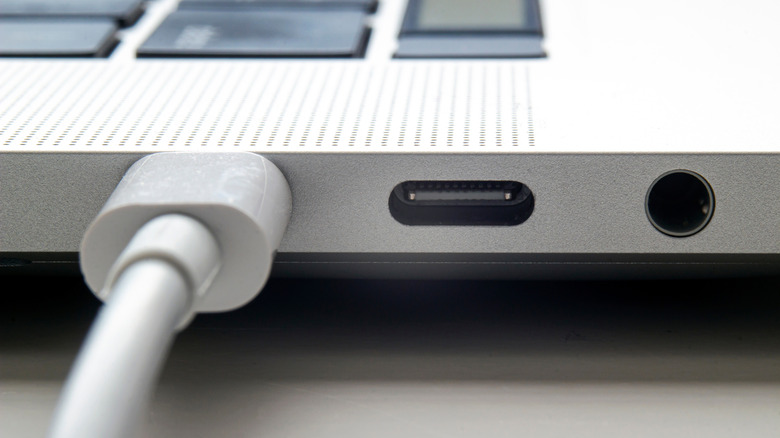
While the USB port you pick doesn’t usually matter when you’re working with a laptop like the great MacBook Pro M4, there are still some occasions where it might. Monitors with Thunderbolt support only work when connected to USB-C Thunderbolt ports. If you have external storage with a Thunderbolt connector, plugging it into an equivalent port will increase transfer speeds compared to a standard USB-C. For all devices that don’t support Thunderbolt, connecting them to that specific port or the regular USB-C will not improve transfer or charging speeds, so you can pick any port. In case your device has different cables that let it connect to either a rectangular USB-A port or a modern USB-C port, choosing USB-C will likely give you better results.
For instance, on laptops like the 14-inch MacBook Pro with M3 and older models, not all of the USB-C ports on the devices are Thunderbolt. Some, instead, are regular USB 4, which means while they are still good, they might not offer the same capabilities across the board. To figure out exactly which ones are Thunderbolt ports, make sure to look for the Thunderbolt symbol, which looks like a downward-facing lightning bolt with an arrow at the bottom. This will be located next to the port that it corresponds with, and you should be able to spot it easily when closely inspecting your MacBook.
Of course, figuring out which port to use becomes even more confusing when you’re looking at MacBooks even older than the latest generations, especially those that include regular USB-A style ports. Your best bet for figuring out the best USB port to use on your MacBook is going to be to check the exact model information and then check the specs for that model somewhere online. Apple has a great breakdown of the types of ports found on most MacBooks (and regular Macs), and you can then figure out the best option for what you’re trying to accomplish.


