




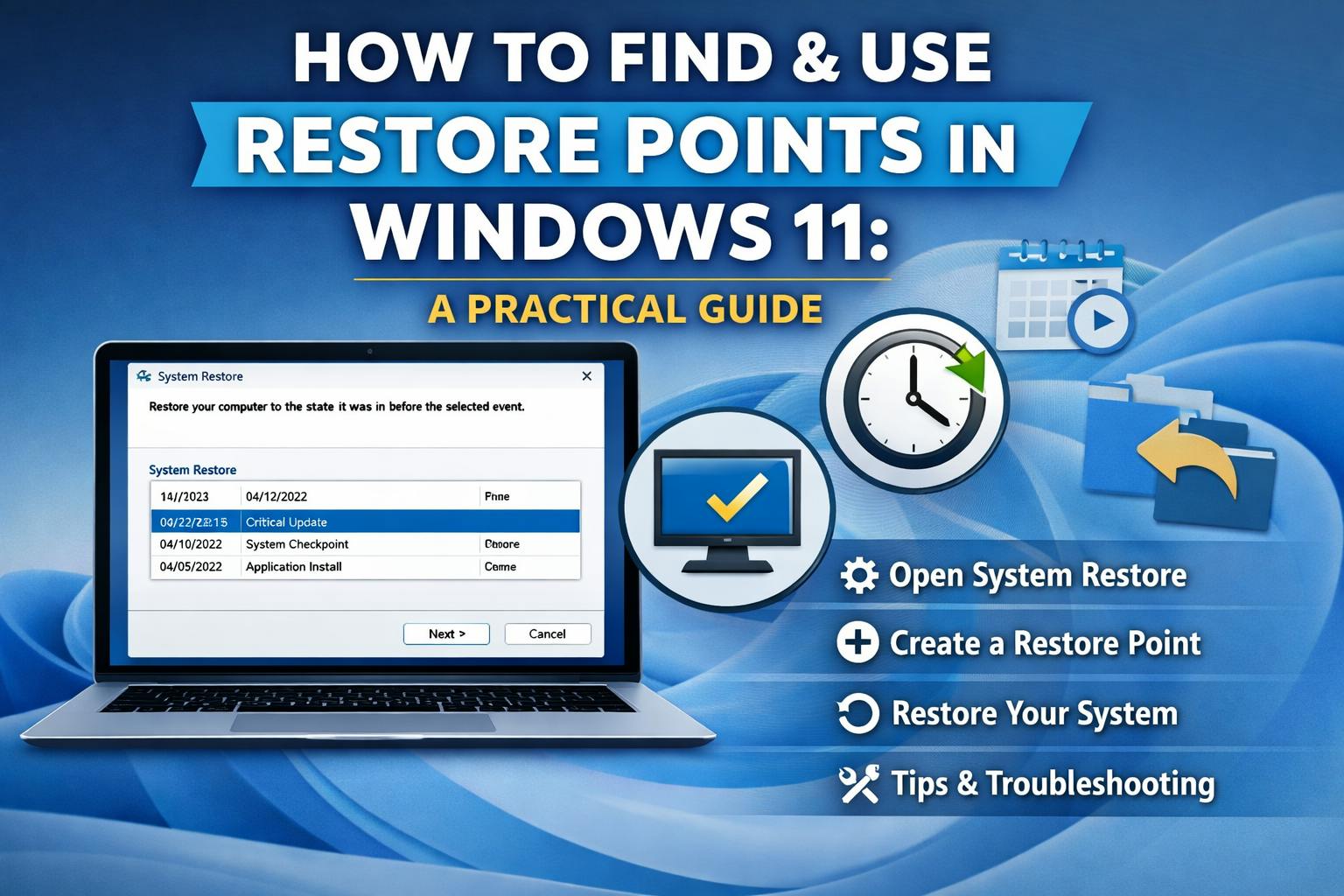
When Windows stops working properly after an update, a driver install, or a software tweak, one of the best ways to get back to a working system is a restore point. Restore points are snapshots of Windows system files, drivers, and registry settings. They don’t touch your personal files, but they let you rewind your system configuration to a moment that worked. That’s the core idea—and yes, you can create them yourself or let Windows create them automatically.
Below, I’ll walk you through what restore points do, how to create and apply them (step by step), when they help, and what to do if they don’t. No fluff—just what you need to fix problems fast.
About Restore Points
A restore point saves system-level state: Windows system files, installed program references, drivers, and registry settings. It won’t restore deleted documents or photos; it’s meant to recover system stability, not replace backups. Keep that in mind before you panic about “lost files.”
When restore points help (and when they don’t)
Use a restore point when:
- A recent driver install caused crashes or BSODs.
- A Windows update or patch broke functionality.
- A program install changed system behavior in a way you can’t easily undo.
They don’t help when:
- Your personal files were deleted (restore points aren’t file backups).
- The disk experienced a hardware failure or severe corruption… then System Restore may fail.
- You don’t have any restore points (or the ones you have are older than the retention window). The retention change to ~60 days makes this a real risk, so create manual points for critical systems.
Automatic vs Manual restore points
Windows will automatically create restore points for “significant” events (like certain updates or major installs), but its schedule is unpredictable. Because of this, and because Windows 11 now removes older restore points after a retention window, it’s smart to create manual restore points before you make big changes. As of recent updates, Windows 11 (24H2) keeps restore points for up to 60 days before it deletes the oldest ones… so don’t assume a month-old snapshot will still be there.
Quick checklist before you start
- Make sure System Protection is enabled for the system drive (usually C:). If it’s off, Windows will not create restore points.
- If disk space is low, Windows may refuse to keep restore points, so allocate a few GBs to System Protection or free up space.
How to Create a Restore Point
Creating a restore point manually is a pretty simple process and actually gives you control over the timing. Follow these steps:
- Press Win + R, type systempropertiesprotection.exe, and hit Enter. That opens System Properties → System Protection.
- Under Protection Settings, pick your system drive (C:) and click Configure…. If protection is off, choose Turn on system protection, set Max Usage (5–10 GB is reasonable), and Apply.
- Back in the System Protection tab, click Create…, give the point a helpful name (like “Before GPU driver install”), and wait. Windows will report success in a few moments.
That manual step buys you a reliable fallback the moment you need it.
Applying a Restore Point
When you need to use a restore point, for example, after an update or driver causes problems, Windows 11 provides tools to view and apply them. If Windows is still booting normally:
- Press Win + R, type rstrui.exe, and press Enter to launch System Restore.
- Click Next, pick a restore point (tick Show more restore points if you don’t see what you need), then Scan for affected programs to preview what will change.
- Confirm and click Finish. Windows will restart and apply the restore; the process rewinds system files/settings but leaves your personal files untouched.
If Windows won’t boot normally:
Boot into the Windows Recovery Environment (WinRE): Settings > System > Recovery > Advanced startup > Restart now, or hold Shift while you click Restart. Then choose Troubleshoot > Advanced options > System Restore and follow the prompts. This lets you apply a point even when the desktop won’t load at all.
Troubleshooting common restore problems
- No restore points listed: Ensure System Protection is on and that you’re looking at the right drive. If System Protection was off, you can’t recover with System Restore… move to other recovery options.
- Restore fails mid-way / won’t complete: Boot to WinRE and try a different point. If WinRE itself is broken, check Microsoft’s troubleshooting guidance and recent update notes. Microsoft has released fixes for some Recovery Environment issues in the past… keep Windows updated.
- System Restore completes, but the problem remains: Some issues, like those corrupted user profiles or disk errors, aren’t fixed by restore points. In that case, just consider system repair options. Just reset this PC, in-place upgrade, or maybe targeted file recovery if data is missing.
Fast and Safe Way to Recover Files
If even a System Restore can’t fix your problem and you have missing or maybe inaccessible files, a professional Windows data recovery tool is the practical next step. Professional data Recovery software supports recovery from NTFS/exFAT/FAT drives, offers a bootable recovery option for non-booting systems, and can work with encrypted or damaged volumes to try to retrieve documents, photos, and other files. Use it only after you’ve tried built-in recovery and don’t have a recent file backup.
Quick final plan you can use right now
- Before any major change: create a manual restore point.
- If something breaks: try System Restore from Windows (or WinRE if needed).
- If restore fails or files are missing: stop using the affected drive (to avoid overwriting recoverable data) and use a recovery tool or a professional service.
Conclusion
Restore points are your fastest, least-painful way back from a messy Windows update or driver screw-up. They’re not a replacement for regular backups, and after recent Windows changes, you’ll need to be proactive (manual points) to make sure you have a good snapshot to fall back on. If those snapshots fail you and files are at risk, a reliable recovery tool can be the last practical step before calling in a pro.


