I have been using my Samsung Galaxy A05s for over a year now, but it started hanging before it even turned one. At first, it seemed random and frustrating. I can see the app I want to open. I tap it, and nothing happens. So, I try again; still, it doesn’t move.
Sometimes, the phone is ringing, but the caller’s name doesn’t appear, and the screen remains unresponsive. It is impossible to pick up the call, and you’re just there, locked out of your unlocked device.
The more it happened, the more attention I paid to what was actually happening. After a few adjustments, the hanging significantly reduced and became manageable. Many users find themselves in a situation where their phones begin to exhibit the sluggish behaviour typically reserved for ageing hardware.
Once a user understands what happens inside an Android phone when it hangs, the issue can be easily fixed. If your Android phone hangs, here are the most likely reasons, and how to fix them.
Your storage is almost full
I didn’t need to check my file manager to know I was almost out of storage because it was constantly displayed on my phone’s notification panel. Android phones use storage for more than photos, videos, or apps. The system constantly creates temporary files, known as cache, to keep applications running smoothly.
When storage is nearly full, the phone struggles to generate these temporary files, and performance degrades. The symptoms of this degradation often show themselves in delayed app launches, keyboard lag, frozen screens, and failed background updates.
To solve this, go file manager to check available storage. If the remaining space is under 10% or 15%, that’s already a problem. Deleting unused apps or large video files, and clearing app cache can significantly improve responsiveness.
Clearing the cache removes temporary files that accumulate over time; it does not delete personal data. You don’t have to empty your phone. Freeing up space gives your phone’s operating system room to function properly.
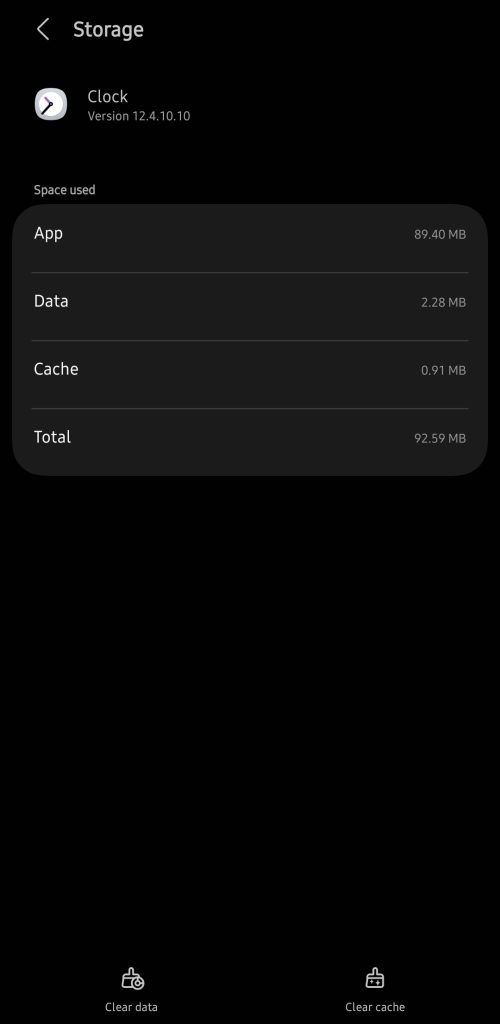
To clear the cache of an app:

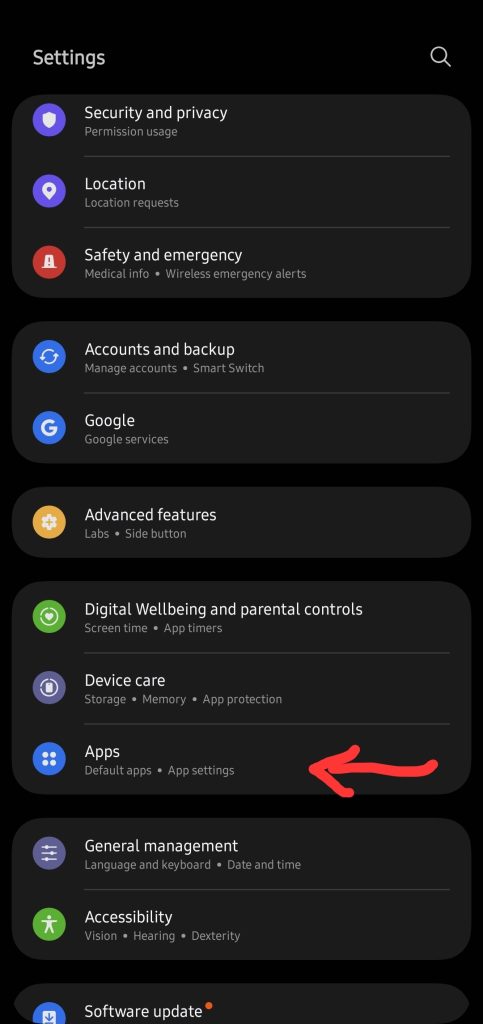
- Go to Settings
- Click ‘Apps’
- Select the specific app you want to clear its cache
- Click ‘Storage’ and then ‘Clear cache’

Your RAM is overloaded
An Android’s Random Access Memory (RAM) is the device’s working memory that holds active tasks. It temporarily holds active tasks so the processor can access them quickly.
Have you had a moment where you’re moving across multiple tabs on your browser, a notification from another app drops, someone calls while your music app is playing, maybe your email is syncing in the background, and your phone just pauses? It means your RAM is full because your phone is juggling all of that at once.
Devices with a 2GB or 3GB RAM may struggle under heavy multitasking in their app environment. When a high-priority task like an incoming call arrives while the processor is already strained by background applications, the user interface (UI) may fail to render.
To resolve this, close unused background apps or restrict background activity for non-essential apps and periodically restart your device. To restrict background activity:

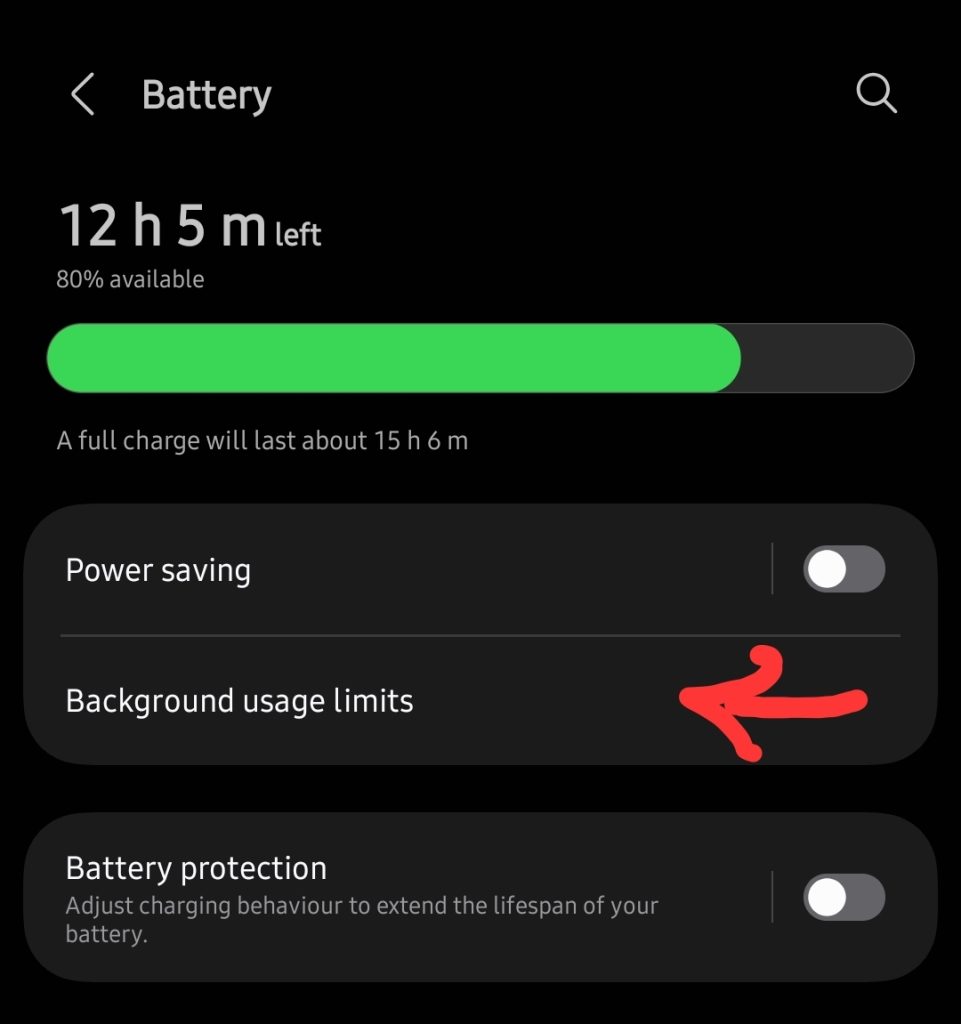
- Go to Settings
- Click on ‘Battery’
- Select ‘Background usage limits’
- Then select the non-essential apps on the list
Your phone is overheating
When a phone gets hot or warm from gaming, using it for a very long time or while charging, or sitting in direct sunlight, the processor slows itself down intentionally to protect the phone’s internal components from heat damage. On the outside, it may seem like your device is hanging because the screen reacts slowly and apps hesitate to open.
In many cases, the phone’s performance returns to normal once the temperature stabilises. To do this, avoid intensive use while charging or remove protective cases temporarily if the phone feels hot.
Your software is outdated
An outdated Android version can struggle with newer app updates because modern applications are built to optimise for recent system frameworks. Developers design apps that thrive on newer Android Application Programming Interfaces (APIs). So, if a device is running an older operating system, compatibility gaps can emerge. This can result in slower performance or unstable background processes. To update your software:
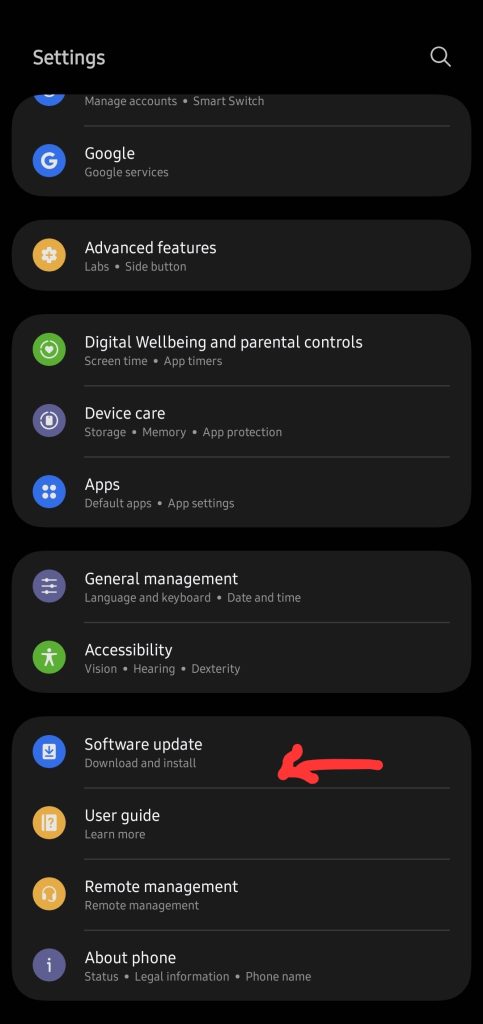
- Go to Settings
- Select ‘Software update’
- Click on ‘Download and install’
A hanging Android phone is not always a sign that the device has reached the end of its life. Before deciding that it is time to replace a phone, it is worth trying to optimise it for better performance.
In my case, the hanging didn’t completely stop; it only became less constant. An Android phone that appears to be hanging is overloaded, and in many cases, once that load is reduced, it usually cooperates again.