It’s frustrating when customers place orders in your online store that are too small to be profitable, or so large that they deplete your stock and create shipping nightmares.
Setting minimum and maximum order limits in WooCommerce solves this problem. It can help you keep your inventory under control, prevent overselling, and grow your business more effectively.
In this guide, I’ll show you three proven and easy ways to set these limits in WooCommerce, making sure every order works for your business without any complicated setups.
By the end, you’ll have a clear way to control orders, protect your inventory, and keep your store running smoothly, without any complicated setups.

💡Quick Answer: How to Set Minimum and Maximum Order Limits in WooCommerce
Here are the 3 easiest ways to set minimum and maximum order limits in WooCommerce:
Why Set Minimum or Maximum Order Amounts in WooCommerce?
Setting minimum or maximum order limits helps you stay in control of how customers place orders. It makes your online store more predictable and easier to manage.
Here are some key reasons why store owners use order limits:
- Avoid Losing Money on Small Orders: Very small orders may not cover shipping, payment fees, or handling costs. For example, if a customer orders just one $2 keychain, you might end up spending more on shipping than you earn.
- Encourage Customers to Buy More: A minimum limit can gently push customers to add more items to their cart.
- Manage Bulk or Wholesale Purchases: A maximum limit prevents a single customer from buying too much at once. For example, you can limit purchases to 50 units per customer to ensure other buyers also get stock.
- Protect Your Inventory: Limits help make sure your stock doesn’t run out too quickly.
- Improve Shipping Efficiency: Balanced order sizes make packing and shipping more cost-effective and easier to handle.
By setting clear order limits, you make life easier for both you and your customers. Inventory stays under control, shipping stays simple, and your store runs more smoothly.
Which Method Should You Use to Limit Orders in WooCommerce?
Before I dive into the step-by-step methods, you need to choose the right plugin for your store.
To make it easier, here’s a comparison showing which plugin works best depending on your store’s setup and needs:
| Method | Best For | Cost |
|---|---|---|
| Minimum & Maximum Quantity | Small to medium stores, simple product or category quantity limits, basic cart rules, beginners looking for a quick setup | Free |
| YITH WooCommerce Minimum Maximum Quantity | Stores needing advanced controls: per-product, per-category, per-tag limits, cart total restrictions, variable products, custom messages | $59.99/yr |
| Wholesale Prices + Wholesale Suite | B2B or wholesale stores, large bulk orders, customer-role specific rules, complex pricing and quantity setups | $99/yr |
Upon choosing the right tool, you can easily add minimum and maximum order limits to your store.
However, before I get into that, you need to have your WooCommerce store completely set up. If you haven’t done that yet, take a look at these guides to get started:
Now, let’s take a look at how to set minimum and maximum order limits in WooCommerce.
You can use the links below to jump to the method of your choice:
Method 1: Set Order Limits Using a Free WooCommerce Plugin
🥇Best for: Beginners who need basic min/max order limits without advanced rules.
If you’re just getting started or only need simple rules for your products and categories, this method is perfect.
For this method, I’ll be using the free Minimum and Maximum Quantity for WooCommerce plugin because it’s easy to set up, beginner-friendly, and doesn’t require any coding.

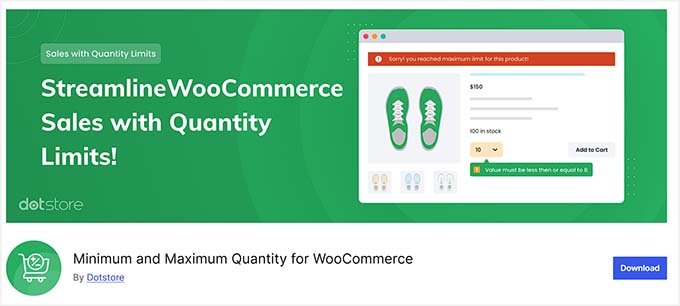
With this plugin, you can quickly control how many items a customer can buy, prevent overselling, and make sure every order meets your store’s needs — all without touching a single line of code.
Step 1: Install and Activate the Minimum and Maximum Quantity for WooCommerce Plugin
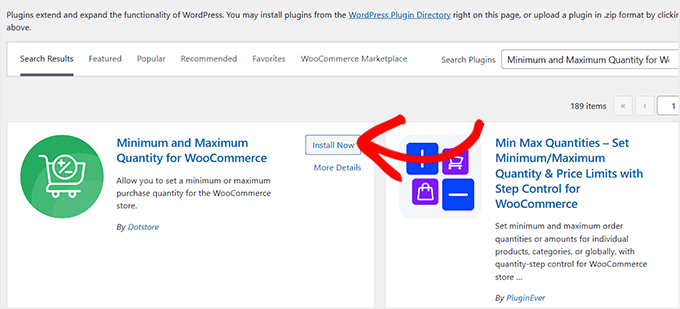
Installing this plugin is straightforward, even if you’re new to WordPress. First, go to your WordPress dashboard and navigate to Plugins » Add New.
In the search bar, type ‘Minimum and Maximum Quantity for WooCommerce‘. Look for the one made by Dotstore, then click ‘Install Now’ and ‘Activate.’
💡 Tip: Make sure you choose the correct plugin, as plugin names can sometimes be similar. Dotstore is the author you want to see to ensure you’re installing the right one.

If you’re new to WordPress plugins in general, see our guide to installing WordPress plugins. It walks you through the process, so you can feel confident adding plugins to your store.
Step 2: Configure Minimum and Maximum Order Limits
Once the plugin is activated, head over to the Dotstore » Min/Max Quantity page from your WordPress dashboard.
On this page, click the ‘Add New’ button to create your first rule.

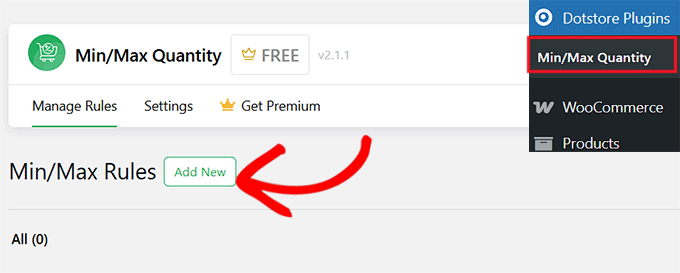
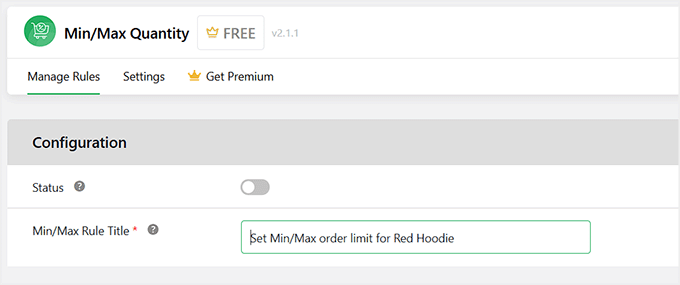
This will take you to a new screen where you can start by giving your rule a title.
It’s a good idea to use a name that helps you remember what the rule does, since this title is only visible to you.

Next, expand the ‘Advanced Rules’ section. This is where you decide which products or categories the rule should apply to.
From the first dropdown, you can choose a single product, a variable product (like a t-shirt with different sizes), or an entire category. Then type in the specific product, variation, or category you want to limit.

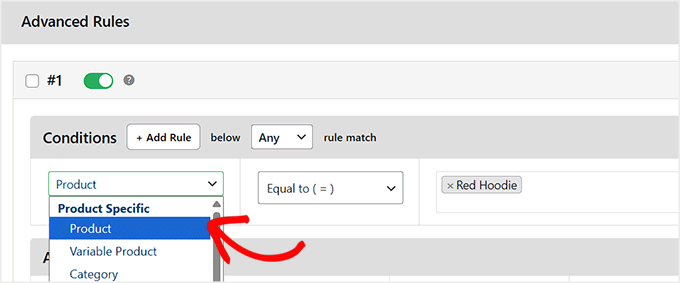
For example, if you want to limit the number of blue t-shirts a customer can buy, select ‘Variable Product’, then type ‘Blue T-Shirt.’
Or, if you want to set limits for all t-shirts in your store, select ‘Category’ and choose the ‘T-Shirts’ category.
This way, the plugin knows exactly where to apply your minimum and maximum order rules.
After setting the conditions, scroll down to the ‘Action’ section. In this section, you can enter the minimum and maximum quantity for the selected product or category.
Once that’s done, scroll back to the top and make sure the ‘Status’ toggle is switched on. It will turn green when active.

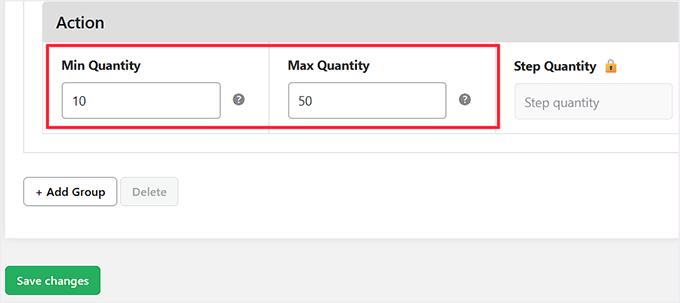
Finally, click the ‘Save Changes’ button to store your settings.
Step 3: Test Your Minimum and Maximum Limits
After setting your rule, go to your WooCommerce store and open the product page where you just added the order limit.
You will notice that the minimum order quantity is now shown by default next to the ‘Add to Cart’ button. Customers can increase the quantity up to the maximum limit you set, but they will not be able to add more than that.

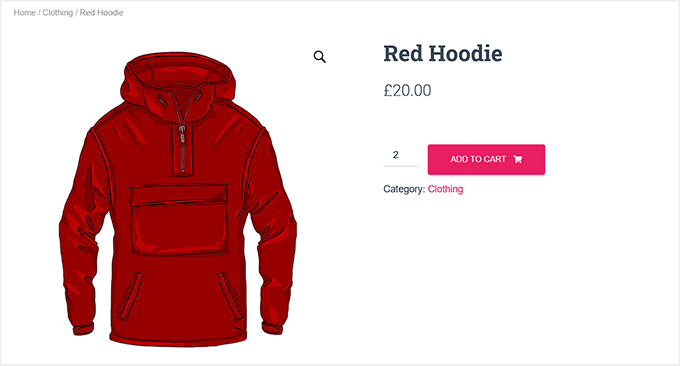
For instance, if you set a minimum of 2 and a maximum of 5 for a red hoodie, a customer must buy at least 2, and they won’t be able to add more than 5 to their cart.
This ensures that your stock is protected, and orders are consistent with your store rules.
Method 2: Set Order Limits for Specific Products or Categories with YITH (Advanced Control)
🥈Best for: Stores that need more control, like setting different rules for global/individual products, categories, or tags, or managing variable product quantities.
If your store has products with varied pricing, high-demand items, or you want to apply different rules to different products, then you’ll want to use YITH WooCommerce Minimum Maximum Quantity.
This plugin gives you flexible control over both global and specific restrictions. You can set minimum and maximum quantities, limit spend amounts, or even apply rules only to certain categories or tags.

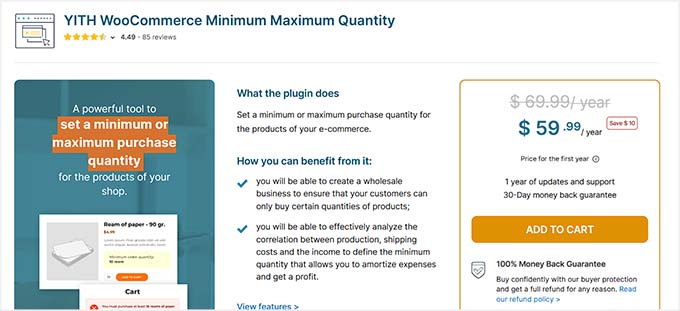
I tested it thoroughly and found it best for WooCommerce stores that need detailed control without any coding.
It’s slightly more advanced than the free plugin, but it’s still very manageable for beginners if you follow the steps carefully.
This way, you can make sure customers buy the right quantities, protect your stock, and avoid overselling, all while keeping the process smooth for your shoppers.
Step 1: Install and Activate the YITH WooCommerce Minimum Maximum Quantity Plugin
First, you need to purchase the YITH WooCommerce Minimum and Maximum Quantity plugin, as it does not have a free version.
Before buying, you can try out the plugin demo to see if it’s the right tool for your store.
Once you purchase the plugin, download the installation file and upload it to your WordPress site. Then, install and activate it like any other WordPress plugin.
If you’re not familiar with installing a purchased plugin, check out our tutorial on how to install a WordPress plugin.
Step 2: Set Global Product, Category, and Tag Restrictions
After activating the plugin, go to the YITH » Minimum Maximum Quantity page from your WordPress dashboard. This is where you can configure order limits that apply across your store.
It’s best to start with global restrictions first. This makes it easier to control quantities without creating separate rules for each product right away.
In the ‘Cart Restrictions’ section, you can set a minimum and maximum number of items for the entire cart. For example, I find it helpful to set a minimum of 10 items and a maximum of 50.

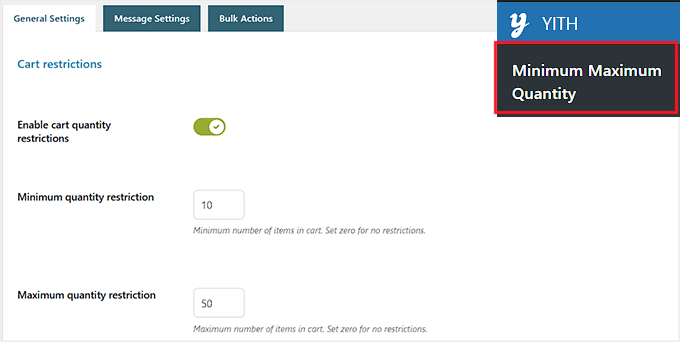
You can also force customers to buy in groups, like only in multiples of 6, which is handy for bulk products.
You can enable cart spend restrictions too, setting minimum or maximum cart totals to guide customer spending. This works well for free shipping thresholds or special offers.

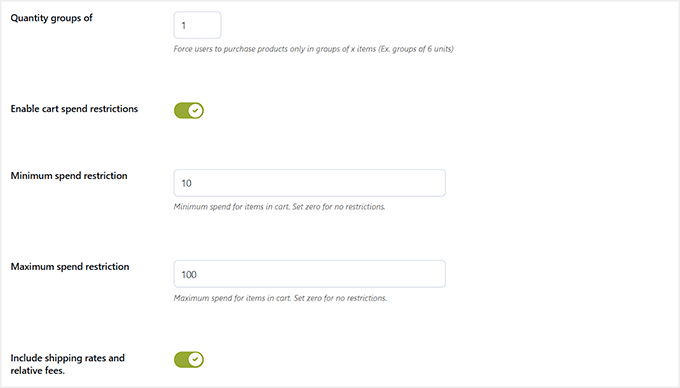
Next, the ‘Product Restrictions’ section lets you control global limits for all products in your store. This section is ideal if you want a simple way to enforce minimum and maximum quantities for every product.
For example, you could set a minimum of 4 and a maximum of 40 units per product.
You can also choose to calculate variable product quantities as the sum of all variations (like sizes or colors), or set specific rules for each variation if needed.
From my experience, the ‘sum’ option is much simpler for customers.
For example, say your minimum is 5 t-shirts. The ‘sum’ option lets a customer buy 3 red shirts and 2 blue shirts to reach that minimum. They won’t be forced to buy 5 of the exact same color.

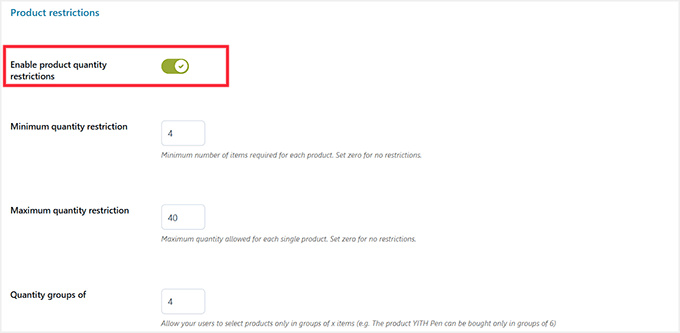
The ‘Category Restrictions’ section allows you to apply limits to entire categories. This is useful for product lines that need extra control, like high-demand items or seasonal products.
You can set minimum and maximum quantities, enforce group purchases, and even set spending limits for the category.

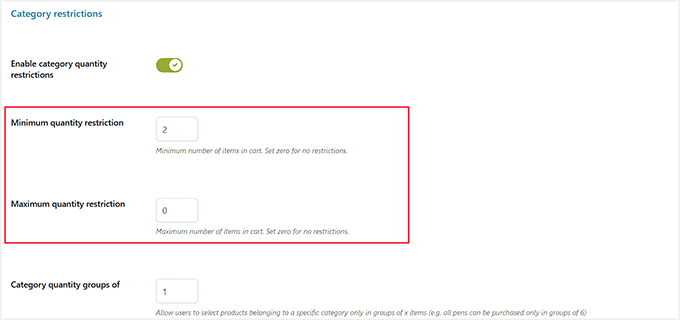
Finally, the ‘Tag Restrictions’ section lets you control products by their tags. Tag restrictions are useful when you want to target smaller subsets of products without affecting the entire store or category.
For instance, you could require a minimum of 4 items for products tagged “Small” or set a maximum spend for that tag.

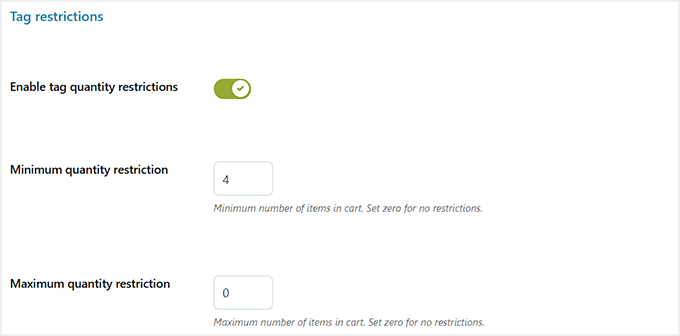
When you are satisfied with your choices, just click the ‘Save Options’ button.
Step 3: Create Rules for Specific Products, Categories, or Tags
If you want to create order limit rules for a specific product, category, or tags, switch to the ‘Bulk Actions’ tab at the top and click the ‘Add Rule’ button.
Expert Tip: You can use the ‘Bulk Actions’ feature to temporarily override your global rules during a sale. For example, you could create a rule to remove the minimum quantity for a specific category during Black Friday to encourage more sales, then disable the rule afterward.

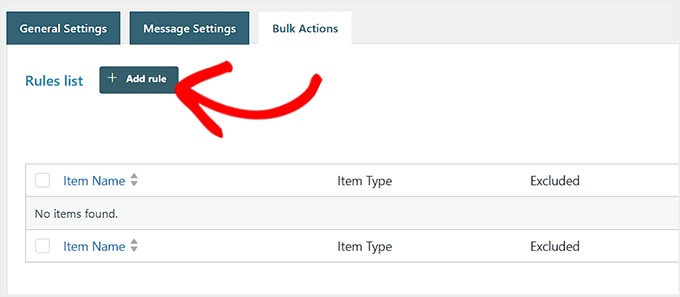
This will take you to a new screen where you can start by selecting the item type: product, category, or tag.
Then choose the specific items you want to apply the rule to.
Once you do that, you can toggle the ‘Exclude’ switch to ‘On’. Use this if you want certain products to ignore global restrictions.
For example, if you have a global minimum limit of 5 items, but you are trying to clear out leftover clearance stock. You can ‘Exclude’ those clearance items so customers can buy just 1 without triggering an error.
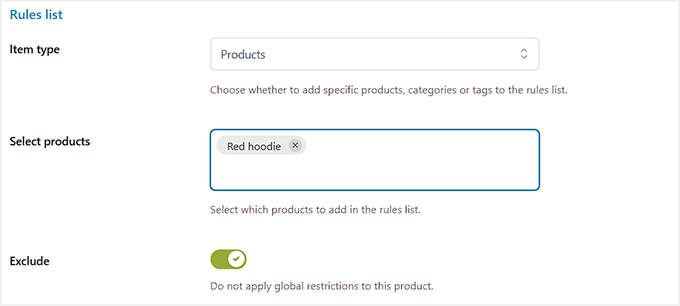
Next, you can toggle the ‘Override Quantity Restrictions’ switch. This allows you to set custom minimum and maximum quantities for the selected item, replacing any global limits.
It’s important to set these thoughtfully—for example, a minimum of 2 and a maximum of 10 for a high-demand product.
You can also set quantity groups, which forces customers to buy items in multiples (like groups of 6), which helps with bulk orders or stock management.

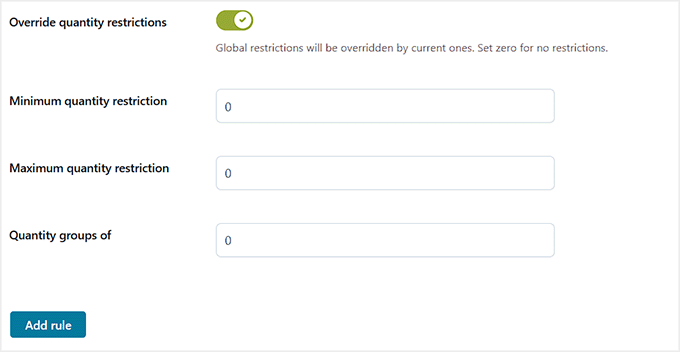
Once you’ve configured your rules, click the ‘Add Rule’ button to save them.
Step 4: Test Your Order Limits on the Store
Now, visit your WooCommerce store to see your order limits in action. On the product pages, you’ll notice that the minimum order quantity is already displayed by default next to the ‘Add to Cart’ button.
When a customer tries to add a quantity that is lower than the minimum or higher than the maximum, the YITH plugin will show a clear message informing them about the limit.
They won’t be able to add the item to the cart until the quantity is within the allowed range.

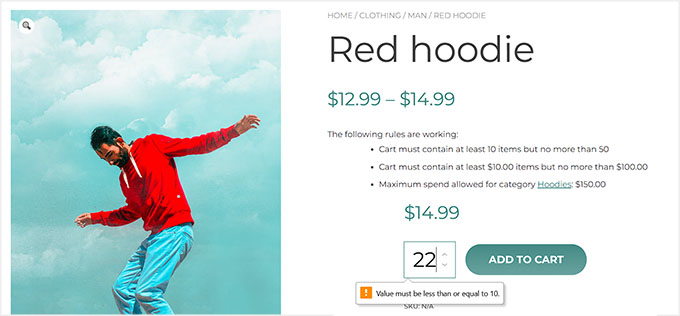
In addition, the plugin also shows a list of any and all global restrictions that apply to the product or category. This helps both you and your customers understand which rules are currently active.
Method 3: Set Wholesale Minimum Order Amounts (For B2B Stores)
🥉Best for: Wholesale or B2B stores that need different rules for different customers and want to enforce minimum order amounts.
If your store sells to wholesale customers, the Wholesale Prices plugin is a strong choice. This tool is part of the Wholesale Suite but can also be purchased separately.
It lets you set custom pricing, minimum order amounts, and role-based rules for your wholesale clients. These clients receive wholesale pricing only after they reach the required minimum.
Keep in mind, the free base plugin is required to run the premium version, which unlocks all the features you’ll need for order limits and B2B pricing.
Think of the free plugin as the engine, and the premium plugin as an upgrade that unlocks the minimum and maximum order controls.
This plugin works best if you plan to build a complete B2B store, not just add a single order limit. It handles customer-specific minimums, bulk orders, and tiered pricing rules easily, and I’ve found it much easier than manually managing wholesale orders.
You can also take a look at our Wholesale Suite review, which goes into detail on its features and how it performs in real stores.
Step 1: Install and Activate Wholesale Prices Plugin
First, you’ll need to purchase the premium Wholesale Prices plugin from the website, as the free version has the main features locked.
Next, go to your WordPress dashboard and install the free Wholesale Suite plugin, which acts as the base for the premium version. After that, install and activate the premium Wholesale Prices plugin.
For details, see our guide on how to install WordPress plugins.
Once activated, head over to the Wholesale » License page in your dashboard and enter your license key and purchase email.

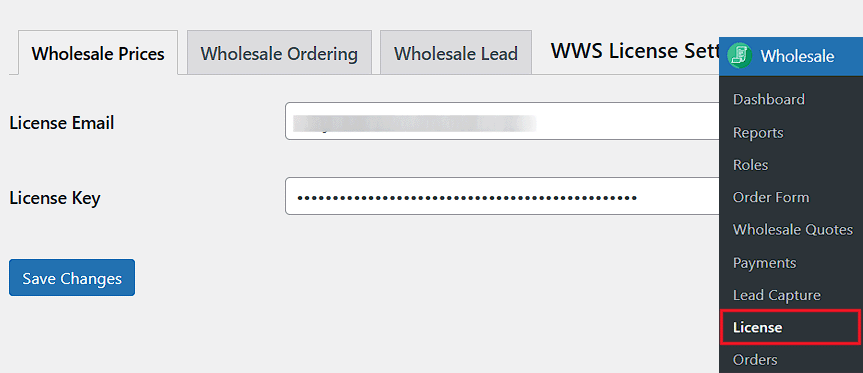
This will unlock all the premium features so you can start setting wholesale pricing and minimum order amounts.
Step 2: Configure Global Wholesale Order Requirements
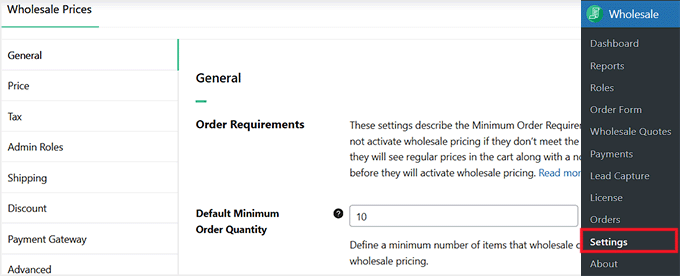
Upon activation, go to the Wholesale » Settings » General page in your WordPress dashboard. This is where you set the global order requirements.
This means wholesale customers cannot access wholesale pricing until they meet your minimum rules.
If the requirements are not met, customers will see regular prices in their cart, along with a notice telling them how much more they need to add before wholesale pricing applies.
You can set a ‘Default Minimum Order Quantity’, which is the minimum number of items a wholesale customer must have in their cart.
For example, if you set this to 10, someone with only 5 items will still pay the regular price. Start with a number that reflects your typical bulk order size and adjusting later if needed.

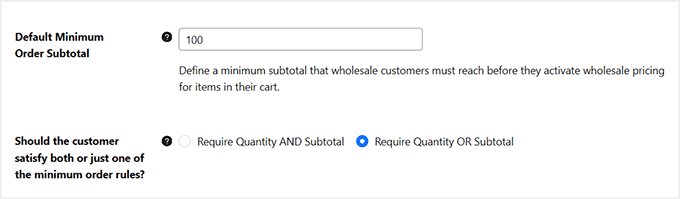
The ‘Default Minimum Order Subtotal’ defines the minimum cart value required for wholesale pricing. For instance, you could set a subtotal of $100 before discounts apply.
Set this thoughtfully so that small orders still pay full price while encouraging larger purchases.
You also decide whether customers must meet both the quantity and subtotal rules, or just one. Using AND means a customer must buy at least 10 items AND spend at least $100 to get the discount.
Using OR means they get the discount if they do either one—buy 10 items OR spend $100.
In my experience, most stores prefer AND, but it depends on your business model.
Expert Tip: Be careful when choosing between ‘AND’ and ‘OR’ for your wholesale rules. A common mistake is using ‘OR’, which can give discounts to customers who only meet one condition (e.g., they spend enough but only buy one item). For most stores, ‘AND’ is the safer choice to ensure both quantity and value thresholds are met.

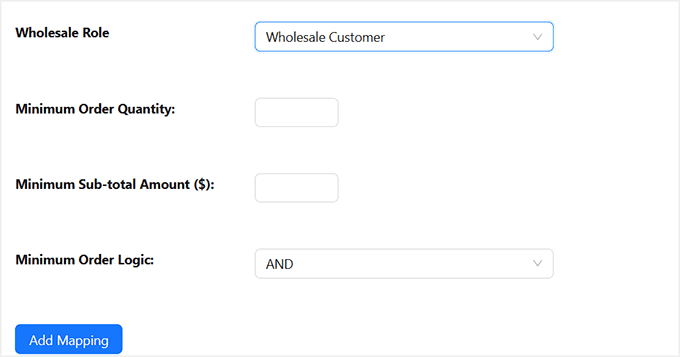
Finally, the ‘Wholesale Role Specific Minimum Requirements’ let you override global rules for specific customer roles.
For example, you might require ‘Retailer’ customers to order at least 10 items, while ‘Distributor’ customers need 50.
Only override roles that need special rules. All other roles will follow the default global settings. Then, click ‘Add Mapping.’
Once you’ve set everything, click ‘Save Changes’ to store your settings.

Step 3: Set Minimum Order Quantities for Specific Products
The global rules you set in Step 2 apply to all products in your B2B store. However, if you want to set a minimum order quantity for a specific product, you’ll need to edit that product in WooCommerce.
Open the product editor and scroll down to the ‘Product Data’ section. Here, you can first set a wholesale price for the product if you haven’t already.
This price will only be visible to wholesale customers who meet the minimum order requirements.

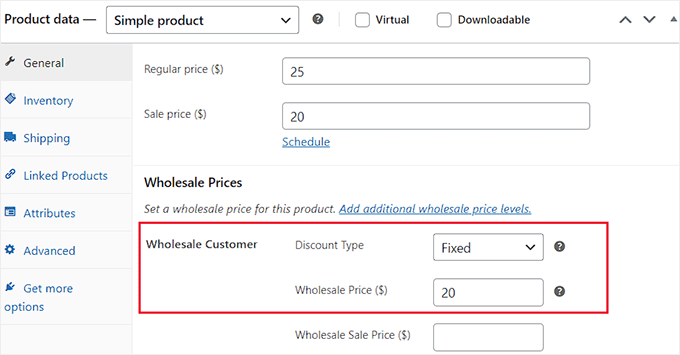
Next, set a ‘Wholesale Minimum Order Quantity’ for that specific product. Once you save this, it overrides the global rules for this product.
For example, you might have a global minimum of 10 items per order, but for a high-demand product like a limited-edition item, you might want to set a minimum of 20 units.
This ensures customers purchase enough to make it worth offering wholesale pricing, while still letting smaller or less popular items follow the standard rules.

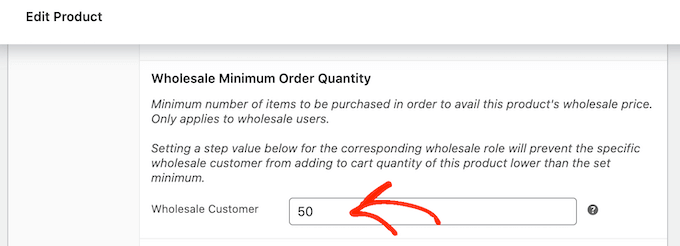
Once you’ve done that, simply click ‘Publish’ or ‘Update’ to save your changes.
Step 4: See Wholesale Minimums in Action
Now, when a customer visits your store, they will initially see the regular product price. Wholesale pricing won’t appear until they meet the minimum order requirements you set.
Once a wholesale customer adds the minimum required quantity to their cart, the wholesale price automatically activates.
If they try to add fewer items than the minimum, the plugin will display the regular pricing again.

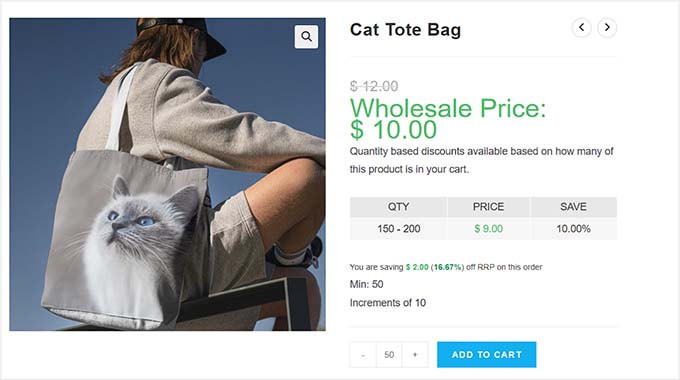
From my experience, this makes it very clear to customers how much they need to order, preventing confusion and ensuring that wholesale discounts only apply to bulk purchases.
💡Pro Tip: Test Your Order Limits
Once you’ve set up your order limits, I highly recommend to test them before going live.
Open an Incognito or Private browsing window so you view your site exactly as a regular customer would.
Add products to your cart and try adding fewer items than the minimum or more than the maximum.
Check that the plugin shows the correct message and properly prevents checkout (or removes discounts) if limits aren’t met.
This simple test ensures your rules are working as expected, avoids customer confusion, and helps your store run smoothly from day one.
Bonus Tips to Use Minimum Order Amounts Without Losing Sales
Setting minimum order amounts is great for controlling inventory and improving efficiency, but if done incorrectly, it can frustrate customers.
Here are some tips I’ve found helpful for making it work without losing sales:
- Clearly Show Minimum Amounts on Product and Cart Pages: Let customers see the minimum quantity or subtotal right where they’re shopping. I suggest adding a small note near the ‘Add to Cart’ button so there are no surprises at checkout.
- Offer Free Shipping Above the Minimum: If a customer meets the minimum order requirement, consider giving free shipping as an incentive. This encourages them to meet the limit and makes the purchase feel rewarding.
- Explain Why the Minimum Exists: A short note like ‘Minimum order required to ensure fast shipping‘ or ‘Wholesale orders require a minimum quantity‘ helps customers understand the reasoning. I’ve found this reduces frustration and questions from buyers.
- Avoid Setting the Minimum too High: If your minimum is unrealistic, customers may leave without purchasing. Start with a reasonable threshold and adjust it based on your typical order sizes and customer behavior.
Following these tips ensures your minimum order rules help your store rather than hurt it ans gives customers a clear, fair, and easy shopping experience.
Frequently Asked Questions About WooCommerce Order Amount Limits
Here are the answers to some common questions about setting minimum and maximum order limits in WooCommerce.
Can I set minimum order amount in WooCommerce without a plugin?
No, WooCommerce doesn’t support setting a minimum order amount by default. To add this functionality, you’ll need a plugin like the free Minimum and Maximum Quantity For WooCommerce plugin, YITH WooCommerce Minimum Maximum Quantity, or Wholesale Prices.
What happens if a customer doesn’t meet the minimum order threshold in WooCommerce?
They won’t be able to complete checkout. The plugin you are using will show an error message informing the customer that they need to meet the minimum order requirements before purchasing.
Can I set different limits for different WooCommerce products?
Yes, you can set product-specific limits using plugins like YITH WooCommerce Minimum Maximum Quantity or the Wholesale Prices plugin. This allows you to apply different minimum or maximum rules for individual products, categories, or tags.
Will setting minimum and maximum order limits in WooCommerce affect my sales?
It might reduce very small orders, but it can increase your average order value and help prevent losses from low-value or bulk orders, making your store more profitable.
Can I set a maximum order limit in WooCommerce?
Yes, most plugins let you define a maximum order quantity or subtotal. This prevents overselling and ensures you keep control of your inventory and stock levels.
How do minimum order limits work with variable products (like different sizes or colors)?
It depends on the plugin. Advanced plugins like YITH WooCommerce Minimum Maximum Quantity let you choose whether to sum up all variations to meet the minimum or apply rules to each variation individually. For example, you can require a customer to buy 5 t-shirts in total, regardless of size or color.
What’s the best way to set a minimum order value (e.g., $50 minimum) instead of quantity?
For minimum order values, you’ll need a premium plugin. Both YITH WooCommerce Minimum Maximum Quantity and Wholesale Prices allow you to set minimum cart subtotals. The free plugin mentioned in this guide focuses only on minimum quantities, not the total price.
I hope this article helped you learn how to set minimum and maximum WooCommerce order limits. You may also want to see our guide on setting up dynamic pricing in WooCommerce and our proven tips to increase your WooCommerce sales.
If you liked this article, then please subscribe to our YouTube Channel for WordPress video tutorials. You can also find us on Twitter and Facebook.