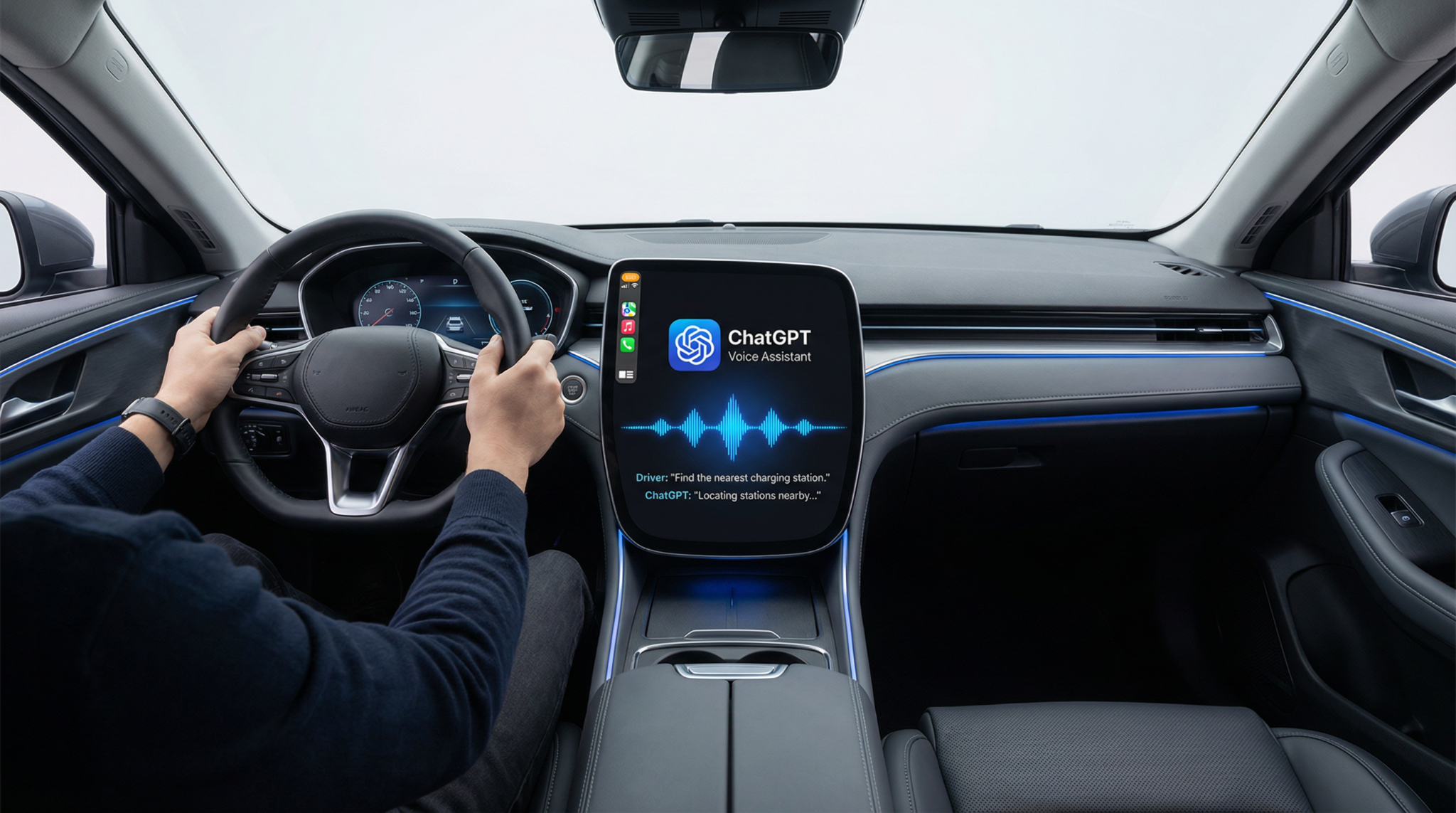
As of April 2026, Apple CarPlay users can now access the powerful conversational AI capabilities of ChatGPT right from their vehicle’s dashboard. Integrating ChatGPT Voice into Apple CarPlay marks a significant advancement in in-car digital assistance, enabling drivers to interact with an AI assistant that understands complex queries and offers nuanced responses beyond traditional voice assistants.
This tutorial, authored by Markos Symeonides, provides a detailed, practical guide to setting up and utilizing ChatGPT Voice in Apple CarPlay. We cover system requirements, step-by-step setup, activation, real-world use cases, tips for maximizing response quality, safety considerations, and troubleshooting.
Understanding ChatGPT Voice Integration with Apple CarPlay
Apple CarPlay has long provided voice assistant functionality through Siri, but the addition of ChatGPT Voice introduces a next-generation conversational AI that excels in contextual understanding, multi-turn dialogue, and creative assistance. ChatGPT Voice leverages OpenAI’s latest language model optimized for real-time voice interaction, allowing drivers to engage in complex tasks hands-free with greater ease.
ChatGPT Voice requires iOS 26.4 or later and the latest ChatGPT app downloaded from the App Store. Unlike Siri, ChatGPT can handle extended conversations, nuanced requests, and can assist with brainstorming or composing emails in a more human-like manner, making it a valuable tool for professionals and casual users alike while on the road.
System Requirements and Initial Setup
What You Need Before Getting Started
- Compatible iPhone: iPhone model running iOS 26.4 or higher
- Latest ChatGPT App: Download the latest version of the ChatGPT app from the Apple App Store
- Apple CarPlay-enabled Vehicle: Your car must support Apple CarPlay with either a wired or wireless connection
- Stable Internet Connection: ChatGPT Voice requires an active internet connection for processing queries
Ensure your iPhone is updated by navigating to Settings > General > Software Update. After updating to iOS 26.4 or later, download or update the ChatGPT app to the latest version.
Step-by-Step Setup Process
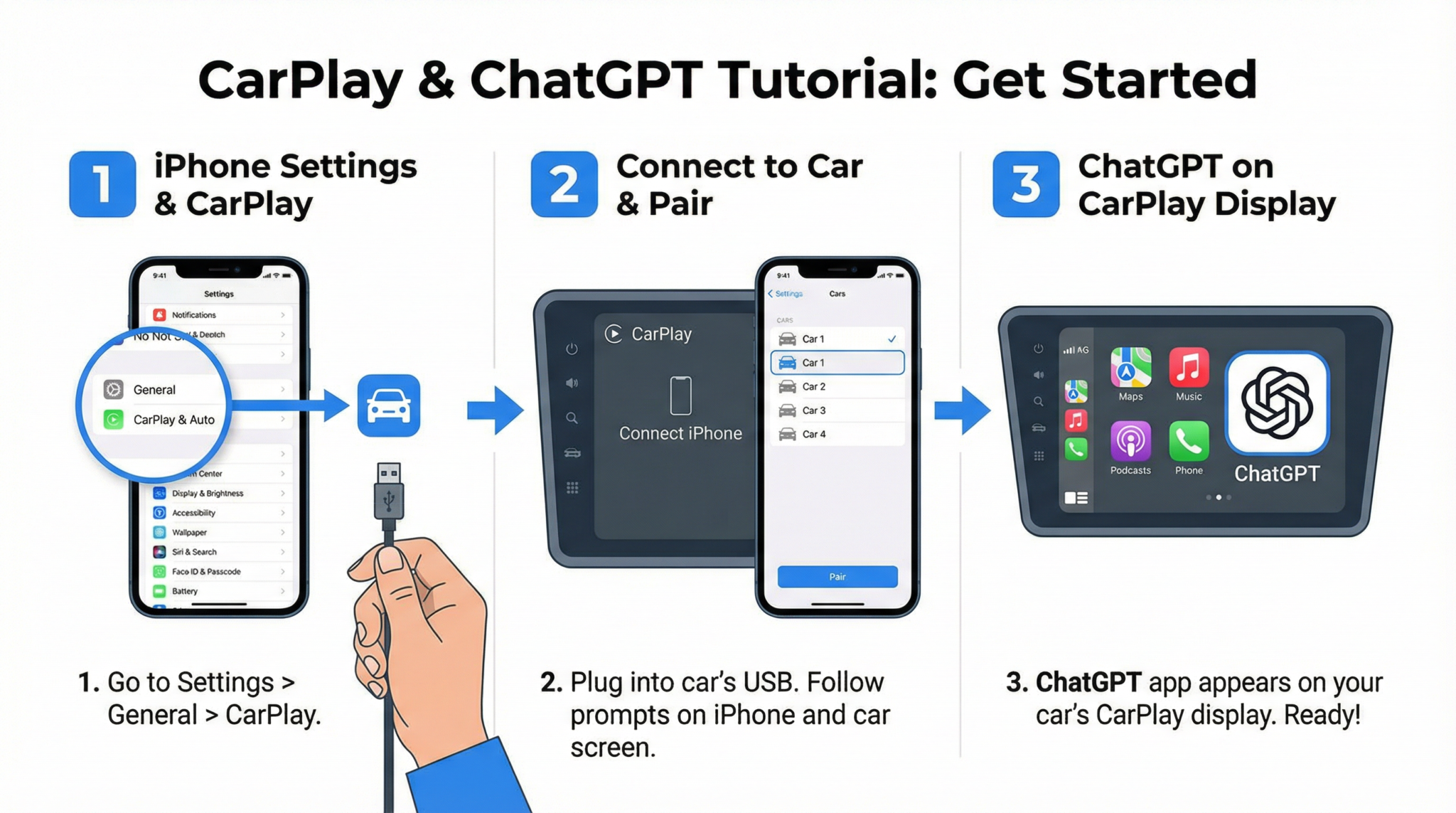
- Connect Your iPhone to Apple CarPlay: Use a USB cable or connect wirelessly according to your vehicle manufacturer’s instructions.
- Open the ChatGPT App on Your iPhone: Launch the app to ensure it’s properly installed and logged in with your OpenAI account.
- Enable ChatGPT Voice in CarPlay: On your iPhone, go to Settings > General > CarPlay, select your vehicle, then enable ChatGPT from the list of available apps.
- Configure Voice Activation: Within the ChatGPT app, navigate to Settings > Voice > CarPlay Voice Activation, and toggle it on. You may set a custom wake phrase or use the default “Hey ChatGPT.”
- Grant Microphone Access: Confirm that ChatGPT has permission to use the microphone while in CarPlay mode for seamless voice interaction.
- Test the Setup: Start your car, connect to CarPlay, and say your wake phrase. The ChatGPT interface should launch on the CarPlay screen, ready to respond.
Once these steps are complete, you are ready to begin hands-free conversations with ChatGPT Voice while driving.
Activating and Using ChatGPT Voice Commands While Driving
How to Activate ChatGPT Voice
With the feature enabled, activate ChatGPT Voice by saying your chosen wake phrase such as “Hey ChatGPT.” Alternatively, you can press the dedicated ChatGPT icon on your CarPlay home screen or use the physical voice button on your steering wheel if configured to work with CarPlay voice assistants.
Using Voice Commands Effectively
- Initiate Conversations: Use natural language commands like “Hey ChatGPT, what’s the fastest route to downtown?” or “Hey ChatGPT, draft an email to my manager about tomorrow’s meeting.”
- Multi-turn Dialogues: ChatGPT supports follow-up questions without requiring you to repeat context. For example, “What’s the weather like there?” after asking for a destination’s route.
- Confirmation and Clarification: If ChatGPT is unsure, it will ask clarifying questions to ensure accuracy before executing tasks.
- Interrupt and Cancel: You can interrupt ChatGPT at any time by pressing the voice button or saying “Cancel” to stop the current command.
Practical Use Cases for ChatGPT Voice in Apple CarPlay
ChatGPT Voice enhances driving productivity and convenience across several scenarios:
- Navigation Assistance: Ask for directions, traffic updates, alternate routes, or nearby points of interest. Example: “Find the nearest EV charging station with available spots.”
- Email Dictation and Management: Compose, send, or reply to emails hands-free. ChatGPT can help draft professional or casual messages by voice dictation, saving time while on the go.
- Scheduling and Reminders: Quickly add calendar events or reminders. For instance, “Schedule a call with John tomorrow at 3 PM” will create the event on your synced calendar.
- Brainstorming and Information Retrieval: Get quick explanations, creative ideas, or fact-checking without diverting attention from driving. Example: “Summarize the latest news about electric vehicles.”
These capabilities make ChatGPT Voice a versatile co-pilot for both daily commutes and long trips.

Tips for Optimizing Your ChatGPT Voice Experience While Driving
- Speak Clearly and Concisely: Clear enunciation helps improve transcription accuracy and response relevance.
- Use Specific Commands: Precise instructions reduce ambiguity and decrease the likelihood of errors or hallucinations.
- Limit Multi-Tasking Queries: While ChatGPT can handle complex dialogues, breaking down tasks into smaller queries enhances reliability.
- Update Regularly: Keep both iOS and the ChatGPT app updated to benefit from the latest improvements and bug fixes.
- Confirm Critical Actions: Always verify important tasks such as sending emails or scheduling calendar events before finalizing.
Known Limitations and Hallucination Issues
Though ChatGPT Voice offers advanced conversational AI, users have reported occasional inaccuracies or hallucinations, where the assistant provides plausible but incorrect information. This is especially notable in areas requiring real-time or highly specialized data such as traffic conditions or legal advice.
OpenAI continues to refine models to minimize these issues, but it is recommended that drivers treat ChatGPT as an assistant, not an authoritative source, and cross-check critical information when safe.
Safety Considerations for Using AI While Driving
Using AI assistants like ChatGPT Voice in the car can enhance convenience but also poses risks if not managed responsibly.
- Hands-Free Operation: Always use voice commands to avoid distraction from manual device interaction.
- Minimize Cognitive Load: Avoid lengthy or complex interactions that might divert your attention from driving.
- Pull Over for Complex Tasks: If a task requires detailed attention or multiple steps, it is safer to stop the vehicle first.
- Follow Local Regulations: Ensure compliance with regional laws regarding mobile device use while driving.
Compared to Siri, ChatGPT Voice offers more robust conversational capabilities but may require more cognitive engagement. Drivers should balance usage with safety priorities at all times.
ChatGPT Voice Versus Siri in Apple CarPlay
While Siri remains the default voice assistant integrated deeply with iOS and CarPlay, ChatGPT Voice introduces several enhancements:
- Advanced Conversational Abilities: ChatGPT can handle multi-turn dialogues and generate more context-aware and creative responses.
- Broader Knowledge Base: ChatGPT’s language model has access to a wider range of general knowledge and creative content generation.
- Customization: Users can set custom wake phrases and tailor interactions within the ChatGPT app.
- Limitations: Siri benefits from tighter integration with iOS system functions and offline capabilities, whereas ChatGPT relies on internet connectivity and may sometimes hallucinate inaccurate data.
For drivers seeking richer conversational AI and assistance beyond simple commands, ChatGPT Voice offers a compelling alternative. However, Siri remains preferable for tightly integrated system controls and offline reliability.
Privacy and Data Handling Considerations
ChatGPT Voice processes voice inputs through cloud servers to generate responses, which raises important privacy implications. OpenAI follows stringent data security protocols, including encryption and user data anonymization, but users should be aware that:
- Voice interactions are transmitted over the internet for processing
- Some data may be used to improve AI models, subject to user consent
- Users can manage data sharing preferences within the ChatGPT app settings
Apple’s CarPlay also enforces privacy safeguards by controlling app permissions and data access. Users concerned about sensitive information should review privacy policies and adjust settings accordingly.
Troubleshooting Common Issues
ChatGPT Voice Not Appearing in CarPlay
- Verify your iPhone is running iOS 26.4 or later
- Confirm the latest ChatGPT app is installed and logged in
- Check CarPlay settings under Settings > General > CarPlay to ensure ChatGPT is enabled
- Restart your iPhone and vehicle system
Voice Commands Not Recognized
- Ensure microphone access is granted for ChatGPT in iPhone privacy settings
- Speak clearly and reduce background noise
- Test the microphone with other voice apps to isolate hardware issues
Inaccurate or Hallucinated Responses
- Rephrase queries for greater specificity
- Limit queries to factual or straightforward information
- Report persistent issues to OpenAI support for model improvement
Connectivity Problems
- Ensure stable cellular or Wi-Fi connection
- Toggle airplane mode on/off to reset network
- Switch between wired and wireless CarPlay connection if possible
For deep troubleshooting, consult the ChatGPT app support and Apple CarPlay help documentation. Additionally, ChatGPT App Troubleshooting Guide offers detailed solutions for common connectivity and voice recognition challenges.
Access 40,000+ AI Prompts for ChatGPT, Claude & Codex — Free!
Subscribe to get instant access to our complete Notion Prompt Library — the largest curated collection of prompts for ChatGPT, Claude, OpenAI Codex, and other leading AI models. Optimized for real-world workflows across coding, research, content creation, and business.
Access Free Prompt Library
Conclusion
The integration of ChatGPT Voice in Apple CarPlay as of April 2026 represents a transformative step in automotive AI assistance. By following the setup steps outlined above and utilizing best practices for voice commands while driving, users can harness the power of conversational AI to enhance navigation, communication, scheduling, and ideation on the road.
While limitations such as occasional hallucinations and connectivity dependence remain, ongoing improvements by OpenAI promise to refine the experience further. By balancing innovative AI assistance with responsible safety practices, ChatGPT Voice can significantly upgrade the in-car user experience.
For readers interested in expanding their knowledge, Advanced ChatGPT Voice Command Techniques dives deeper into maximizing ChatGPT’s capabilities, while Apple CarPlay Integration Features explores additional apps and services enhancing the CarPlay ecosystem.