Claude has gotten one step closer to becoming a true all-round AI personal assistant thanks to a new feature that lets you interact with tools like Asana, Slack and Canva directly in your chat.This newly announced feature is available to everyone on web and desktop with Pro, Max, Team, or Enterprise plans.
Whether you’re managing projects in Asana, sending team updates through Slack, or prototyping app interfaces, you can prompt these tools directly in Claude. They appear inside the chat, letting you view, edit, and iterate in real time. For ChatGPT users, this works like using tools from ChatGPT’s app store.
If you’re ready to start interacting with tools using prompts in Claude, this is exactly what you need to do.
1. Sign in
Visit Claude’s website to sign in to your account. Do keep in mind you’ll need a paid subscription to use the interactive apps feature.
2. Connect your apps
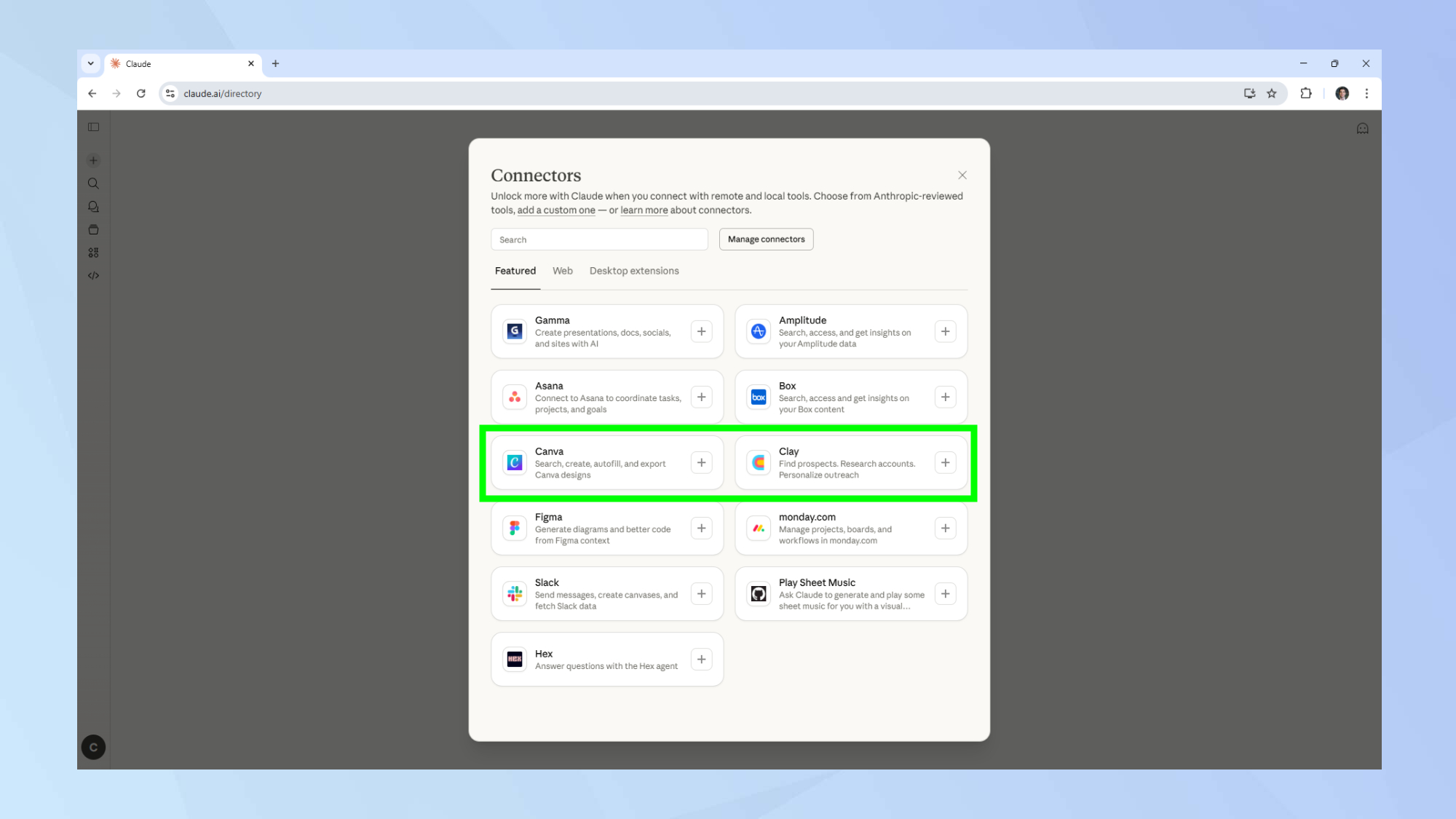

Next you’ll want to visit Claude’s directory and enable any apps you want to interact with.
3. Check app permissions
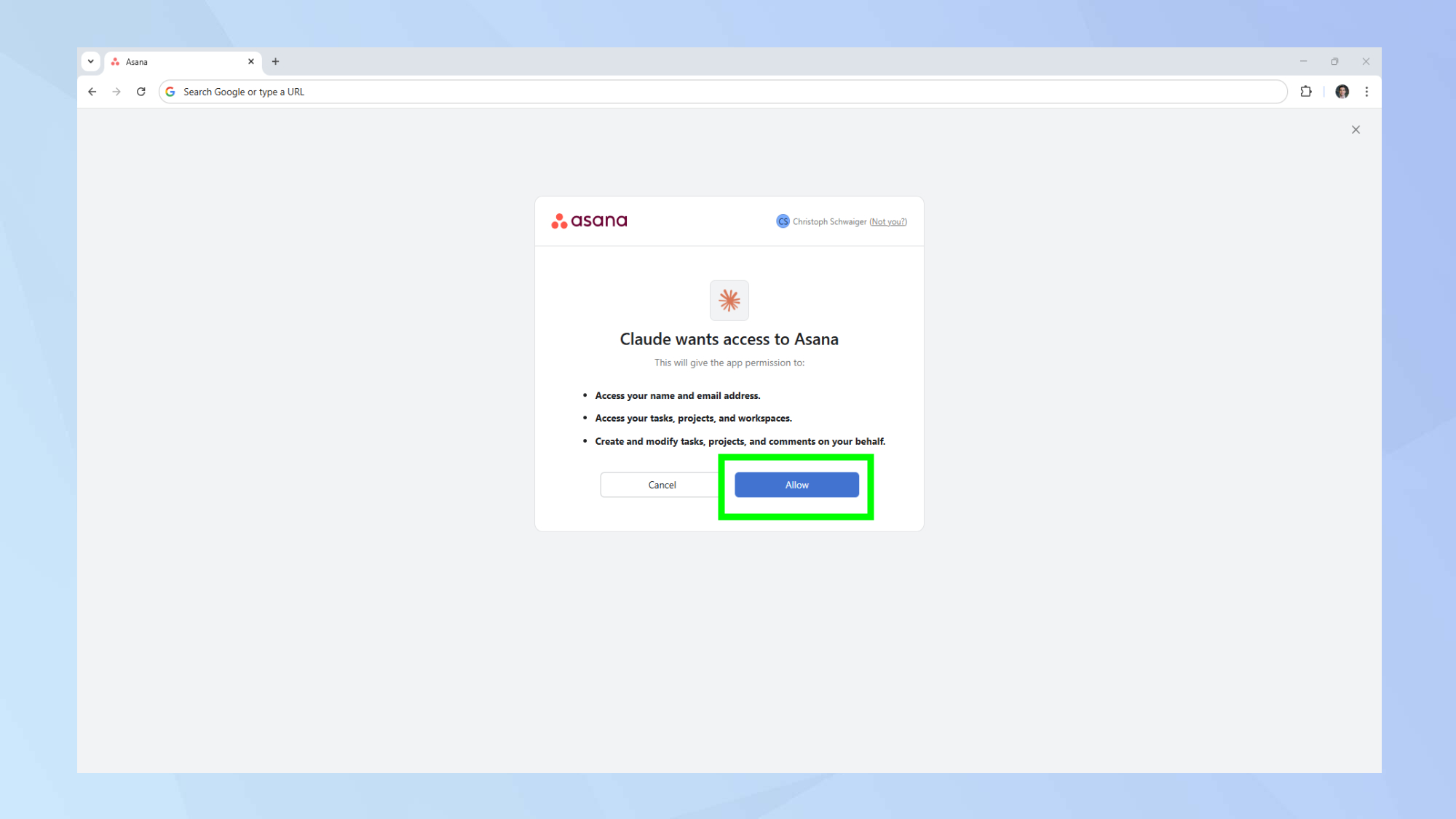
You’ll want to review any app permission requests that may pop-up. If you’re happy to share information between Claude and the apps, click allow.
For this specific guide, I’ll be using Asana, but the process is similar across apps.
4. Configure the app
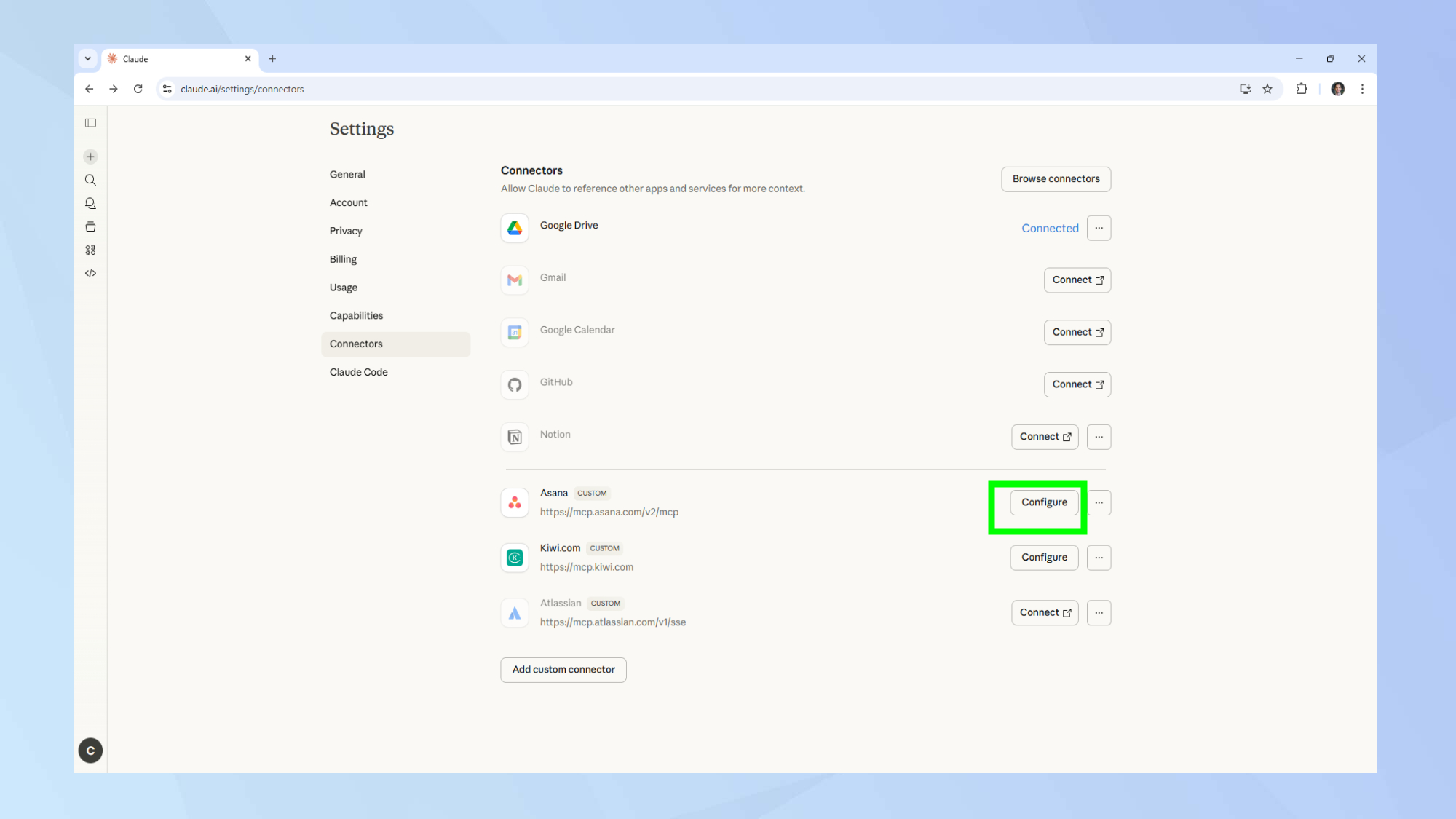
Once you’ve connected Claude with your desired app, you’ll also want to enable interactive tools. Click on your profile icon and enter the settings menu.
Next, select the app you want to interact with and click configure.
5. Approve interactive tools
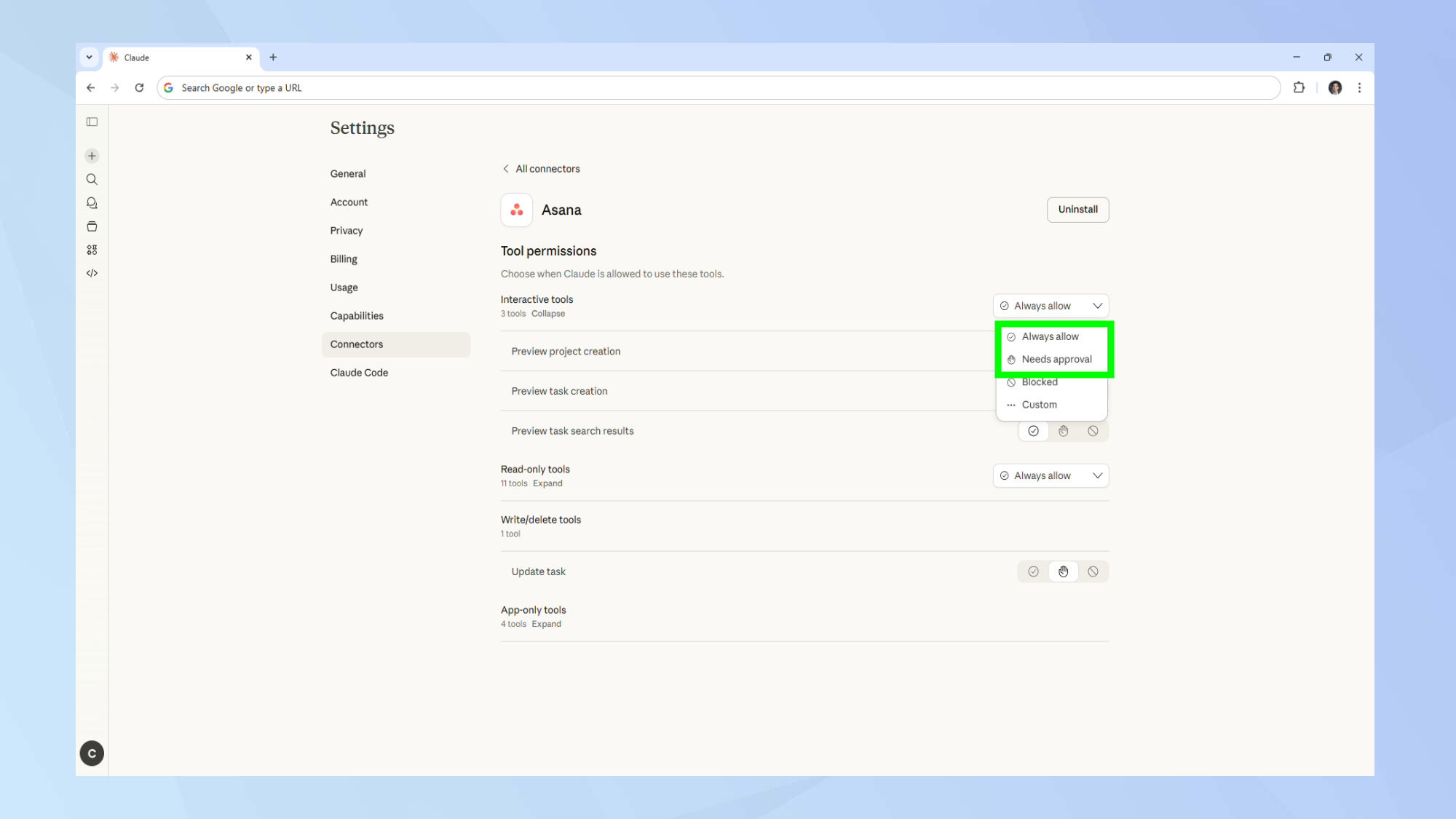
Make sure interactive tools aren’t blocked. Click on always allow or needs approval from the drop-down menu.
6. Chat with your app
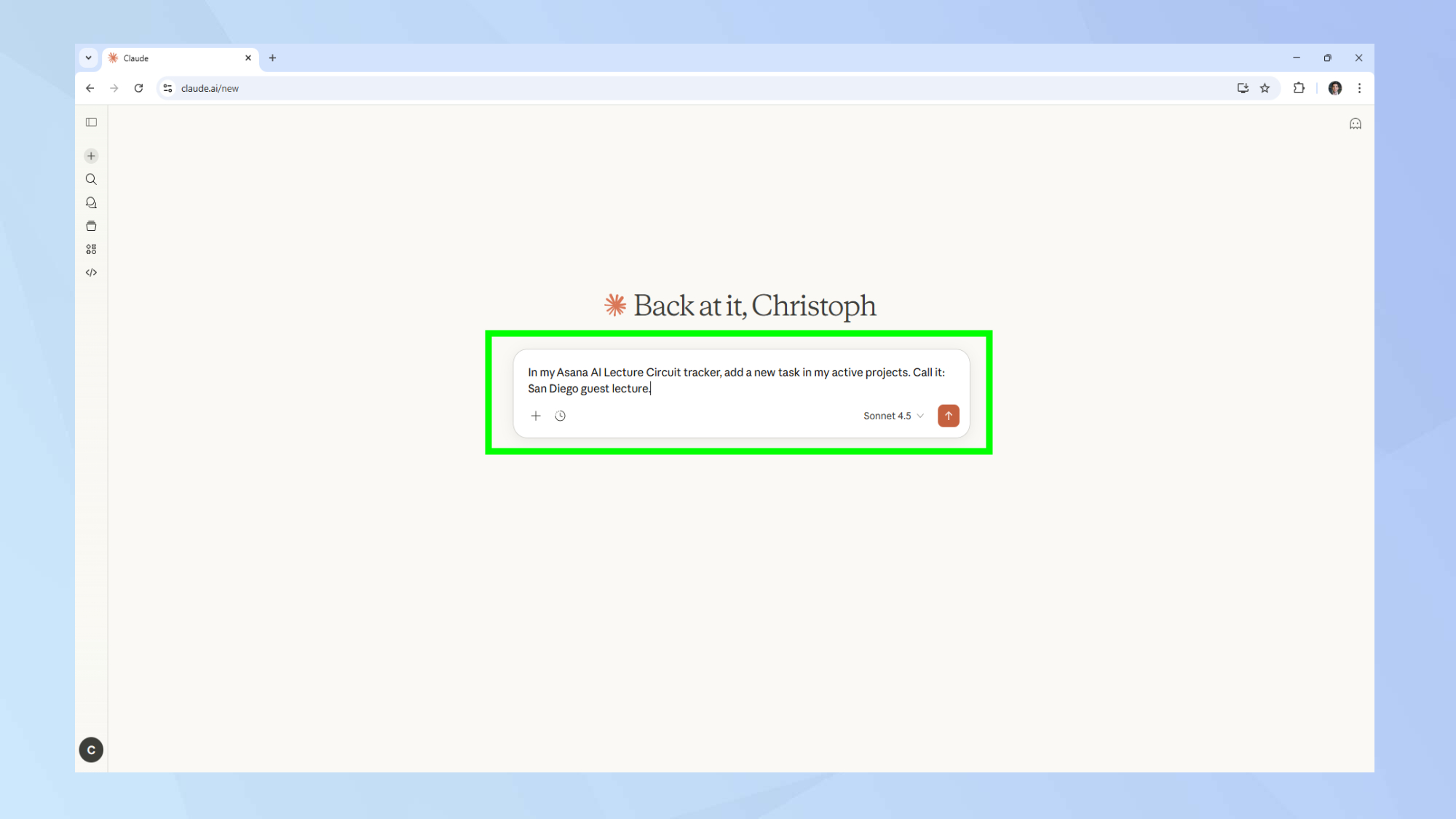
Once you’ve correctly set up your interactive tools, you can now chat with your enabled apps.
For this example, I asked Claude to add another location to my AI guest lecture circuit.
You can use a prompt like: In my Asana AI Lecture Circuit tracker, add a new task in my active projects. Call it: San Diego guest lecture.
7. Confirm the action
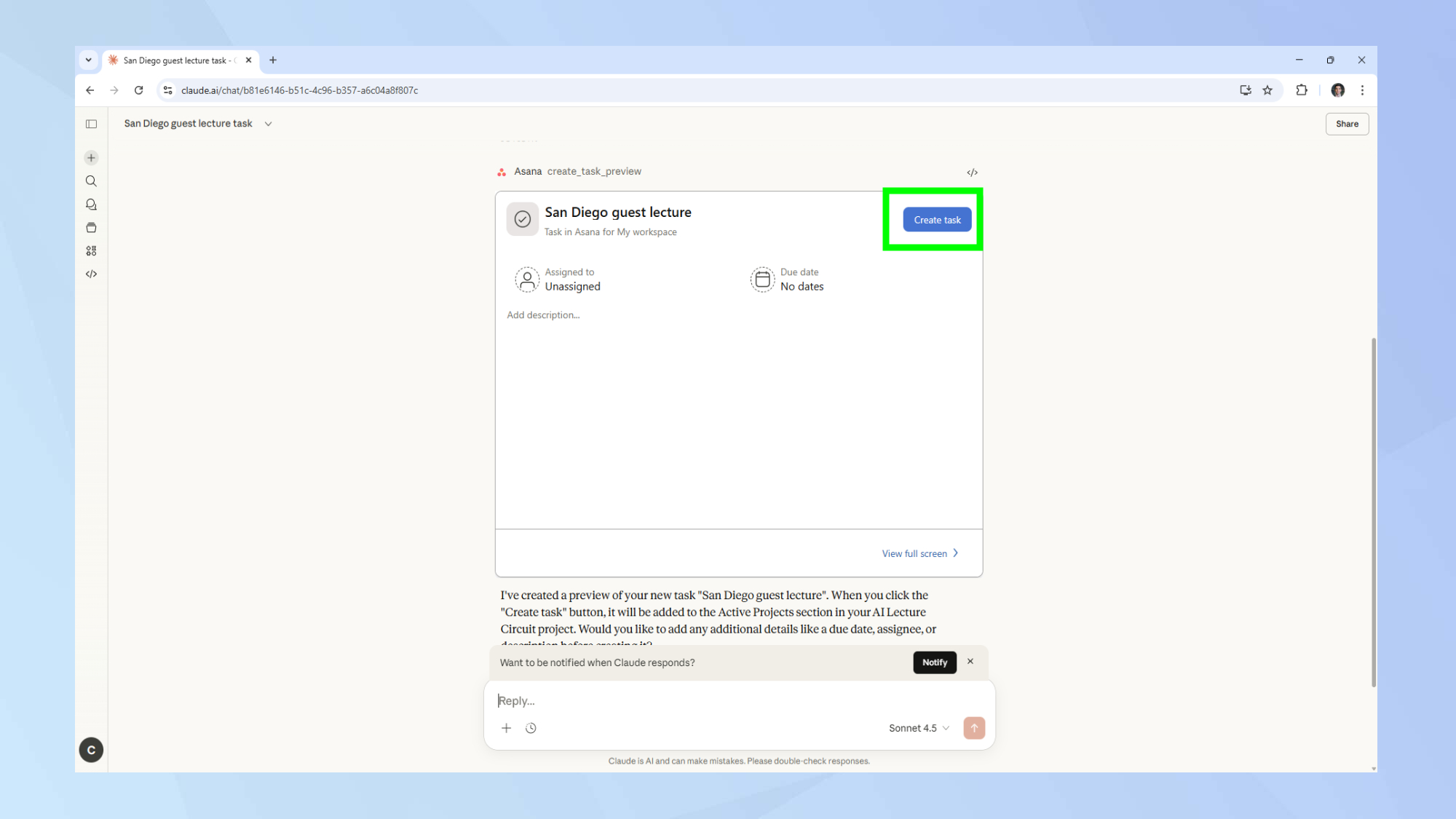
You’ll know your prompt worked when Claude shows you its proposed solution to your request. Claude will then ask you to confirm all the details.
If you’ve been following along with this Asana example, click on create task to confirm the action.


Follow Tom’s Guide on Google News and add us as a preferred source to get our up-to-date news, analysis, and reviews in your feeds. Make sure to click the Follow button!