





Spring cleaning usually means throwing the windows open and spending a weekend or two washing down every surface you let slide during the harshest days of winter. But while your home smells bracingly of bleach, there are still some things you might have ignored, including whatever device you’re reading this on. It’s easy to forget, but our electronics harbor plenty of germs and should be cleaned regularly. Grab some microfiber cloths, cotton swabs, distilled water, isopropyl alcohol, and dish soap, and read our guide to making your gadgets gleam.
How to Clean Phones and Tablets
(Credit: Adrian Crook/Getty Images)
Phones and tablets have oleophobic (fingerprint-resistant) coatings that can wear off. So manufacturers generally recommend wiping them down with distilled water and a barely textured microfiber cloth, then using cotton swabs to clean around crevices such as the edges of the screen and buttons. In 2020, Apple revised its guidelines to endorse 70% isopropyl alcohol wipes, 75% ethyl alcohol wipes, or Clorox Disinfecting Wipes.
The company says “You may gently wipe the hard, nonporous surfaces of your Apple product” but warns you not to use “products containing bleach or hydrogen peroxide. Avoid getting moisture in any opening, and don’t submerge your Apple product in any cleaning agents. Don’t use on fabric or leather surfaces.” This is especially if you have the Cosmic Orange iPhone 17 Pro, because it could turn your phone pink!

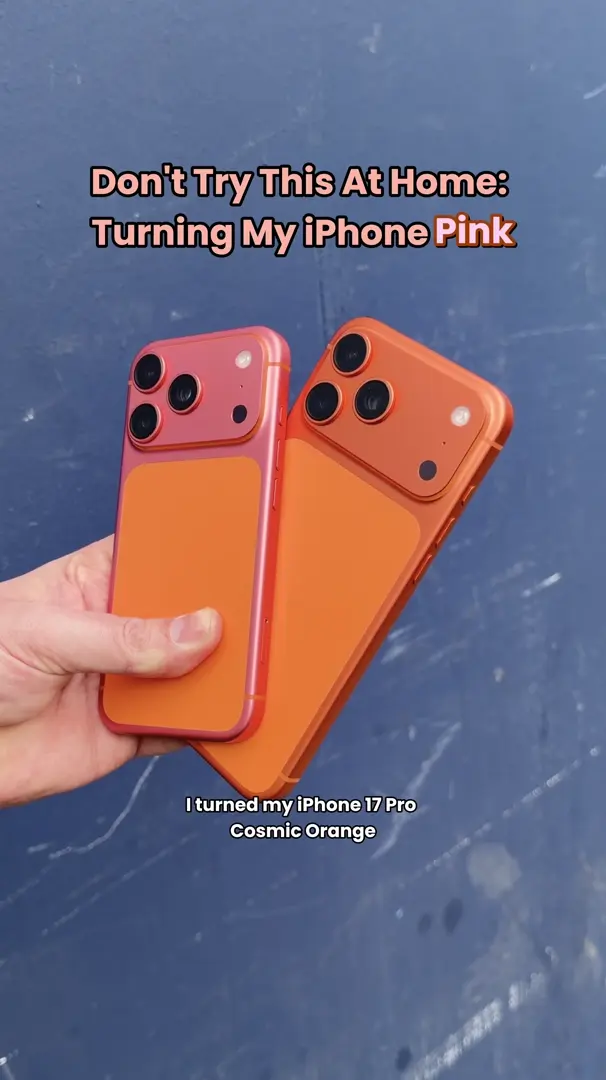


Don’t Try This At Home: Turning My iPhone Pink
To disinfect thoroughly without wipes, you’ll need 99% isopropyl alcohol, distilled water, a spray bottle, and a disposable microfiber cloth. Mix a solution that is 70% alcohol and 30% water, and pour it into the spray bottle. Then remove your phone or tablet from its case, spritz the cloth with your solution, and thoroughly wipe down your phone. Do not reuse the cloth.
If you’re concerned about damaging your screen, put a tempered-glass screen protector on it. Though the protector is likely treated with a coating as well, it’s easily replaceable and won’t cause damage to the device. Before you put the case back on your device, go over it with the solution and a cloth, and let it dry completely. Then be sure to wash your hands, or all your cleaning will have been for nothing. If you’re concerned only about grime, use wipes such as Care Touch Lens Cleaning Wipes.


How to Clean Your iPhone Speakers
How to Clean Headphones and Earphones


(Credit: goc/Getty Images)
Your headphones and earphones are likely coated in sweat and wax after staying on or in your ears all day. The general recommendation for over-the-ear headphones is to go over them with a microfiber cloth dampened with a little water and follow up with a dry one. If the cushions and headband look or feel grimy, you can give them a wash. Remove the ear cushions first to clean them separately, then combine a teaspoon of mild detergent with a cup of water, and use a lint-free cloth to wipe the band and cushions down with the solution. Follow that with a swipe of water on a cloth, then dry all the components completely.
AirPods and other units without removable eartips are supposed to be cleaned only with a microfiber cloth. If your AirPods have lotion spilled on them or have stood up to a lot of sweat, take a lint-free cloth, dampen it with a little water, and go over them. Dry with a lint-free cloth, then let them sit for a while before you put them back in the case. For earphones with removable tips, like the AirPods Pro, remove those eartips and go over them with some water and a tiny bit of soap applied to a microfiber cloth. Rinse them with water, pat them with a lint-free cloth, and don’t put them back on until they are thoroughly dry.

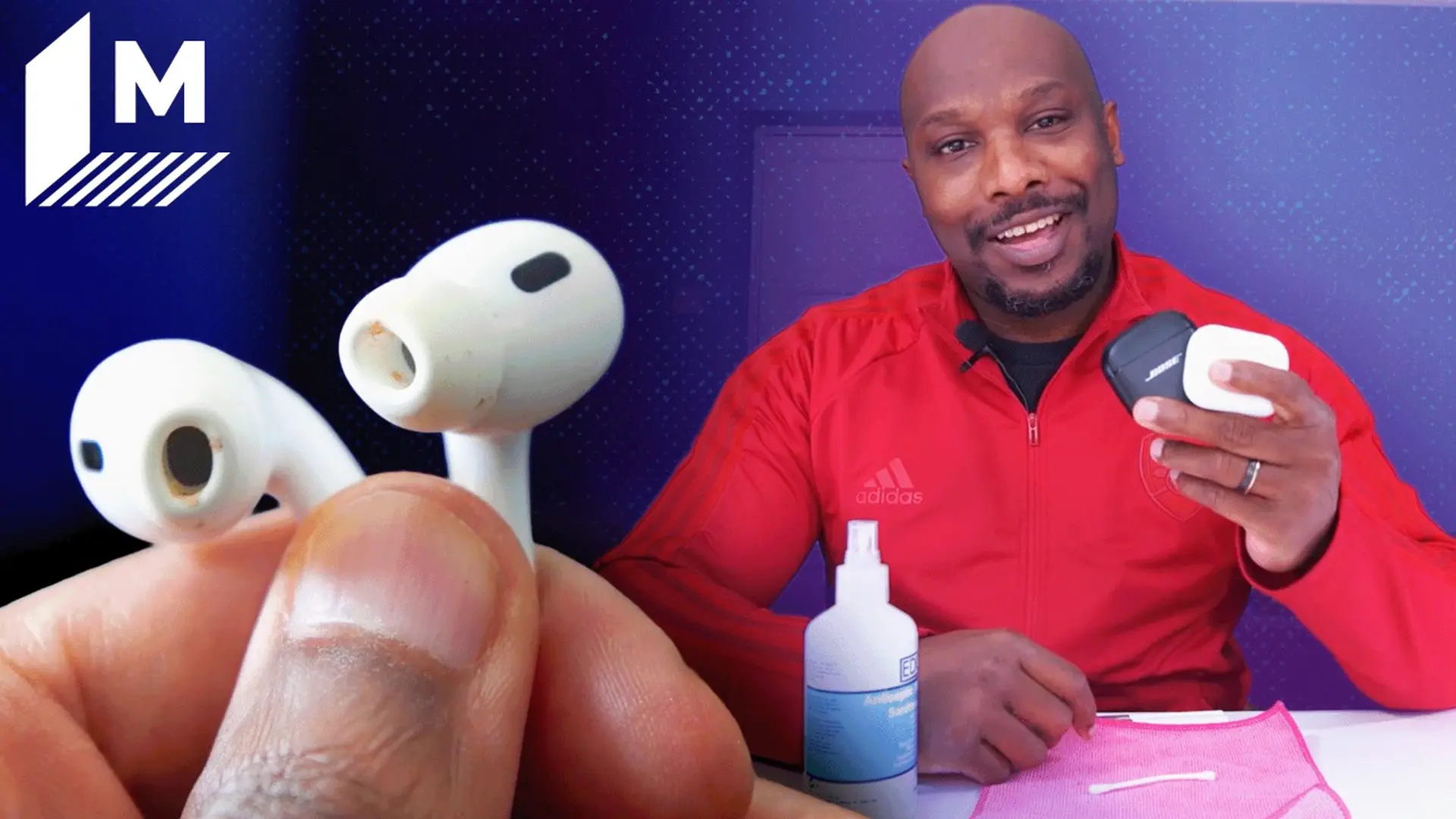
Clean Your Dirty AirPods and Wireless Earbuds With These Tips and Tools
To remove wax and dust from headphones and earbuds (including older AirPods), take a bit of adhesive putty, roll a tiny bit into a ball, then quickly and lightly press and remove gunk from any grille parts. If you want to de-germ, grab the same solution you made for your phone, spray it on one of those disposable microfiber cloths, and wipe down the entire surface. The same goes for over-the-ear headphones.
Apple has separate guidance on cleaning third- and fourth-gen AirPods, particularly the mesh. It recommends micellar water (yes, the same kind you use for your face), distilled water, and a soft bristle brush (a children’s toothbrush will do). Make sure the micellar water contains PEG-6 Caprylic/Capric Glycerides in its ingredients list. Add some micellar water to a cup and dip the brush in it. Go over the mesh in a circular motion for 15 seconds, then blot the mesh on a paper towel. Do this three times. Then rinse the brush in distilled water, go over all of the mesh in a circular pattern again for 15 seconds, and blot the mesh again. Let your AirPods dry for at least two hours before using them or putting them back into the charging case.
For the body of the earphones, you can wipe them down with a microfiber cloth or spray a disposable microfiber cloth with the alcohol-and-water solution, and use that to wipe them. For wireless earphones, you’ll also want to clean the charging case using a microfiber cloth and, if needed, some isopropyl alcohol. If you’re still living a wired life, don’t forget to wipe down the cables.

How to Clean Your Laptop or Desktop

(Credit: GoodLifeStudio/Getty Images)
Because your laptop travels, it has plenty of opportunity to pick up unsavory characters. Turn your laptop upside down and (gently) shake out the keyboard to rid yourself of any dirt, hair, and crumbs. You can then grab a can of compressed air duster, and blast it. Next, make sure your laptop is unplugged, and if you can, remove the battery. Lightly dampen a microfiber cleaning cloth and go over all the plastic and metal surfaces.
To clean an LCD screen, use a product made for the job, along with a microfiber cloth that will prevent streaks other cleaners can leave. For touch screens, use water or eyeglass cleaner applied to a microfiber cloth. For a one-swipe solution, try 3M Notebook and Tablet Cleaning Wipes. If you want to really give your laptop a deep clean, we get into the nitty-gritty in a separate laptop guide.
Your computer monitor might be the window to your world, but it’s not an actual window, so no Windex. Instead, for LCDs, use a microfiber cloth dampened with distilled water or screen cleaner. If you have a touch screen, clean it with a microfiber cloth; for smudges, use only water or eyeglass cleaner—only applied to the cloth —to remove them.
As for the plastic parts that surround the screen, spritz some window cleaner or just use water. The same goes for your tower: Go over all the surfaces with a cloth and either water, general-purpose cleaner, or a mix that’s half isopropyl alcohol and half water.
How to Clean Your Mouse and Keyboard

(Credit: ronstik/Getty Images)
Chances are you eat over your keyboard, and it’s picked up some crumbs. As with your laptop, shake it out over a trash can, then grab a can of compressed air to get rid of what lurks under the keys. Take a damp cloth and go over the keys. Use a cotton swab to get inside the crevices. If your keyboard is particularly dirty, put a solution of half isopropyl alcohol and half water on the cloth and cotton swabs.
Your mouse spends the day skittering across your desk, and it can track plenty of dirt. Use the same alcohol-and-water solution, dab it on a cotton swab, and run it over the feet of the mouse and through any cracks and crevices. Then take a cloth dipped in the solution and go over the body of the mouse and the cord.
How to Clean Flat-Screen TVs

(Credit: d3sign/Getty Images)
You might think cleaning your television is as simple as spraying it with glass cleaner, wiping it down, and moving on. However, glass cleaners can be corrosive, and many television screens have anti-reflective coatings that are very sensitive to chemicals in those cleaners. To clean a TV screen properly, apply water to a microfiber cloth and gently go over the surface.
Don’t forget to clean your remote controls—they can be crumb-filled, smudgy messes. Remove the batteries, shake loose any crumbs, then blast the buttons with a bit of compressed air. Go over the surface with a mixture of one part water to one part isopropyl alcohol on a microfiber cloth. Dip a cotton swab in the solution, and run it around all of the buttons.


Get Our Best Stories!
Your Daily Dose of Our Top Tech News


By clicking Sign Me Up, you confirm you are 16+ and agree to our Terms of Use and Privacy
Policy.
Thanks for signing up!
Your subscription has been confirmed. Keep an eye on your inbox!
How to Clean Smart Speakers

(Credit: Amazon)
One family member that’s in your kitchen, living room, and probably even your bedroom doesn’t shower very often, and it’s time you two had a talk about it. Smart speakers such as the Amazon Echo and Apple HomePod, could use some freshening up.
For smart display devices with screens, including the Amazon Echo Show 8 and Amazon Echo Hub, you can go over the screen with a screen-cleaning wipe and the fabric-covered parts with a plain microfiber cloth. If the fabric has a stain, dampen the microfiber cloth slightly and go over it. For all-plastic devices such as older-generation Amazon Echos, use a slightly dampened microfiber cloth on the surface. If the grilles look grody, dab them with some Blu-Tack first.
How to Clean Game Consoles and Controllers

(Credit: Siro Rodenas Cortes/Getty Images)
Your low scores could possibly be blamed on a gunked-up game controller. That’s the good news. The bad news is that game consoles and controllers can get particularly nasty. First, dust off the console with a dry microfiber cloth or Swiffer duster. Then go over it with a microfiber cloth and a small amount of water. Dip a cotton swab into water and run it through crevices—but not cutouts.
For controllers, make a mixture of one part water to one part isopropyl alcohol and apply it to a microfiber cloth. Wipe down the controller thoroughly. Dip a cotton swab into the solution and run it around buttons and into crevices. Because you handle controllers so frequently, upkeep with some wipes is a good idea that saves you a lot of work later and cuts down on germs and grime.
How to Clean Fitness Trackers and Smartwatches

(Credit: Luis Alvarez/Getty Images)
Your fitness tracker and smartwatch are there to make you sweat, but that means it gets sweaty along with you. The good news is that both devices can stand up to some moisture. Clean the face with a bit of water and a microfiber cloth. Fitbit recommends cleaning the charging contacts on its trackers with a toothpick or toothbrush dipped in rubbing alcohol. Dry the contacts with a lint-free cloth. How you clean the band, meanwhile, will come down to its material.
For bands made of rubber, silicone, elastomer, and other bendy materials, rinse with water or wipe them down with a small amount of rubbing alcohol. If you’re wearing moisturizer or sunscreen with your band, use a gentle skin cleanser such as Cetaphil. If the band has any unsightly marks, you can even try erasing them with a rubber eraser. Another option is to mix one part baking soda, one part water to make a paste, then rub that into the band and wipe it off with a wet cloth. If the band is still stained, you can try a Mr. Clean Magic Eraser, though that can removes layers of the surface you’re cleaning, so you’re essentially sandpapering the band.
Recommended by Our Editors
Nylon bands can smell because they are especially prone to picking up sweat. If this happens or if the band is stained, mix a tiny bit of dish detergent and water to wipe them down, then rinse. Wipe down leather bands with water and a microfiber cloth, and clean with a good leather cleaner followed by a conditioner. Apple Brand (no relation to your iPhone) makes a good kit.
Wipe metal bands with a lint-free cloth; if necessary, you can involve a small amount of water. If your stainless-steel band has become discolored, use a tiny bit of stainless-steel polish such as Bar Keeper’s Friend—but make sure to thoroughly rinse it off, so you don’t transfer the chemicals to your skin when you put the band back on. For discolored silver-plated bands, use a silver-cleaning cloth sparingly (plating flakes off easily).
How to Clean Smart Glasses


(Credit: Andrew Gebhart)
Smart glasses require pretty much the same care as regular glasses. For something like the Ray-Ban Meta Smart Glasses, Meta recommends that you use a dampened microfiber cloth with some mild soap and go over the entire surface, followed by a wipe-down with just some water. Dry the glasses off and let them sit out and dry completely before you wear them or put them back in the charging case. You can wipe down the charging case itself with a dry microfiber cloth.
Amazon recommends a different method for its Echo Frames. It says to use a soft, dry cloth and for the lenses, you can spray an alcohol free-lens cleaner on the cloth (never directly on the lenses) and then wipe the lenses. If, for some reason, you get ink on the lenses, you can use up to 70% isopropyl alcohol on a soft cloth to wipe it off. If you don’t still have paperwork with the manufacturer instructions for other brands of smart glasses, the advice for the Echo Frames is the best to follow.
How to Clean VR Headsets


(Credit: Meta)
VR headsets, like the Meta Quest 3, are as close to your face as possible, so they trap sweat, pick up skin particles, and can deposit bacteria back onto your face. If you’re looking grab some cleaning supplies and tackle this right away, pause for a second. Don’t use any alcohol- or ammonia-based products, or other solvents. If your headset just needs some maintenance cleanup, you can use a microfiber cloth and some non-alcohol, non-abrasive antibacterial wipes like Clorox Free & Clear Wipes. If things are a little more sticky, you’ll also want to have on hand fragrance-free, dye-free dish soap like Seventh Generation Free & Clear Dish Soap.
First go over the lenses and front cover with a dry microfiber cloth. Do not use any liquids or wet wipes on them. You can clean the controllers and charging dock in the same way. Now you can go over just the body of the headset with the wipes. If the facial interface, elastic head straps, head pads, and silicone covers are grimy, remove them and wash them with the soap and water. Make sure they dry thoroughly. Once everything is clean and dry, you can put your headset back together.


(Credit: Apple)
There are some specifics to cleaning the Apple Vision Pro, which you’ll want to follow since it does cost a hefty $3,500. The first thing to know is that, though Apple loosened its recommendations for what you can clean most of its devices with, those don’t apply to the Apple Vision Pro. Do not use isopropyl alcohol, ammonia-based products, or other solvents. Before you start cleaning, power down the Vision Pro and disconnect the cable. Make sure you’re working on a flat surface with enough room so that it won’t fall.
Start with cleaning the lens. Wipe it down with a microfiber cloth or the Apple Polishing Cloth that comes with the Vision Pro. If you have Zeiss optical inserts, remove them and go over them with Zeiss Lens Wipes. You can also use a microfiber cloth or the Apple Polishing Cloth and either lukewarm water or Zeiss Lens Cleaner.
The next things to clean are the Light Seal and the Light Seal Cushion. Do not use disinfectant wipes or laundry detergent. What you might want to grab is some fragrance-free, dye-free dish soap. Detach the Light Seal from the Vision Pro and then the Light Seal Cushion from the Light Seal. You can just wipe both parts with a microfiber cloth or if the parts need a deeper cleaning, use lukewarm water and the dish soap.
Whether you’re using the Solo Knit Band or the Dual Loop Band, remove it and go over it with a microfiber cloth. If it needs more cleaning, gently clean it with the cloth and lukewarm water and the dish soap. The battery can just be wiped with a dry microfiber cloth. Make sure all parts are completely dry before reassembling.
Chandra Steele contributed to this story.
About Our Expert


Jason Cohen
Senior Editor, Help & How To
Experience
As PCMag’s editor of how to content, I have to cover a wide variety of topics and also make our stories accessible to everyday users. Considering my history as a technical writer, copywriter, and all-around freelancer covering baseball, comics, and more at various outlets, I am used to making myself into an expert.
I believe tech corporations are bad, but you might as well know how to use technology in everyday life. Want more how to content delivered right to your inbox? Sign up for the tips and tricks newsletter that I curate twice a week.
My job as how-to guru means I use just about every gadget under the sun, so I can figure out how everything works. I work from a Lenovo ThinkPad running Windows 11, but also have a very large Dell Inspiron 17 3000 and Apple silicon MacBook. I also have a Google Pixel 6a for personal use and use a Galaxy Z Flip 4 for additional Samsung-related testing. For iOS coverage, an iPhone 13 mini works like a charm, though it’s already becoming a little long in the tooth.
My desktop situation includes a dual monitor setup with a modest Acer monitor. I also use a Logitech mouse (who can use these ThinkPad trackpads) and a Havit keyboard (my first mechanical keyboard; I love it but my wife hates it!). I’m a recent convert from wired headphones; I have Anker Soundcore Liberty Air wireless earbuds for personal use and have taken to the Sennheiser HD 450BT headphones for work.
Whenever I have a second to myself, I’m probably gaming on my Nintendo Switch, Steam Deck, or Xbox Series S. I also still have a bunch of classic consoles lying around as well.
Read Full Bio


