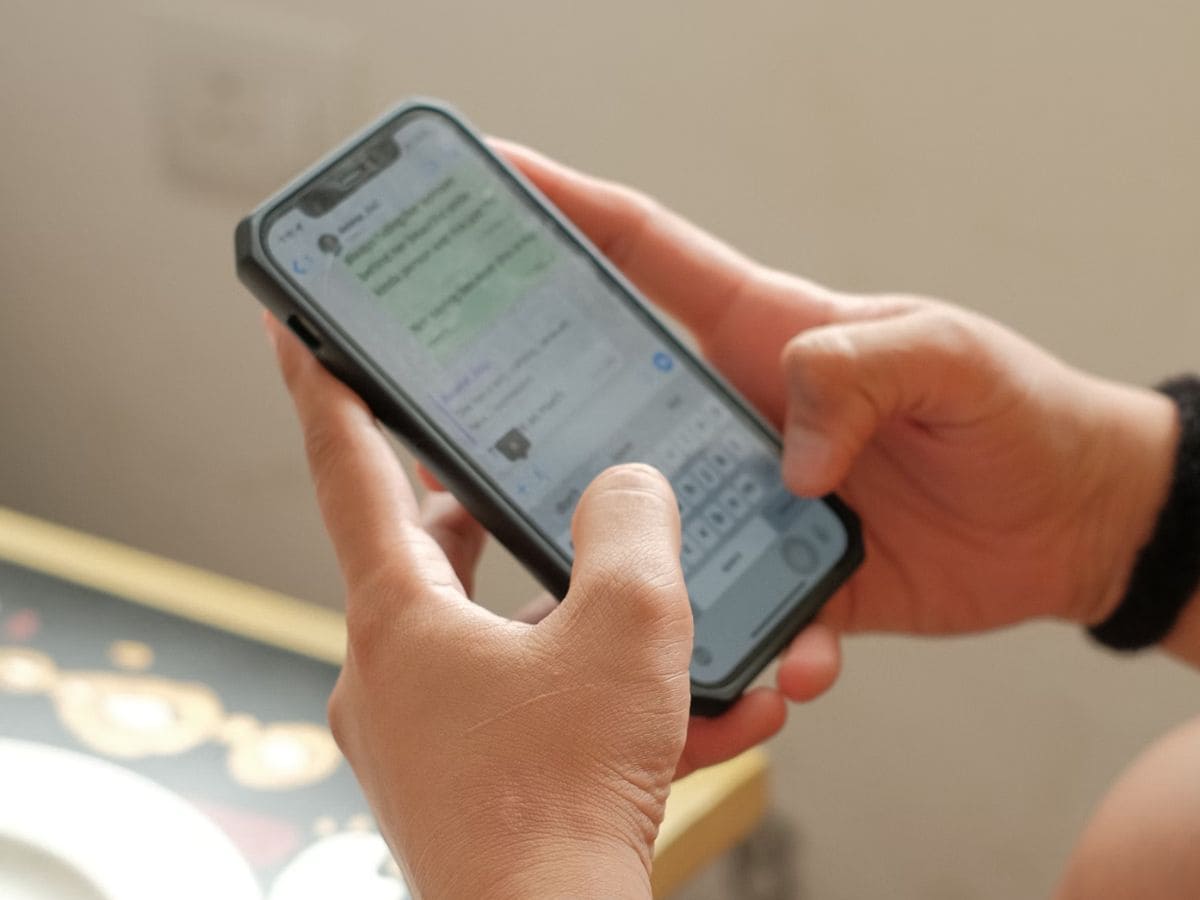
We all have been in that situation, a message lands on WhatsApp, you open it, you think you’ll reply in a bit, and then.. you forget! To tackle this, WhatsApp is testing a message reminder option for iPhones and Android phones. Also Read: WhatsApp Hacked? Here’s How To Get It Back Fast
Instead of starring texts or saving screenshots, you may soon be able to set a reminder directly inside the app. The feature is currently being tested for some beta users and is expected to roll out to more devices gradually. When available, you can choose preset time intervals or even set your own custom reminder for a specific message. Once the reminder is triggered, WhatsApp pushes a notification to your phone, helping you revisit the message at the time you set. 

Who can use it right now?
This feature is currently available for select users on recent beta builds and on some iPhone versions, including release 25.25.74. So if you don’t see it on your phone, don’t worry – the update may take a few more days to reach everyone. Whenever it lands, you can revisit this guide and start using it instantly.
One more condition, you’ll need to be on the latest WhatsApp app version (beta or public when released) to access the reminder option.
How to set a WhatsApp message reminder
Once you receive the update, there are two main ways it may appear on your phone:
Option 1 (inside message box)
- Open WhatsApp on your phone
- Go into the chat where you want to set a reminder
- Long-press the Send button next to the message box
- Tap the 3-dot menu (top-right)
- Select Remind Me
- Choose from preset options: In 2 hours, In 8 hours, or In 24 hours
- Or tap Custom and then select your date & time
Option 2 (inside message bubble menu)
- Open a conversation
- Long-press on a message bubble
- Tap More
- Select Remind Me
- Pick a timer or set a custom time
After setting a reminder, a small bell symbol may appear near the selected text bubble, indicating that the reminder is active.
How to cancel a reminder
If you change your plan or no longer need the alert:
- Long-press on the message showing the bell icon
- Tap More
- Select Cancel Reminder
The reminder will be removed immediately, and you won’t receive any follow-up alert for that message.