- Comprehend the essential role a VPN plays in safeguarding your digital life
- Gain a deep understanding of how VPNs function under the hood
- Develop the ability to distinguish fact from fiction in VPN promotions
OpenClaw Setup: How to Use OpenClaw Safely with Meshnet

What Are the Prerequisites to Set Up OpenClaw?
OpenClaw has relatively few system requirements and involves minimal preparation for installation.
How Do You Install & Set Up OpenClaw With Meshnet?
Before you can install OpenClaw, you need either a device running Linux or a Windows device with WSL installed. If you’re already on a Linux device, you can skip the WSL installation steps.
Whenever you see a command in brackets in the steps below, type or paste the command without the brackets.
Installing WSL on Windows
If you’re on Windows, follow these steps to install WSL.
- Open PowerShell as an administrator.
- Type in [wsl.exe –install] and hit “enter” to start the installation.
- Once installation is complete, you’ll likely be asked for a new username and password. Enter them.
If this procedure installed an app called Ubuntu on your device, all you need to do is open and update it. If Ubuntu wasn’t installed, type “Ubuntu” into the Windows search bar and open the Windows Store link, where you can download and install the app.
Now, open the Ubuntu app. If you weren’t previously asked for login information, you can enter a username and password now. Then, run the command [sudo apt update && sudo apt upgrade -y]. This will update Ubuntu to the latest version.
How to Install OpenClaw
Now that you’re done with all the prep work, you can move on to installing OpenClaw.
- Run the OpenClaw Installer Script
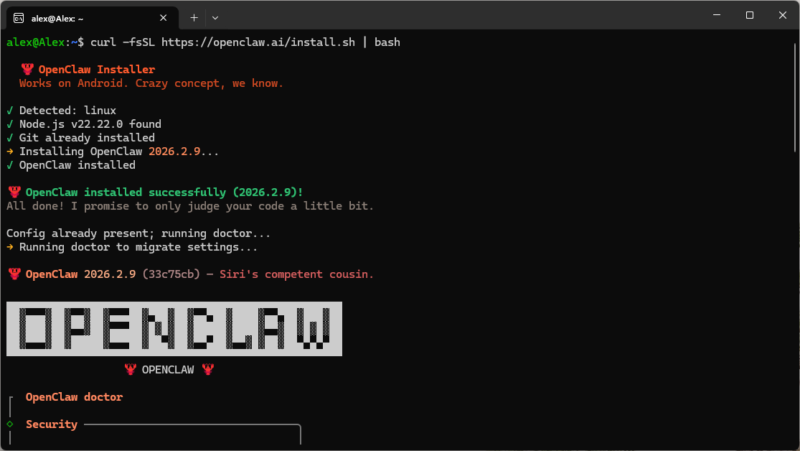
Start by opening the Ubuntu terminal, then run the script [curl -fsSL https://openclaw.ai/install.sh | bash]. If the program asks you to install any additional plugins, let it do so.
- Read the Warning Message
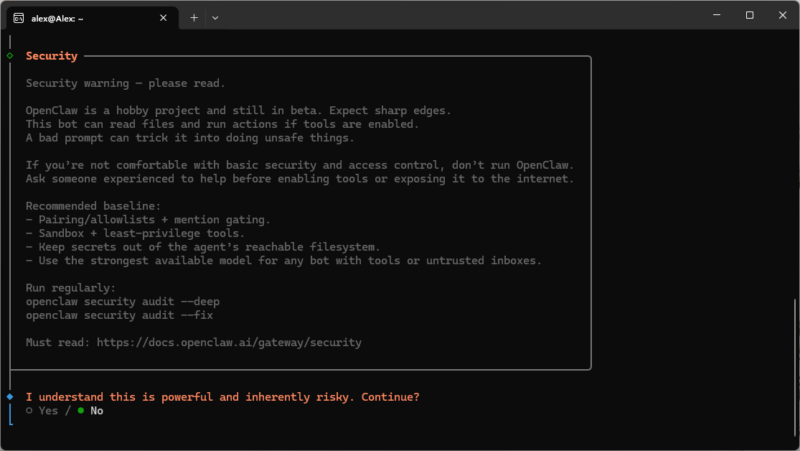
Once installation finishes, you’ll see a warning message. Use your keyboard arrows to select “yes” and proceed with onboarding.
- Select an Onboarding Mode
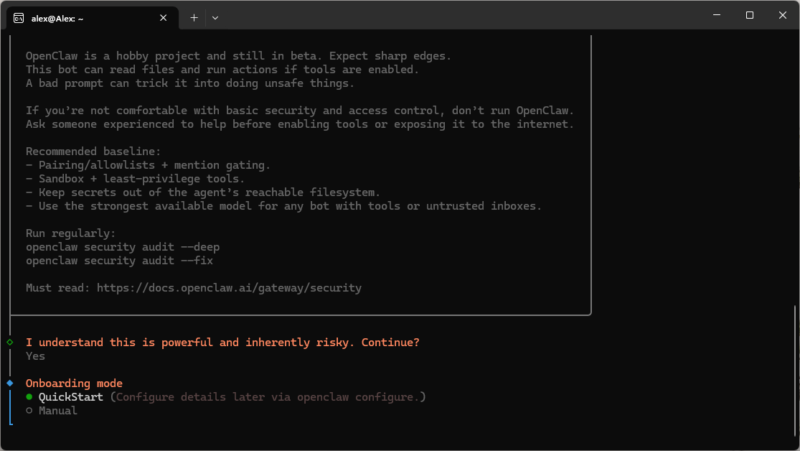
In the next prompt, choose “QuickStart (configure details later via openclaw configure.)” to start the onboarding.
- Choose a Model
Choose which large language model (LLM) you want to use from the list of available models. Select the model and enter your API key, or authenticate with another method if you prefer.
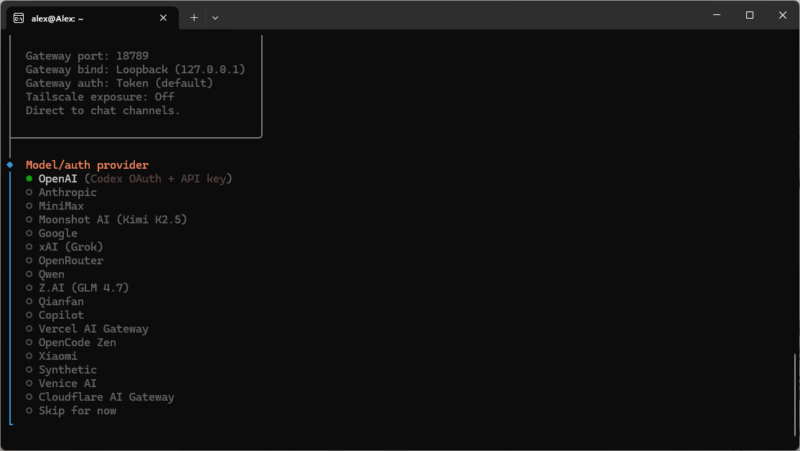
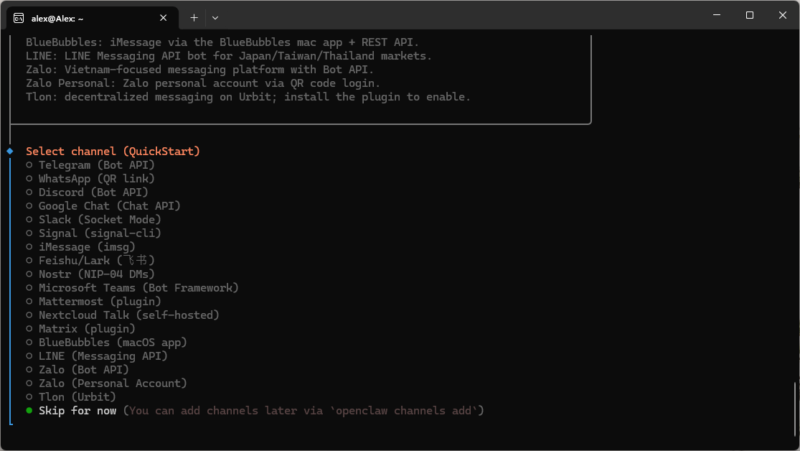
- Skip Channel Selection
As you’ll be communicating directly with your agent via Meshnet, you won’t need to set up a messaging app. Choose “skip for now” when prompted to select a channel.
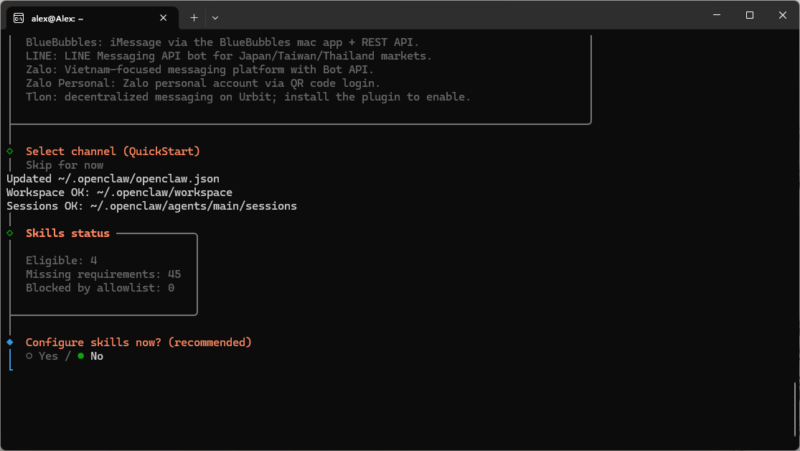
- Choose Skills
You can choose skills for your agent in this step. If you prefer not to, feel free to skip this step by choosing “no.” You can always add skills once installation is done.
- Skip Hook Selection
Hooks are not essential for OpenClaw’s operation, and you can always set them up later. Skip this step by navigating to “skip for now,” then pressing “space,” then “enter.”

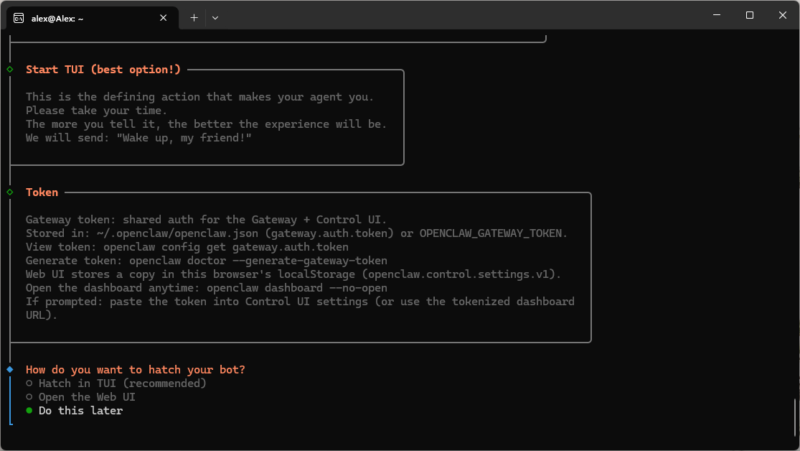
- Skip Hatching Your Bot
Hatching will “wake up” your AI agent, which you don’t want yet. Choose “do this later.” If you’re prompted to install a shell completion script, select “yes.”
- Update Your Environment Path
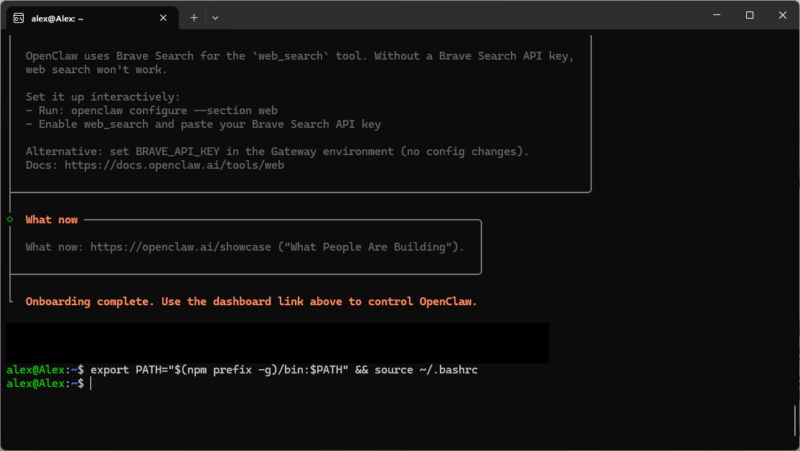
Finally, you’ll want to change the path environment variable by entering the command [export PATH=”$(npm prefix -g)/bin:$PATH” && source ~/.bashrc].

Prepare OpenClaw for Meshnet Connections
Before you can set up Meshnet, you need to configure OpenClaw to accept connections from the local network, which includes Meshnet links.
- Open the OpenClaw Configuration File
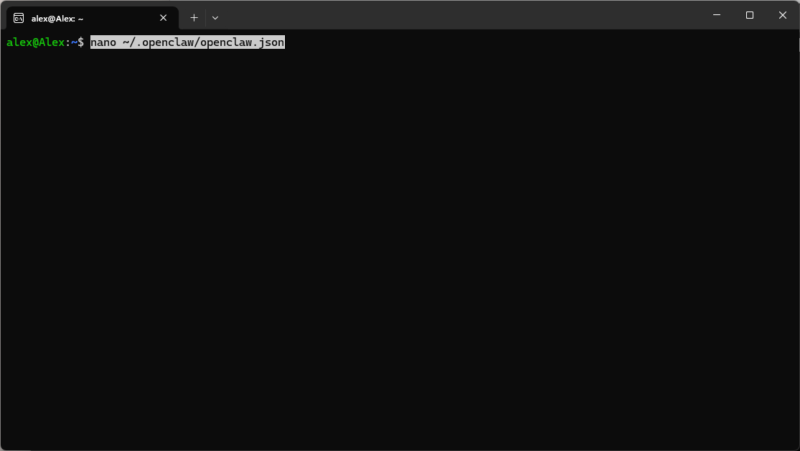
Run the command [nano ~/.openclaw/openclaw.json].
- Change the Connection Settings
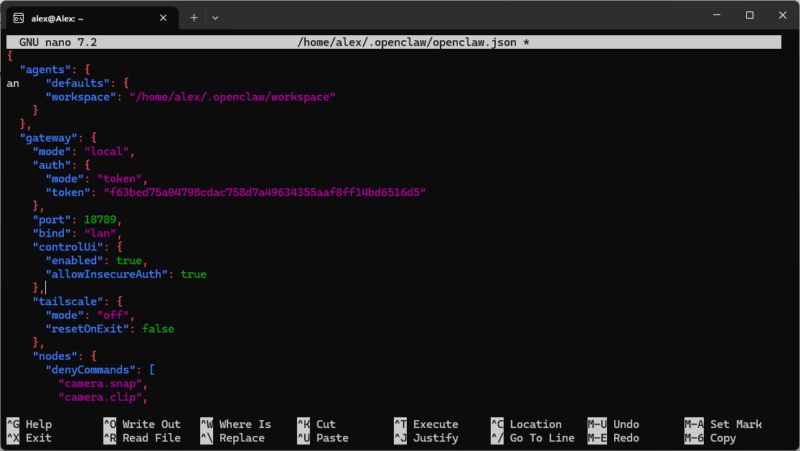
Change the line [“bind”: “loopback”,] to [“bind”: “lan”,] and paste the following block right below that line:
“controlUi”: {
“enabled”: true,
“allowInsecureAuth”: true
},
- Save Your Changes
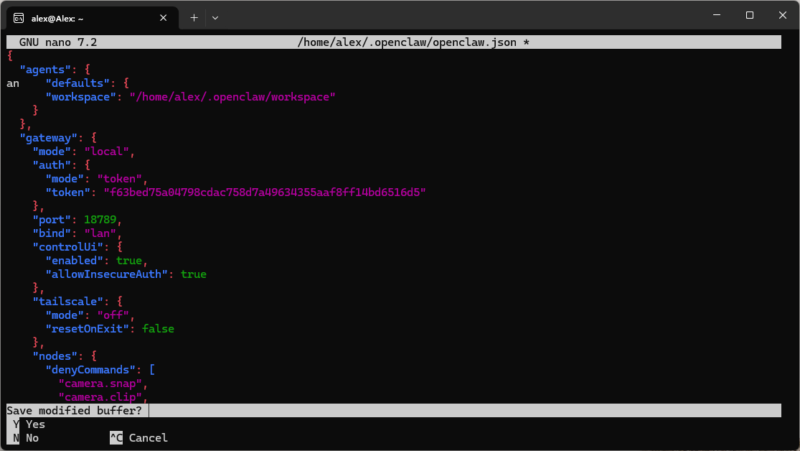
Press “control + X” → “control + Y” → “enter” to exit and save the changes. Run the command [openclaw gateway restart] to reboot OpenClaw with the new settings, and you’re done.
How to Set Up OpenClaw With Meshnet
Now that you have OpenClaw installed, it’s time to install NordVPN and add your device to Meshnet.
- Install NordVPN
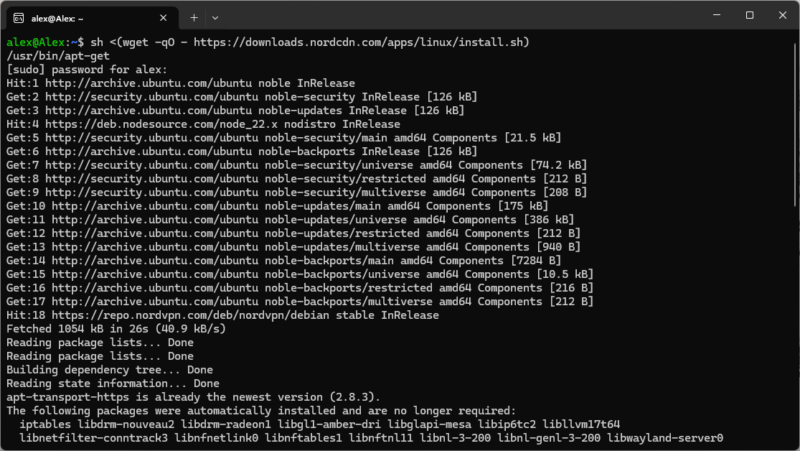
In the Ubuntu terminal, run the command [sh <(wget -qO – https://downloads.nordcdn.com/apps/linux/install.sh)] to install NordVPN.
- Log In to NordVPN
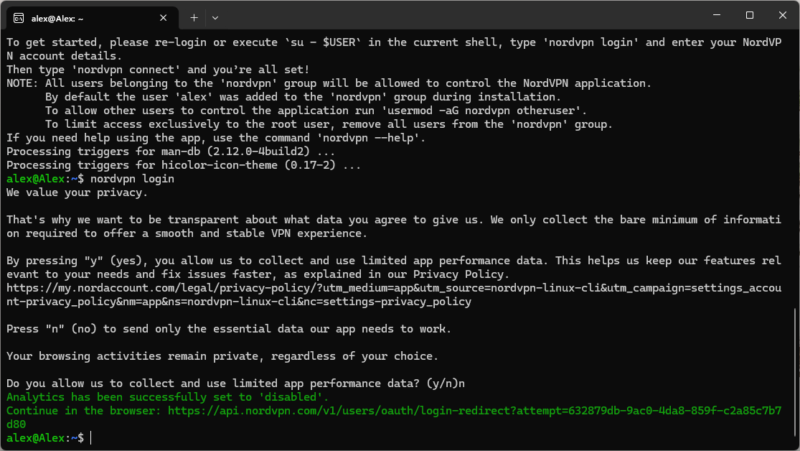
Run [nordvpn login], then type in [y] or [n], depending on whether you want to send usage statistics.
- Get a Login URL
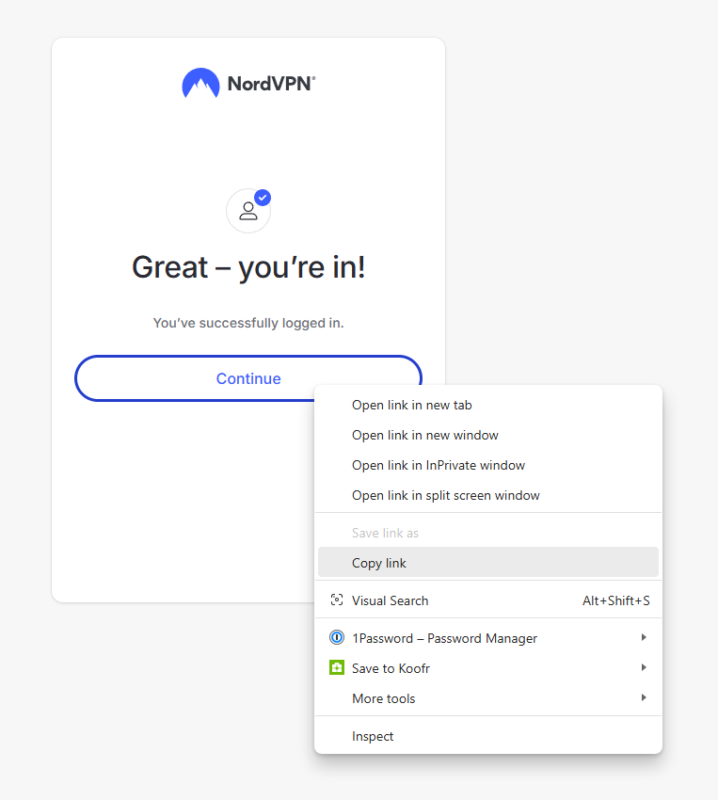
The command from the previous step will have generated a login URL. Open that link in a browser. Log in to your account through the link, but do not let the site open the VPN app. Instead, right click on “continue” and copy the link.
- Complete the Login Process
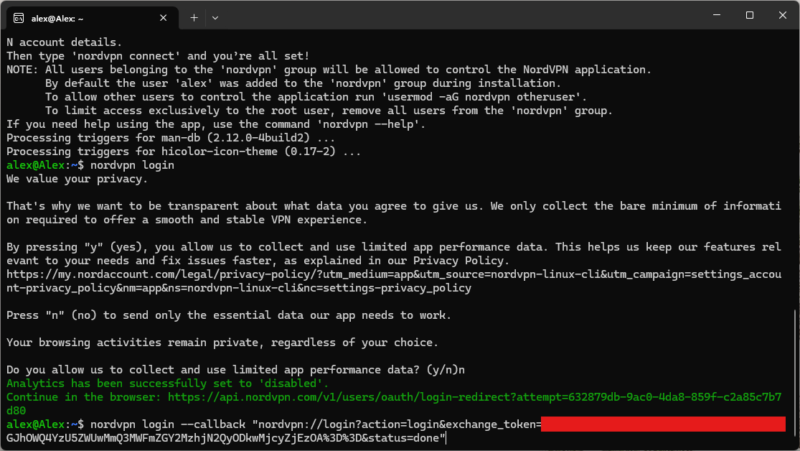
Back in the terminal, run [nordvpn login –callback “URL”]. Replace “URL” with the link you copied from the “continue” button. Keep the quotation marks around the URL.
- Enable Meshnet
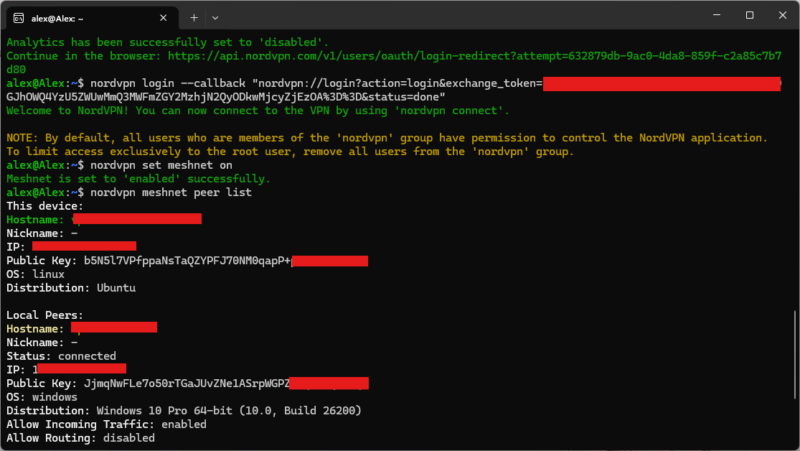
Run [nordvpn set meshnet on]. Once it’s activated, run [nordvpn meshnet peer list] to acquire your Ubuntu instance’s Meshnet ID and IP address.
- Access OpenClaw Over Meshnet
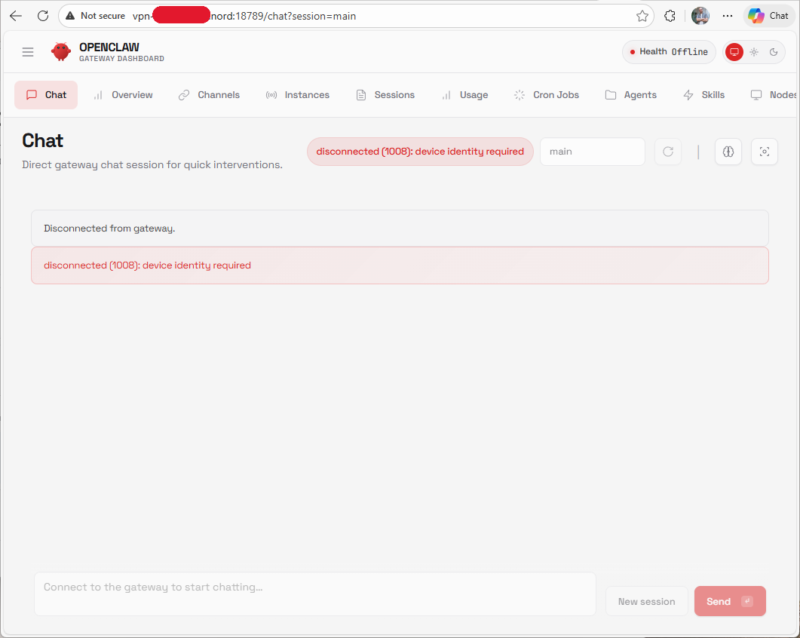
Copy the Meshnet ID for your Ubuntu instance, then paste it into a browser, followed by [:18789/]. An error message will greet you; this is normal.
- Get an Authentication Token
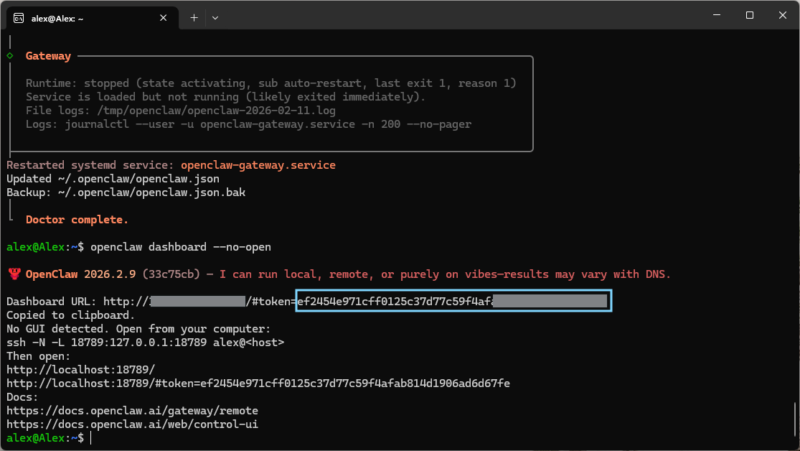
Back in the terminal, run [openclaw dashboard –no-open]. This will display the dashboard URL, which includes a token. Copy the sequence of characters following “token=.”
- Enter the Authentication Token
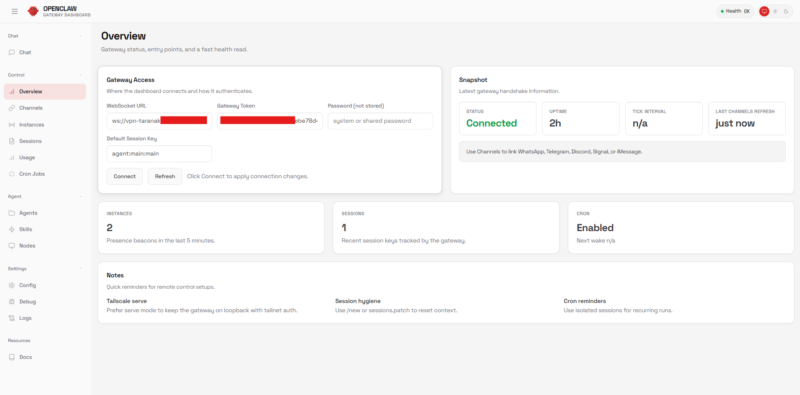
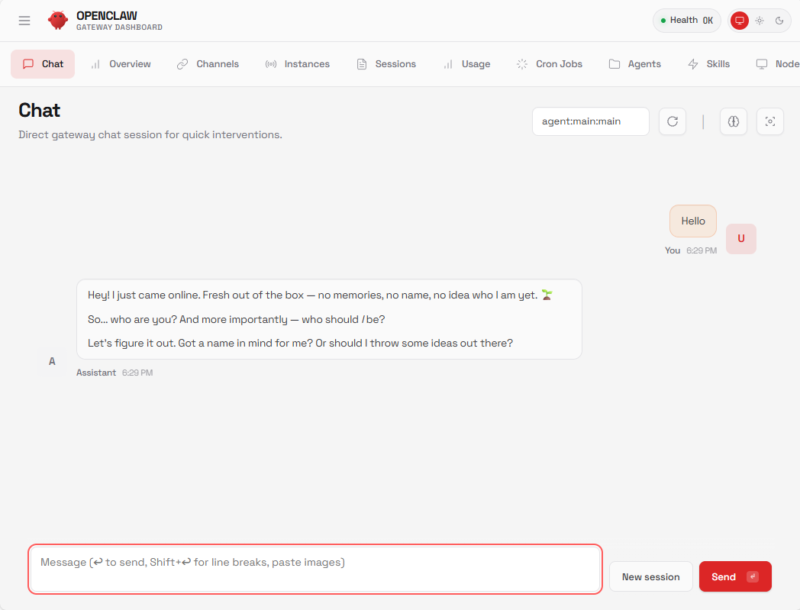
In the dashboard, open the “overview” tab. Paste the token into the field called “gateway token” and click “connect.”
- Chat With Your Agent
You can now chat with your AI agent. Messaging it for the first time will hatch it and initiate the customization procedure.


Are There Any Alternative Methods of Installing OpenClaw?
Yes, there are four alternative methods of installing OpenClaw:
- Docker — Headless or containerized deployments for isolated installs.
- Nix — Declarative installations for reproducible installs.
- Ansible — For consistent setups across multiple machines.
- Bun — Runs the OpenClaw command-line interface (CLI) using the Bun JavaScript runtime instead of Node.
How Do You Test Openclaw?
OpenClaw will not immediately be set up to run web searches. However, it’s easy to configure this. In the chat, tell your OpenClaw assistant that you want to set it up to run web searches, and it will guide you through the process. Keep in mind that this requires a Brave API key, which is free for only up to 2,000 searches. The general steps are as follows:
- Grab a free API key from brave.com/search/api.
- Run [openclaw configure –section web] in the terminal.
- Paste in the key when prompted.
Although Brave is the recommended search engine, you could use other search providers if you have the necessary API keys.
What Are OpenClaw’s Main AI Applications and Capabilities?
OpenClaw’s primary application is to deploy AI agents to automate complex workflows, general research and everyday tasks. It’s extremely flexible; you can customize your agent to do pretty much anything you want. Think of your AI bot as being able to handle anything you wish ChatGPT could do. Some use cases include the following:
- Mass file operations
- Mass job applications
- Complex data analysis
- Terminal and script execution
- Customer support automation
- Web browsing and form filling
- Automating emails and calendar reminders
Of course, its capabilities depend on the skills you install, including whether they’re community provided or you’ve programmed them yourself.
Where Can You Find Learning Resources?
You can find learning resources for basic tasks through the official OpenClaw documentation and tutorials. Plus, thanks to the OpenClaw craze, there’s also a large online community that can provide support via forums, Discord channels or YouTube videos.
How Do You Configure AI Models and LLM Backends?
You can configure a default AI model during installation. If you didn’t do this, you can relaunch the onboarding wizard with the command [openclaw onboard]. You can also add large language models directly to the OpenClaw configuration file via the command [nano ~/.openclaw/openclaw.json].
Common Troubleshooting and Maintenance Tips
The main way to troubleshoot and look for errors is with the OpenClaw doctor. Running the [openclaw doctor] command will evaluate system health and generate error logs if it finds any. Once the doctor diagnostic is finished, run the [openclaw doctor –fix] command. The doctor will automatically fix the error to the best of its ability.
Final Thoughts
Integrating OpenClaw with Meshnet lets you securely access and manage your AI agent remotely, as if you were on a private local network. I hope this guide helped you install and configure your AI assistant for secure use. All that’s left is to put it to work.
Have you used OpenClaw before? Did you manage to set it up using Meshnet, or did you run into issues? Let me know what your experience was like, and leave any questions in the comments below. As always, thank you for reading.
FAQ: OpenClaw Setup
A container may fail to start for any number of reasons, including misconfigured environment variables, missing dependencies or port conflicts.
You can fix port 3000 conflicts by clearing the port. Port 3000 conflicts can occur if another process is already using the port. Commands like [lsof -i :3000] can identify processes using the port, which you can then stop.
You update OpenClaw safely by creating a backup of your memory, workspace and configuration files, then update OpenClaw from the official source.
OpenClaw is a powerful tool for creating custom AI agents that can automate your daily tasks, perform web research or communicate across platforms. However, as OpenClaw is self-hosted, running it from your laptop is only as secure as you make it. Thankfully, a Meshnet-OpenClaw setup can fix that issue.
NordVPN’s Meshnet feature lets you remotely connect devices, including your OpenClaw device, into a secure LAN-like network. This makes Meshnet perfect for securing your connection to OpenClaw. Let’s get started with this OpenClaw tutorial.
Benefits of Using Meshnet With OpenClaw
A regular OpenClaw setup uses a third-party messaging app like WhatsApp, Discord or Telegram to control your agent. This means communication has to pass through the app’s servers, which is less than ideal for privacy. Meshnet’s main benefit is acting as a direct connection to OpenClaw, which has a few perks of its own.
- Remote OpenClaw access: Meshnet lets you access your OpenClaw Control UI from anywhere.
- End-to-end encrypted communication: Meshnet uses the NordLynx protocol (a variation of WireGuard) to encrypt all traffic between connected devices.
- Communication never leaves your network: You communicate directly with OpenClaw — no third-party apps or servers are involved.
- No port forwarding required: You don’t need to open firewall ports to access your host device.
- Simplified device management: Meshnet lets you easily add or remove devices, without the need to reconfigure OpenClaw.
The one downside of using OpenClaw via Meshnet is that you’ll always need to access it through the Control UI. This is admittedly less convenient than, say, sending a Telegram message, but it comes with the assurance of complete privacy.

- Comprehend the essential role a VPN plays in safeguarding your digital life
- Gain a deep understanding of how VPNs function under the hood
- Develop the ability to distinguish fact from fiction in VPN promotions
What Are the Prerequisites to Set Up OpenClaw?
OpenClaw has relatively few system requirements and involves minimal preparation for installation.
How Do You Install & Set Up OpenClaw With Meshnet?
Before you can install OpenClaw, you need either a device running Linux or a Windows device with WSL installed. If you’re already on a Linux device, you can skip the WSL installation steps.
Whenever you see a command in brackets in the steps below, type or paste the command without the brackets.
Installing WSL on Windows
If you’re on Windows, follow these steps to install WSL.
- Open PowerShell as an administrator.
- Type in [wsl.exe –install] and hit “enter” to start the installation.
- Once installation is complete, you’ll likely be asked for a new username and password. Enter them.
If this procedure installed an app called Ubuntu on your device, all you need to do is open and update it. If Ubuntu wasn’t installed, type “Ubuntu” into the Windows search bar and open the Windows Store link, where you can download and install the app.
Now, open the Ubuntu app. If you weren’t previously asked for login information, you can enter a username and password now. Then, run the command [sudo apt update && sudo apt upgrade -y]. This will update Ubuntu to the latest version.
How to Install OpenClaw
Now that you’re done with all the prep work, you can move on to installing OpenClaw.
- Run the OpenClaw Installer Script
Start by opening the Ubuntu terminal, then run the script [curl -fsSL https://openclaw.ai/install.sh | bash]. If the program asks you to install any additional plugins, let it do so.
- Read the Warning Message
Once installation finishes, you’ll see a warning message. Use your keyboard arrows to select “yes” and proceed with onboarding.
- Select an Onboarding Mode
In the next prompt, choose “QuickStart (configure details later via openclaw configure.)” to start the onboarding.
- Choose a Model
Choose which large language model (LLM) you want to use from the list of available models. Select the model and enter your API key, or authenticate with another method if you prefer.
- Skip Channel Selection
As you’ll be communicating directly with your agent via Meshnet, you won’t need to set up a messaging app. Choose “skip for now” when prompted to select a channel.
- Choose Skills
You can choose skills for your agent in this step. If you prefer not to, feel free to skip this step by choosing “no.” You can always add skills once installation is done.
- Skip Hook Selection
Hooks are not essential for OpenClaw’s operation, and you can always set them up later. Skip this step by navigating to “skip for now,” then pressing “space,” then “enter.”
- Skip Hatching Your Bot
Hatching will “wake up” your AI agent, which you don’t want yet. Choose “do this later.” If you’re prompted to install a shell completion script, select “yes.”
- Update Your Environment Path
Finally, you’ll want to change the path environment variable by entering the command [export PATH=”$(npm prefix -g)/bin:$PATH” && source ~/.bashrc].
Prepare OpenClaw for Meshnet Connections
Before you can set up Meshnet, you need to configure OpenClaw to accept connections from the local network, which includes Meshnet links.
- Open the OpenClaw Configuration File
Run the command [nano ~/.openclaw/openclaw.json].
- Change the Connection Settings
Change the line [“bind”: “loopback”,] to [“bind”: “lan”,] and paste the following block right below that line:
“controlUi”: {
“enabled”: true,
“allowInsecureAuth”: true
},
- Save Your Changes
Press “control + X” → “control + Y” → “enter” to exit and save the changes. Run the command [openclaw gateway restart] to reboot OpenClaw with the new settings, and you’re done.
How to Set Up OpenClaw With Meshnet
Now that you have OpenClaw installed, it’s time to install NordVPN and add your device to Meshnet.
- Install NordVPN
In the Ubuntu terminal, run the command [sh <(wget -qO – https://downloads.nordcdn.com/apps/linux/install.sh)] to install NordVPN.
- Log In to NordVPN
Run [nordvpn login], then type in [y] or [n], depending on whether you want to send usage statistics.
- Get a Login URL
The command from the previous step will have generated a login URL. Open that link in a browser. Log in to your account through the link, but do not let the site open the VPN app. Instead, right click on “continue” and copy the link.
- Complete the Login Process
Back in the terminal, run [nordvpn login –callback “URL”]. Replace “URL” with the link you copied from the “continue” button. Keep the quotation marks around the URL.
- Enable Meshnet
Run [nordvpn set meshnet on]. Once it’s activated, run [nordvpn meshnet peer list] to acquire your Ubuntu instance’s Meshnet ID and IP address.
- Access OpenClaw Over Meshnet
Copy the Meshnet ID for your Ubuntu instance, then paste it into a browser, followed by [:18789/]. An error message will greet you; this is normal.
- Get an Authentication Token
Back in the terminal, run [openclaw dashboard –no-open]. This will display the dashboard URL, which includes a token. Copy the sequence of characters following “token=.”
- Enter the Authentication Token
In the dashboard, open the “overview” tab. Paste the token into the field called “gateway token” and click “connect.”
- Chat With Your Agent
You can now chat with your AI agent. Messaging it for the first time will hatch it and initiate the customization procedure.
Are There Any Alternative Methods of Installing OpenClaw?
Yes, there are four alternative methods of installing OpenClaw:
- Docker — Headless or containerized deployments for isolated installs.
- Nix — Declarative installations for reproducible installs.
- Ansible — For consistent setups across multiple machines.
- Bun — Runs the OpenClaw command-line interface (CLI) using the Bun JavaScript runtime instead of Node.
How Do You Test Openclaw?
OpenClaw will not immediately be set up to run web searches. However, it’s easy to configure this. In the chat, tell your OpenClaw assistant that you want to set it up to run web searches, and it will guide you through the process. Keep in mind that this requires a Brave API key, which is free for only up to 2,000 searches. The general steps are as follows:
- Grab a free API key from brave.com/search/api.
- Run [openclaw configure –section web] in the terminal.
- Paste in the key when prompted.
Although Brave is the recommended search engine, you could use other search providers if you have the necessary API keys.
What Are OpenClaw’s Main AI Applications and Capabilities?
OpenClaw’s primary application is to deploy AI agents to automate complex workflows, general research and everyday tasks. It’s extremely flexible; you can customize your agent to do pretty much anything you want. Think of your AI bot as being able to handle anything you wish ChatGPT could do. Some use cases include the following:
- Mass file operations
- Mass job applications
- Complex data analysis
- Terminal and script execution
- Customer support automation
- Web browsing and form filling
- Automating emails and calendar reminders
Of course, its capabilities depend on the skills you install, including whether they’re community provided or you’ve programmed them yourself.
Where Can You Find Learning Resources?
You can find learning resources for basic tasks through the official OpenClaw documentation and tutorials. Plus, thanks to the OpenClaw craze, there’s also a large online community that can provide support via forums, Discord channels or YouTube videos.
How Do You Configure AI Models and LLM Backends?
You can configure a default AI model during installation. If you didn’t do this, you can relaunch the onboarding wizard with the command [openclaw onboard]. You can also add large language models directly to the OpenClaw configuration file via the command [nano ~/.openclaw/openclaw.json].
Common Troubleshooting and Maintenance Tips
The main way to troubleshoot and look for errors is with the OpenClaw doctor. Running the [openclaw doctor] command will evaluate system health and generate error logs if it finds any. Once the doctor diagnostic is finished, run the [openclaw doctor –fix] command. The doctor will automatically fix the error to the best of its ability.
Final Thoughts
Integrating OpenClaw with Meshnet lets you securely access and manage your AI agent remotely, as if you were on a private local network. I hope this guide helped you install and configure your AI assistant for secure use. All that’s left is to put it to work.
Have you used OpenClaw before? Did you manage to set it up using Meshnet, or did you run into issues? Let me know what your experience was like, and leave any questions in the comments below. As always, thank you for reading.
FAQ: OpenClaw Setup
A container may fail to start for any number of reasons, including misconfigured environment variables, missing dependencies or port conflicts.
You can fix port 3000 conflicts by clearing the port. Port 3000 conflicts can occur if another process is already using the port. Commands like [lsof -i :3000] can identify processes using the port, which you can then stop.
You update OpenClaw safely by creating a backup of your memory, workspace and configuration files, then update OpenClaw from the official source.