





Twitter analytics pull back the curtain on your content – the hits, the misses, and everything in between.
But it’s much more than numbers: Twitter analytics helps you understand your audience, spot trends, and make smarter content choices.
In this guide, you’ll learn how to check your Twitter analytics, which numbers actually matter, and how to use them to grow faster and post better content.
Key Takeaways
- Twitter analytics show how people see, engage with, and act on your content.
- Since full access to Twitter analytics now requires X Premium, most marketers only get a partial view of their data.
- Don’t track everything. Focus on the metrics that actually support your goals and ignore the vanity noise.
- Look at individual Tweet performance for quick reads, and track weekly or monthly trends for the bigger picture.
- With Hootsuite, get a full view of your Twitter performance plus cross-channel reporting and insights you won’t find on Twitter.
What is X (formerly Twitter) analytics?
Twitter analytics is a tool that tracks how your content performs on X. It shows key metrics like impressions, engagement rate, profile visits, and follower growth over time.
Until recently, this data was free to access. Now, the full Twitter analytics dashboard is only available to X Premium (or X verified) on desktop. That means you’ll need a paid account to see your complete analytics history.
If you’re using the X mobile app, you can still see limited analytics for individual posts — even without Premium. (We’ll show you how to do this later in this blog.)
Here’s what the full Twitter analytics dashboard looks like:
Bonus: Get a free social media analytics report template that shows you the most important metrics to track for each network.
How do I check Twitter analytics?
There are three ways to view Twitter analytics: through the native analytics dashboard on X (available only to Premium users), or using a third-party tool like Hootsuite.
Here’s how to access your Twitter analytics:.
Method 1: From Twitter (X)
To access the full analytics dashboard, you’ll need an X Premium account. If you’re a Premium subscriber, follow these steps from desktop:
1. Go to x.com/i/account_analytics and log in. Or, from the main dashboard, click the three dots in the left sidebar. Then select Creator Studio > Analytics.
2. You’ll land on your account overview. This shows impressions, engagement rate, profile visits, new followers, and more.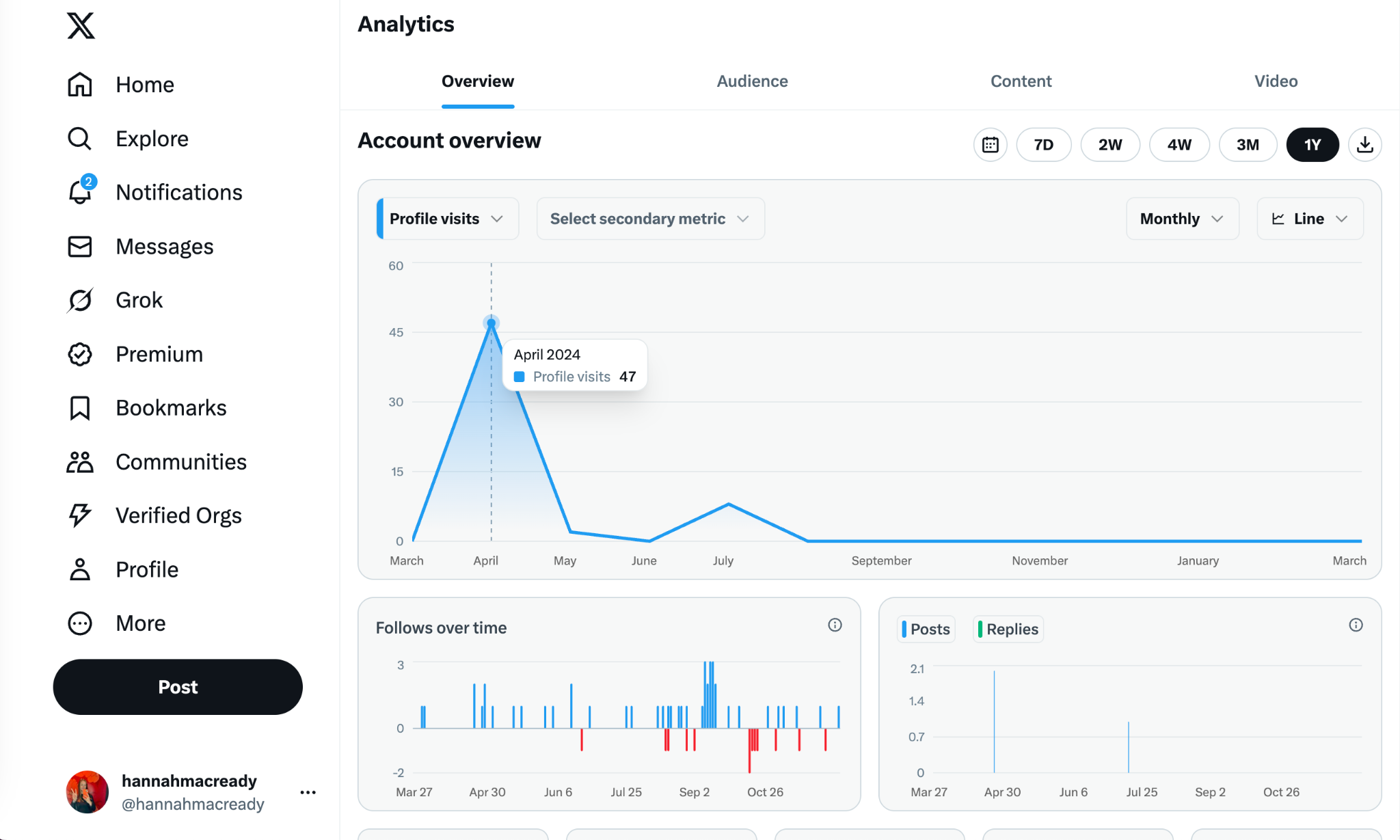

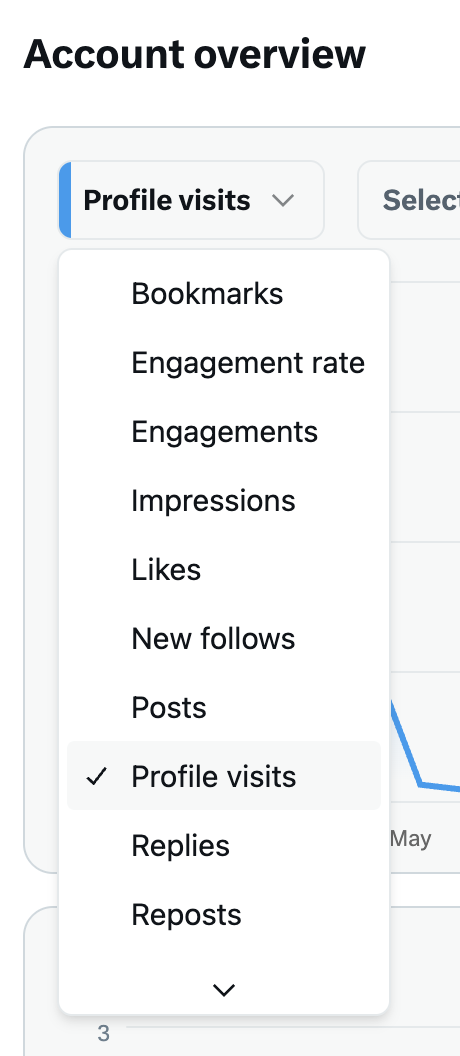
3. Use the drop-down menus to toggle between different metrics like replies, reposts, likes, and bookmarks. You can switch between line and bar graphs to visualize performance over time.

4. Click the Content tab to see analytics for individual posts.
Method 2. On mobile (no Premium required)
Okay, so this is sort of a Twitter/X hack. But, did you know that you can still view analytics for individual posts from the mobile app, even without Premium?
Here’s how to do it.
1. Tap any of your Tweets.


2. Tap the three dots in the top right corner of the post. Then, tap View analytics.


3. This gives you a quick breakdown of:
- Impressions
- Engagements
- Detail expands
- New followers
- Profile visits

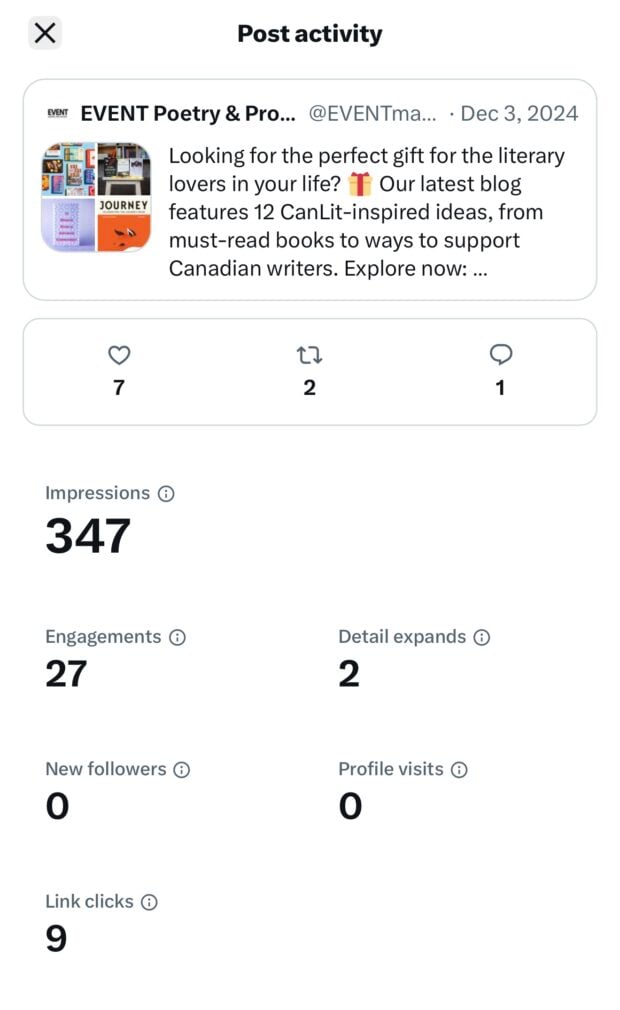
Keep in mind: There’s no access to the full analytics dashboard on mobile — just post-level data. But, at least you can access it without paying for Premium.
Method 3: With Hootsuite
If you’re not using X Premium, or you want more customizable reporting, Hootsuite offers a more flexible way to track performance across all your social channels.
Here’s how to check your Twitter analytics in Hootsuite:
1. Log in to your Hootsuite dashboard.
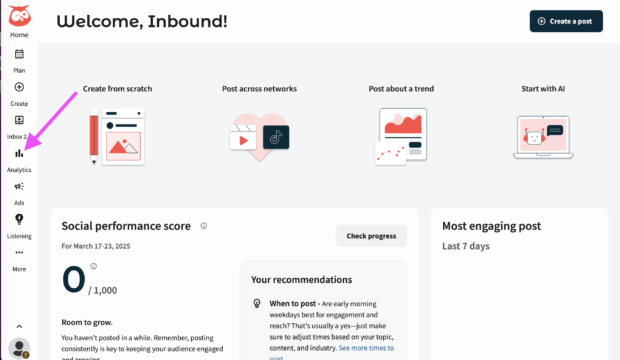
2. From the left sidebar, click Analytics.

3. Choose Create a report from the left menu.

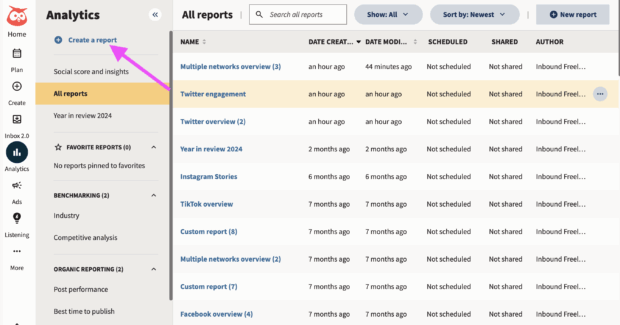
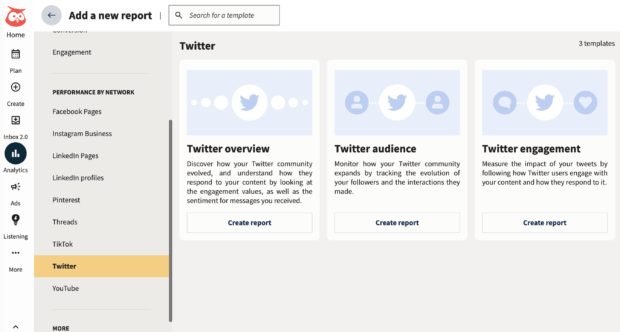
4. Choose the report you want to generate.
You can choose to view data by goal (engagement, awareness, or conversion). Or, by platform. To view overall Twitter analytics data, choose Twitter then, Twitter overview. Then, click Create report.

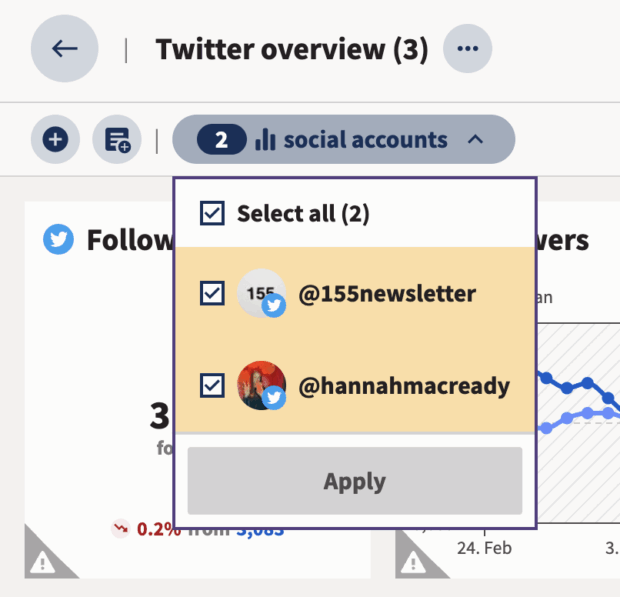
5. Choose which Twitter accounts you’d like to showcase in your report. You can choose to view one account at a time, or compare post performance across multiple accounts for a more complete view.

6. Now, your Twitter analytics are ready to view! Find metrics like impressions, clicks, engagement rate, follower count, follower growth, and more.

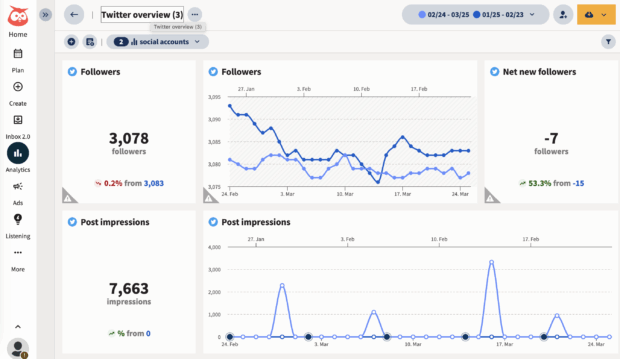
7. Don’t forget, you can customize your dashboard or export reports to share with your team.
Hootsuite also lets you:
- Compare performance across platforms
- Track Twitter campaigns by tag or date range
- Monitor audience growth and content trends over time

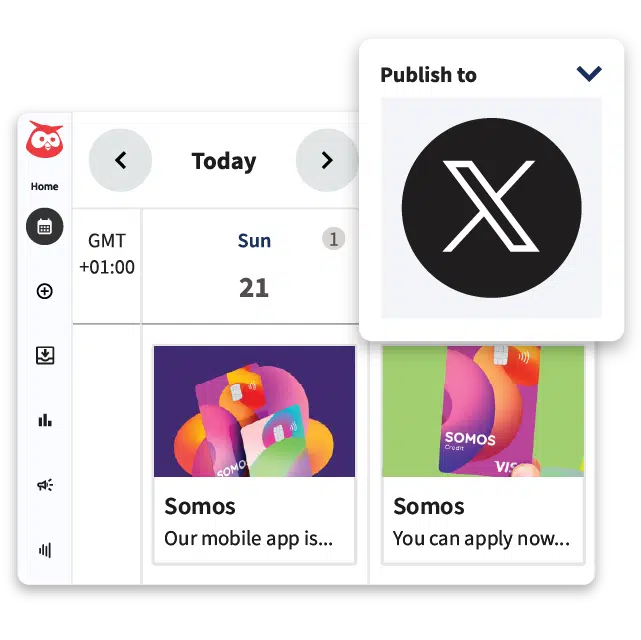
#1 tool for X marketing
Schedule tweets, answer comments, and manage ads from one spot. Then, show off your results in beautiful reports. It’s so easy.
Start free 30-day trial
9 key Twitter analytics metrics, explained
Here are the most important metrics to watch if you want to improve performance on X.
1. Engagement rate
Engagement rate shows how often people interact with your content after seeing it. That includes clicks, likes, replies, reposts — anything beyond a scroll-by.
Why it matters
Engagement is the quickest gut check on whether your content is hitting the right note. High engagement means your audience cares, and the algorithm will usually reward you for it.
If engagement is low
Experiencing low engagement? Your hook may need more punch, the topic might be off, or the post could use a more engaging format (think videos, multi-image posts, or polls).
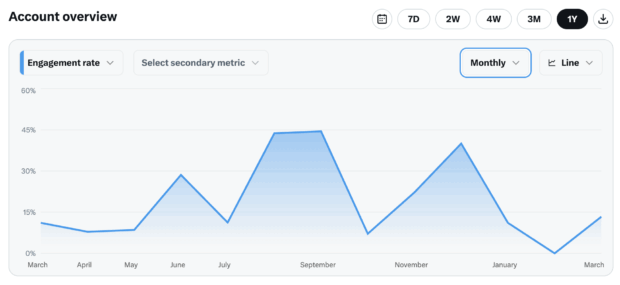
Where to find it on XIf you have X Premium, you’ll find engagement rate in the dropdown menu of your Account overview section.

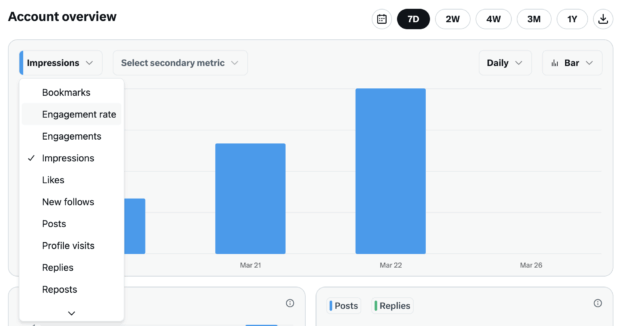
You can toggle the time period you’d like to view your engagement rate for, and even track secondary metrics alongside it — likes, replies, or new followers — using side-by-side charts.

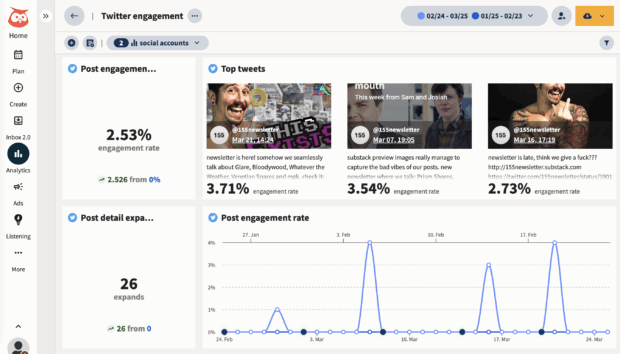
If you’re not a Premium user — or just want a clearer view — Hootsuite Analytics makes things easier.
You can sort all your posts by engagement rate, spot patterns over time, and compare performance across platforms. No spreadsheets, no switching tabs.

2. Follower growth
Follower growth shows how your audience is changing. It tells you how many people followed, unfollowed, and what the total change is over time.
Why it matters
A rise or drop in Twitter followers can tell you a lot. When it goes up, it usually means your content is landing. When it jumps or dips, that’s your audience giving you instant feedback.
If follower growth is low
People might like what they see in the moment but not enough to stick around. It could be a tone shift, a topic shift, or just inconsistent posting. Take a quick look at your recent posts to spot patterns.
Where to find it on X
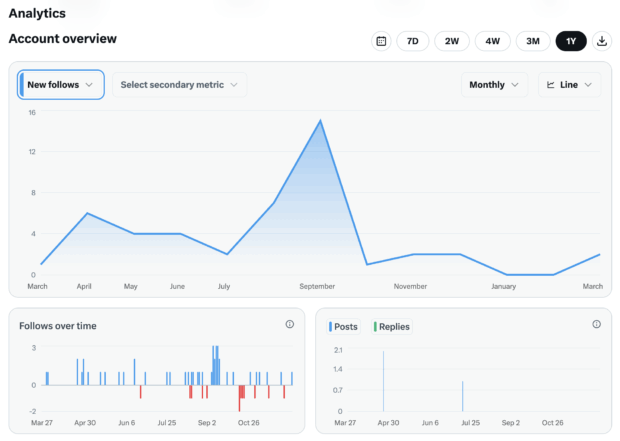
You can find this number on your Twitter analytics dashboard homepage, under New follows, or under Follows over time.

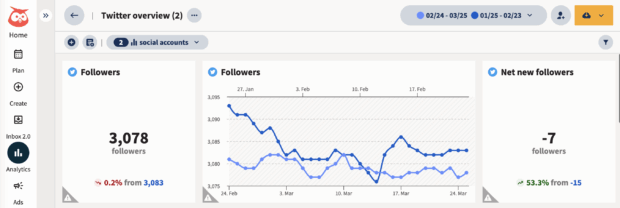
Hootsuite shows your follower growth next to your post data, so it’s easier to see what’s helping, or hurting, your audience.

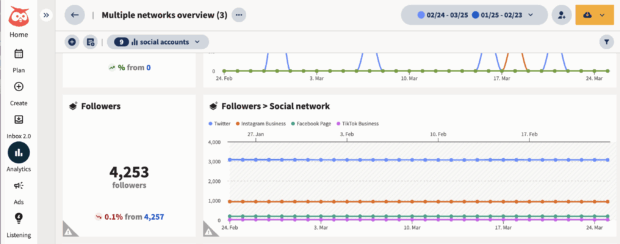
You can also track followers across all your social accounts in one place, which can help you see how different content performs on different platforms.

3. Reposts/Retweets
Reposts (formerly retweets) show how many people shared your post with their own audience. Every repost pushes your content into new circles you wouldn’t reach on your own.
Why it matters
Reposts are a big signal that people like your post. And that means serious reach potential. When people share your post, the algorithm pays attention, and your visibility can grow fast.
If reposts are low
Reposts usually happen when something sparks an opinion, solves a problem, hits an emotion, or just makes people laugh. Try leaning into relatable moments, trending topics, stronger hooks, clear opinions, or genuinely helpful insights.
Where to find it on X
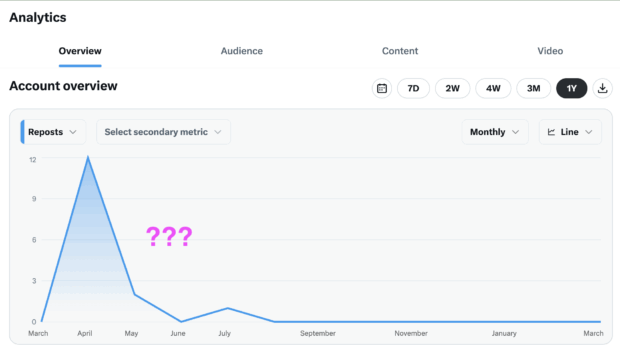
This number lives in the dropdown menu of your Account overview page in Twitter analytics. Here, you’ll see the total number of reposts in the X analytics dashboard. That’s it. You get a number — but no details about who shared it or how to follow up.
With Hootsuite Streams, you can go further. You can track reposts in real time, see who shared your content, reply with a thank you, or join the conversation. You can even reshare their post or send a message — right from your dashboard.

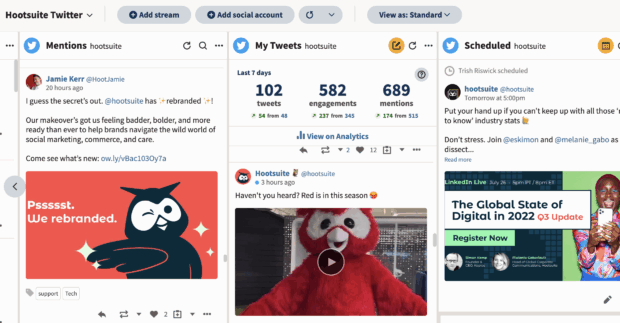
Knowing how many reposts you got is nice. Knowing what to do with them is better.
Pro tip💡: Want to know more about becoming a high-performer on Twitter/X? Check out our collection of the top Twitter statistics to learn more about the platform and its demographics.
4. Impressions
Impressions show the number of times your content appeared in someone’s feed.
Why it matters
While Tweet impressions aren’t as meaningful as engagement, it’s still worth tracking over time. It tells you how far your content is traveling, if the algorithm is picking you up, and if your community is pushing your content outside its circle.
If impressions are low
Your posts may not be getting pushed out far enough. Try tapping into trending conversations or experiment with formats that naturally get more reach, like video.
Where to find it on X
In the Twitter analytics dashboard, you can track impressions daily, weekly, monthly, yearly — or during a specific “pay period.” In this case, “pay period” refers to the two-week window used in X’s creator ad revenue program. It’s the time range that determines payouts, if you’re part of that program.
You want steady growth, but don’t panic if a high-impression month doesn’t translate into clicks or follows. Visibility is only one piece of the puzzle.
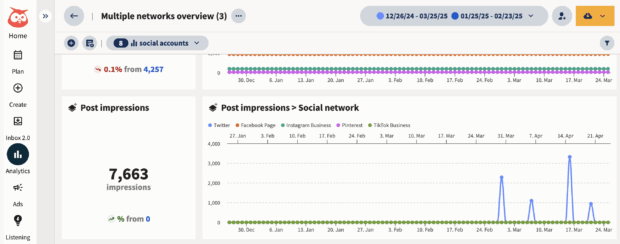
In Hootsuite, you can view monthly impressions across all platforms in a single view, helping you spot big-picture trends and campaign spikes with less digging.
5. Link clicks
Link clicks show who cared enough to go deeper — whether that’s reading a blog post, checking out a product, or signing up for something.
Why it matters
If your goal is website visits, downloads, or revenue, link clicks are one of your most important metrics to track. It shows which hooks, CTAs, or formats actually move people to act, not just scroll by.
If link clinks are low
Your post might not be creating enough curiosity or urgency. Try strengthening your CTA, testing different hooks, adding visuals, and posting during high engagement windows.
Where to find it on X
Twitter analytics doesn’t show this metric in the larger dashboard, even with a Premium account. But, you can see individual post link clicks on mobile. Follow the steps above in our On mobile (no Premium required) section above to see that.
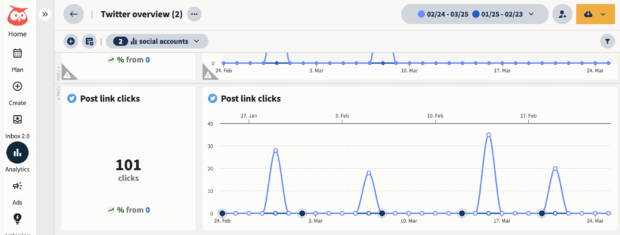
In Hootsuite, link clicks are tracked automatically, and included in a range of detailed reports.

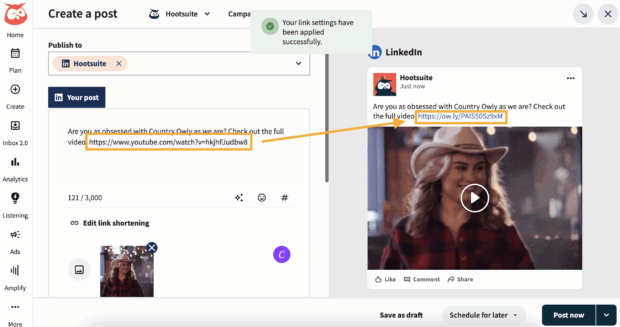
A built-in Ow.ly URL shortener can also be used when creating Tweets to add invisible tracking to every link you share. That data flows into your Hootsuite reports — and into Google Analytics — so you can see which posts are driving traffic, leads, or sales.

If clicks matter to your goals, this is a must-track metric. And Hootsuite makes it simple.
6. Likes
Likes show how many people tapped the heart icon on your post. It’s a low-effort form of engagement but still a useful signal.
Why it matters
Likes show when something landed, even if the user didn’t comment or share. Not the most powerful metric, but great for spotting creative trends and testing new ideas.
If likes are low
A high-like post might feel like a win, but if it doesn’t drive replies, clicks, or profile visits, it may not be doing much beyond surface-level reach. The key is context. A post with fewer likes but more replies or clicks might be far more valuable than one that was passively liked and forgotten.
Pro tip 💡: Not seeing the likes you expected? The X algorithm has changed a lot — check out how it works in 2025.
Where to find it on X
You can track likes from the dropdown menu in your Twitter analytics Account overview section.
In Hootsuite, you can see likes alongside deeper key metrics — like link clicks, engagement rate, and profile visits — so it’s easier to spot what’s really working. You’ll start to see patterns: What earns applause, and what sparks action.
7. Replies
Replies count how many people responded directly to your post or replied while quoting it.
Why it matters
Replies are where conversation (and community building!) happens. When someone responds to your post or shares it with a comment, that’s a deeper form of engagement — and a chance to build connection.
If replies are low
Low replies usually mean your posts aren’t prompting conversation. Trying asking questions or inviting opinions, sharing a hot take (but not too spicy), and responding to questions quickly.
Domino’s does this well by starting a playful (and timeless) debate: does pineapple really belong on pizza? It’s low-stakes and instantly reply-worthy.


Source: Domino’s
Where to find it on X
You can track replies in the Twitter analytics dashboard, or monitor them live in Hootsuite to respond quickly and keep the conversation going.
8. Mentions
Mentions are how often people tag your @handle. This includes direct tags, replies, or organic chatter happening around your brand.
Why it matters
More mentions = more word of mouth, more reach, and more real conversation orbiting your content or brand.
If mentions are low
You may need to spark more interaction. Ask questions, reply to trending conversations (see McDonald’s masterclass below), or run UGC-style prompts that invite tagging.
And honestly? Replying more can do wonders.


Source: McDonalds
Where to find it on X
Mentions appear in the X Premium analytics dashboard under engagement metrics, or monitor them live in your Notifications tab.
However, you won’t see:
- sentiment
- who’s mentioning you most
- topic clusters
That’s where a tool like Hootsuite comes in clutch. You can monitor mentions in real time and filter by sentiment, keyword, or account. And with Hootsuite Social Listening, you can also see what people say when they don’t tag you, share of voice vs competitors, and brand sentiment over time.
9. Profile visits
Profile visits show how many people clicked on your name or handle to view your Twitter profile.
Why it matters
It’s a sign of interest — someone saw your post and wanted to know more about who you are. That’s often the moment right before someone decides to follow.
If profile visits are low
Give your profile some polish. Pin a high-performing Tweet. Add a strong CTA in your bio. Highlight your most relevant content. If you’re running paid campaigns, consider retargeting users who’ve visited your Twitter profile but haven’t taken action yet.
Where to find it on X
You can find this metric in the Twitter analytics dashboard if you have Premium.
Psst: Need a high-performing social media bio? Use Hootsuite’s free AI social media bio generator to create one in just a few clicks.
Which Twitter metrics are most important to track?
You should track the Twitter metrics that directly map to your marketing goals — whether that’s awareness, engagement, traffic, or audience growth.
For marketing leaders, this is crucial because metrics only become useful when they’re connected to outcomes.
Here’s a quick breakdown of which metrics to track, depending on your goals:
| Goal | Twitter/X metrics to track | What these metrics tell you |
| Grow brand awareness | Impressions, profile visits, mentions | How many people saw your content and took an extra step to learn about your brand |
| Increase engagement | Engagement rate, replies, reposts, likes | How much your content actually landed (and how likely the algorithm is to push it further) |
| Build community | Replies, reposts, mentions, new followers | Whether people feel connected to your brand and want to engage |
| Drive website traffic | Link clicks, engagement rate, profile visits | Who cared enough to take the next step, and whether your message is strong enough to earn the click |
| Strengthen brand perception | Mentions, replies, sentiment | The temperature check on your brand (and whether it’s trending up or down) |
| Improve content performance | Engagement rate, reposts, impressions | Which posts are actually working so you can double down on the good stuff |
5 tips to use Twitter analytics for best results, according to the experts
Twitter analytics can be easy to overlook. But used the right way, they can help you shape your content, track what’s working, and spot trends before they fade.
We asked Nick Martin, Social Media Manager at Tilpalti, how he uses Twitter analytics in his daily workflow. Here’s what he shared.
1. Check post-level data and bigger trends
Don’t just look at how an individual Tweet performed in isolation.
Nick checks both the fast feedback (likes, replies, impressions) on individual posts and how the profile is performing over time.
“I zoom out to see how our profile is performing on a weekly, monthly, and quarterly basis. The fast feedback from individual post analytics will help me make adjustments so that I can be more successful with my posts in the future.”
This helps him make quick changes to content that’s underperforming while also building a longer-term picture of what consistently resonates with his target audience.
He also keeps a running list of post experiments to try when a message doesn’t land: “Add an image, adjust the length of the post, try a video, make it a thread, etc.”
If something underperforms, he treats it as a learning opportunity and tweaks it for next time.


2. Set benchmarks so you know what’s actually working
You can’t spot a spike (or a slump) without knowing your average. Start with a simple benchmark: what does a typical post from your account look like in terms of impressions, engagement rate, and clicks?
Once you know that, anything above or below will stand out — and give you a reason to dig deeper. Benchmarks also help you figure out whether something was a fluke or a repeatable win.
With a tool like Hootsuite, you can track benchmark trends automatically across any time frame — and compare performance without manually pulling reports.
Want to know where you stand? Check out our 2025 social media benchmark report to compare your standing across industries and platforms.
3. Focus on the metrics that match your goals
There are lots of numbers in Twitter analytics, but not all of them matter equally.
Which is why Nick only tracks the metrics that support his marketing strategy, instead of chasing every number on the dashboard.
“Our social media strategy is focused on growing brand awareness, so I care most about impressions, engagements, and clicks,” Nick says.
He keeps less emphasis on metrics like sentiment score or support requests, since those aren’t tied to his team’s goals. The key: know which signals matter to you, and prioritize those.


4. Use competitor Tweet activity to inform your strategy
You can’t see your competitors’ analytics directly — but you can watch what they post, and how the audience responds.
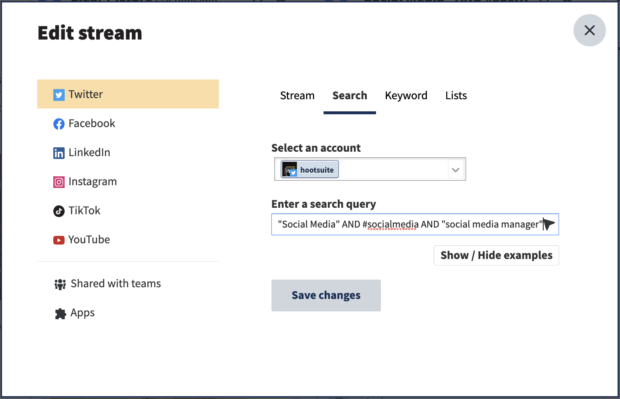
Nick sets up private Twitter lists with competitor accounts and uses social listening to monitor trends. If a type of content performs well for a peer brand, he considers testing it in his own content mix.
“Social listening lets your competitor’s analytics inform your own strategy. It’s great.”
Bonus: In Hootsuite, you can build private streams to track competitor posts and mentions in one place. You can also compare competitor Twitter performance in Hootsuite Analytics.

5. Share valuable insights beyond the social team
Twitter analytics doesn’t just help the social team. Nick shares top-performing content and social feedback with other departments, too. Product, sales, and creative teams can all benefit from what’s happening on the platform.
“Customer feedback can inform product decisions; competitive intelligence data informs sales and product teams; and identifying top-performing posts on the network can help inspire our creative team with design choices,” Nick shares.
Use your analytics to tell a bigger story — one that helps the whole org make smarter decisions. Now that’s some smart social media marketing!
Pro tip 💡: Did you know there’s such a thing as Twitter SEO? Well, now you do. Learn about it then use it to your advantage.
3 best Twitter analytics tools for 2026
If you want to go beyond what X’s native analytics can show — or skip the Premium paywall — these tools offer valuable insights, better reporting, and easier workflows. Here are our top picks.
Pro tip: Want to find the best Twitter tools that go beyond analytics? We got you.
1. Hootsuite
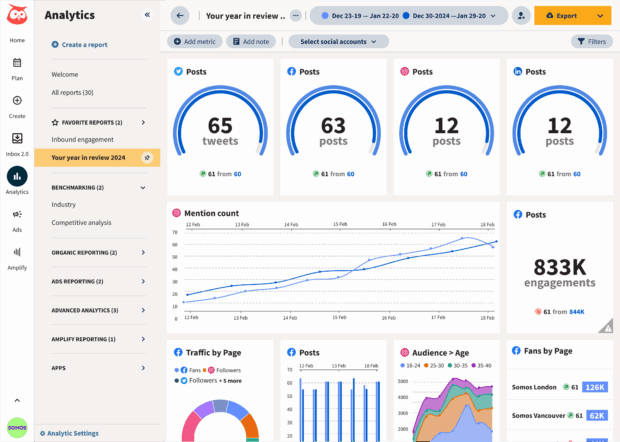
Hootsuite gives you a full view of how your Twitter content performs — alongside all your other platforms. It’s great for teams, campaign tracking, and turning data into decisions.
Its built-in analytics dashboard shows key Twitter metrics like engagement rate, follower growth, impressions, and clicks. You can filter by post, campaign, time period, or custom tag. And if you want to share those insights? Export-ready reports are just a click away.

Pricing: Starts at $99/month for the Standard plan, with a 30-day free trial.
SMM star rating: ⭐⭐⭐⭐⭐ (5/5)
My favorite features:
- Custom reports that speak your stakeholders’ language: Hootsuite lets you build analytics dashboards that actually answer the questions your team (or your boss) cares about — without the fluff, filler, or endless exporting.
- One dashboard for every platform: No need to jump between tabs. You can see how your Twitter content is performing next to LinkedIn, Instagram, TikTok, and more, all in one place.
What’s lacking/missing? Premium pricing might be too steep for solo creators. Best for growing brands or teams.
Customer review:


Source: G2
2. Buffer
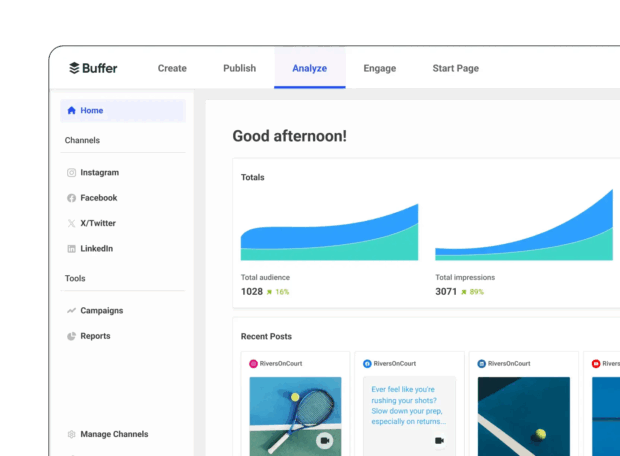
Buffer is a smart pick for solo marketers or small teams who want simple Twitter analytics that don’t require a deep learning curve. While it doesn’t offer the depth of Hootsuite’s reporting, it gives you just enough to track performance, spot trends, and stay consistent.

Source: Buffer
Pricing: Free plan available; paid plans start at $6/month per channel
SMM star rating: ⭐⭐⭐⭐ (4/5)
My favorite features:
- Quick stats, easy access: Buffer keeps things simple. You can view likes, clicks, and reposts directly in the Sent tab, or head to the Analytics dashboard for a clean, no-fuss look at overall performance.
- Helpful nudges, not heavy data: The Answers feature gives light strategy tips — like when to post and how often. It’s not advanced analytics, but it’s enough to guide a basic content strategy without feeling overwhelming.
What’s lacking/missing?
- Limited analytics depth: Buffer’s analytics are solid for daily checks, but lack the audience insights, competitor tracking, and report customization of tools like Hootsuite.
- No social listening: You won’t be able to monitor mentions or brand sentiment inside Buffer — something to consider as your Twitter strategy matures.
Customer review:


Source: G2
3.
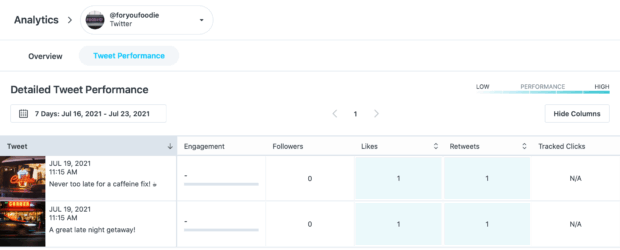
’s Twitter Analytics lets you monitor growth, track engagement metrics, and review performance on Tweets you’ve scheduled through the platform. You can view follower growth by week or month, and sort your Tweets by engagement, favorites, retweets, or clicks (on Growth plans and up).

Source:
Pricing: Starts at $16.67/month; 14-day free trial available
SMM star rating: ⭐⭐⭐ (3/5)
My favorite features:
- Best Time to Post: recommends time slots based on your past performance, so you’re not guessing when to post.
- Linkin.bio: A visual landing page that mirrors your Twitter or Instagram feed. Followers can click on individual posts to find your links, great for driving traffic from your bio without extra tools.
What’s lacking/missing?
- Basic analytics: ’s Twitter analytics are limited to 3-months of post-level data. If you need deep performance reports, campaign tracking, or multi-platform comparisons, you may hit a wall.
- No Twitter analytics on the free plan: Twitter Analytics is only available on paid plans, works only in the web app (not mobile), and only tracks Tweets published via .
Customer review:


Source: G2
Twitter analytics FAQs
What Twitter (X) analytics matter most for enterprise reporting?
For big teams, the most important metrics are the ones that show real traction: impressions, engagement rate, follower growth, link clicks, and profile visits. Pair that with mentions and replies, and you’ve got a clear picture of how far your content goes and whether people actually care.
How do large brands measure brand health using Twitter analytics?
Many large brands watch sentiment, mentions, and share of voice to see how people are talking about them in the wild. When those numbers trend up (or down), it’s usually the first signal of how the brand is really landing.
What tools offer the best enterprise-grade Twitter analytics?
Enterprise teams need tools that go beyond surface-level stats, so they’ll typically use a platform like Hootsuite for unified analytics, reporting, and listening.
Tools like Brandwatch or Talkwalker can layer on deeper trends, but the real win is having everything in one place so you’re not stitching together reports at the last minute.
How do you track Twitter impact across the customer journey?
Map your metrics to each stage. Awareness? Check impressions. Consideration? Look at engagement rate and reposts. Conversion interest? Link clicks and profile visits. Loyalty? Replies and mentions. When you connect those with CRM data, you can actually see how a single post nudges people from “just saw you” to “ready to buy.”
Which Twitter KPIs help prove ROI to senior stakeholders?
Execs care about anything tied to business impact. Link clicks, traffic, leads, and conversion metrics tell a clean story. And engagement rate, share of voice, and sentiment show how your brand is growing in the background. Together, they make it easy to prove your work is doing way more than racking up likes.
Get all the key Twitter analytics insights you need — along with analytics, one-click custom reports, content scheduling, and more for all your other social media profiles — in one place with Hootsuite. Try it free today.


