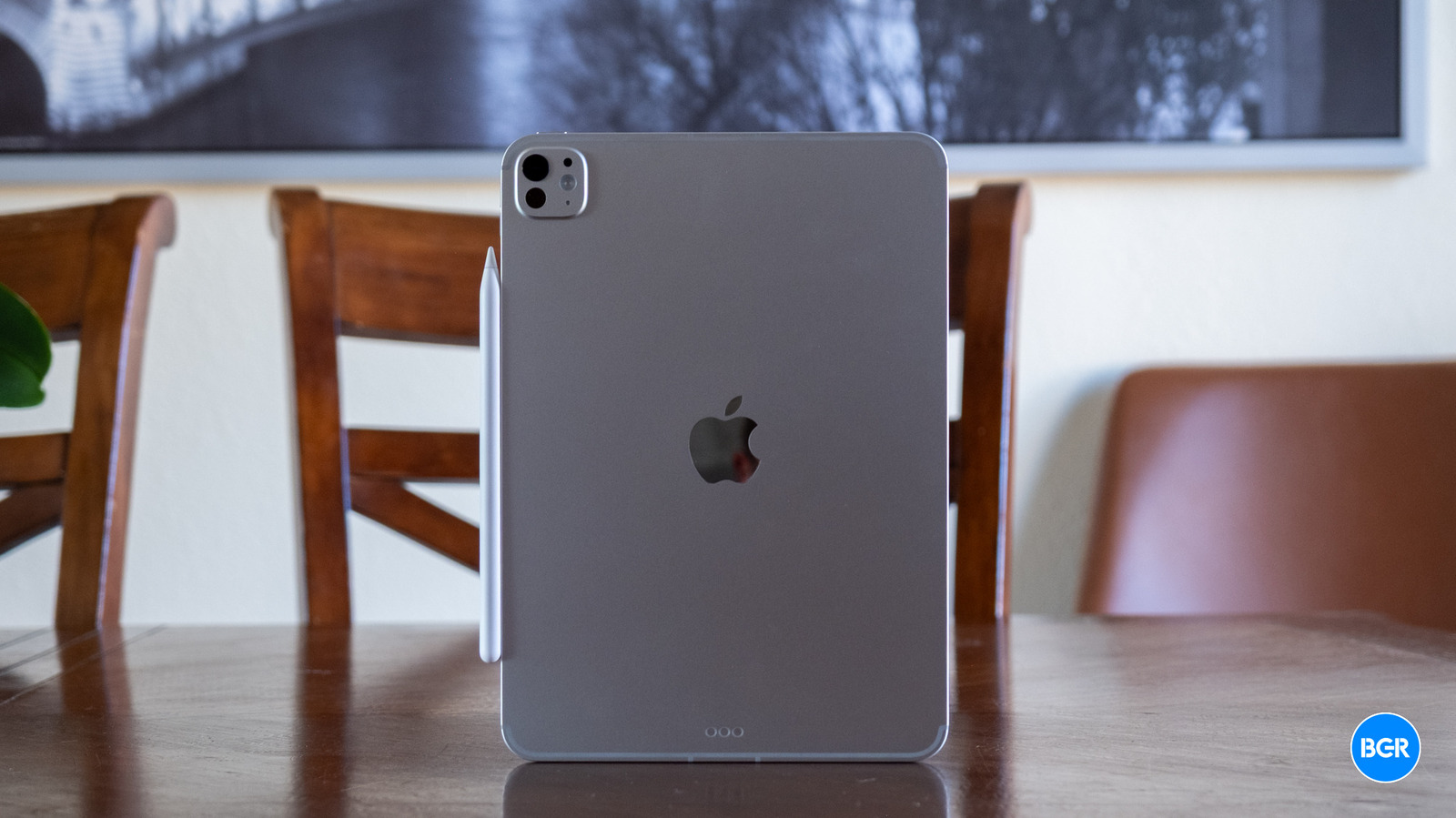
If you own a relatively new iPad model, or you’ve just bought one, it’s very likely your device has three dots on the back or side; the iPad mini is the only exception. Apple placed those dots on the back for a practical reason. The company wanted the iPad to work with keyboard accessories as soon as you attached it, with the three-pin connector carrying data and power. The three dots have an official name: the Smart Connector, which Apple announced in 2015 alongside the 12.9-inch iPad Pro. “The Smart Keyboard, available for purchase separately, attaches to iPad Pro’s innovative Smart Connector port, eliminating the need for a separate battery, on/off switch, or Bluetooth pairing,” Apple wrote at the time.
Some people may not like the appearance of the three dots on the back of the iPad, but, as Apple notes above, the three-dot connector helps users avoid two potential problems. First, the Smart Connector transfers power from the iPad to the keyboard dock. You won’t have to worry about charging the keyboard. The support for data transfer may be even more important. The keyboard will work with the iPad as soon as the iPad is placed in the keyboard dock, without requiring a setup process for a wireless connection between the two.
Keyboard accessories must have the same three-pin connector to work with the iPad’s Smart Connector. Apple explains in a support document for the Smart Keyboard and Smart Keyboard Folio that the three dots contain magnets to ensure a perfect attachment to the accessory.
What iPad models have three dots on the back?

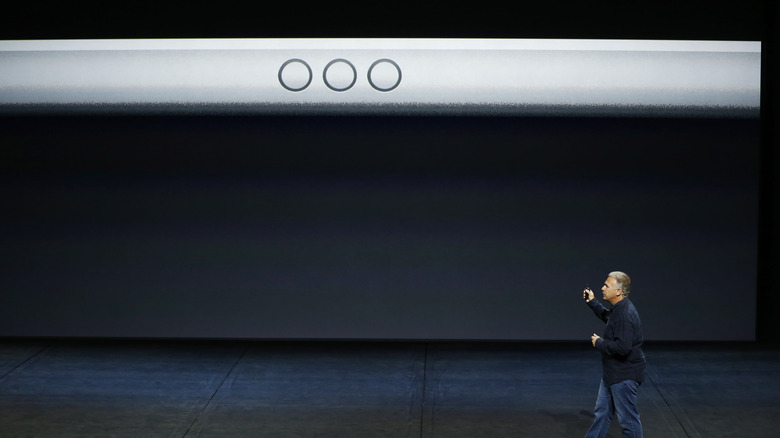
The iPad Pro was the first tablet in Apple’s lineup to feature the Smart Connector, which Apple launched alongside the Smart Keyboard. All iPad Pro models launched since then feature the three-dot connector, including the M5 iPad Pro launched last year. Apple added Smart Keyboard support to the iPad Air (3rd generation) in 2019, meaning the iPad Air also received the same rear port as the iPad Pro. All iPad Air models launched since then support Smart Connector accessories. The base iPad model also received Smart Keyboard support in 2019. The standard iPad models that launched since then also feature three dots, but on the side.
As of this writing, the iPad mini remains the only iPad in Apple’s lineup without a three-pin connector. It’s unclear why Apple hasn’t given its smallest tablet the same Smart Connector port. iPad mini keyboard accessories exist, but users would have to rely on Bluetooth connectivity to pair the keyboard with the tablet and maintain a connection. The keyboard will need to be charged via a wire connected to a power adapter.
Apple isn’t the only tablet vendor to rely on magnetic dots for connecting to keyboards. Microsoft uses magnetic pogo pins on its Surface Pro tablets to connect to the Surface Type Cover. The technology works similarly, with the pogo pins handling power and data transfer.
What accessories work with the Smart Connector?
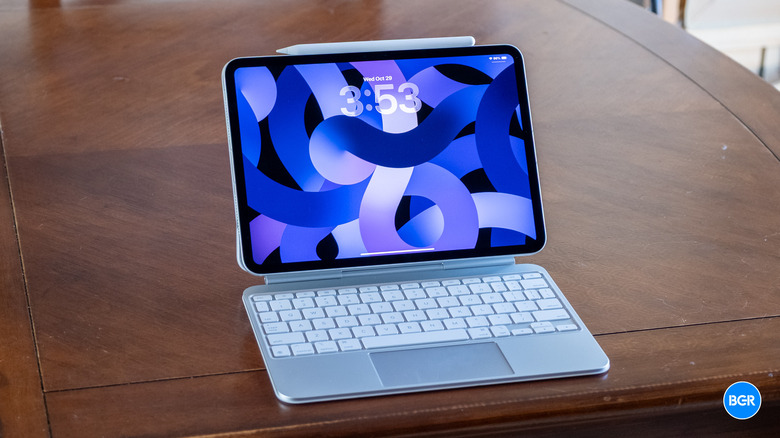
Apple’s Magic Keyboard cases for the iPad Pro and iPad Air make use of the Smart Connector. They feature a USB-C port, but the connector is used only for power pass-through (to recharge the iPad). Apple also sells a Magic Keyboard Folio that attaches magnetically to the standard iPad. For the base iPad, the Smart Connector dots are placed on the side, not on the back.
Third-party accessory makers also sell keyboards that support the three-pin connector. Logitech is one of them, noting on its website that the Combo Touch keyboard “instantly pairs with your iPad via Smart Connector. Batteries aren’t included, because you’ll never need them—power for Combo Touch is sourced directly from your iPad.” Apple may stock some of these third-party products online and in stores. For example, the Logitech Combo Touch Keyboard Case, compatible with M2 and M3 iPad Air models, is listed on its website.
That said, iPad owners aren’t limited to Smart Connector cases. They can always buy Bluetooth keyboards for any iPad Apple sells, whether it’s the expensive iPad Pro or the more affordable base version. In this case, they will have to remember to recharge the keyboard or replace batteries. They’ll also have to pair it manually with the iPad before first use and whenever the wireless connection is lost.