Your Windows PC is doing something you probably didn’t know about. While you browse, work, or game, it’s quietly uploading pieces of Windows Update files to other computers around the world. This isn’t a bug or malware, it’s a feature called Delivery Optimization that Microsoft enables by default.
Delivery Optimization is designed to make Windows updates faster by letting PCs share update files with each other instead of everyone downloading from Microsoft’s servers. Your PC downloads parts of updates from other computers that already have them, and in return, your PC uploads those same files to others who need them.
Article continues below
Why is Delivery Optimization a problem?
When your PC uploads update files to others on the internet, it consumes upload bandwidth you might need for other activities. This can create noticeable lag during online gaming, video calls, or file uploads — upload speeds are typically much slower than download speeds, so even a small portion being used in the background makes a difference.
Delivery Optimization also stores update files in a local cache on your hard drive even after installation. This takes up disk space, sometimes 10–20 GB or more. Windows clears old files periodically, but the cache refills as new updates arrive.
If you have unlimited fast internet and plenty of storage, you might never notice it running. But if you’re on a metered connection or limited data plan, the trade-offs usually aren’t worth it.
How to disable or limit Delivery Optimization
1. To disable it completely
Open Settings and go to Windows Update, Advanced options, and Delivery Optimization. Then turn off the toggle labeled “Allow downloads from other PCs.” Your PC will now download all updates directly from Microsoft and won’t upload anything to other computers.
2. To limit it to local network only
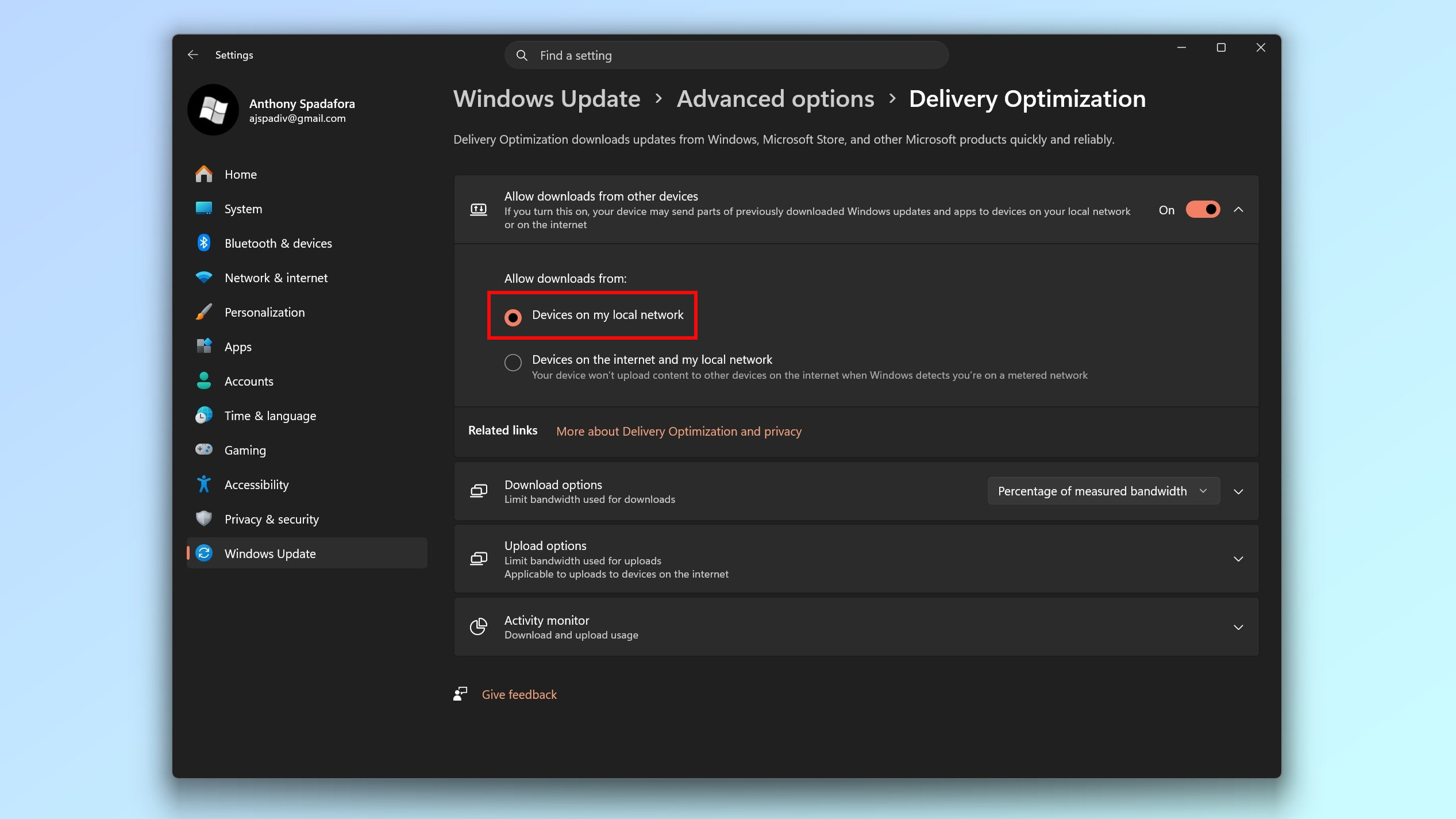

If you don’t want to disable it completely, keep “Allow downloads from other PCs” turned on, then click the option below it.
Change the setting from “Devices on the internet and my local network” to “Devices on my local network only.” This lets your own computers share updates with each other without using internet bandwidth to help strangers online.
3. To limit bandwidth usage
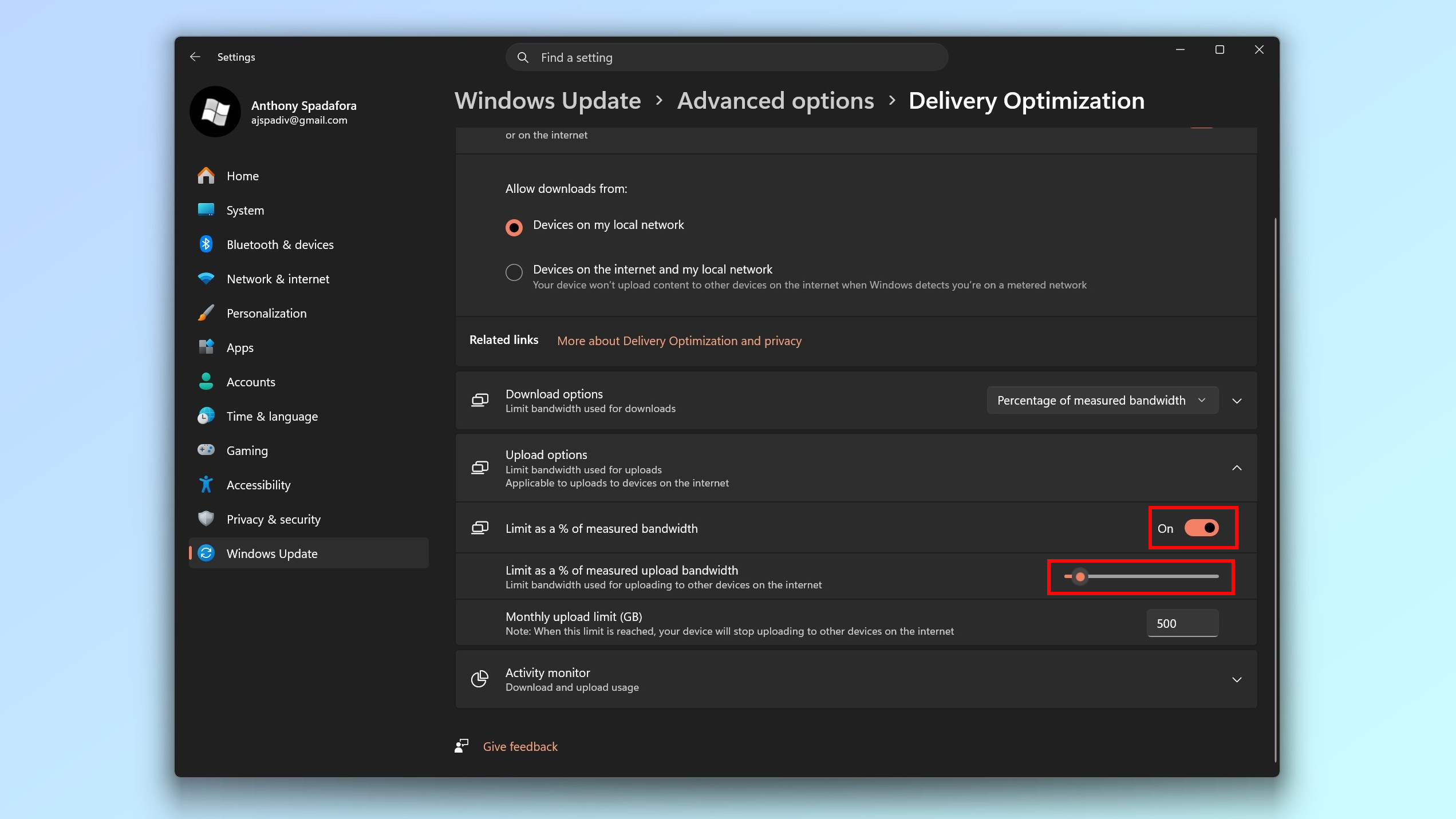

In Delivery Optimization settings, click “Advanced options.” You’ll see sliders to limit download and upload speeds. Set the upload limit to 5-10% of your upload speed to minimize impact on gaming and calls while still allowing some background sharing.
Should you disable it?
Disable Delivery Optimization completely if you’re on a limited data plan, have slow internet, frequently experience slowdowns during gaming or calls, or are tight on disk space. The bandwidth savings outweigh any benefit from faster update downloads.
If you have multiple Windows PCs at home, consider limiting it to local network only — your machines can still share updates with each other without consuming internet bandwidth. You can also just cap the bandwidth usage if you want to keep the feature running but prevent it from interfering with other activity.


Follow Tom’s Guide on Google News and add us as a preferred source to get our up-to-date news, analysis, and reviews in your feeds. Make sure to click the Follow button!