Microsoft has just added a new option allowing you to completely disable Copilot in Windows 11. However, this requires modifying Registry items or Group Policy.
After wrongly wanting to force users to adopt AI in Windows 11 when they did not want it, Microsoft is starting to backtrack. Over the past few months, buggy Windows 11 updates have gotten the better of the patience of users who did not hesitate to let Microsoft know. Faced with this dissatisfaction, the Redmond firm had no choice but to water down its wine a little.
To try to regain user confidence, Microsoft has therefore implemented its Windows K2 plan, a Windows 11 rescue operation that has become the top priority internally.
And while Microsoft’s first efforts to change what users have been asking for for years are about to be rolled out, the company still has a number of kinks to fix. Among these, the question of excessively integrating AI into the operating system is quite delicate, particularly because Microsoft has built all of its communication around it. To try to please everyone, the Redmond firm has obviously found a compromise. In the Windows 11 update for the month of April, Microsoft discreetly introduced a new option, spotted by our colleagues at Windows Latestallowing you to deactivate Copilot.
For administrators and users of the Professional version of Windows 11, this option is accessible directly from the Group Policy Editor. For Windows 11 Home users, disabling Copilot is also possible, but requires reaching into Registry Editor, a slightly riskier operation.
Good news since even if it is possible to manually delete the Copilot application, it sometimes reinstalls automatically after a reinstallation or a system update. Here’s how to remove Copilot from your PC running Windows 11 Home or Professional.
How to remove Copilot from Windows 11 Professional?
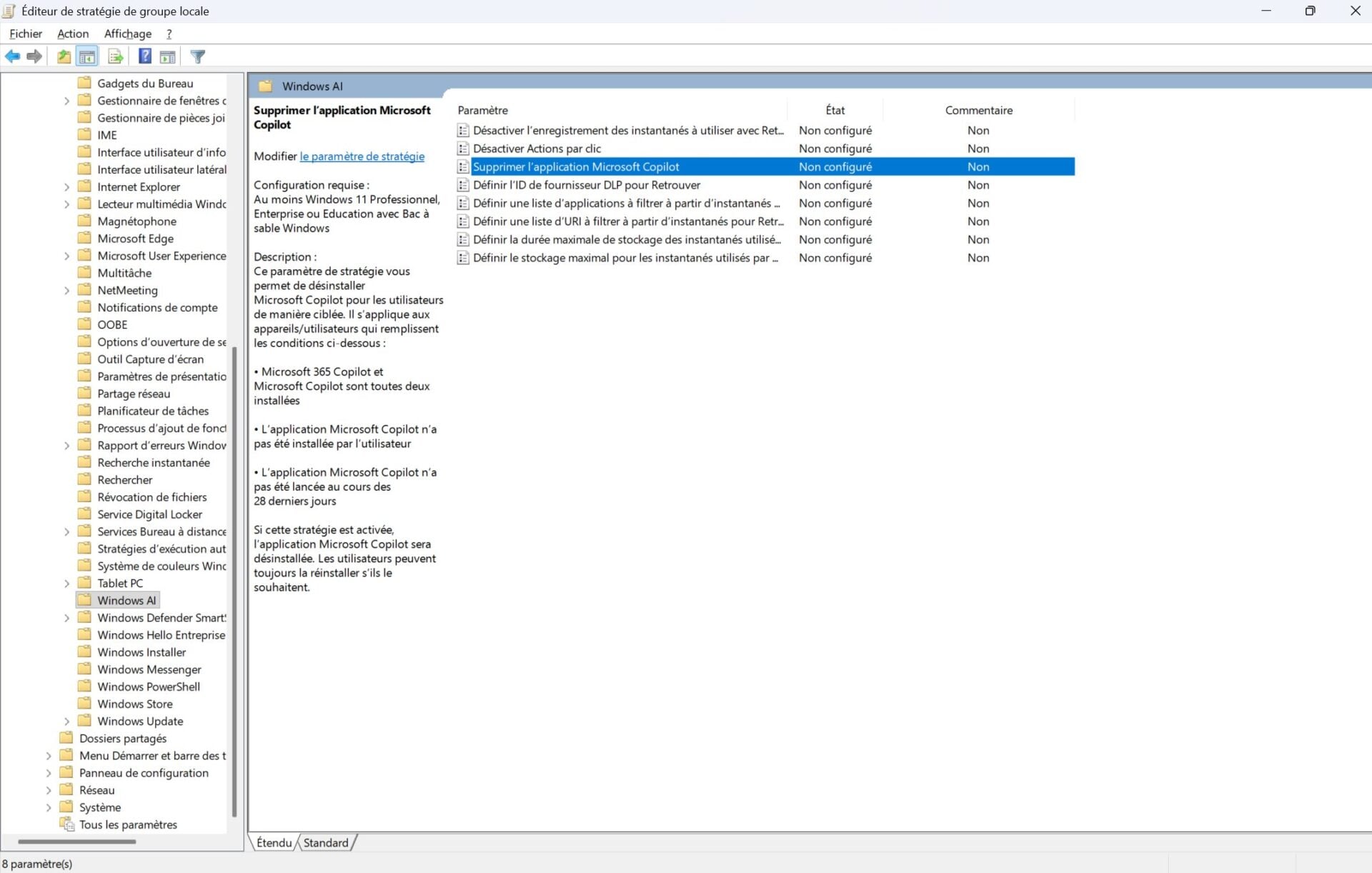
On Windows 11 Pro, the group policy that allows you to delete Copilot is called “Delete the Copilot application”. It removes not only the classic Copilot application, but also the Microsoft 365 Copilot module integrated into Office applications.
Please note, however, that to be able to use it, you must meet several conditions. This requires that Microsoft 365 Copilot and Copilot are both installed, and that you have not installed the Copilot app yourself. Furthermore, you should not use the Copilot application. Group Policy to remove the Copilot app only works if you haven’t used Copilot in the last 28 days.
1. Open Group Policy Editor
Start by opening Group Policy Editor. To do this, you can search for it directly in the Windows 11 search engine. You can also use the keyboard shortcut Windows + R to open the Run window, then enter gpedit.msc and press Enter.
Once the Group Policy Editor is open, in the left column, under the heading User Configuration, go to Administrative Templates > Windows Components > Windows AI.
3. Enable the “Remove Microsoft Copilot app” policy
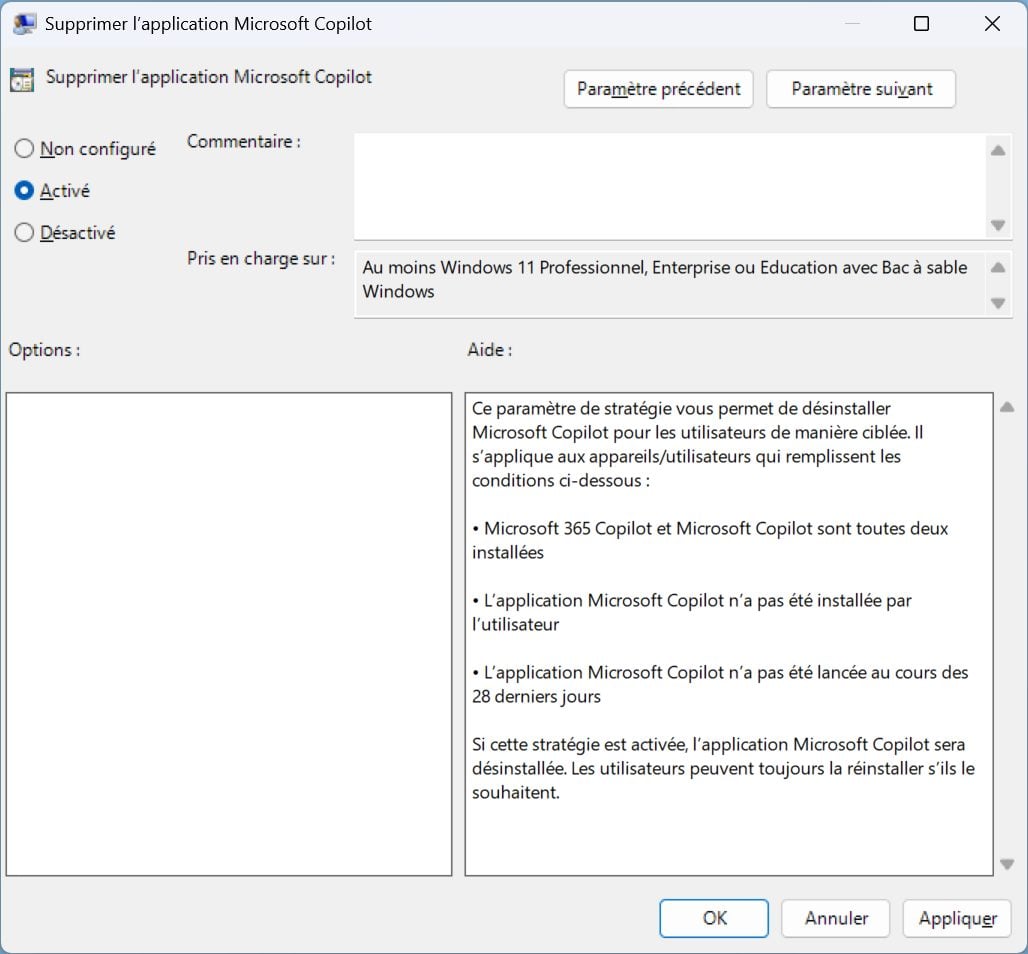
Now double-click on the Remove Microsoft Copilot app policy. In the new window that appears, select the option activatedand click Apply then on OK to save your changes. Then restart your PC to finalize the procedure.
By default, Windows 11 Home does not support this policy. However, it is possible to create it manually via the Windows 11 Registry Editor. Before embarking on this operation, it is strongly recommended to create a restore point. So, in the event of a problem, you can restore your machine to its last functional state.
1. Open the Registry Editor
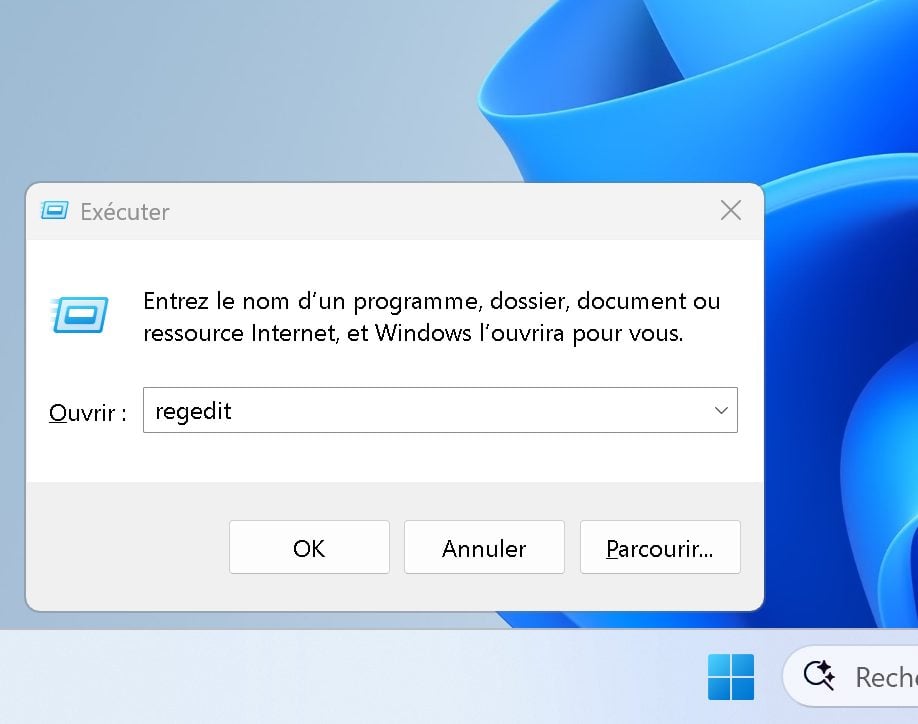
To open the Windows 11 Registry Editor, use the keyboard shortcut Windows + Renter regedit and press Enter to confirm.
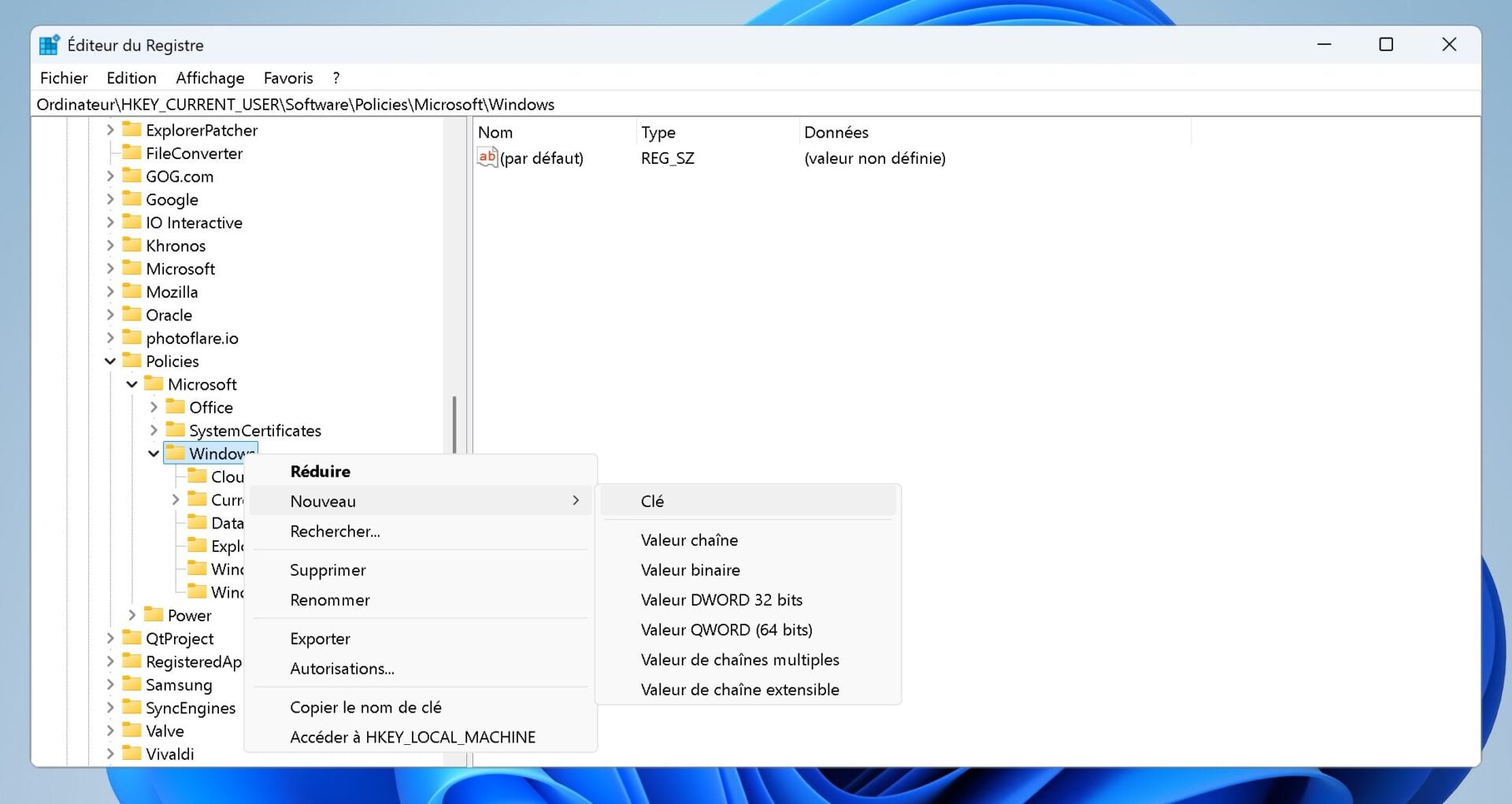
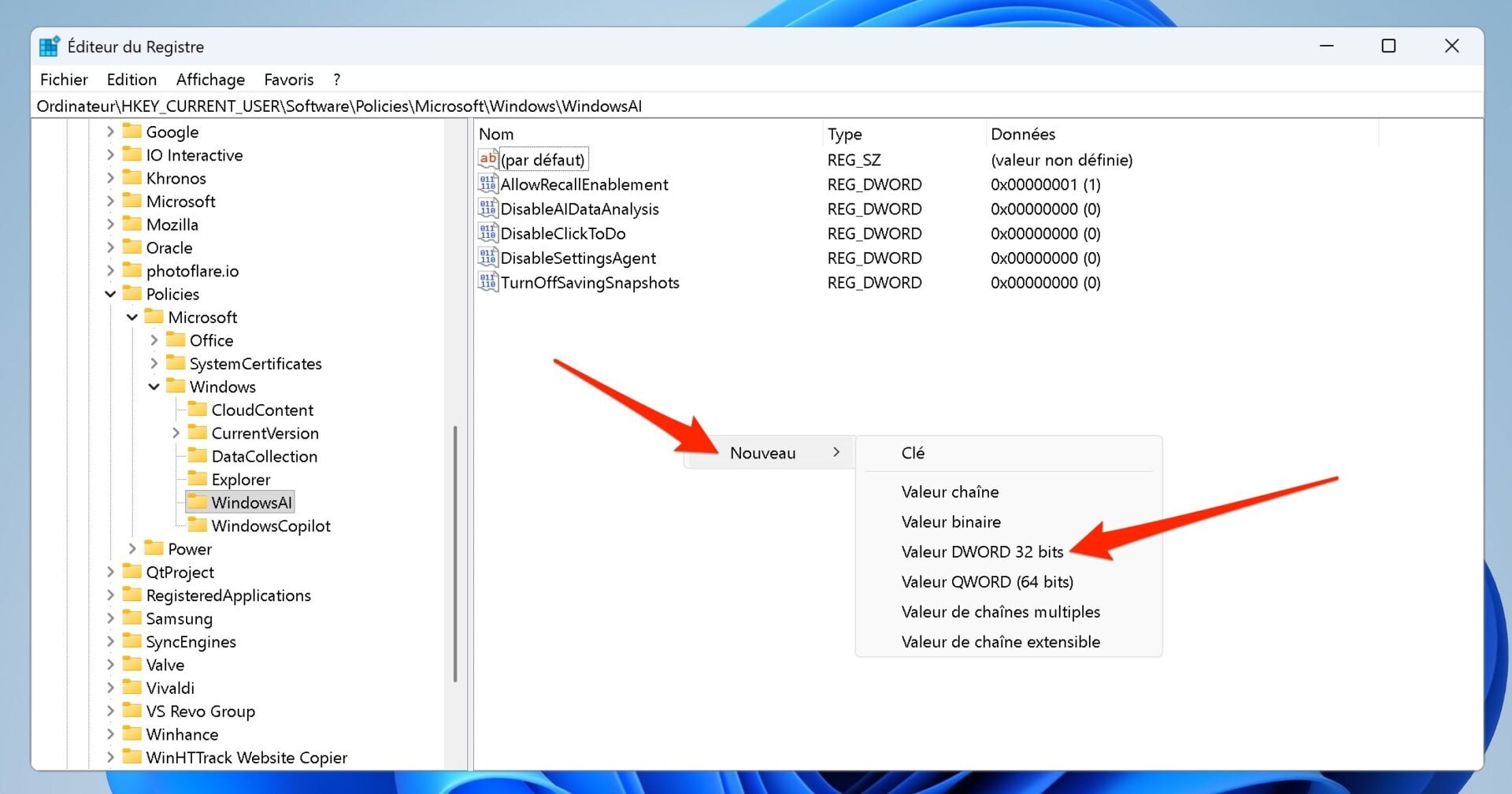
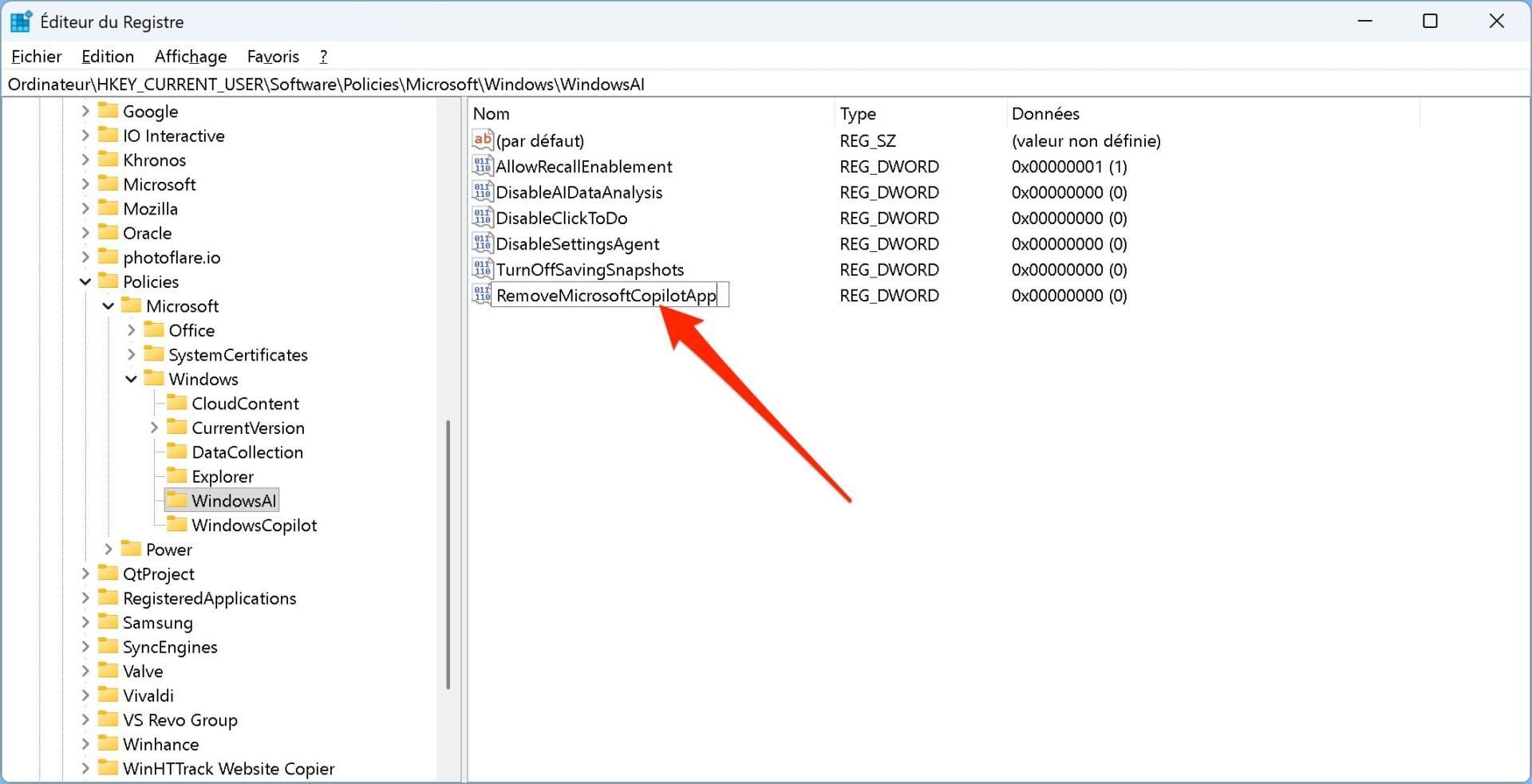
Start by browsing the directory HKEY_CURRENT_USERSoftwarePoliciesMicrosoftWindows. In the left column, make a right click on the directory Windowsthen in Nouveauselect Key. Name this one WindowsAI. It is possible that this directory is already present. If so, proceed directly to the next step.
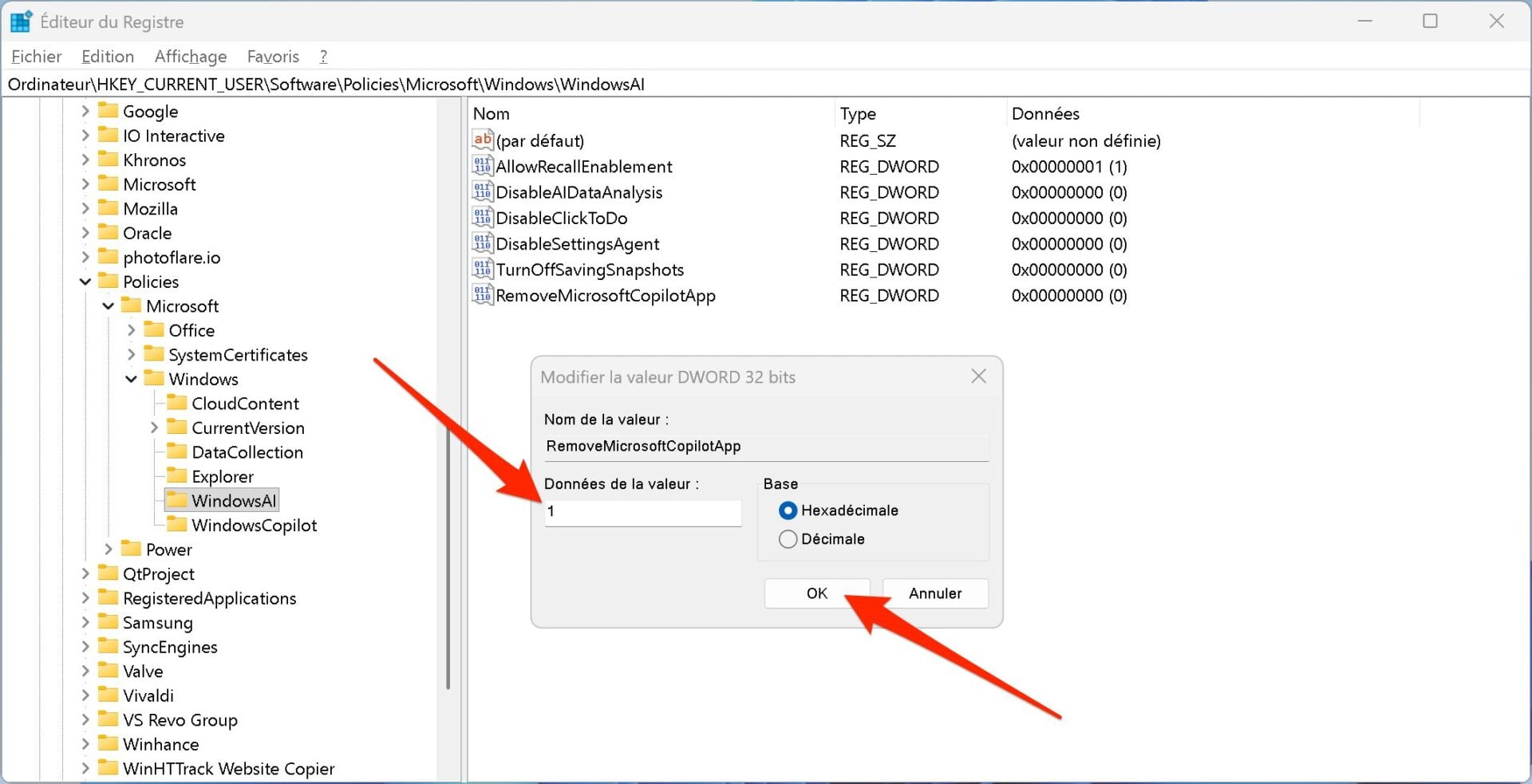
Then double-click on it, then in the Modify 32-bit DWORD value window which appears, in the field Value datareplace the 0 displayed by default with 1 and click OK to validate.
For the changes to take effect, restart your PC. In principle, the Copilot application and the Copilot 365 apps should have automatically disappeared.
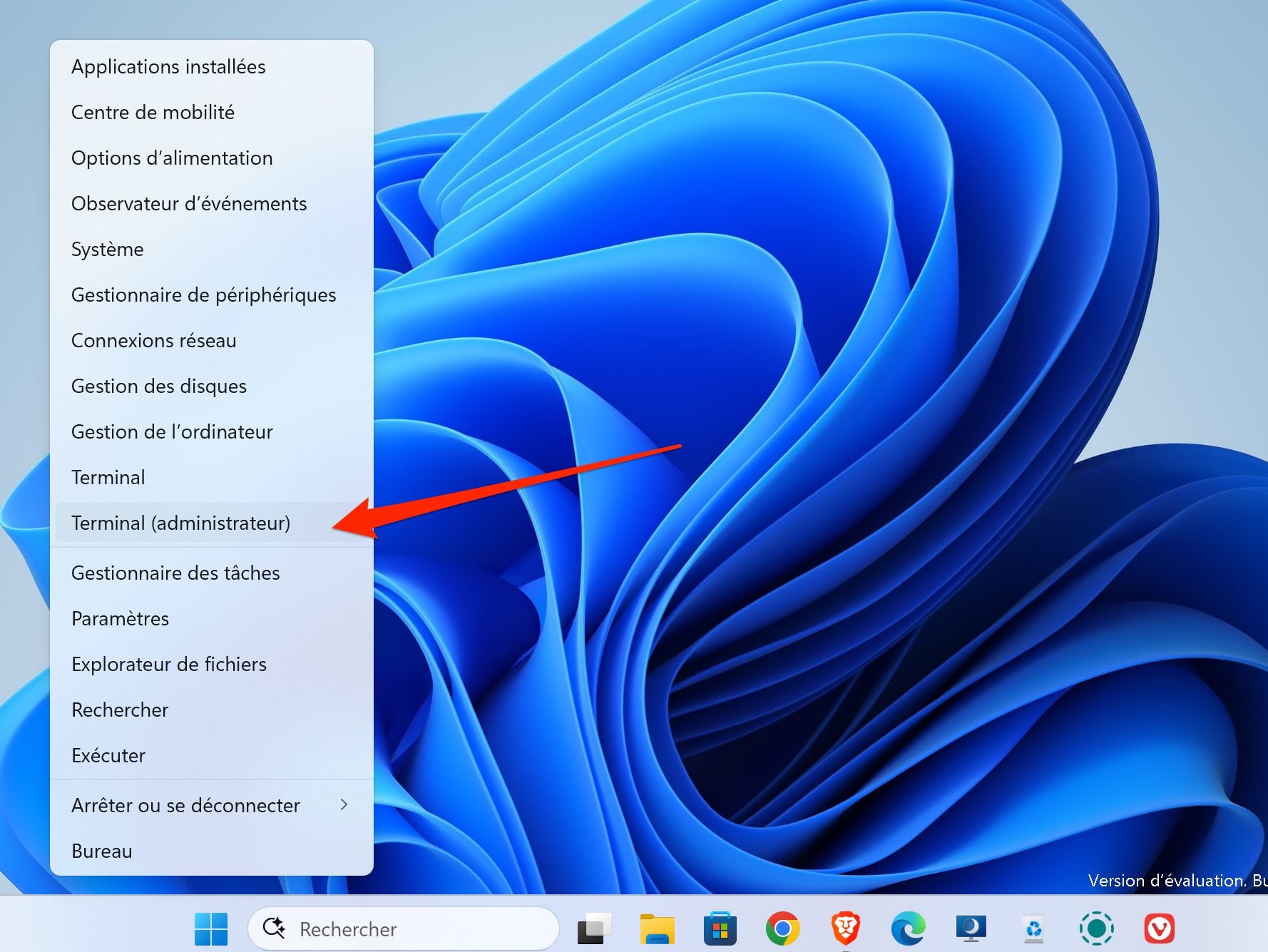
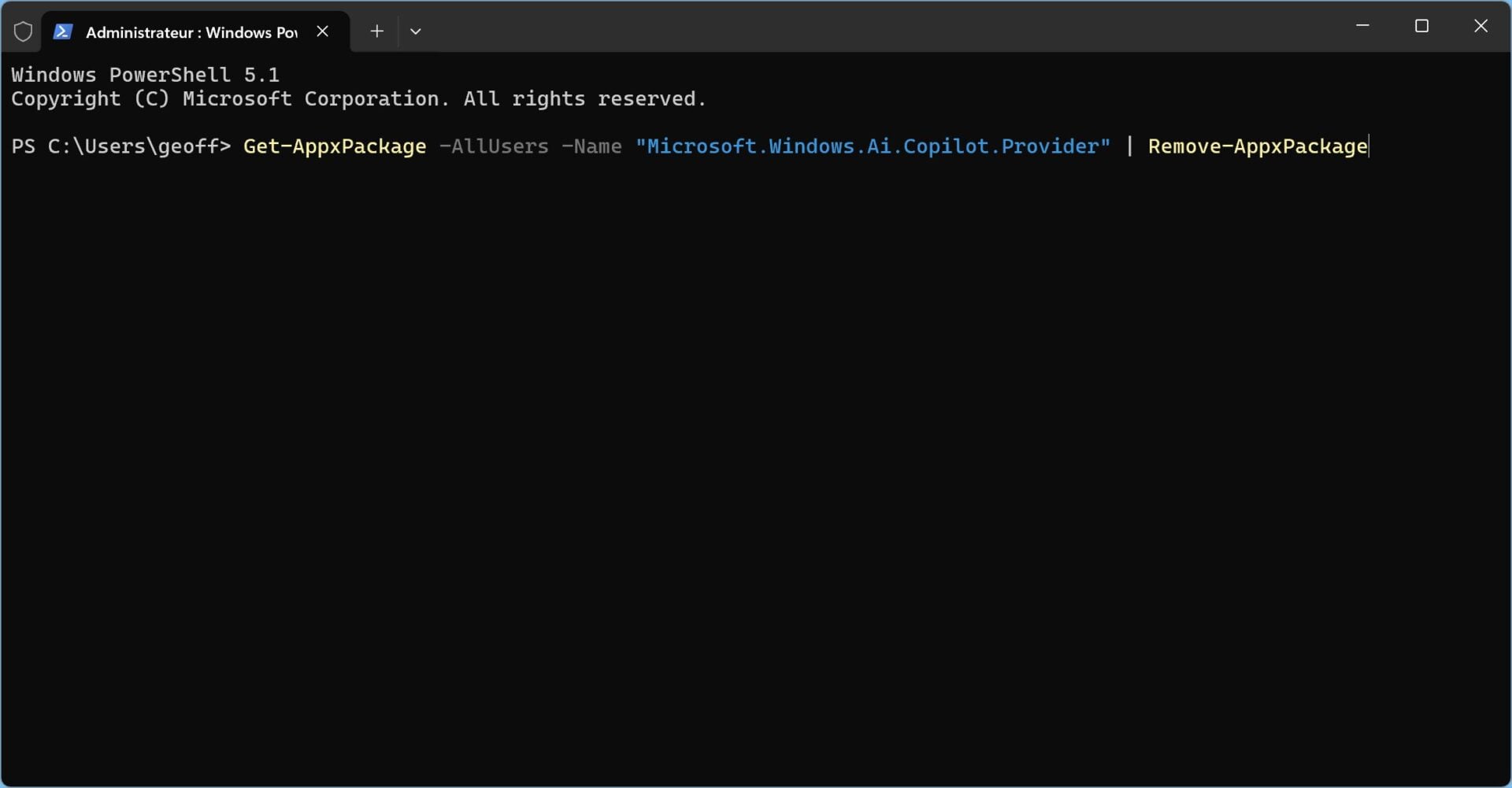
Windows Latest points out that it is also possible to get rid of Copilot using a PowerShell script. To do this, make a right click on the start menuand select Terminal (Administrator).