Third-party language models are managed through the Visual Studio Code LLM list. To access this, use the key combination Ctrl+Shift+P and enter in the following window Manage Language Models a.
Foundry
First, you’ll see a list of integrated models, all hosted externally. To add a new model, click on the corresponding button in the top right and then select Custom Endpoint. A series of prompts will then appear:
- Group Name: By default this is “Custom Endpoint”, but you can choose any name you like. This is used solely to organize the model list and has no influence on aspects such as model recognition or connectivity.
- API Key: If you have configured LM Studio to use an API key to deploy models, provide it here. If you are hosting the model locally and have not explicitly set up API keys, you can leave this field blank.
- API Type: The options here are
Chat Completions,ResponsesandMessages. In most cases, you will want to use the latter as the most universal option of the three mentioned.
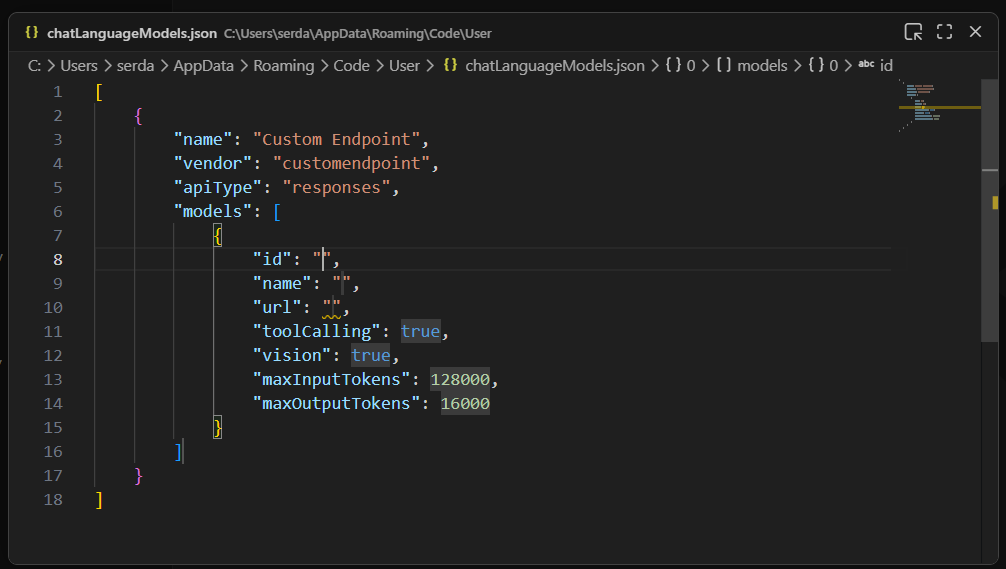
Once you’ve provided this information, you’ll be taken to a modal editor for a JSON file containing the details of the endpoint you’re configuring.

Foundry
Here you need to fill out a few more fields:
idis a text field that uniquely identifies a specific entry. The choice of ID is largely arbitrary – if you only use a single model, the ID could also be the model name.nameis the name of the model through which it is identified on the model server. In LM Studio, you can get this name by clicking My Models in the main interface, then selecting the three-dot icon for the model in question, then clickingCopy Default Identifierclick. In the case of Qwen 2.5, this field could be filled with:qwen2.5-coder-7b-instruct.urlmaps the address to the endpoint of the server. In LM Studio this defaults to something like thishttp://127.0.0.1:1234/v1. The/v1at the end is important because this endpoint is used for the automatic detection of models and their functions.
The remaining fields generally do not need to be edited. Most models have tool calling functionality. If you know for sure that the model you are using does not offer vision support, bet vision on false.
Once these steps are completed, you can close the modal editor to save the changes. Now you would have to use the newly set up endpoint in the Manage Language Models-You can also see the overview (after a reload):