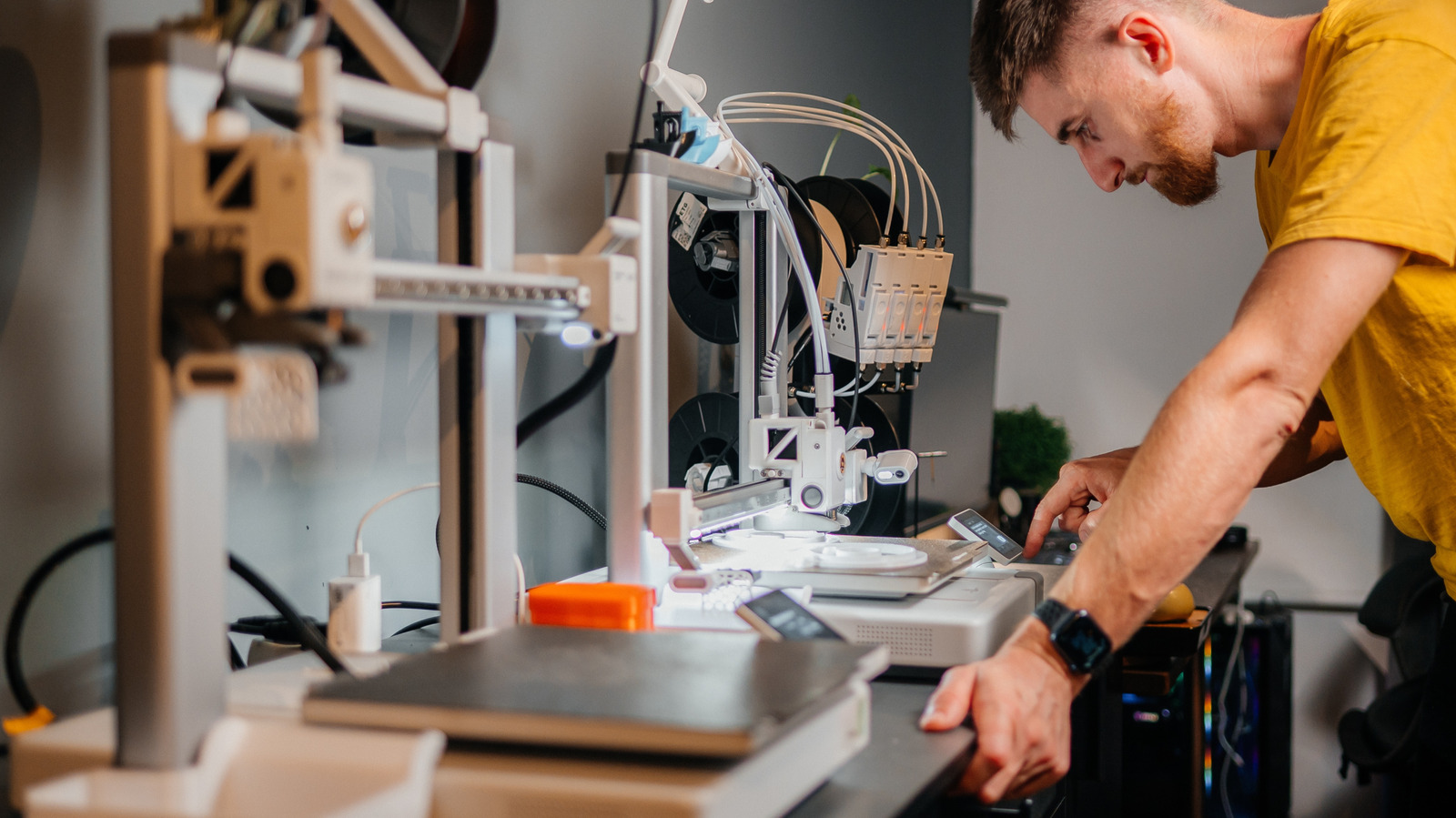
If you’re thinking about getting a 3D printer, or you already have one, it might surprise you to know that you have to clean it to keep it in optimal shape. During a thorough cleaning, several parts have to be serviced, including the nozzle, the bed, and more. While a user manual or a quick YouTube video tutorial might point out some cleaning tips, it always helps to have a guided reference, which is exactly the point of this article.
You should do a basic clean after every few prints, certainly if you notice any adhesion or performance issues with the printer itself. Good maintenance can keep a printer working long-term. It’s so influential that poor maintenance is important to watch out for when shopping for used printers. The basics involve refreshing the nozzle, cleaning the print bed, dusting internal components or the internal chassis, lubricating rails and screws, and possibly doing firmware or software checks. It’s also best practice to calibrate your printer every time you clean it, adjust it, or replace parts, like swapping out the nozzle.
Begin by cleaning the nozzle. This prevents dried filament from clogging it. Heat it to the same temperature as the last filament used. Take a brush or nozzle tool and gently clean it (remember, the nozzle is hot, so you might want to wear heat-resistant gloves). If it’s clogged, you can use a needle, a wire brush, or a cleaning filament to remove obstructions. Be careful not to damage the nozzle while cleaning, and replace it if you notice it’s damaged before printing again. You should also clean the printer bed with a scraper tool to remove any dried residue or glue. Afterward, wipe the bed with a damp cloth using either isopropyl alcohol or warm water and mild soap, depending on your bed type, to remove dust and stubborn oils.
What else needs to be cleaned and maintained on a 3D printer?

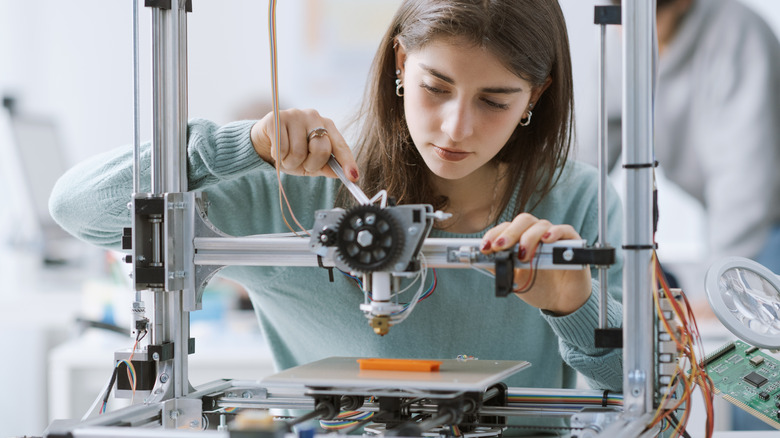
After cleaning the nozzle and bed, you should also dust off the internal components. This applies to both open-air and enclosed 3D printers. Make sure the system is off, and any heated elements are cooled. It’s a good idea to unplug the printer for safety, too. Use a compressed air tool to blow dust and debris out of components, including the fans, motors, electronics, and surfaces. You could also use a microfiber cloth, but you’ll want to be extra careful not to snag the material on the internals, like gears or motors.
You’ll also want to use a microfiber cloth to wipe down the rails and screws before applying lubricant. That prevents dust and debris from sticking to the aforementioned parts. You should also use an applicator or wear gloves when applying the lubricant, rather than using your bare hands. When that’s done, use your discretion to administer additional maintenance, such as tightening loose belts or screws, checking for firmware and software updates, calibrating, including aligning the extruder, and, if you haven’t already, cleaning your workstation or the space around the printer.
If you don’t have a printer yet, and you’re still mulling over a purchase, it’s a good idea to know what kind of maintenance you’re getting yourself into. However, there are a few other things you should know before buying a 3D printer, like the different types of printers available, the best materials for your specific printer, and the challenges you’ll face designing your own digital blueprints. There are some very affordable 3D printers worth considering, as well, so don’t think you have to buy the most expensive printer on the market.