A practical example that makes the concept a little more tangible: Anyone who works on the Internet is very likely to open various websites as part of their daily routine. Instead of opening one tab after another, you could access them all at once with a corresponding command in Vivaldi.
JR Raphael
Command chains of this type can be set up for all possible common (browser) workflows. For example, switching and closing tabs, reloading, clearing browser data or taking screenshots. Even custom time delays can be built into these workflows. Essentially, Vivaldi provides an individual automation system in the browser that can reduce almost any task to a few quick keystrokes.
3. Mouse gestures
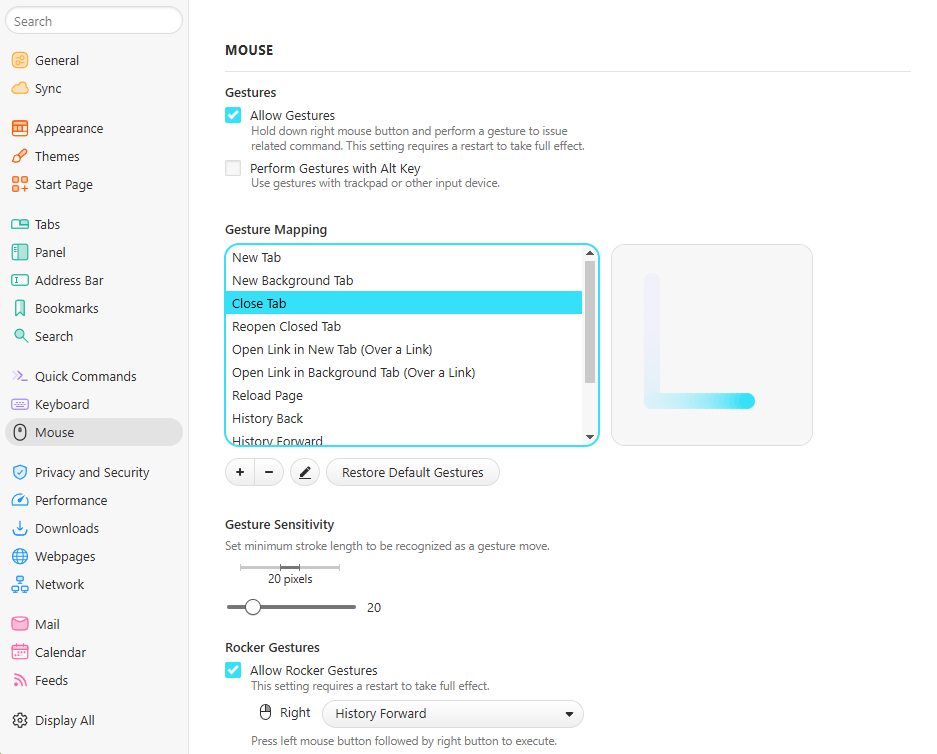
But Vivaldi also has you covered if you’re more of a mouse person than a keyboard person. In this case, Vivaldi’s mouse gesture system might be of interest to you. This feature also potentially saves massive amounts of time.
These mouse gestures are triggered either by pressing the right mouse button – or by moving the mouse in a specific direction using the Alt button. For example, vertically down to open a new tab or in an L shape to close the current one.

JR Raphael
Vivaldi offers a whole range of mouse gestures. However, these only show their true strength when they are expanded and individually adapted. This works for all of Vivaldi’s basic functions – you can also create your own custom mouse gestures and add them to command chains.
4. Individual keyboard shortcuts
Additionally, Vivaldi offers a huge selection of “traditional” keyboard shortcuts that are also available for browser-level actions. And in contrast to Chrome and other browsers, it offers the option to customize each standard shortcut as desired as well as new for browser actions.