




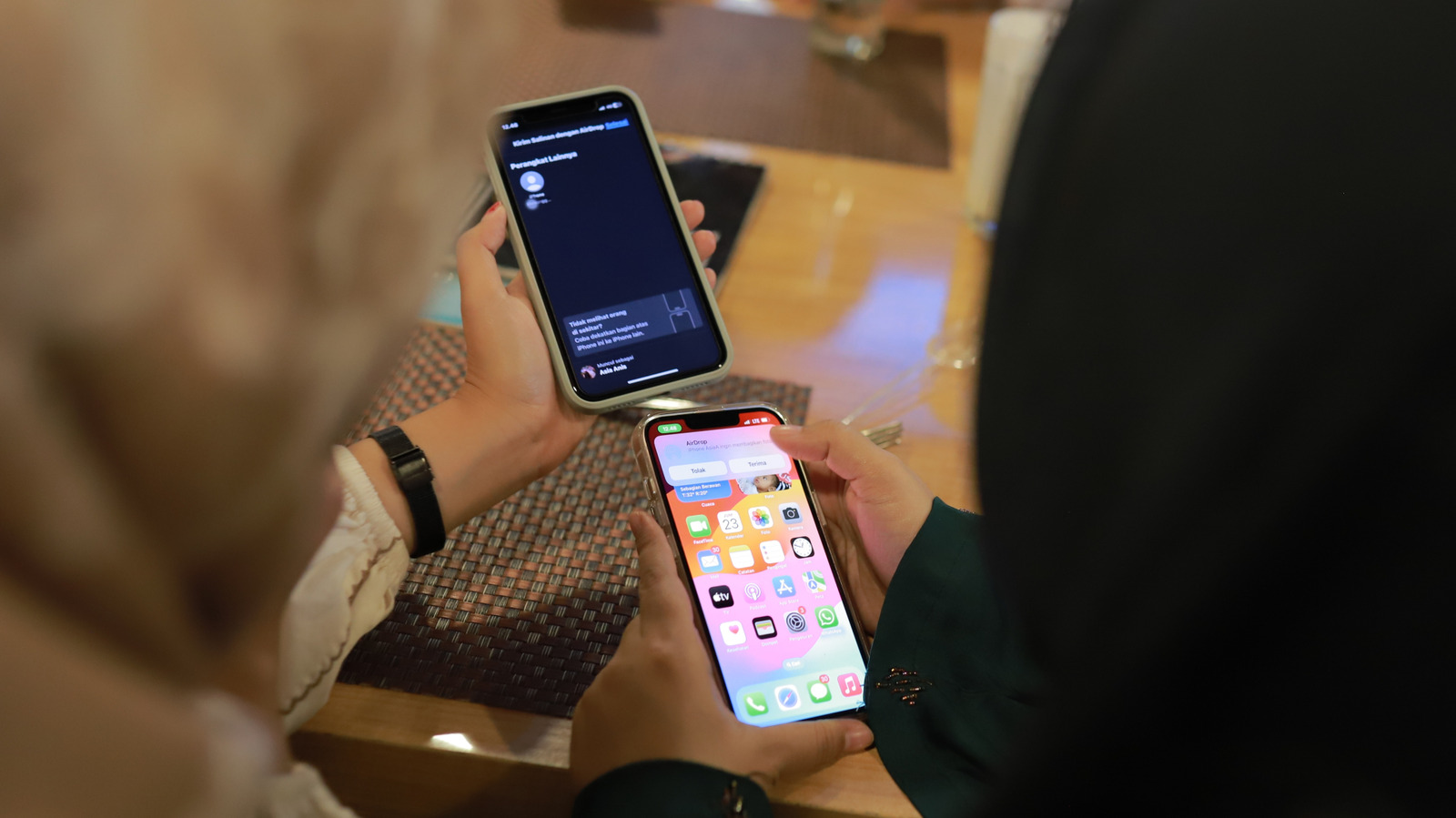
The iOS vs. Android debate is never-ending. But if you belong to the latter camp, you have a reason to rejoice because one of the most popular iPhone is now available for Android phones. Starting in 2025, some Android phone manufacturers started adding AirDrop support, allowing their users to enjoy seamless file transfers to and from Apple devices. More recently, we’ve also seen Google commit to bringing the Quick Share-AirDrop interoperability to more Android phones, so you could expect it on your handset in the future.
Nothing CEO and founder Carl Pei, posted on X that the brand is working to bring the feature to its devices. Oppo has also announced its plan to bring AirDrop compatibility via Quick Share. Currently, there isn’t a definitive timeline for when we should expect more Android phones to get the feature. It’d be ideal if all Android users could get the feature as quickly as possible, but it seems like it might take time before that happens.
Before your Android manufacturer officially adds AirDrop compatibility to your phone, you don’t have to wait to enjoy seamless transfers between your phone and an iOS device when PairDrop exists. PairDrop is a free and open-source third-party web app that enables the transfer of files across different platforms without hassle.
How to use PairDrop to share files between Android and iOS devices
PairDrop doesn’t have a dedicated app that you need to download. Instead, it provides a web application through which you can view devices on your network (as long as you also visit the platform’s URL on those devices). It transfers files over your local network, although it also has a Temporary Public Room feature that allows sharing files over the internet. The key requirement for using PairDrop to share files between Android and Mac or iOS is to connect both devices to the same Wi-Fi network.
Once you’ve done that, you can follow these steps to transfer files from your Android to your Apple device or vice versa:
- Visit PairDrop’s website on both your Android device and your iPhone. Once you open the web app, PairDrop will assign a unique name to your device.
- To transfer a file from your Android phone to an iPhone, tap the iPhone’s uniquely assigned name in PairDrop.
- Next, select Files and navigate your Android phone’s storage to find the file you want to transfer.
- Once you’ve found it, tap the file, and it’ll be sent to your iPhone.
- Finally, tap Accept in PairDrop’s web app on the iPhone to receive the file.
If you want to transfer files from your iPhone to your Android or to use a Mac instead, the steps are more or less identical. Remember, you can also select multiple files for transfer if you need to send more than one. PairDrop is one of best ways to get one of Apple’s most beloved features that Android users wish they had.


