
We use WhatsApp every day, yet there’s so much we don’t know. We chat, send pictures, mute groups, delete chats, and move on. But once in a while, you stumble on a feature you never knew existed, and it completely changes how you use the app.
That was my experience recently, and it made me realise: WhatsApp is packed with powerful tools most people never explore. So I went digging and compiled all the hidden, practical, and everyday features into one place.
Here are 155 WhatsApp features everyone should know.
Complete list of WhatsApp features you should know
1. SIM registration and verification
This is the basic requirement for opening a WhatsApp account. You must verify your phone number with a one-time SMS code. The code confirms that the number belongs to you and becomes your permanent WhatsApp identity.
2. Two-step verification (2FA)
This is a security PIN that protects your account when someone tries to register your number on another device. You set a 6-digit PIN, and you will need it anytime you sign in on a new phone.
To enable it, go to Settings > Account > Two-step verification.
3. Passkey authentication
You can sign in using your phone’s built-in security, such as Face ID, Touch ID, or a screen lock. It removes the need for SMS codes and passwords and keeps your account tied to your device.
To turn it on, go to Settings > Account > Passkeys.
4. Recovery email for passkeys/account
You can add an email address to recover your account if you forget your PIN or lose access to your device. It helps you reset access without depending on SMS.
5. Multi-device linking (Companion mode)
You can link your WhatsApp account to 4 additional devices. These can be WhatsApp Web, the Desktop app, or a second phone. All linked devices stay connected and synced.
How to link a device
- On the device you want to link (your secondary phone, computer, or web browser), open WhatsApp and tap on the option to link as a companion or companion device.
- A QR code will appear on the screen of the device you are linking.
- On your primary phone, open WhatsApp and go to Settings > Linked devices > Link a device.
- Enter your phone’s passcode when prompted to unlock it.
- Use your primary phone’s camera to scan the QR code displayed on the other device.
- Once scanned, your account will be linked and synchronised across both devices.
6. Independent multi-device operation
Once a device is linked, it keeps working even if your primary phone has no network or battery. The connected device can send and receive messages and stays protected with end-to-end encryption.
7. Multi-account support (Mobile)
You can use two WhatsApp accounts on the same phone. For example, your personal number and a work number. Each account has its own settings and notifications.
8. Independent account profiles
Image source: r/ios on Reddit
Each account keeps its own profile picture and About section. Notifications and privacy settings are also separate. Your information does not mix across accounts.
9. Secure account switching
Switching between accounts requires your device’s Face ID, Touch ID, or passcode. This protects your secondary account from anyone who picks up your phone.
10. Account list switching method (Mobile)
You can switch accounts from the Settings page. WhatsApp displays both accounts so you can choose which one to use.
11. Quick switch taps (Mobile)
You can switch accounts faster by pressing and holding the Settings icon or double-tapping it. It works well if you switch accounts often.
12. End-to-end encryption (E2EE) for messages
All chats, photos, videos, and voice notes are protected with encryption. Only you and the person you are chatting with can read the messages.
13. End-to-end encrypted backups
You can protect your cloud backups with a password. This keeps your backed-up chats private on iCloud or Google Drive.
14. Message editing
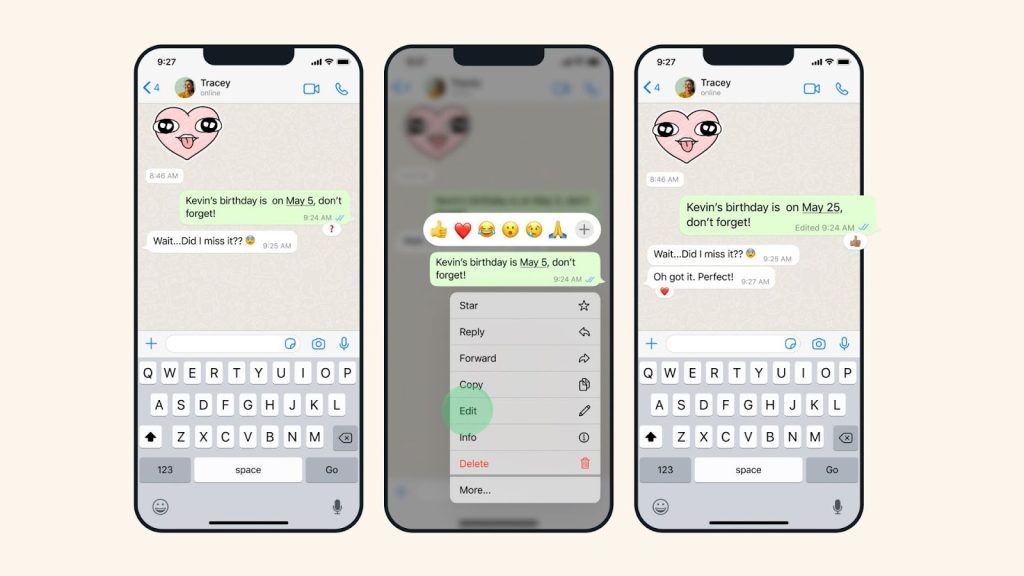
Image source: about.fb.com
You can edit a message after you send it. WhatsApp gives you a 15-minute window to fix a typo or correct what you wrote.
15. Edited message tagging
Whenever you edit a message, WhatsApp adds the word “edited” next to the time. Everyone in the chat can see it.
16. Replying to messages (Quoting)
You can reply to a specific message by selecting it. The quoted message shows above your reply, so the conversation stays clear.
17. Message reactions
You can react to any message using emojis like a thumbs-up or a heart. It is a fast way to respond without typing.
18. Message forwarding
You can take a message, photo, video, or file and send it to another chat.
19. Forwarding limits
WhatsApp limits how many chats you can forward a message to. This helps reduce spam and misinformation.
20. Starring messages
You can mark a message as necessary by starring it. Starred messages are saved in one place for quick access.
21. Deleting messages for everyone
You can delete a message you sent and remove it from everyone’s chat. There is a time limit, typically around one hour before this option expires.
22. Deleting messages for me
You can delete a message only for yourself. The message stays for everyone in the chat.
23. Chat archiving
A decluttering feature that allows you to move individual or group chats from the primary ‘Chats’ list into an ‘Archived Chats’ folder, providing a cleaner interface. This usually does not mute notifications by default.
24. Pinning chats
You can pin up to three chats at the top of your chat list. This helps you keep your most important conversations close.
To pin a chat on WhatsApp for Android, open the app, tap and hold the chat you want to pin from your chat list, and then tap the pin icon that appears at the top of the screen
To pin a chat in WhatsApp on an iPhone, go to your main chat list, swipe right on the chat you want to pin, and tap the “Pin” button that appears
25. Export chat history
A utility function allowing you to generate and save a complete copy of an entire conversation thread, optionally including all shared media, into a standardised file format (usually.txt or .zip) for record-keeping or transfer purposes.
To export a WhatsApp chat, open the specific chat, tap the contact or group name (iPhone) or the three-dot menu (Android), select “More,” then “Export chat.”
26. Bold formatting
A markdown-style text formatting option that applies heavy visual weight to words or phrases. This is achieved by enclosing the desired text within asterisks (*text*).
27. Italic formatting
A markdown-style text formatting option that applies slanted emphasis to text. This is executed by surrounding the desired text with underscores (_text_).
28. Strikethrough formatting
A markdown-style formatting option that visually draws a horizontal line through the text, often used to indicate correction or deletion. This is applied using tildes (~text~).
29. Monospace formatting
A text formatting option that renders the specified text in a fixed-width font. This is useful for sharing code snippets or technical terms and is activated by surrounding the text with three backticks (“`).
30. Bulleted list creation
A list formatting tool that allows the creation of unordered lists within a message. Each list item must begin with either a hyphen (-) or an asterisk (*) followed by a space.
31. Numbered list creation
A list formatting tool allowing the creation of ordered lists. Each line must begin with a number, a period (.), and a space (e.g., 1. Item).
32. Block quote formatting
A formatting style designed to visually separate and indent a section of text, typically used for referencing or quoting external content. It is activated by placing the greater-than symbol (>) followed by a space at the start of the line
33. Inline code formatting
A minimalist formatting feature designed to highlight specific words or short phrases within a body of text, often used for variables or command names. It is applied by surrounding the text with a single backtick (`text`).
34. Text formatting on Web/Desktop
All formatting features work the same on mobile, web, and desktop.
35. Standard image/video sharing
You can send photos and videos directly from your camera or gallery with standard quality settings.
36. Document sharing
The ability to attach and send various non-visual file formats, including common office files such as PDFs, DOCX, and spreadsheets.
37. High definition (HD) photo sharing
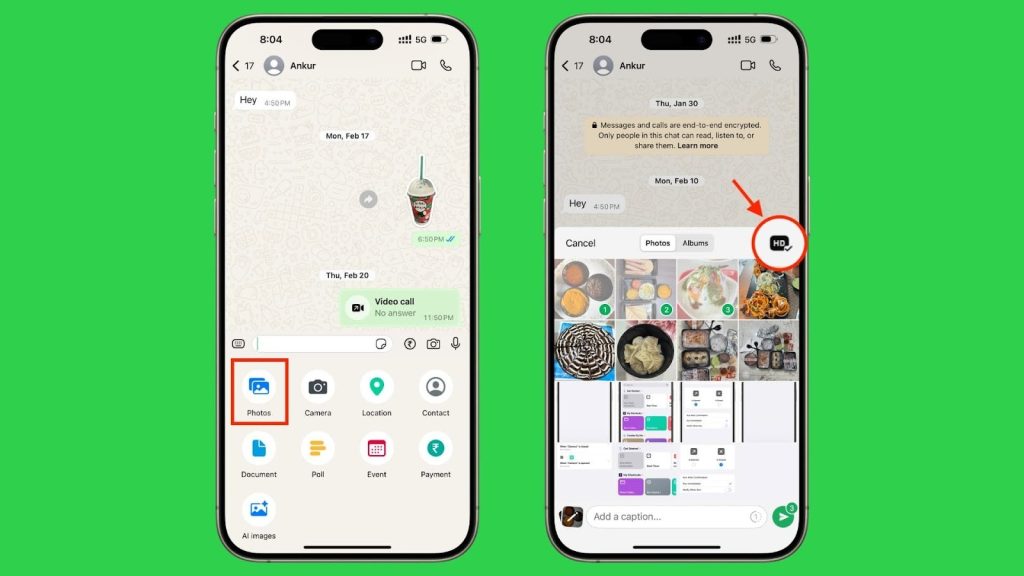
Image source: idownloadblog.com
An optional quality setting that is presented to you during media selection, enabling you to choose to send photos with significantly less compression, preserving greater visual detail than the standard quality setting.
38. High Definition (HD) video sharing
An optional quality setting that lets you send videos at higher resolutions and bitrates. This results in a larger file size but maintains better video quality.
39. Standard video size limit (Fast connection)
For users with a reliable, high-speed internet connection, the maximum size limit for standard video uploads is 100 MB.
40. Standard video size limit (Slow connection)
For users with slower internet connections, the maximum video size is dynamically reduced to 64 MB. This reduction prioritises the successful, low-data transmission of the video over its maximum possible length or resolution.
41. Sending view once photos
A privacy feature that allows the sender to specify that the photo attachment be viewed only once by the recipient. Once opened, the media disappears permanently from the chat thread.
42. Sending “view once” videos
A privacy feature that prevents the video attachment from being consumed more than once by the recipient. After being played, the video is automatically deleted and cannot be reopened.
43. Sending view once voice messages
The capability to send an audio recording that is automatically deleted after the recipient plays it once, providing an ephemeral option for sensitive voice communication.
44. Anti-screenshot protection (View once)
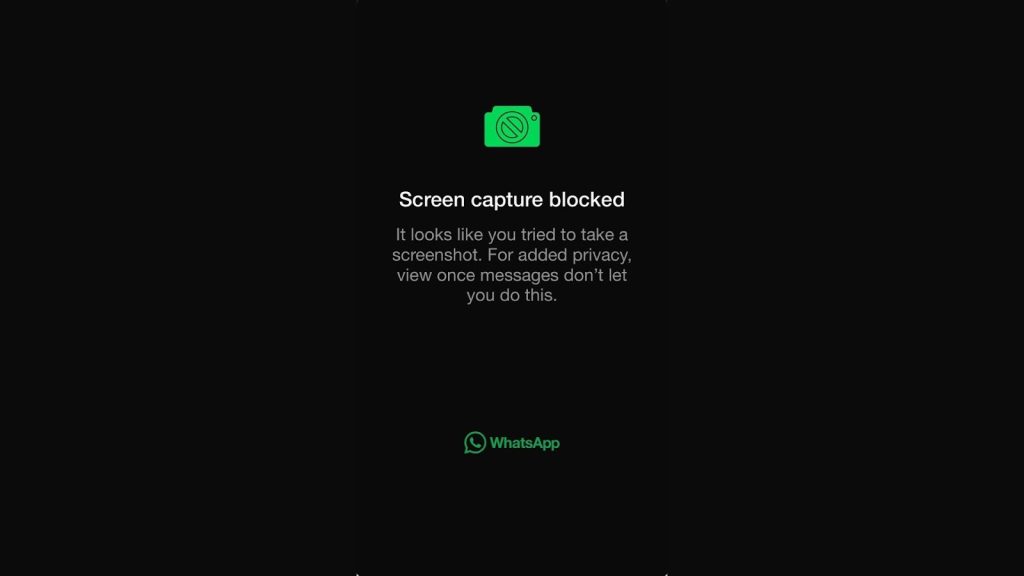
A technical mechanism is implemented to prevent the recipient from taking a screenshot or using screen recording software while the View Once media is actively displayed on their screen, bolstering the ephemeral privacy guarantee.
45. View once media expiration (14 Days)
If a View Once photo, video, or voice message remains unopened by the recipient, it is automatically purged from the chat thread 14 days after its initial transmission.
46. Global storage management
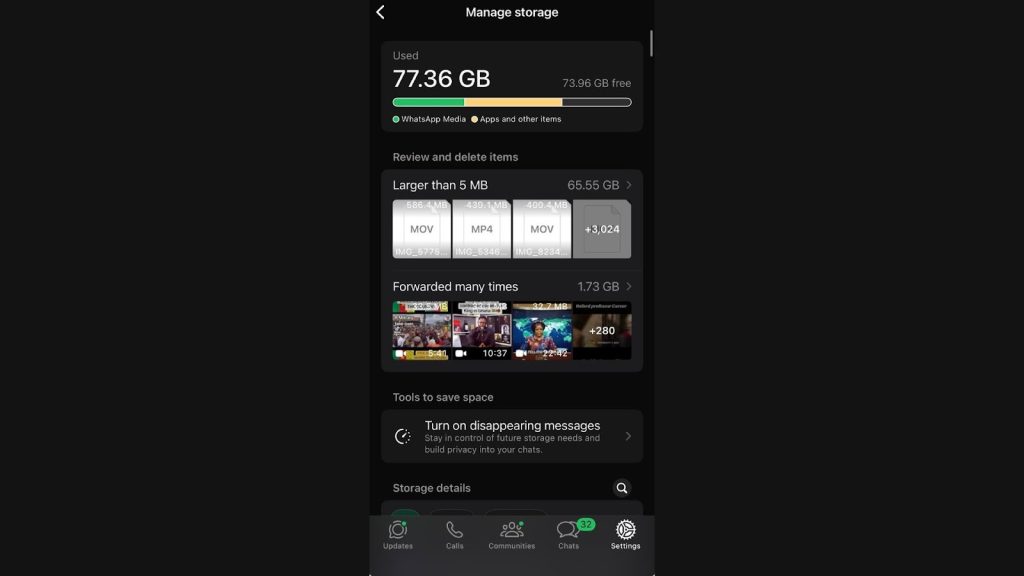
You can see how much space WhatsApp is using on your phone and manage it from one page. To find the storage management section on WhatsApp, open WhatsApp > Settings > Storage and data > Manage storage.
47. Filtering large/forwarded items (Storage)
A tool within storage management designed to specifically identify and filter media files that are particularly large or those that have been forwarded multiple times, enabling bulk deletion to free up space.
48. Per-chat storage management (Upcoming/advanced)
As spotted by WaBetaInfo, this is an upcoming storage tool that will allow you to view media usage and selectively manage and delete shared files (images, videos, documents) granularly, on an individual conversation basis, for precise resource control.
49. Media auto-download settings
Configuration options that let you explicitly define whether various media types (photos, audio, video, documents) should be automatically downloaded based on the current network connection type (Never, Wi-Fi only, or Wi-Fi and Cellular data).
50. Privacy checkup tool
A comprehensive, guided wizard located in the Privacy Settings area. It systematically walks the user through key privacy configurations, helping them strengthen account security and customise their visibility preferences in a centralised manner.
51. Last seen visibility control
A setting that allows the user to precisely control which audience can view the timestamp of when they were last active in the application (options include Everyone, My contacts, My contacts except…, Nobody).
To turn on “Last seen” on WhatsApp, go to Settings > Privacy > Last seen and online and select “Everyone” or “My contacts” from the options provided. If you have “Last seen” turned off, you also won’t be able to see others’ last seen statuses.
52. Online status visibility control
A feature that determines who can view the “Online” indicator when the application is actively open. This setting is often linked directly to the audience chosen for the Last Seen visibility setting.
53. Profile photo audience control
You can decide who sees your profile picture. The options are Everyone, My contacts, My contacts except, or Nobody.
54. About the section audience control
You can choose who sees your About information. You can limit it to your contacts, exclude specific contacts, or hide it from everyone.
55. Link sharing audience control (Profile)
You can control who sees the links you share on your profile.
54. Read receipts control
You can turn off read receipts. When it is off, the blue ticks will not appear for you or for the other person.
55. Chat lock
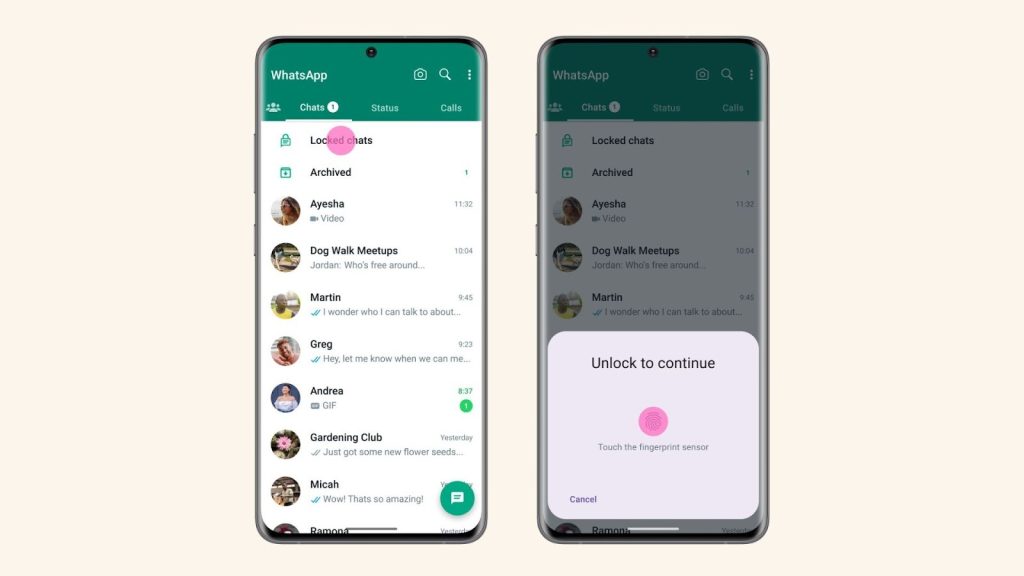
Image source: about.fb.com
You can lock sensitive chats and move them into a secure folder that requires your fingerprint, Face ID, or passcode.
56. Locked chats folder
Locked chats stay in a protected folder. You can open it only after you verify your identity.
57. Default message timer
You can set a timer so messages disappear after 24 hours, 7 days, or 90 days in all new chats.
58. Disappearing message timer per chat
You can set a different timer for specific chats if you want them to work differently from your default setting.
59. Silencing unknown callers
A filtering mechanism designed to automatically prevent incoming calls from phone numbers that are not saved in your local contact list from ringing the device, although notifications still appear in the Calls tab.
60. IP address protection in calls
WhatsApp hides your IP address by routing voice and video calls through its servers. This protects your location and privacy.
61. Group invitation control (Everyone)
The most permissive privacy setting allows any WhatsApp user, regardless of whether they are listed in your contacts, to instantly add you to a group.
62. Group invitation control (My contacts)
Only people you saved in your contacts can add you to a group.
63. Group invitation control (My contacts except)
You can block specific people from adding you to groups. They have to send you an invite link instead.
64. Group invite link expiration (3 days)
If someone sends you a group invite link, it expires after 3 days if you do not accept it.
65. Blocked contacts management
You can view your blocked contacts list and add or remove people from that list.
66. Blocking group admins (Workaround)
You cannot block a group directly. You can leave the group and block the admin so they cannot add you again.
67. 1 to 1 voice calling (E2EE)
You can make private voice calls with end-to-end encryption.
68. 1 to 1 video calling (E2EE)
You can make private video calls with end-to-end encryption.
69. Group voice calls (Up to 32 participants)
You can have group voice calls with up to 32 people.
70. Group video calls (Up to 32 participants)
You can have group video calls with up to 32 people on mobile and desktop.
71. Screen sharing in video calls
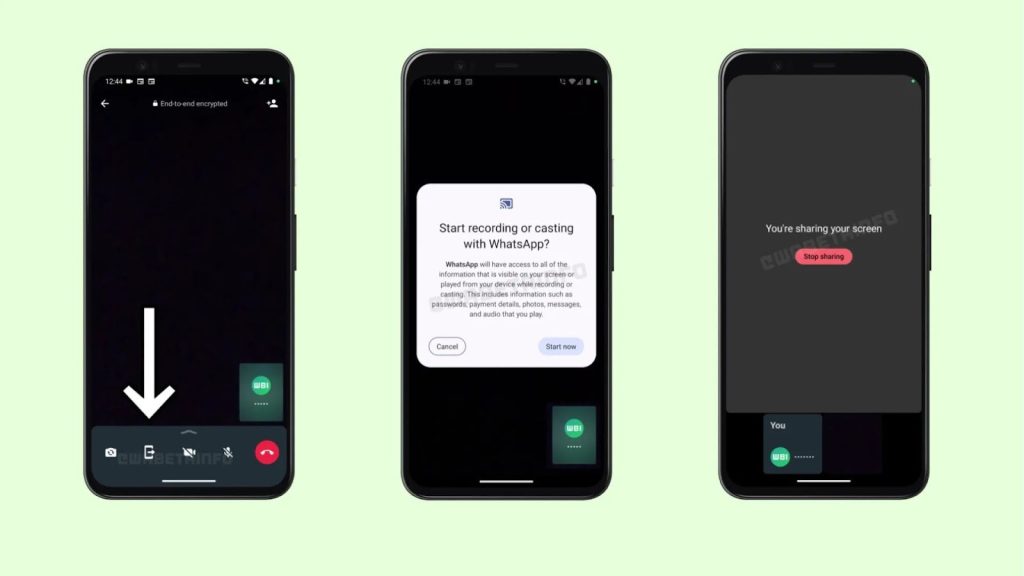
Image source: androidauthority.com
You can share your screen during a video call so others can see what is on your device.
72. Creating call links
You can create a call link and share it with others so they can join a call easily.
73. Joining in-progress calls
You can join a group voice or video call even if it has already started. This is useful if you join late or lose connection.
74. Viewing call history
You can view your call log to see all your past voice and video calls, including dates and times.
75. Text status creation
You can post text-only status updates with custom backgrounds. They disappear after 24 hours.
76. Photo status creation
You can share photos as status updates. They stay visible for 24 hours.
77. Video status creation
You can share videos as status updates. The limit is 90 seconds, and they disappear after one day.
78. Voice note status creation
You can share voice notes as a status. They disappear after one day.
79. Status personalisation with stickers and GIFs
You can add stickers and GIFs to your status before posting.
80. Status personalisation with drawing and text tools
You can write text, change fonts, and draw on your status updates.
81. Status privacy setting (My contacts)
Only contacts in your address book can see your status.
82. Status privacy setting (‘My contacts except…’)
You can exclude specific contacts from seeing your status.
83. Status privacy setting (‘Only share with…’)
You can share your status with only a small group of selected contacts.
84. Mentioning contacts in status
You can mention friends or groups in your status.
85. Status resharing through mentions
If someone mentions you in a status, you can reshare it to your own audience.
86. Identity protection during resharing
When a status is reshared, your name and phone number stay hidden from the new audience.
87. Status reply
People can reply to your status privately. The reply shows in your chat.
88. Group chat creation
You can create a group to chat with multiple people at the same time.
89. Admin controls in groups
Group admins can add or remove members and manage who gets admin rights.
90. Group settings (restrict messaging)
Admins can set the group to allow only messages from admins.
91. Group settings (restrict info editing)
Admins can decide who can change the group name, icon or description.
92. Group invite link generation
You can create a group invite link so people can join without you adding them manually.
93. Community creation
You can build a community to connect multiple related groups in one place.
94. Announcement group in communities
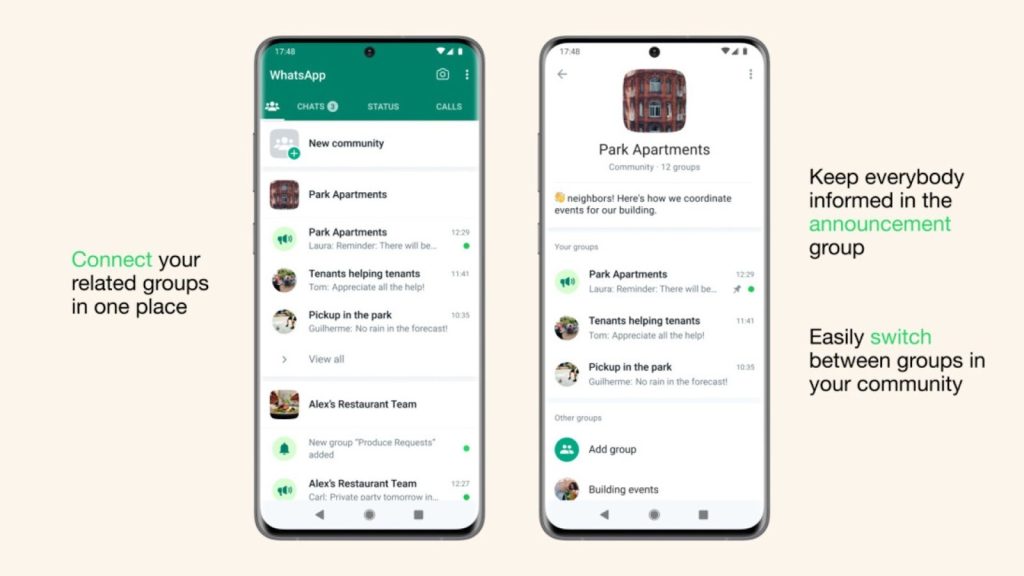
Image source: Techcrunch
Communities come with a special announcement group where only admins can post updates.
95. Interconnected group navigation
You can easily move between groups within a community.
96. Community member management
Community admins can manage all groups and members in the community.
97. Maximum community admins (20)
A community can have up to 20 admins.
98. Creator retention in communities
The creator of the community remains an admin unless the entire community is deleted.
99. Channel creation (Owner role)
You can create a WhatsApp Channel as a broadcast feed for updates.
100. Channel following
You can follow a channel to receive updates.
101. Unlimited audience size in channels
Channels support unlimited followers.
102. Follower identity anonymity
Other followers cannot see your name or profile. Channel admins also cannot see it.
103. Channel content types
Channels can post text, photos, videos, and documents.
104. Channel admin role assignment
Channel owners can assign and remove admins.
105. Channel admin permissions
Admins can change the channel’s name, icon, and description.
106. Create, edit, and delete channel updates
Admins can publish new channel posts and change or delete updates.
107. Channel metrics viewing
Owners and admins can view insights like follower count and reach.
108. Channel ownership transfer
Only the channel owner can transfer ownership and give full control to someone else.
109. Channel deletion
Only the channel owner can delete the channel and remove all its content.
110. Emoji reactions in channels
Channel owners can choose which emoji reactions followers can use.
111. Ads in Status and Channels
WhatsApp may show advertising inside Status and Channels in supported regions.
112. Business profile creation
WhatsApp Business lets you set up a profile with your business name, address, email and website.
113. Business cover photo (Upcoming)
Businesses will soon be able to upload a large banner image for branding.
114. Automatic greeting message
You can set a message to send to new customers or to customers who contact you after 14 days.
115. Automatic away message
You can set an automatic message when customers message you outside business hours.
116. Customizable business hours
You can set your opening hours so that greeting and away messages are sent at the right time.
117. Quick replies
You can save common messages and send them by typing a forward slash and a shortcut.
118. Message statistics tracking
WhatsApp Business shows basic numbers like messages sent, delivered, read, and received.
119. Contact labeling
You can tag chats using labels like New Customer or Paid to stay organised.
120. Filtering chats by label
You can filter your chat list by label to find customers faster.
121. Product catalogue creation
You can upload products with photos, descriptions, prices, and codes.
122. Catalog collections
You can group products into collections, such as Seasonal Sale or Electronics.
123. Shopping cart integration
Customers can add products to a cart inside WhatsApp.
124. Sending cart as an order message
Customers can send the entire cart to your business in a single message for review.
125. Interactive business messages
Businesses can send message formats that help customers choose options quickly.
126. List messages
Businesses can send a list of up to 10 choices in a single message.
127. Reply buttons
Businesses can add up to three buttons that customers can tap instead of typing.
128. Facebook Shops integration
You can link your WhatsApp catalogue with your Facebook Shop.
129. WhatsApp payments (regional)
WhatsApp payments are currently available in a few countries, including India, Brazil, and Singapore. The feature is also being expanded to other regions, with plans for further rollouts in places like Latin America and Mexico. It allows users to send and receive money directly within the chat interface by integrating with a linked bank account and using a system like the Unified Payments Interface (UPI).
130. Broadcast list creation
You can create a broadcast list with up to 256 contacts and message them at once.
131. Broadcast list via label
You can create a broadcast list from contacts who share the same label.
132. Recipient requirement for broadcast
Broadcast messages are sent only to contacts who have saved your number.
133. Short WhatsApp links (Click to Chat)
You can generate a link or QR code so customers can open a chat instantly.
134. Predefined message for short link
You can include a default message, such as “I want a demo,” in the link.
135. Click to WhatsApp ads
You can run ads on Facebook or Instagram that open directly into a WhatsApp chat.
136. WhatsApp Business Directory (regional)
In supported regions, customers can find verified businesses directly in WhatsApp.
137. WhatsApp Desktop application
You can download the app for Windows or Mac for a dedicated desktop experience.
138. WhatsApp Web (Browser-based)
You can open WhatsApp in a browser without installing anything.
139. Offline message reception (Desktop/Web)
Desktop and Web still receive messages even if your phone is offline.
140. Faster typing via keyboard
Typing on a physical keyboard is quicker than typing on a phone.
141. Multi-tasking workflow
You can work in WhatsApp while switching between other apps on your computer.
142. Drag and drop media sharing
You can drag files from your computer into a chat to send them.
143. Keyboard shortcut: New chat (Windows/Mac)
Start a new chat with Ctrl + Alt + N on Windows or Cmd + Ctrl + N on Mac.
144. Keyboard shortcut: Next chat (Windows/Mac)
Go to the next chat with Ctrl + Shift + ] on Windows or Cmd + Ctrl + Tab on Mac.
145. Keyboard shortcut: Previous chat (Windows/Mac)
Go to the previous chat with Ctrl + Shift + [ on Windows or Cmd + Ctrl + Tab on Mac.
146. Keyboard shortcut: Search chat/contact (Windows/Mac)
Search chats with Ctrl + Alt + Shift + F on Windows or Cmd + Ctrl + Shift + F on Mac.
147. Keyboard shortcut: Mute or unmute chat (Windows/Mac)
Mute the current chat with Ctrl + Shift + M or Cmd + Ctrl + Shift + M.
148. Keyboard shortcut: Mark as read (Windows/Mac)
Mark a chat as read with Ctrl + Shift + U or Cmd + Ctrl + Shift + U.
149. Keyboard shortcut: Archive chat (Windows/Mac)
Archive a chat with Ctrl + Alt + Shift + E or Cmd + Ctrl + Shift + E.
150. Keyboard shortcut: Pin chat (Windows/Mac)
Pin a chat with Ctrl + Alt + Shift + P or Cmd + Ctrl + Shift + P.
151. Keyboard shortcut: Create new group (Windows)
You can create a new group using Ctrl + Shift + N.
152. Keyboard shortcut: Delete selected chat (Windows)
You can delete a chat with Ctrl + Backspace.
153. Desktop voice and video calling
You can make voice and video calls on the Desktop with end-to-end encryption.
154. New media hub (upcoming Web/Desktop)
WhatsApp will add a hub that shows all shared media in one place.
155. Cross-platform user invites (upcoming)
According to the 99 Reviews channel on YouTube, WhatsApp will allow adding users from other platforms, such as Telegram or Viber.