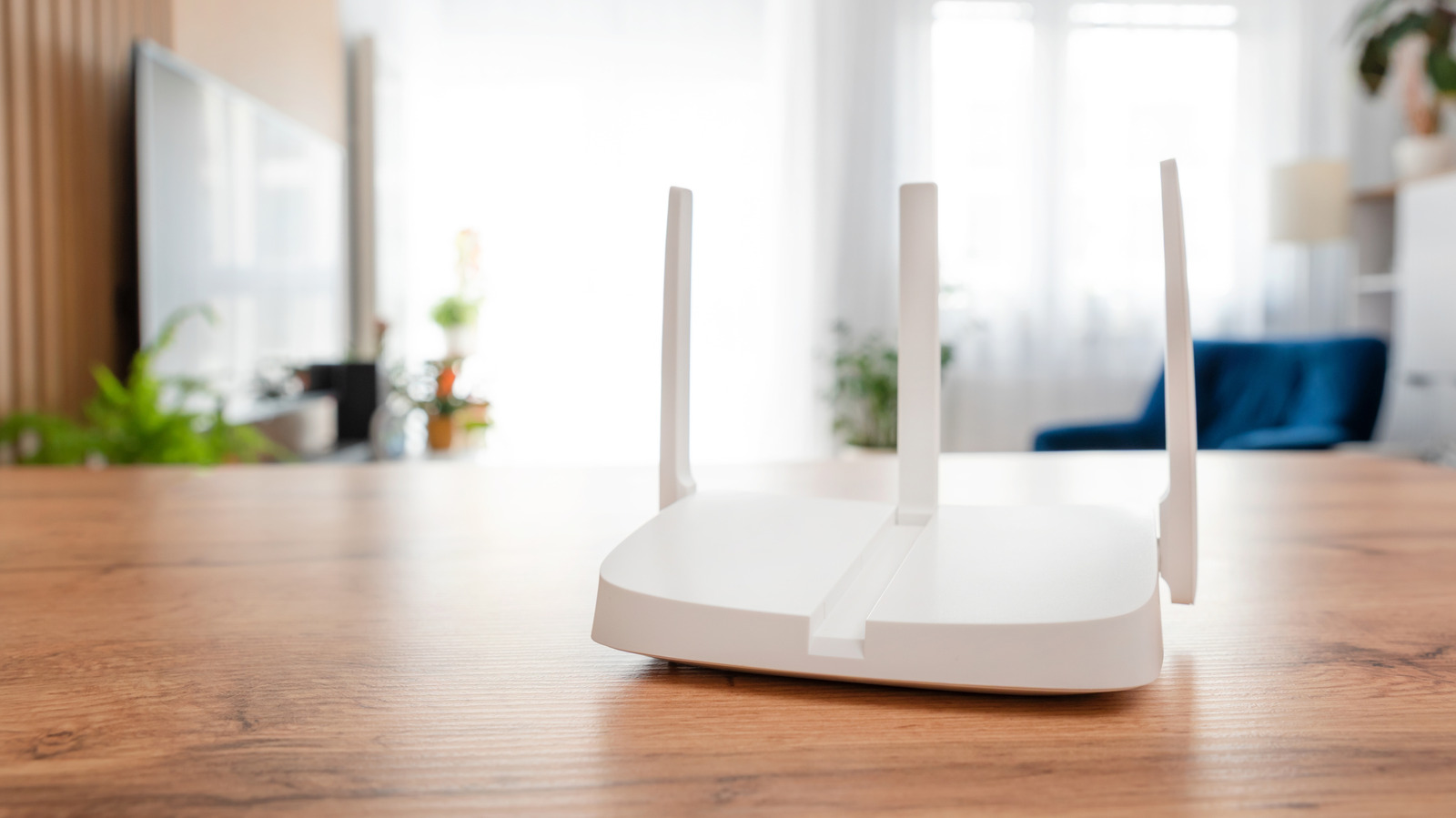
As high-speed internet connectivity has become an essential commodity, Wi-Fi routers have become an integral part of our lives. They sit quietly in one corner (or multiple) of our homes, silently beaming internet to our devices. However, this importance also means we need to be mindful of our Wi-Fi routers and not leave them on their default settings, which often leaves performance on the table or makes them juicy targets for unscrupulous characters.
Fortunately, whether you use a Wi-Fi router supplied by your internet service provider (ISP), or have purchased your own made by one of the major Wi-Fi router brands, Apple recommends several settings you can change to make them more secure and achieve their best performance.
Although Apple’s recommendations are targeted at users of its own devices, they’re valid for everyone with a Wi-Fi router, a reliable Wi-Fi mesh system, or access points. Here are some of Apple’s top tips for Wi-Fi routers.
Switch to WPA3 Personal as your router’s security protocol
Many of us tend to leave the Wi-Fi security protocol as the default on our Wi-Fi routers, unsure of whether it’s important. The security protocol used by your router, such as WPA2 or WPA3, acts as the primary defense for your wireless network. It encrypts the data being transmitted between your devices and the router, making it hard for any attacker to intercept it. It also makes it difficult to crack your Wi-Fi password because of said encryption. However, the Wi-Fi security protocols are typically updated with new Wi-Fi versions to keep them robust for modern needs. So, instead of keeping the default or using an older protocol, Apple recommends going with WPA3 Personal on your router. It’s the latest version, and it works with devices supporting Wi-Fi 6 and newer.
However, if you have devices with older Wi-Fi versions accessing your network, like a lot of people, you can go with WPA2/WPA3 Transitional, which uses WPA3 for newer devices and WPA2 Personal (AES) for older devices to ensure everything can connect to your Wi-Fi. If neither is suitable for your needs, or the newer standards are not supported by your router because it’s old, you can go with WPA2-Personal with AES as the encryption, says Apple.
Apple adds that you should completely avoid WPA/WPA2 mixed modes, WPA Personal, all WEP versions, and TKIP, all of which are pretty old and can be cracked with modern techniques. No security protocol is also a huge mistake, as it removes all authentication and encryption. You’ll typically find the security protocol settings in the wireless or wireless security settings on your router. You can consult your router’s manual to find its exact location.
Use a single name for all your Wi-Fi bands
SSID or Service Set Identifier is the name of your Wi-Fi network. It’s the name you look for in a list of Wi-Fi networks when connecting.
It’s a relatively common practice to have different SSIDs for the different Wi-Fi bands supported by your router, such as bgr_2g and bgr_5g, to make it easier to differentiate between them. However, Apple recommends using the same SSID for all bands available on your router, including the 6GHz band on the newer Wi-Fi standards.
Apple says this is to enable seamless switching between different bands, and make it easier for devices to identify the different bands available on your Wi-Fi network. Additionally, Apple insists it’s not a good idea to use a common Wi-Fi name, such as your router brand’s name, as your neighbors’ similarly named networks may cause confusion. It’s best to use a unique name for your Wi-Fi.
Don’t hide your Wi-Fi network
It’s a common Wi-Fi mistake to select the option to hide your Wi-Fi network in the router settings, thinking it’ll be good for security, as no one can see your network. However, it does the opposite of making your Wi-Fi secure.
Apple says hiding the Wi-Fi network doesn’t actually hide it from detection or make it safe from unauthorized use. In fact, hidden Wi-Fi networks are easy to spot with Wi-Fi sniffers, as your devices are forced to “shout” the hidden network’s name to connect with it. More importantly, after identifying the network, a malicious party can spoof it and connect with your device.
A hidden Wi-Fi network can also cause unnecessary battery drain on your mobile devices, as they have to constantly send pings to find the hidden network. Instead, you should use a good password and appropriate security protocol, according to Apple.
Turn on automatic firmware updates
Like pretty much all modern gadgets, Wi-Fi routers receive periodic firmware updates to get new features, performance enhancements, and fixes for any potential security issues and operational bugs. However, it’s rare for regular folks to visit the router admin page or look for updates in its settings, which results in the router being left without critical firmware updates.
Apple suggests setting your router to automatically install firmware updates as they’re released. This ensures your router gets all the necessary patches and fixes on time, and isn’t left with unpatched security vulnerabilities. You also won’t need to worry about manually checking for updates and installing them.
Firmware update settings can typically be found on the router admin page or in the official mobile app provided by the router manufacturer. If your router doesn’t have an automatic update option, it’s a good idea to make it a habit or create a phone reminder to check for firmware updates every month or every few months to ensure your router has the latest software.
Choose the right channel width
Channel width is an important part of your router’s settings, as it governs how much data you can push through a particular channel on a Wi-Fi band. Wider channels or higher channel width enable higher throughput, which allows for faster data transfer rates. However, higher channel width also means, particularly in the most common Wi-Fi bands, such as 2.4GHz, there’s a higher potential of interference from the Wi-Fi networks of your neighbors, particularly in apartments.
2.4GHz is also used by Bluetooth and some other gadgets, which further increases the potential for interference. However, the chances for interference become lower in 5GHz and 6GHz Wi-Fi bands, as those are less common, particularly 6GHz, and don’t have a long reach.
Apple recommends using a 20Hz channel bandwidth for the 2.4GHz Wi-Fi band to avoid interference and reliability issues. That said, the company says it’s okay to allow your router to use automatic selection of channel width or enable all channel widths for 5GHz and 6GHz bands, as there’s less risk of interference.