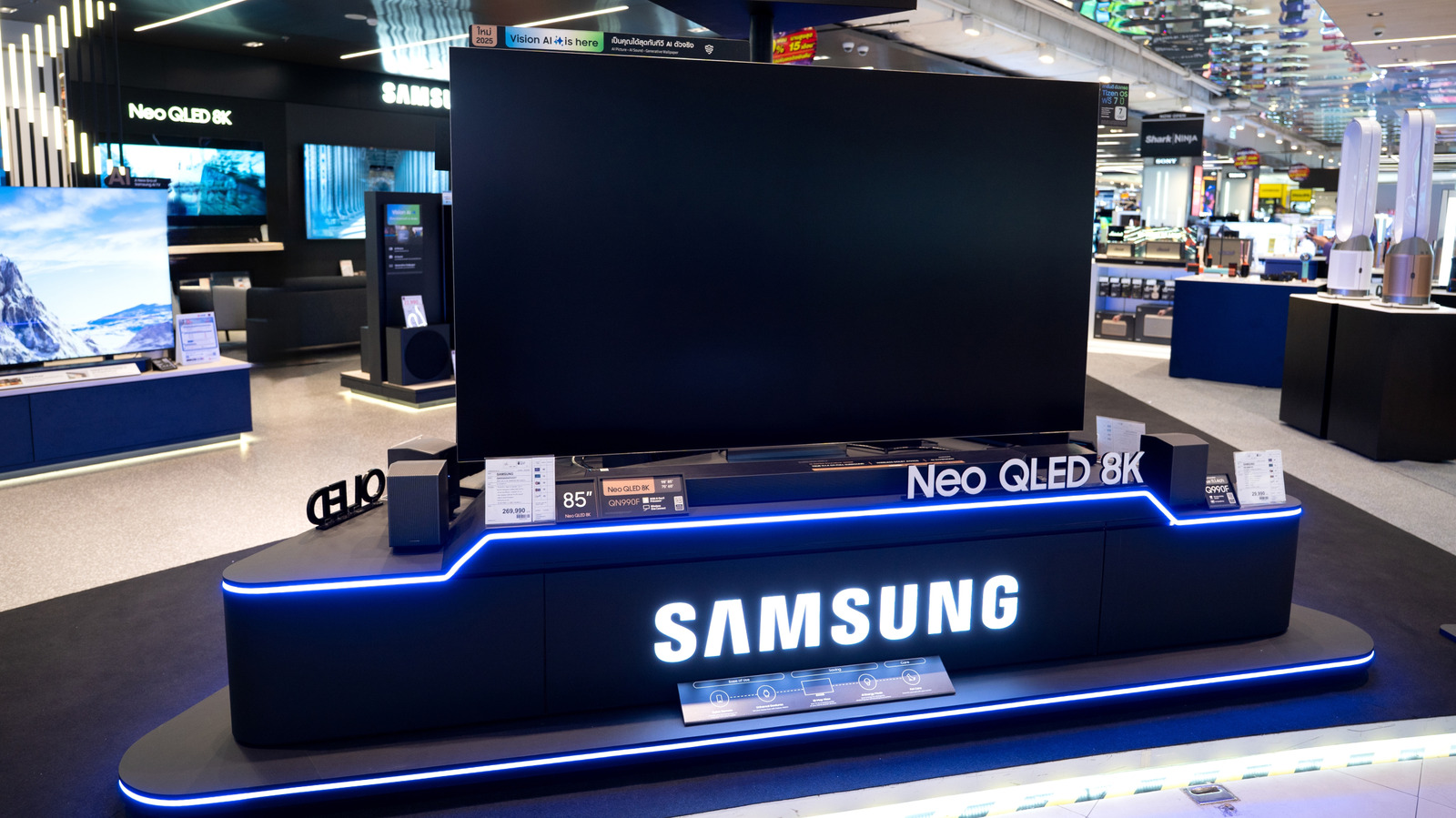
Samsung is one of the most popular TV brands on the market, and there are plenty of models and sizes to choose from. Whether you’re investing in a brand-new living room set or something on the smaller side for a bedroom or office, sticking with Samsung is a safe bet, and one that’s likely to pay off with great picture quality.
Now, we completely understand the excitement of seeing your new TV unboxed and set up on a stand (or mounted to a wall) when you’re just moments away from watching that 4K HDR demo you’ve got locked and loaded on YouTube. But we recommend slowing down a bit, because right now, you have the opportunity to make your first Samsung TV experience a “great” one, instead of just “good.”
Before you fire up a movie or TV show, there are five settings you should change on your Samsung TV ASAP. For the most part, these are picture and sound customizations that will deliver a sharper, more detailed image once enabled or modified. We also have one major recommendation for how to update your smart TV software.
Do the initial software update, then turn off Wi-Fi
All modern Samsung TVs are smart TVs, which means they can be connected to the internet. Not only does this give you access to hundreds of apps — including popular platforms like Netflix, Disney+, and HBO Max — but it’s also one of the main ways to update your Samsung TV’s software. During the initial setup of your TV, you’ll likely be prompted to install a day-one update. This might sound a bit silly, but we recommend updating and then disconnecting your TV from Wi-Fi.
The main reason we recommend doing this is to preserve your TV’s overall performance and stability. Smart TV software (Tizen OS, in Samsung’s case) has gotten a lot better over the years, but these interfaces often display ads and promos that can slow TV processes down. Even something as simple as opening the Settings menu can feel sluggish. While it’s important to install the latest firmware for security patches and bug fixes (we still recommend checking for updates periodically), keeping your Samsung TV offline allows it to prioritize UI navigation.
It’s also worth noting that dedicated streaming devices and game consoles are a better choice for streaming movies and TV shows. This isn’t to say you’ll have zero troubles when using a Roku or Fire TV Stick, but from processors to UI, these types of products are designed for app-streaming from the ground up.
Turn off all the energy-saving settings
Fresh out of the box, your Samsung TV has a number of features and settings enabled by default. One of these options is Eco Mode, and it’s probably why your new TV pales in comparison to how bright the demo unit was at the store. Eco Mode is one of several energy-saving features you’ll find on your Samsung TV, which uses an ambient light sensor to adjust screen brightness and color temperature in real-time.
On paper, it’s a thoughtful addition. But generally speaking, these light sensors get in the way of bright, consistent picture quality. To disable, go to General & Privacy > Power and Energy Saving and toggle Eco Sensor off. While you’re here, we also recommend disabling Brightness Optimization, Energy Saving Solution, and any other “save electricity” settings.
Samsung TVs are able to get exceptionally bright, but Eco Mode and other energy hacks will prevent your TV from flexing its peak brightness capabilities, especially when watching or playing HDR content. To that end, if you want the brightest picture possible, navigate to Picture Expert Settings and set Peak Brightness to High.
Use Intelligent Mode
Some TV owners relish the individual tweaking of sharpness, tint, white balance, and other picture settings. But if you’re not much for menus, your Samsung TV might have a feature that will auto-calibrate picture quality based on the room your TV lives in, the content you’re watching, and how often you watch it. It’s called Intelligent Mode, and it leverages an AI algorithm and TV sensors to adjust brightness, colors, and other picture settings, so you don’t have to do so manually.
Turning on Intelligent Mode is as easy as navigating to All Settings > General, at which point you should see the option at the top of the dashboard. Intelligent Mode has its own customizer options you’ll be able to experiment with, too, including AI Customization and Adaptive Picture. Remember: the more you watch TV, the more data Intelligent Mode is able to gather and utilize. If you’d prefer switching back to manual picture and sound settings, just navigate to All > General, and disable Intelligent Mode.
Disable Auto Motion Plus (for movies and shows)
Have you ever heard of the soap opera effect? It’s an industry term that’s been around for a while now, and it’s often the direct result of your TV doing too much. Out of the box, brands like Samsung want their TVs delivering a crisp, smooth picture at all times, and one way to do that is with a motion-smoothing feature called Auto Motion Plus.
You’ll find a version of this technology on just about every TV these days, and multiple manufacturers mean multiple feature names (i.e., LG calls it TruMotion, Sony calls it Motionflow, etc.). When Auto Motion Plus is enabled on a Samsung set, the TV is forced to insert artificial frames into the movies and shows you’re watching, a process known as motion interpolation.
While this helps to reduce ghosting and motion blur, too much interpolation can cause your Samsung TV’s picture to look smooth in an uncanny way, to the point where it literally looks like a daytime soap opera. Shut off Auto Motion Plus, and you’ll be treated to the cinematic visuals the content creators wanted you to see. However, we actually suggest having a lite version of Auto Motion Plus enabled when gaming. That slight, artificial boost in motion clarity helps 60 fps (or higher) look even better.
Adjust your audio settings
TV speakers aren’t that impressive these days, and a lot of that has to do with how small they have to be. Keeping flatscreens razor-thin means less chassis space to work with for manufacturers. To be frank, Samsung is probably less concerned with getting cinematic sound out of its TV speakers, since audiophiles may want to get a soundbar anyway.
If you happen to purchase a Samsung soundbar to go with your new TV, you might be able to set up Q-Symphony. This allows your TV speakers and Samsung bar to work in unison to create a larger soundstage (All Settings > Sound > Q-Symphony Setup). Even if you didn’t plan on using a soundbar with your Samsung TV, you’ll still be able to adjust a handful of audio settings in the Sound menu.
We recommend testing out the various audio presets (Standard, Optimized, or Amplify) to see which sounds best to you. The Sound menu is where Samsung’s Adaptive Sound feature is located, too, a room acoustics tool that optimizes speaker audio based on your listening space. You can also dip into Expert Settings to use the multi-band EQ for truly personalized audio.