For casual photography, iPhones do the job just fine. They produce photos and videos sharp enough to share online with little to no editing. Beyond image and video quality, the iPhone camera is also pretty user-friendly. It offers an uncluttered interface with less confusing controls, quick camera access from different parts of the device, and all sorts of iPhone settings to get better photos – grid, photographic styles, ProRAW mode, and macro control.
But even with these features, the iPhone camera is far from being the most capable smartphone camera on the market, especially compared to flagship Android devices. Android cameras are built with extra functionalities that make them more convenient and practical to use. And while some of these capabilities exist on the iPhone too, many remain unique to Android. Ranging from recording GIFs to providing step-by-step photography tutorials, here are five of the features Android cameras have that iPhones are yet to match.
Take photos with Snapchat lenses without the Snapchat app
If you love taking photos with Snapchat lenses but are not a fan of posting them, it can get frustrating to have to download the pictures from the app after every shot. You’re probably wondering whether there’s some workaround to access the lenses directly from your native camera app instead. Unfortunately, on iPhone, Snapchat lenses are only available via Snapchat. You’d always have to hop on the app to use the lens you want.
Android devices, however, are a different story. On some Android phones like the Samsung Galaxy A series, Snapchat lenses are integrated into the camera app for convenience. You don’t even need a Snapchat account or the app installed. To use this feature, all you have to do is open the Camera app and swipe right to go to Fun mode. Then, just pick one of the preset Snapchat lenses, including Spotted Rabbit, Rainbow Glasses, and Mermaid Hair. You can also tap the search icon to view more lenses.
The Camera app’s basic features remain usable even in Fun mode. You can still zoom in, set a timer, and switch from rear to front camera. After taking the photo, it’s saved straight to your gallery just like any other shot. While this feature works without Snapchat, it does require an internet connection. Make sure you’re connected to Wi-Fi or have mobile data turned on. Otherwise, the Snapchat lenses won’t come up.
Apply custom watermarks on pictures
Pictures may tell a thousand words, but a watermark lets you explicitly say what you want to say. It can serve as a visible “signature” for your photos and can come in handy when sharing details that aren’t obvious like what phone you used or when you took the photo. Thankfully, it’s pretty easy to apply a photo watermark if you own an Android. It’s a common feature among brands like Samsung, Motorola, Xiaomi, and OnePlus, so you should be able to turn on and use it right away. Once enabled, your preferred watermark design will be added automatically to every photo you take.
To overlay a custom watermark on your Samsung pictures, here’s what you need to do:
- Go to Settings in the Camera app.
- Under Pictures, select Watermark.
- Toggle on Watermark and choose which information (text, date, and time) you want to show.
- To use custom text, tap Edit next to Model name and type your preferred text.
- You may also customize the font and alignment according to your preference.
Meanwhile, on Motorola, just launch the Camera app and open the Settings from the top-right corner. Tap Watermark, enable it, and adjust the options as you see fit. For other Android devices, you’ll typically find the watermark option under the camera settings too.
On the other hand, iPhone users need to go through an extra step to stamp a watermark on their photos since preloaded watermarks aren’t natively supported on the iPhone Camera app. That means pictures have to be edited manually.
Record a GIF
GIFs, those short moving images that loop endlessly, are great for when you want to quickly show off something in motion. It could be a car on the road or a dancing baby. They’re the perfect middle ground between a static and boring photo and a video that’s usually large in size and harder to share. While it’s fairly easy to make a GIF out of a series of pictures or a video clip on your phone, it’s much more convenient if you can capture one directly from the camera app. That’s what Samsung offers its users.
To capture a GIF on your Samsung Galaxy, you need to go into the Camera app, hit the More icon in the bottom-right corner, and choose Settings. Then, change “Swipe Shutter button to” from Take burst shot to Create GIF. Go back into the camera and pull down the shutter button to record your GIF. The longer you hold the button down, the longer the GIF will be. You can only take up to 30 frames, though, which would be roughly seven seconds long. After recording your GIF, find it in the Gallery and tap Edit if you want to remove frames, trim the GIF, or speed it up.
Unlike Samsung phones, the iPhone camera doesn’t come with a built-in GIF maker. Yes, you do have Live Photos, and it’s one of the useful iPhone camera tricks to know. Live Photos are technically convertible to GIFs, but you need to do so manually. They’re also much shorter, only about one to three seconds long and have no options to set the duration.
Use hand gestures and voice commands to take photos and videos
There are times when you need to prop your phone on a stand to take a video selfie from a distance, or use both hands to get a more stable shot of the landscape. In such cases, a hands-free way to trigger the shutter button would be a huge help. The problem is, the iPhone camera doesn’t have the option to set one up without relying on external accessories. The only standalone workaround is adding a voice command shortcut on the Shortcuts app, or enabling Voice Control in the Accessibility Settings.
On the other hand, certain Android cameras are designed with hand gesture and voice command shutter features built in. Brands like Google Pixel, Motorola, and LG support just hand gestures, while Samsung, Xiaomi, Vivo, and Huawei come with both. If you’re on a Samsung Galaxy phone, here’s how to activate these tools:
- Open the Camera app.
- Navigate to Settings.
- Under General, tap on Shooting methods.
- Toggle on the options for Voice commands and Show palm.
From here, go to the camera and choose your preferred mode. If it’s a photo mode, say, “Shoot,” “Capture,” “Smile,” or “Cheese” to snap a picture. If you went for video mode, say “Record video.” The voice commands work for both front and rear cameras. The palm gesture, however, can only be used in selfie mode. Switch to the front camera and simply show your palm. It should immediately bring up a three-second countdown before taking the shot or starting to record. While the process to enable these features is very similar on most Androids, the voice shutter only works with the word “cheese,” though, on Xiaomi, Huawei and Vivo smartphones.
Walk you through how to capture good photos
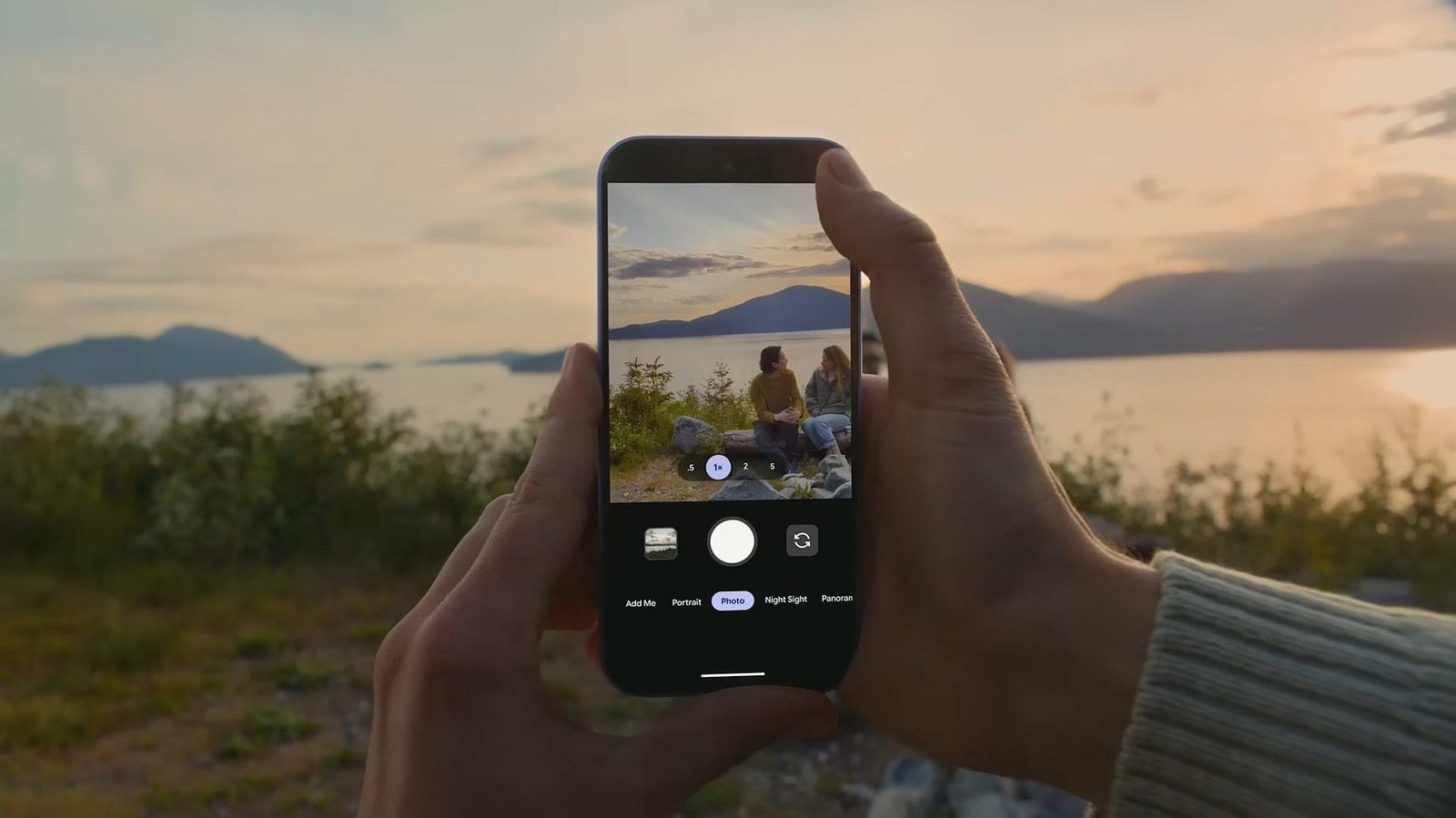
Sometimes, your photos don’t turn out the way you wanted them to. Maybe they’re too close, off-center, or out of focus. What if you had a professional photographer guiding you on what to do to get the perfect shot? Well, you actually have one in the form of Camera Coach on Google Pixel, specifically on the Pixel 10 series, including Google Pixel 10 Pro.
Just as its name suggests, Camera Coach essentially coaches you through the exact steps on how to take a well-composed shot. It might ask you to switch to a different mode, zoom in, or move the camera to specific positions to frame the subject better. As the feature is powered by Gemini AI, you need to connect to Wi-Fi or mobile data. After doing so, follow this guide on how to use Google Pixel’s Camera Coach:
- Launch the Camera app and point your phone at the subject.
- Press the camera and star icon in the top-right corner.
- Keep pointing at your subject while the Camera Coach evaluates the scene.
- On the panel that pops up, scroll through the camera angles Camera Coach recommends and tap the one you like.
- If you’re looking for more creative angles, select Get Inspired.
- If you changed the scene and need new suggestions, hit Rescan and wait for the Camera Coach to load the steps.
- Now follow the steps as recommended by the Camera Coach until you’re asked to take the photo.
You should now have a decent, if not picture-perfect, shot of your subject. In comparison, iPhones lack a Camera Coach. All you get are short tips letting you know that your lens needs cleaning, the scene is too dark, or you’re too close to the subject for Portrait mode.