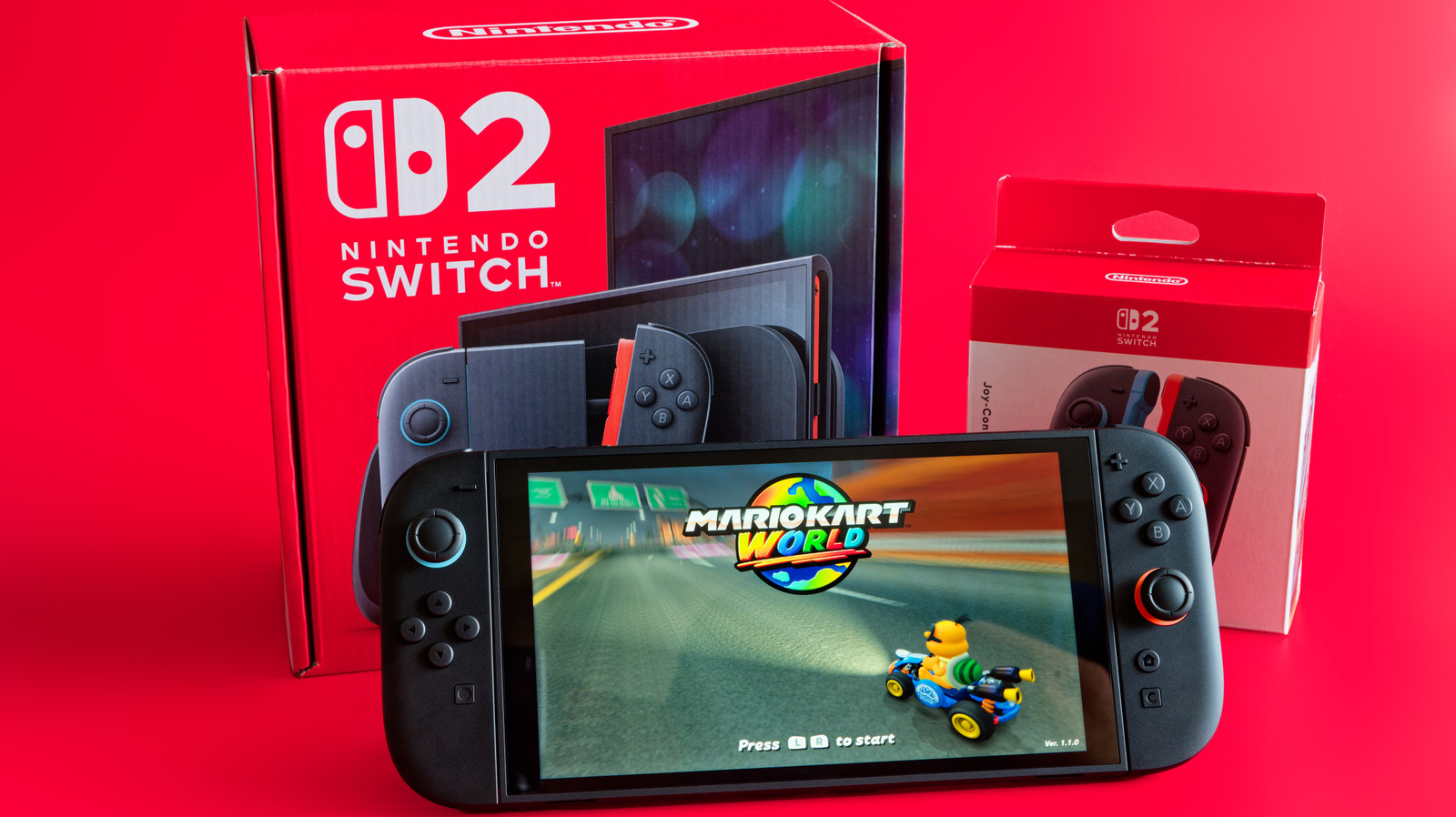
The Nintendo Switch 2, released in the summer of 2025, packs 12GB of RAM, has a 1080p display, a 7.9-inch LCD screen, and supports HDR/120FPS. It’s also backwards compatible with the original Switch, so even if you don’t own a lot of Switch 2’s exclusives, you can transfer your library pretty easily. Still without looking at a specs sheet, the design, size, and look are similar to its predecessor.
Even if the consoles look identical, some nuances make it feel sleeker and more modern than its nearly 10-year-old sibling, such as a newer GameShare feature, exclusive GameChat option, and more. Like other older Nintendo systems, such as the Nintendo Wii, the Switch 2 offers plenty of ways (and much easier) to tap into its potential. The incited features don’t require a homebrew setup, since everything you can do is available by default. It mostly just requires a few tweaks to your system settings and an active Nintendo account.
Enabling GameShare to play Switch 2 games with your friends
GameShare is a great way to share your digital library with others, letting your Nintendo Switch 2 console act as a host to stream supported local/multiplayer games to others. So, even if your friends brought their original Nintendo Switch over, you can actually stream a supported Nintendo Switch 2 title to their console. It’s a pretty sweet feature, since your friends don’t need to own the game or the console; only the host needs to.
The GameShare feature also works instantly, so no one needs to download to play the supported game, as the host is streaming it from their console. Obviously, there are some technical limitations when you do this. For one, it is still streaming. When you stream anything, there is always going to be a bit of latency between the host and other users, and for two, connected users can only play when the shared session is live — that’s much more akin to playing games when there’s a local multiplayer option — except no one directly shares your console.
The last caveat is that the compatible games that can do this are limited. Supported games for the GameShare feature can be found in the GameShare section at the bottom of the home screen. From there, select “How to Play Using GameShare.” Once you’re on that screen, swipe forward to the last screen. You’ll see an option to redirect you to the supported games in the eShop.
Deleting Switch 2 games actually archives them
On the original Nintendo Switch, archiving games was a separate feature from deleting the software. Normally, users used archiving games as a quick way to save storage space. It was inherently handy since the function lets you delete downloaded software while keeping its icon on the home screen. Selecting the icon again initiates the software download directly. The Switch 2, on the other hand, actually archives the games when you delete them.
But don’t let the wording fool you, since none of your saved data gets removed. That means your save files, achievements, and settings all stay. It also means your data can’t be moved to a separate microSD card or a microSD card for your Switch 2 titles, though. If you want to stop micromanaging the games you archive, you can set it up to auto-manage itself. To do this, access the “System settings” and select “Data Management” in the left panel. Choose “Quick Delete.”
This option archives games you haven’t played for a while (ones designed in your list as “Not played” next to the title). Sometimes, there are specific favorites you don’t necessarily want to remove from your console with this option. That’s where you’ll want to toggle on the “Prevent Auto-Deletion” option next to a specific game. To do this, return to the “Data Management” menu, select “Manage Software” and choose a title. At the very top of the game’s software screen, you’ll see a “Prevent Auto-Deletion” toggle. Turning it on prevents the system from being placed in the quick delete pool of inactive titles.
Using Nintendo’s GameChat accessibility settings
GameChat is Nintendo’s built-in voice and video chat system for the Switch 2, supporting up to 12 friends at a time. GameChat is open-access until March 31, 2026. After the open-access period ends, only Nintendo Switch Online members will have access to the GameChat feature. But one cool feature about GameChat, aside from the ability to chat online, is the accessibility options.
The Switch 2’s accessibility options include robust speech-to-text and text-to-speech, as well as a few visual enhancements, such as larger display text and screen zoom. Since the Nintendo Switch 2 supports mouse and keyboard, you can use that to take advantage of the text-to-speech feature to maintain audio communications, which is great for action-intensive games like Apex Legends. Otherwise, you can use it to maintain the immersion. To enable these features, you’ll need to visit your system settings and choose “Accessibility” in the left panel. Once you’re set up for GameChat, press the “C” button on your Switch 2 controller to launch it.
Accessing Nintendo content outside your region
One cool feature of owning the original Nintendo Switch and the Nintendo Switch 2 is that these consoles are not region-locked, nor are the physical gaming cartridges or game key cards. The only tricky part is accessing downloaded content. So if you bought a cartridge outside your region, like from Europe, but your primary Nintendo account with most of your titles is from America, you’ll need to create a European-based Nintendo account to buy compatible DLC for your game. Luckily, doing so isn’t difficult.
It mainly just requires creating another Nintendo account online, changing the region, and then signing in with it via the “Add User” option. You can add up to 8 users on one console. Once you’ve done that, you’ll want to change the console’s system region through the system settings. Currently, the console can be set to different regions: Japan, the Americas, Europe, Australia/New Zealand, Hong Kong/Taiwan/South Korea. Just be aware that not every Nintendo Switch 2 is region-free, so if you love importing, make sure you’ve bought a region-free model.
Prolonging your Nintendo Switch 2’s battery health
Changing your battery charge settings isn’t the most fancy trick in the book, but it’s one of the most practical. The Nintendo Switch 2 has a built-in feature that stops charging your console at 90%. The difference between 90% and 100% battery when you play it undocked shouldn’t be overtly noticeable, but it does help its long-term battery health. This is because your Nintendo Switch 2 uses a lithium-ion battery, similar to your laptop, to maintain and cycle its charge.
Charging between 20% to 80%/90% reduces the chemical stress, since charging to the last 10% produces the most heat. Heat accelerates the breakdown of the battery’s internal chemical components. So stopping it from charging beyond 80% or 90% is the ideal sweet spot.
Enabling “Stop Charging at 90%” in the system settings extends the battery life of your Nintendo Switch 2. Plus, if you play your system docked most of the time, you don’t have to worry about managing its battery status manually.