![How to make the most of Instagram carousels in 2025 [GUIDE]](https://blog.hootsuite.com/wp-content/uploads/2024/09/instagram-carousels.png "How to make the most of Instagram carousels in 2025 [GUIDE]")
If you’ve scrolled through Instagram lately, you’ve probably noticed single photos are few and far between. Carousels have officially taken over the feed (hello, photo dumps!), giving brands more space to show and tell.
Keep reading to learn how to make Instagram carousels and put them to work in 2025.
Key Takeaways
- Instagram carousels consistently outperform single-image posts and Reels for engagement.
- You can use photos, videos, or a combo of both in carousels. This flexibility makes it easy to get creative.
- Your first image is the hook. A captivating first slide gets people curious. Nail it, and the engagement will follow.
- Turn blog posts, infographics, and customer reviews into carousels. It’s an easy way to stretch your content and keep your feed fresh!
- With tools like Hootsuite, you can plan and schedule your carousel posts to go live at the perfect time for maximum visibility—without scrambling to post manually.
What is an Instagram carousel?
An Instagram carousel is a post with up to 20 photos or videos. A carousel lets you pack more content into a single post without overwhelming your audience.
On the Instagram app, users can view carousel posts by swiping left, while desktop users can click through using the arrow button on the right-hand side of a post.
Like any other Instagram post, you can include image alt text, a geotag, filters, and account and product tags on each image in your carousel. People can like, comment, share, and save your carousel post.
Published Instagram photo carousels have little grey dots underneath them (above the caption), which turn blue to indicate where you are in the carousel.

In the top right corner, you’ll see a count of which carousel slide you’re on as you browse.

How do Instagram carousels perform in 2025?
Carousels continue to outperform other formats on Instagram, especially when it comes to engagement. In a recent study, carousels delivered an average engagement rate of 10%, beating single-image posts (7%) and Reels (6%).
Carousels work because they encourage people to pause, swipe, and interact – all behaviors the algorithm loves. The more someone engages with your post, the more Instagram decides it’s something worth pushing higher in the feed.
Last year, Instagram expanded carousels to support up to 20 images or videos, giving you extra real estate to tell a story over multiple slides.
So whether you’re highlighting new product features, walking through a multi-step tutorial, or showing off a before-and-after moment, carousels give you the space to make it land.
How to create a carousel post on Instagram
The easiest way to create an Instagram carousel post is to upload multiple photos or videos in one post using Instagram’s “Select Multiple” option.
Here are the steps:
Step 1: Start a new post
Tap the + icon at the bottom center of the screen to start a new post.

Step 2: Select Post on the bottom menu
At the bottom of your screen, you’ll see a scrolling menu with options like POST, STORY, REEL, and LIVE. Choose POST.

Step 3: Select your content
Tap on the Select Multiple icon (a layered square icon) on the right side of the screen. Or select and hold a photo or video until it says “1” in the top right corner.

The first image or video you choose will be your first carousel slide. The rest of your carousel will follow the same shape. So if you want to change the shape of your carousel content, then you need to replace your first selection with an image in the shape you want to use.
And remember: our first carousel image sets the tone, so choose it wisely!
Hit Next.

Step 4: Choose your filters
You can choose different filters for your slideshow. Once you’re happy with your filter, click Done in the bottom right corner.
Once you have all of your images appropriately filtered, click Next → in the bottom right.

Step 5: Add your caption, details, and tags
This section is your opportunity to customize your carousel with a caption, hashtag, product or people tags, location, and any other useful specifics.

Once you’re happy with it, hit Share to publish.
PS. If, once you’ve posted, you realize you need to delete one pesky photo from the carousel lineup, click that link.
How to schedule Instagram carousel posts (desktop and mobile)
You can schedule Instagram carousel posts using Meta Business Suite (we’ve got detailed instructions here) or a social media management tool like Hootsuite.
How to schedule Instagram carousel posts with Hootsuite
If your brand is active on multiple social media platforms, a social media management tool like Hootsuite can really help. You can schedule all of your content in advance using one simple dashboard.
Here’s how:
1. Go to Planner and tap New post to launch Compose.

2. Select the Instagram account you want to publish to.

3. Include your caption in the Text box.
4. Go to Media and tap Select files to upload. Select all the images you want to include in your carousel. All selected images should appear under Media.
5. Use the yellow Post now button to publish your carousel to Instagram immediately or click Schedule for later to pick a date and time to publish your post. Then, tap Schedule. The post will show up in your Planner at the time you have scheduled it for.
That’s it! Your post will go live on the date and time you selected.
And while you can schedule your carousel posts for whenever you please, Hootsuite’s Best Time to Publish tool also helps you schedule content at the absolute best time to post for your unique account.

The tool breaks down different suggested times for four key goals:
- Extend reach
- Build awareness
- Increase engagement
- Drive traffic
This allows you to match each piece of content to a specific business goal and optimize your posting schedule for maximum effectiveness. (And score big points with your boss. Just saying.)

#1 for Instagram marketing
Schedule posts, Reels, and Stories. Answer comments and DMs, and build beautiful reports. It’s so easy.
Start free 30-day trial
How to schedule Instagram carousel posts from your phone
If you’d rather schedule and publish Instagram carousels from your phone, Hootsuite makes it easy to do that too!
- Just open the Hootsuite app on your phone and tap Compose.
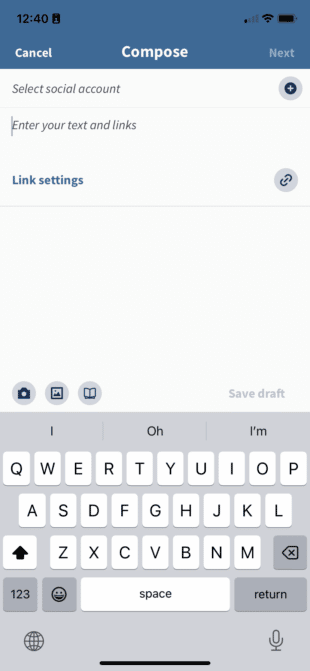
- Select the Instagram account you want to publish to and choose the photos or videos for your carousel from your phone’s library.
- Write your caption in the Text box, then tap Next.
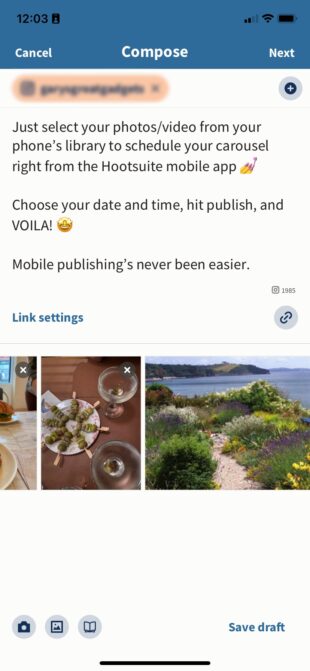
- You can choose to Publish now, Autoschedule at the best time for your account, or set up your own Custom schedule.
And you’re done! Your carousel will go live at the time and date you’ve selected — no push notifications required!
Instagram carousel size guide
The correct size for an Instagram carousel is 1080 pixels wide, with a height that matches the format you choose: landscape, square, or portrait.
Instagram carousel sizes:
- Landscape: 1080 x 566 pixels
- Portrait: 1080 x 1350 pixels
- Square: 1080 x 1080 pixels
- Aspect ratio: landscape (1.91:1), square (1:1), vertical (4:5)
- Recommended image size: Width of 1080 pixels, height between 566 and 1350 pixels (depending on whether the image is landscape or portrait)
Instagram video carousel specs:
- Length: 3 to 60 seconds
- Recommended formats include .MP4 and .MOV
- Aspect ratios: landscape (1.91:1), square (1:1), vertical (4:5)
- Maximum video size: 4GB
Just FYI, Instagram doesn’t consider carousel videos to be Reels. So, they won’t show up in the Reels tab and won’t have the same features.
Find other up-to-date social media image size requirements here.
Free Instagram carousel templates
Want to take your carousels beyond “ten pictures from the same vacation”? Start by customizing one of our five free, professionally designed Instagram carousel templates in Canva.
15 Instagram carousel posts examples to inspire you
Instagram carousels have a bunch of potential, especially when it comes to Instagram trends (hello, photo dumps!). Truly, the sky’s the limit.
Here are 15 Instagram carousel examples to spark ideas and help you create swipe-worthy content in 2025.
1. Promotions and announcements
Use the carousel’s multiple-slide format to give your audience details on promotions, sales, or new offerings.

Source: Universal Standard
Clothing company Universal Standard uses the carousel format to announce a sale while highlighting the pieces that will be available.
2. Photo dumps
Share a collection of photos. These can be from your summer season or a single event, like a staff retreat or product launch.
For example, Lululemon used a carousel to share behind-the-scenes highlights from their store opening event, giving followers a feel for the energy on the ground.

3. Before and after
Showcase transformations, progress, or changes. This could be a product evolution or a shot of where your brand started vs where it is now.

Blanc Marine Intérieurs, a Canadian interior design studio, shows off some pretty stunning transformations, giving their audience the satisfaction of a big reveal when they swipe.
4. Educational content
Carousels are great for sharing educational content in a more digestible, swipeable format. They’re perfect for turning something long (e.g., a research report or podcast) into bite-sized takeaways your audience can absorb quickly.
Mel Robbins does this brilliantly. She regularly turns full podcast episodes into carousels, pulling out a handful of key takeaways from her guests — like this one featuring author Yung Pueblo.

It’s also a smart way to repurpose long-form content, make it more “snackable,” and extend the life of each episode across Instagram.
5. Storytelling
Instagram slide posts give you a way to create cliffhangers and build narratives. Tell a story through your carousel, giving a reason for people to swipe by splitting the message across the slides.

Source: National Geographic
Five slides of shark facts? Yes, please.
6. Product showcases
Carousels make it easy to highlight new features, use cases, or variations of a product. They work especially well when you want to show how something works or walk people through a new release.
Just take a look at Canva. They use carousels to announce new tools and show what’s possible inside the platform. In this example, they recap six new tools in a bright “In case you missed it” carousel, giving their followers an easy way to catch up on what’s new without reading a full release note.
Bonus points for design: Canva keeps the color palette consistent across slides, making it feel cohesive.

7. Testimonials and reviews
Share customer feedback, quotes, and reviews to build trust and credibility.

Source: Mcdonald’s Canada
Look, McDonald’s Canada probably doesn’t need to build their reputation. Still, by engaging with and showcasing their customers in a carousel post, they’re continuing to increase community engagement.
8. Infographics and data
You probably won’t want to have a carousel made completely out of graphs and charts, but using these within your carousel to build credibility in what you’re saying can help.

Source: Intuit Mailchimp
Mailchimp’s Strategic Loyalty Playbook is a numbers-heavy doc with plenty of good insight. But they didn’t want to overwhelm their readers with facts and numbers before they were ready — so they used bite-sized stats on carousel slides to pull people in.
9. Mini-blogs
If you already have blogging in your content strategy, then sum up the main points of your latest magnum opus and turn them into a carousel. It’s a great way to cross-promote content in a digestible way.

Source: Hootsuite
Hootsuite’s carousel on social media bad habits gives the audience a bite-sized preview of information, enticing them to head to the main course: A full-size Social Media Consumer Report.
10. Fun with formatting
Carousels give you room to play, and some of the best-performing posts are the ones that have a little fun with the format.
Maybe you have a really long product (we’re thinking foot-long hot dogs?) that you can stretch along the photos to create a fun effect. Or maybe you can surprise your audience with an unexpected second picture.
If you want proof this works, just look at Chipotle. They posted a “choose your trio” carousel with different mixes of guac, salsa, and burritos on every slide. By the time you hit the last slide, you’re already scrolling through the comments to defend your pick.

It’s a good reminder that carousels can be lighthearted and still drive serious engagement.
11. Carousel ads
You know what’s awesome in advertising? Low cost per click (CPC) with high click-through rates (CTR).
You know what can get you those awesome results? You guessed it: Carousel ads.

Source: DROOL
Carousel ads, like this one from art print store Drool, offer multiple opportunities to have a higher engagement with your audience.
Plus, just like organic carousel posts usually outperform other posts, carousel ads tend to perform better than single-image ads.
12. Event recaps
Use a carousel to summarize events, conferences, or special occasions with a series of photo or video highlights.

Source: Kotn
Kotn recapped an NYC Lower East Side block party while showing off their product in a clever community-building carousel.
13. A big reveal
Make your viewers work for it! Tease something on the first slide of your carousel, then have an unveiling moment on the second slide.

Source: Paula’s Choice
Or, like skincare brand Paula’s Choice, you can build anticipation by teasing a reveal and then leaving people guessing.
14. User-generated content (UGC)
Carousels can be used to repurpose UGC content. The best part? They’re super low-cost to create.

Source: We Rate Dogs
We Rate Dogs posting a carousel of rainbow pups for Pride Month is a winning move. They simultaneously showed off their brand values while serving cute puppy pics.
And note how they tagged every account that contributed a photo — a good example of what to do when it comes to user-generated content.
15. Show off the details
For visual artists or products that need extra attention, carousels allow you to post hyper-close-up shots with a big-picture context.
Visual artist Drew Young uses the carousel format to showcase the micro details and macro shots of his oil paintings.

Source: Drew Young
Carousels give visual artists a way to show off all the minutiae of their creations while still showing it off in its entirety.
FAQ: Instagram carousels
How do enterprises scale carousel creation across teams?
The easiest way for enterprises to scale carousel creation is to standardize templates and workflows. A platform like Hootsuite makes this much easier because teams can create, review, and publish carousels in one place. This keeps your content consistent across teams.
How do I create an Instagram carousel that gets more engagement?
The best way to create a high-engagement carousel is to lead with a strong first slide. Use eye-catching visuals, keep each slide focused on one idea, and end with a clear call to action.
What makes a high-performing carousel?
A high-performing carousel has clean design, readable fonts, clear copy, and slides that build on each other. Strong hooks, simple takeaways, and consistent formatting keep people swiping. When the structure is easy to follow, engagement goes up.
What are the best Instagram carousel ideas for brands?
The best carousel ideas help people understand something quickly. Think tutorials, product highlights, behind-the-scenes moments, step-by-step stories, or short lists that are easy to swipe through. Anything that teaches or reveals something tends to perform well.
What is the recommended size for an Instagram carousel post?
The best size for an Instagram carousel post is 1080 pixels wide and between 1350 and 566 pixels tall, depending on whether you choose portrait, square, or landscape. Portrait (1080 x 1350) usually performs well because it takes up more space on the screen.
Manage your Instagram presence alongside your other social channels and save time using Hootsuite. Schedule and publish carousels, edit images, measure performance and wow your boss — all from one easy-to-use dashboard. Try it free today.