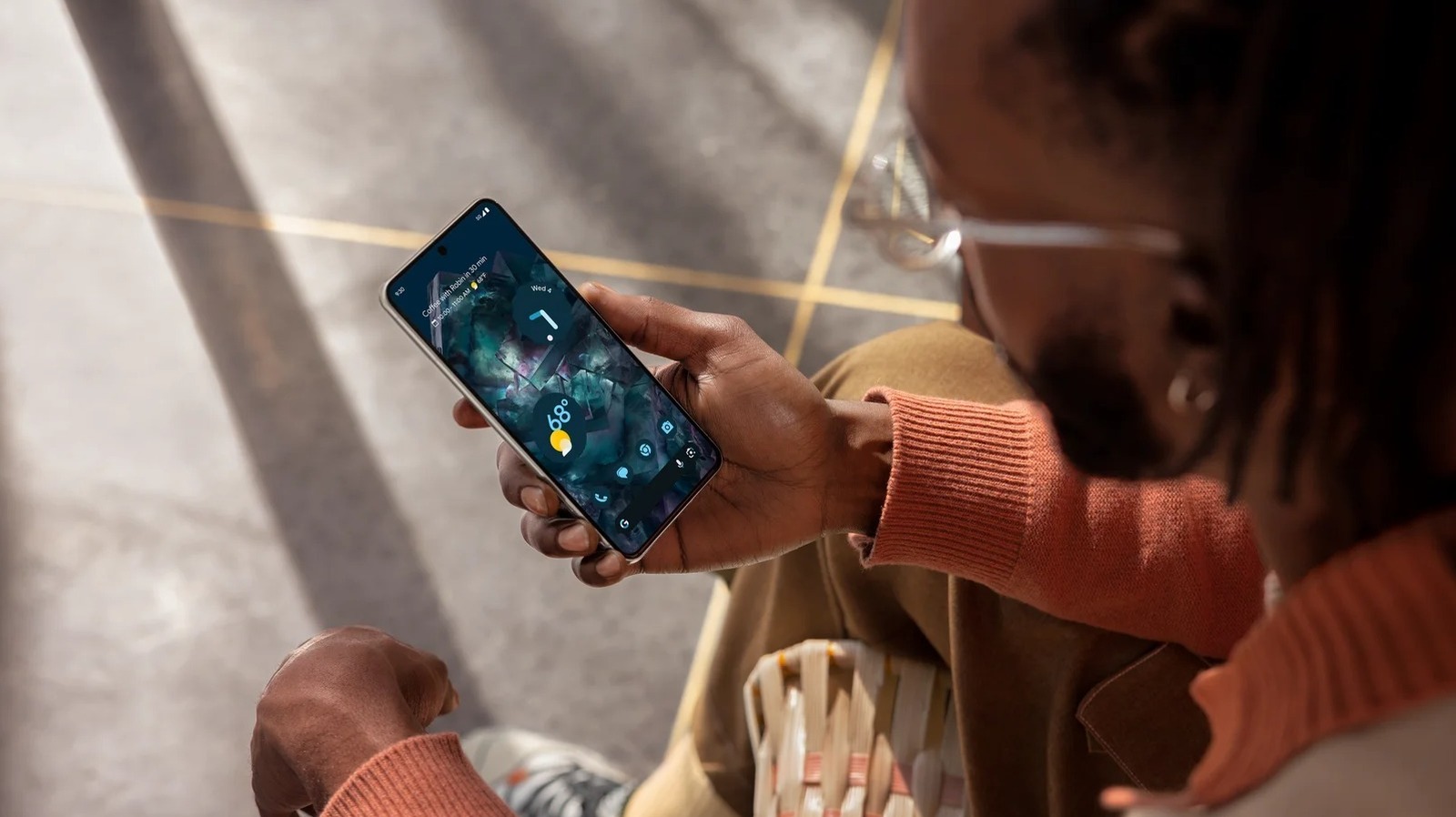
If you’re particularly concerned about privacy when browsing online, then you’ve probably heard about using a VPN as a safety measure. VPN — short for Virtual Private Network — is a way to stop third parties from monitoring your online activity and essentially keep your connection more secure. Setting one up on your phone isn’t that complicated, and all it usually takes is a simple app installation. Interestingly, though, one of the most reliable free VPNs for Android is actually built into the device and developed by Google itself. Called VPN by Google, this free VPN service is an exclusive feature on Pixel phones starting from Pixel 7.
Like standard VPN services, VPN by Google creates an encrypted and private connection by going through Google’s VPN servers instead of directly to the internet. It then masks your real IP address and location and swaps them with the server’s IP and location. This is what keeps you safe from bad actors and websites that want to know your location.
But unlike other VPN services, VPN by Google has a few limitations. For one, it doesn’t allow you to choose which server to connect to. You can’t pick a Japan-based server, for instance, so you also can’t access content exclusive to the Japanese audience. Additionally, you need a Google account to use the VPN service. VPN by Google also works only in 30 home countries (meaning the country linked to your Google account). These include the United States, the United Kingdom, Australia, Germany, and Singapore. It does work in more regions when you travel, though, so you can use it in places like the Bahamas, New Zealand, Puerto Rico, and even Antarctica.
How to turn on the free VPN by Google on your Pixel phone
Enabling VPN by Google on your Pixel phone is pretty quick and easy via the Settings on your Pixel device. Follow these steps:
- Navigate to the Settings app.
- Select Network & internet.
- Tap on VPN.
- Under the Built-in section, open VPN by Google.
- Scroll through the permissions.
- Turn on Use VPN on mobile network if you also want to activate VPN while on mobile data.
- Tap Use VPN.
- Choose Allow if you want VPN by Google to send you notifications.
- Wait for the VPN to connect.
Once you see the key icon on your Android screen, that means the VPN service is active, and you’re ready to start surfing. To make it easier to pause and resume the VPN the next time around, you can add it to your Quick Settings. Here’s how:
- Go to your Quick Settings by swiping down from the top of the screen.
- Tap the pen icon.
- Press and hold the tile for VPN by Google.
- Drag it to your preferred position in the upper section of the screen.
- Press the back arrow to save your changes.
You should now see the VPN tile in your Quick Settings. Long-press on the tile to open the VPN by Google settings page, or simply tap on it to pause or resume the VPN service.
How to configure VPN by Google on your Pixel
While Google’s free VPN service isn’t as feature-packed as most other VPNs on the market, it still offers some level of customization. Here’s how you can configure VPN by Google to fit your needs better:
- Launch Settings.
- Navigate to Network & internet > VPN.
- Tap the gear icon next to VPN by Google.
- To keep the VPN service active all the time, toggle on Always-on VPN.
- To prevent your device from going online without connecting to VPN first, enable Block connections without VPN and press Turn on to confirm.
- Go back to the VPN page.
- Tap on VPN by Google.
- To pause the VPN service when you’re connected to certain Wi-Fi networks:
- Under Advanced settings, go to Pause VPN on selected networks.
- Tap on the saved networks where you don’t want the VPN service to run.
- Hit the trash icon to remove the Wi-Fi network from the “pause” list.
- To prevent certain apps from using the VPN service, meaning they’ll connect to the internet as normal:
- Select Exclude selected apps.
- Choose the apps that you don’t want to run VPN on.
- Remove any app from the “excluded” list by tapping the trash icon.
- To view the app info:
- Go to Notifications.
- Change the notification frequency by going to Notifications.
- Edit the permissions from the Permissions option.
- Check how much mobile data the VPN service used by tapping Mobile data usage.
Any change you make in the configuration will automatically be saved and used whenever your VPN is on.



![Social media image sizes for all networks [February 2026]](https://blog.hootsuite.com/wp-content/uploads/2023/01/Social-Media-Image-Sizes-2023.png "Social media image sizes for all networks [February 2026]")