Andy Walker / Android Authority
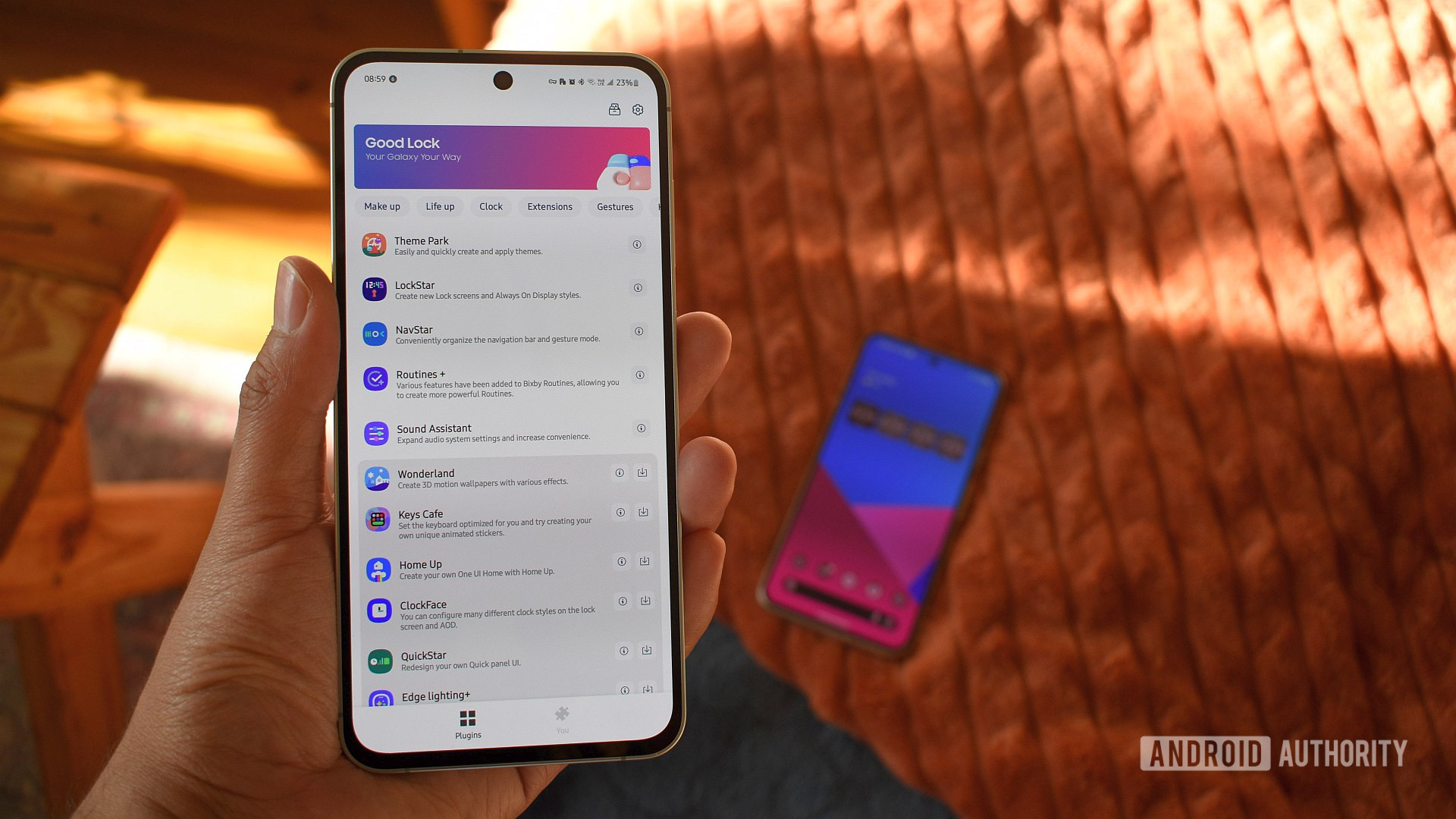
Samsung may be resistant to change up its flagship formula, but one thing the company does have going for it is its excellent Android software experience. One UI is regularly pushing the boundaries of the mobile OS, and this is especially true for customizers. If you’re an Android enthusiast looking for even more toggles and controls over your device, you can grab Good Lock from the Play Store, and open up an even wider world of options. It’s what I’ve done on every Samsung phone I’ve owned.
I guess you could say that now I can’t imagine using a Samsung without Good Lock and my trusty list of modules installed. But which do I grab, and what do I change within them?
Read on to discover the Good Lock settings I always adjust on every Samsung phone, my reasons for making these changes, and why you should consider adjusting them too.
What is your favorite Samsung Good Lock module?
0 votes
I create light and dark Quick panel themes with Theme Park

Andy Walker / Android Authority
I like having clear light and dark modes on my phone that I can easily switch between in high and low light scenarios.
If I’m browsing Reddit in bed and don’t want to strain my eyes, dark mode is there. If I’m struggling to view menu names in direct, bright sunlight, light mode helps. The problem is that I’m not very fond of how Samsung applies these modes to the Quick panel.
With Theme Park, I have far more control over the details of my phone’s UI in both modes. It can create a system-wide theme, customize the Samsung Keyboard, tweak icons, and adjust the volume panel, but I only tweak the Quick panel settings here.
- Open Theme Park, tap + Create new. Adjust the various elements of the Quick panel, including the colors used and the blur level on the interface, then tap the moon icon to switch between light and dark mode designs
Don’t want to miss the best from Android Authority?


I add my two favorite lock screen widgets using LockStar

Andy Walker / Android Authority
The next Good Lock module I use is LockStar. I enjoy customizing several elements on my lock screen, including the lock icon style, clock style, and shortcuts, but more importantly, I take full advantage of One UI’s lock screen widgets functionality.
- Open LockStar, tap on the LockStar button, select App widgets, and add your favorite widgets to the lock screen.
So which widgets make the cut? I like to keep things simple, so I add the World Clock with New York and London times, as well as the Samsung Weather widget, for a snapshot of current conditions.
I change my recents screen layout with Home Up

Andy Walker / Android Authority
There are no small Samsung smartphones anymore, so many of the changes I make with Good Lock are intended to make one-handed use easier. One of the most critical changes is switching the Task changer layout type — the UI used by the Recents page. This is doable through HomeUp.
- Open Home Up, tap the Task Changer box, under Layout type select Vertical list. I also toggle on Circular list under the Detail settings section.
This Task changer style makes it easy to flick through, close, or select any recent apps with my right-hand thumb.
I adjust my status bar icons with QuickStar

Andy Walker / Android Authority
My status bar layout is a little unusual. Essentially, I want all system indicators to remain on the right, leaving the left-hand side of the bar open for app notifications. This means moving the clock to the right-hand side of the screen.
- Open QuickStar > Clock settings > select RIGHT under Position and Visibility.
- I also toggle on Show Seconds, which enables this option for the clock in the quick panel. Why? I’m not sure, but it feels right!
I set up my ideal gesture setup with One Hand Operation+

One Hand Operation+ is easily my favorite Samsung Good Lock module. It’s packed with incredible features that make using even the largest Samsung phone with one hand a breeze. I tweak almost every setting in this module, so let’s go through it step by step.
- First, you’ll need to toggle the master On switch at the top of the app.
- Next, I toggle on and adjust the Left and Right handles. I use the same gesture layout on both sides, which includes:
- Straight: Back (short swipe) Home (long swipe)
- Diagonal up: Recents
- Diagonal down: Task switcher
- Note: I use the same shortcut for both long and short swipes across the diagonal triggers, as I find it difficult to reliably trigger the short diagonal swipes.
- I adjust the Touch width slightly below halfway, towards Small.
- The Size is set closer to Large.
- The Position slider is set biased towards Low.
All these settings make my phone far more navigable with one hand or two.
I enable the most important screenshot button using Nice Shot

Andy Walker / Android Authority
I’m always snapping screenshots for articles, but I often capture something in error. There’s a setting in Nice Shot that allows me to delete these screenshots almost as soon as I’ve captured them, saving future me plenty of admin work.
- Open Nice Shot > toggle on Add delete button.
Now, you’ll see a delete icon in the screenshot toolbar, allowing you to discard an erroneous capture immediately.
I restore my backed-up routines using Routines+

Joe Maring / Android Authority
Modes and Routines is already a great reason to use Samsung phones, but Good Lock’s Routines+ unlocks plenty more functionality, and allows for even finer control of triggers and actions.
I’ve written about how I use the touch macro feature to force the Google Play Store to update my apps while I’m sleeping, and importantly, this module lets me back up and import routines.
I adjust my apps’ screen limitations using Display Assistant

Andy Walker / Android Authority
Display Assistant is a wonderfully functional Good Lock module, especially if you use apps to monitor various items on your phone.
I use Display Assistant to lengthen the screen timeout interval for grocery delivery apps, but it can also adjust frame rates on a per-app basis and adjust the screen’s adaptive brightness characteristics.
This is the one Good Lock module I wish had additional settings, specifically one for a custom screen timeout amount for apps beyond 10 minutes.
I customize my volume preferences using Sound Assistant

Like Display Assistant, Sound Assistant is a must-have Good Lock module. It allows me complete control over my phone’s volume panel appearance and apps’ access to audio.
I tweak several items in this module, which include:
- Open Sound Assistant > Customize volume panel > toggle On > Custom. Here, I adjust the position of the Standard and Expanded volume panels to fall within my right-hand thumb’s reach.
- I can’t stand Instagram’s terrible audio handling, so I disable the app’s ability to play any sound on my phone. Open Individual app volumes then tap the blue + button to add apps to the list.
- Change Step volume value to 3.
I speed up my camera shutter with Camera Assistant

Andy Walker / Android Authority
Samsung devices only close the shutter when your finger leaves the shutter button. It’s particularly annoying when trying to capture objects in motion, such as smaller creatures like butterflies or flowers blowing in the wind.
Thankfully, there’s a setting in the popular Good Lock module Camera Assistant that speeds up this process. It’s another setting that I absolutely must enable.
- Open Camera Assistant > toggle on Quick tap shutter.
Not only does this setting immediately capture a photo when you touch the shutter button, but it takes an additional shot when you hold the button.
I level up my split screen experience with MultiStar

Ryan Haines / Android Authority
Lastly, I turn my attention to my phone’s multitasking capabilities.
MultiStar is the Good Lock module responsible for tweaking split screen, pop-up, and other multi-window modes, and I cannot live without it. More specifically, there’s one setting that perfectly suits how I use my phone.
Often, I want to use two apps side by side, such as Fuelio and Google Keep to transfer refueling information, or two grocery delivery apps to compare prices. Launching split-screen view usually involves multiple taps, but one MultiStar setting solves this completely.
- Open MultiStar > toggle on the module’s master switch > Toggle on Quick launch of the Multi window, then select Open in split screen view.
Now, when I want to launch apps side-by-side, I can hold the Recents button to place that app in a split-screen arrangement.
There you have it. These are the Good Lock settings I always tweak when I get a new Samsung phone. Are there any modules you must download or any settings within them that you adjust while setting up your device? Let me know in the comments.
Thank you for being part of our community. Read our Comment Policy before posting.