By using this site, you agree to the Privacy Policy and Terms of Use.
Accept
World of SoftwareWorld of SoftwareWorld of Software
  • News
  • Software
  • Mobile
  • Computing
  • Gaming
  • Videos
  • More
    • Gadget
    • Web Stories
    • Trending
    • Press Release
Search
  • Privacy
  • Terms
  • Advertise
  • Contact
Copyright © All Rights Reserved. World of Software.
Reading: You Can Move Apps And Channels On Your Roku Home Screen – Here’s How – BGR
Share
Sign In
Notification Show More
Font ResizerAa
World of SoftwareWorld of Software
Font ResizerAa
  • Software
  • Mobile
  • Computing
  • Gadget
  • Gaming
  • Videos
Search
  • News
  • Software
  • Mobile
  • Computing
  • Gaming
  • Videos
  • More
    • Gadget
    • Web Stories
    • Trending
    • Press Release
Have an existing account? Sign In
Follow US
  • Privacy
  • Terms
  • Advertise
  • Contact
Copyright © All Rights Reserved. World of Software.
World of Software > News > You Can Move Apps And Channels On Your Roku Home Screen – Here’s How – BGR
News

You Can Move Apps And Channels On Your Roku Home Screen – Here’s How – BGR

News Room
Last updated: 2025/12/27 at 1:50 PM
News Room Published 27 December 2025
Share
You Can Move Apps And Channels On Your Roku Home Screen – Here’s How – BGR
SHARE


Joshua Westbrook/Getty Images

Roku streaming devices and smart TVs are a budget-friendly option for accessing popular entertainment apps like Netflix, Disney+, and HBO Max. The Roku TV software is also easy to use and updated frequently, as new features are added alongside security patches and other optimizations.

One of the core parts of the Roku TV interface is the Home Screen: This is where all of your downloaded Roku apps are displayed, as well as any Roku shortcuts you’ve created for functions like powering off your TV or selecting a particular HDMI input. Whenever you add a new app or shortcut to Roku TV, it’s automatically positioned at the bottom-right of the home dashboard. But for many users with a penchant for organization, not having your apps alphabetized is a major annoyance. Fortunately, moving these UI tiles is far less complicated than accessing your Roku’s secret menus.  

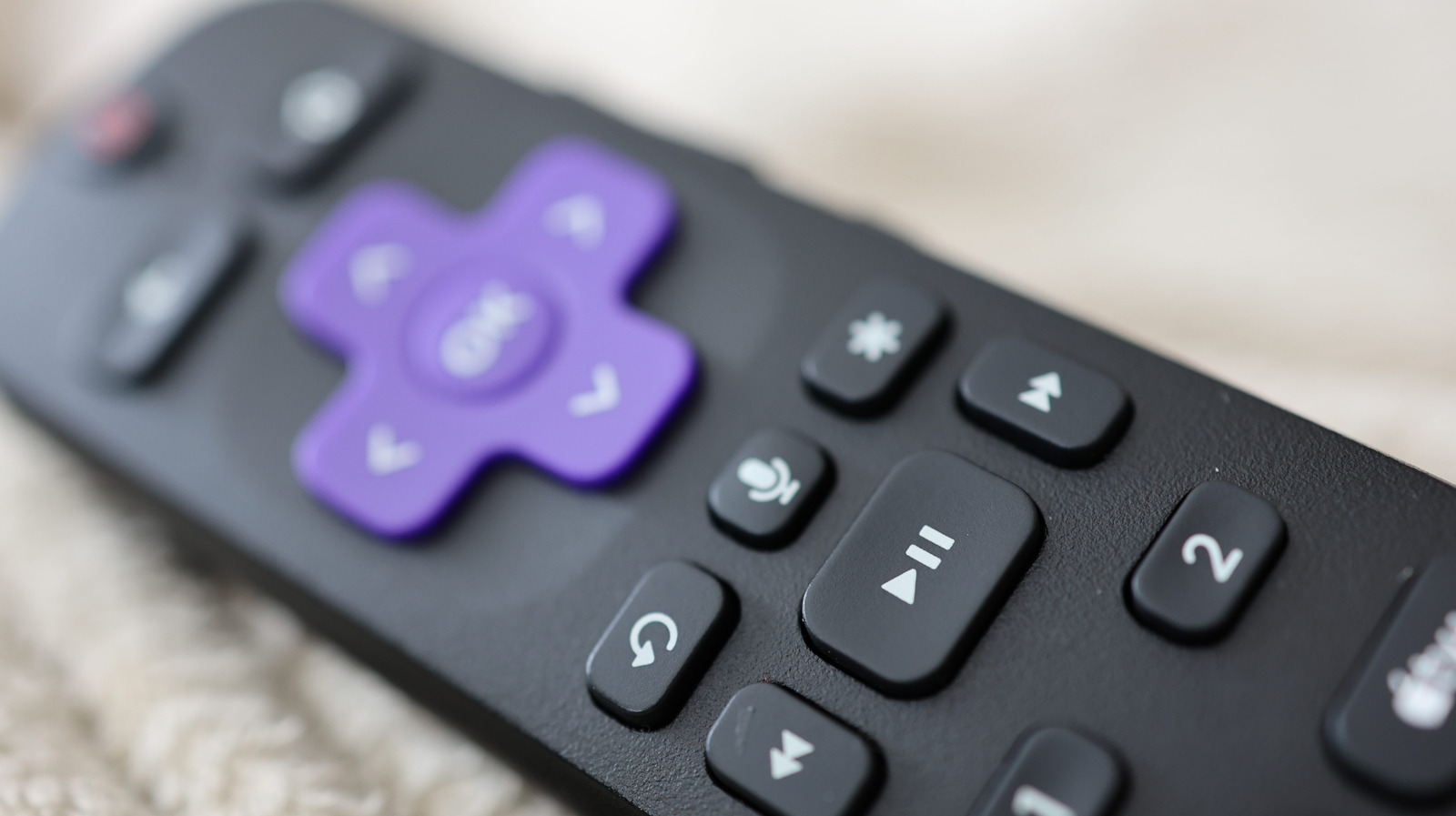
All you have to do is highlight the tile you want to move on your Roku’s Home Screen. Then, press the star button on your Roku remote to pull up the options menu. Use the directional pad to select the Move app option, then use the remote to position the tile in its new location. When you’re done, press OK. That’s all there is to it.

You’ll have to repeat these changes for every Roku device you’re logged into
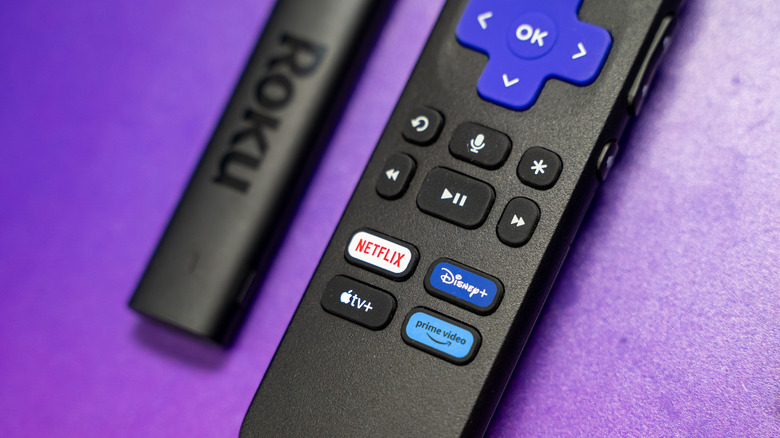

A Roku Streaming Stick next to its remote.
Erman Gunes/Shutterstock

There are plenty of hidden features every Roku user should know, but personalizing your device’s UI is an extremely straightforward and quick process. With just a couple of button presses, you’ll be moving apps and shortcuts in no time.

That said, if you happen to own more than one Roku device that is signed in with the same Roku account, do keep in mind that when you move a tile, the change only applies to the device you’re using at the time – and won’t sync to other Roku hardware. So, if you’re all about arranging your apps in a particular order, you’ll need to do so for every Roku device you’re signed into.

Whether you’re thinking about buying a Roku Streaming Stick or already own one, you won’t be able to completely customize the aesthetic of every Roku screen and menu. However, having control over the layout of the home dashboard is a significant plus.


Sign Up For Daily Newsletter

Be keep up! Get the latest breaking news delivered straight to your inbox.
By signing up, you agree to our Terms of Use and acknowledge the data practices in our Privacy Policy. You may unsubscribe at any time.
Share This Article
Facebook Twitter Email Print
Share
What do you think?
Love0
Sad0
Happy0
Sleepy0
Angry0
Dead0
Wink0
Previous Article Top Stories: iPhone Fold Mockup, Where’s the New Apple TV?, and More Top Stories: iPhone Fold Mockup, Where’s the New Apple TV?, and More
Next Article Investors share what to remember while raising a Series A |  News Investors share what to remember while raising a Series A | News
Leave a comment

Leave a Reply Cancel reply

Your email address will not be published. Required fields are marked *

Stay Connected

248.1k Like
69.1k Follow
134k Pin
54.3k Follow

Latest News

Today's NYT Wordle Hints, Answer and Help for Dec. 28 #1653 – CNET
News
FaZe Clan’s future is uncertain after influencers depart |  News
FaZe Clan’s future is uncertain after influencers depart | News
News
Today's NYT Connections Hints, Answers for Dec. 28 #931
News
The exorbitant deployment of data centers for AI has a new problem: salt caverns
Mobile

You Might also Like

Today's NYT Wordle Hints, Answer and Help for Dec. 28 #1653 – CNET
News

Today's NYT Wordle Hints, Answer and Help for Dec. 28 #1653 – CNET

2 Min Read
FaZe Clan’s future is uncertain after influencers depart |  News
News

FaZe Clan’s future is uncertain after influencers depart | News

2 Min Read
Today's NYT Connections Hints, Answers for Dec. 28 #931
News

Today's NYT Connections Hints, Answers for Dec. 28 #931

3 Min Read
Today's NYT Strands Hints, Answer and Help for Dec. 28 #665 – CNET
News

Today's NYT Strands Hints, Answer and Help for Dec. 28 #665 – CNET

3 Min Read
//

World of Software is your one-stop website for the latest tech news and updates, follow us now to get the news that matters to you.

Quick Link

  • Privacy Policy
  • Terms of use
  • Advertise
  • Contact

Topics

  • Computing
  • Software
  • Press Release
  • Trending

Sign Up for Our Newsletter

Subscribe to our newsletter to get our newest articles instantly!

World of SoftwareWorld of Software
Follow US
Copyright © All Rights Reserved. World of Software.
Welcome Back!

Sign in to your account

Lost your password?