ChatGPT has come a long way since it went viral in late November 2022. It now has over 800 million users, and its iPhone app is the most downloaded application in the App Store. The AI chatbot is an integral part of the online routines for more and more people who use it for personal and work chores. In the process, users exchange significant amounts of data with ChatGPT via text and voice. It’s more important than ever to ensure that your chat data is secure and private. This isn’t just about preventing ChatGPT from training on your chats. It’s also about ensuring that only you have access to your conversations with the AI and that you can take advantage of some of the best features of ChatGPT (like chat memory), without compromising your data.
Before you start changing any ChatGPT settings, you should remember that it’s not just about the toggles you enable or disable. The best way to ensure the security and privacy of your personal information is to avoid oversharing. ChatGPT is not a friend or family member. It doesn’t need detailed information about yourself or others.
Don’t give the AI your personal data, like your full name, phone number, ID, or social security number. Also, avoid feeding the AI healthcare data or banking information. If you use AI for work under an enterprise plan, you should ensure you don’t give ChatGPT sensitive information. Similarly, don’t use any identifying client details in chats if you’re a doctor, lawyer, or any other professional bound by strict confidentiality agreements. You can still talk with the AI about personal matters as long as you frame your questions in a way that anonymizes the data.
Enable multi-factor authentication
Whether you’re using the ChatGPT Free tier or you’re paying for a ChatGPT premium experience (Plus, Pro, Business, and Enterprise), you should treat your ChatGPT account as a sensitive online property. Ensure you apply the same security protections as you do with your email and banking accounts. That means avoiding weak passwords for ChatGPT, and enabling multi-factor authentication (MFA).
The longer the password, the better. On that note, you should save your passwords in password managers on desktop and mobile. To change your password, you’ll have to log out of ChatGPT, go to the ChatGPT home page, enter your email address, and select Forgot password. You’ll receive an email to reset your password to something stronger.
 Chris Smith
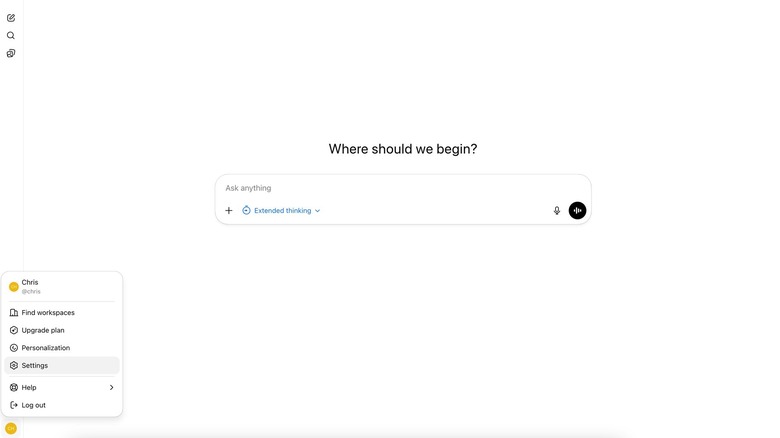
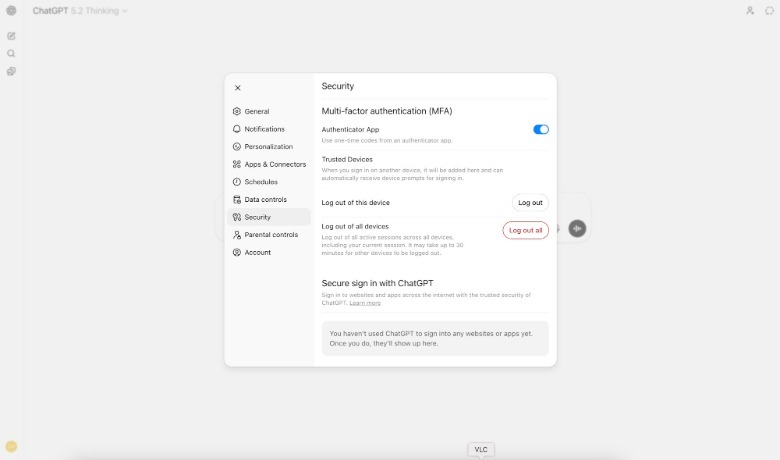
Enabling MFA for your ChatGPT is easier than that. Go to the ChatGPT app on desktop, click your profile name in the lower left corner, click Settings, and go to the Security menu to enable the “Multi-factor authentication (MFA)“ toggle. You’ll be prompted to use an authenticator app to set up your one-time code generator, which will provide single-use codes whenever you log into your ChatGPT account.
Many ChatGPT users chat with the AI via the mobile apps on iPhone and Android devices. You can customize security settings on mobile apps as well, but there’s one other key aspect to consider for protecting your data. If you use ChatGPT on a shared tablet, you may want to ensure that children and other family members won’t use your ChatGPT account. You can either log out of your account every time you’re done using the chatbot, so others can log in, or you can password-protect the ChatGPT app to prevent accidental access from younger users.
Prevent ChatGPT from training on your data
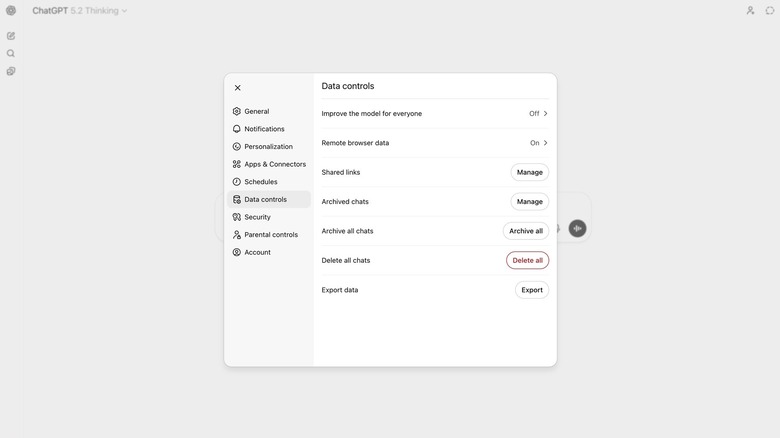
Even with ChatGPT account security handled, there’s one more key setting you need to change to ensure your data is safe. This concerns privacy rather than security. You should prevent ChatGPT from training on your data. That is all the information you exchange with the AI during your daily chats. Go to the same Settings menu on desktop by clicking your profile photo in the lower left corner. Select Data Controls and look for the “Improve the model for everyone“ option at the top. Turn off the setting so OpenAI stops using your data to train future ChatGPT models. If the setting was enabled before, OpenAI used your chats to train the AI. That information can’t be removed from the training sets the company has already used. But you can prevent training future ChatGPT versions going forward.
It’s important to remember that ChatGPT Business and Enterprise accounts have stronger privacy protections than the personal accounts (Free, Plus, and Pro). OpenAI won’t use chat data for those subscriptions to train the AI.
The same Data Controls menu contains a few other ChatGPT settings you may want to revisit. For example, this is where you can delete the “Remote browser data.“ That’s the virtual computer that ChatGPT Agent uses to perform tasks on your behalf by browsing the web, like providing suggestions for your next vacation according to your parameters. The Data Controls menu also lets you bulk-delete chats or archive conversations. This is the menu you need to export chat data and manage the ChatGPT chats you may have shared with others.
Customize ChatGPT memory and personalization settings
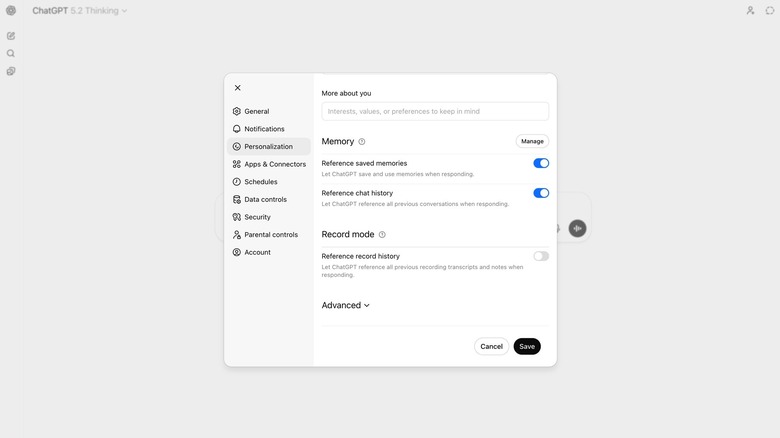
While you should not use identifiable data when talking to ChatGPT about yourself and others, the app does offer personalization features that can improve your interactions with the AI. The Personalization menu is available in the Settings section under your profile name. In here, you have a few options you may want to tweak. The “Custom instructions“ section lets you provide specific instructions to the AI. For example, you may want to tell ChatGPT to always offer you links for the facts it provides, or to always search the web for up-to-date information. You can also enter a name or nickname the AI can use and fill in the “More about you“ section. You can enter details about your work and hobbies in this field so the AI can remember them for future conversations.
The Memory section is perhaps even more important. If you have the “Reference saved memories” and “Reference chat history” options enabled, ChatGPT will be able to save and use memories from previous chats, and reference previous conversations. The Manage button lets you customize memories. You may want to prevent ChatGPT from using a memory that’s no longer relevant, like a past summer trip or a previous job.
It’s important to know that these memories are extracted from your previous chats, and you can ask the AI to remember specific details. These memories won’t be used by OpenAI to train new ChatGPT models if you’ve disabled the “Improve the model for everyone” setting discussed above. Otherwise, the memories will be used for training new AI models, but that’s because all your chats will be part of that training set.
Use Temporary Chats and Parental Controls
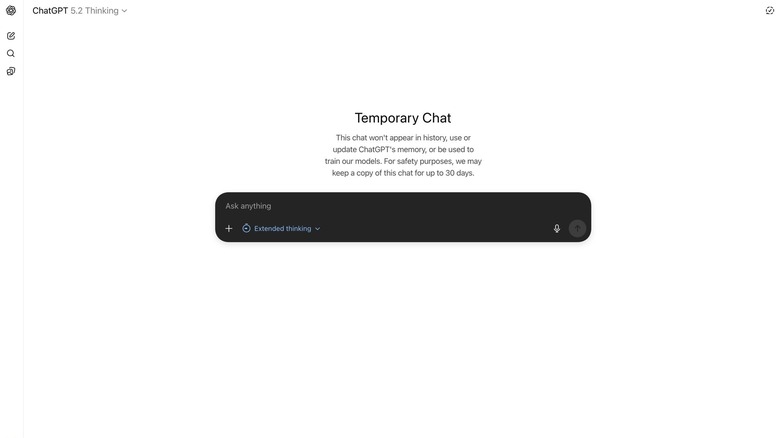
Whether you let OpenAI use your chats to train new ChatGPT models, you should also know that ChatGPT offers a Temporary Chat feature that lets you have ephemeral chats with the AI. These conversations will not be saved in your chat history and they won’t be used to train the AI. Simply go to the chat bubble at the top right corner on desktop or mobile to start a Temporary Chat. However, keep in mind that OpenAI will still store a copy of the chat for up to 30 days for safety reasons. That 30-day window also applies to deleted ChatGPT conversations. OpenAI will hold on to them for safety reasons, before erasing the information, though exceptions exist. OpenAI may be forced to keep the data for longer. For example, the New York Times briefly obtained a court order in its lawsuit against OpenAI that forced the AI firm to keep ChatGPT chats stored indefinitely, including the ones that were deleted by users. While those obligations are over, the case showed that specific conditions may impact user data in unexpected ways.
The chats are not encrypted for ChatGPT Plus and Pro users so OpenAI can access them. Also, the company relies on automated systems to flag potential policy violations in ChatGPT chats. It monitors for chats involving sensitive topics, including self-harm, sexual abuse, hate, and others. When these messages are flagged, they may be seen by human review teams. On that note, parents should know about and enable the Parental Controls feature found in the ChatGPT Settings menu on desktop and mobile. They can add their children to a list of users, so ChatGPT restricts the type of content it offers to underage users.