By using this site, you agree to the Privacy Policy and Terms of Use.
Accept
World of SoftwareWorld of SoftwareWorld of Software
  • News
  • Software
  • Mobile
  • Computing
  • Gaming
  • Videos
  • More
    • Gadget
    • Web Stories
    • Trending
    • Press Release
Search
  • Privacy
  • Terms
  • Advertise
  • Contact
Copyright © All Rights Reserved. World of Software.
Reading: You Can Turn On Your iPhone’s Flashlight Without Touching It – Here’s How – BGR
Share
Sign In
Notification Show More
Font ResizerAa
World of SoftwareWorld of Software
Font ResizerAa
  • Software
  • Mobile
  • Computing
  • Gadget
  • Gaming
  • Videos
Search
  • News
  • Software
  • Mobile
  • Computing
  • Gaming
  • Videos
  • More
    • Gadget
    • Web Stories
    • Trending
    • Press Release
Have an existing account? Sign In
Follow US
  • Privacy
  • Terms
  • Advertise
  • Contact
Copyright © All Rights Reserved. World of Software.
World of Software > News > You Can Turn On Your iPhone’s Flashlight Without Touching It – Here’s How – BGR
News

You Can Turn On Your iPhone’s Flashlight Without Touching It – Here’s How – BGR

News Room
Last updated: 2025/12/29 at 8:13 PM
News Room Published 29 December 2025
Share
You Can Turn On Your iPhone’s Flashlight Without Touching It – Here’s How – BGR
SHARE


Runrun2/Shutterstock

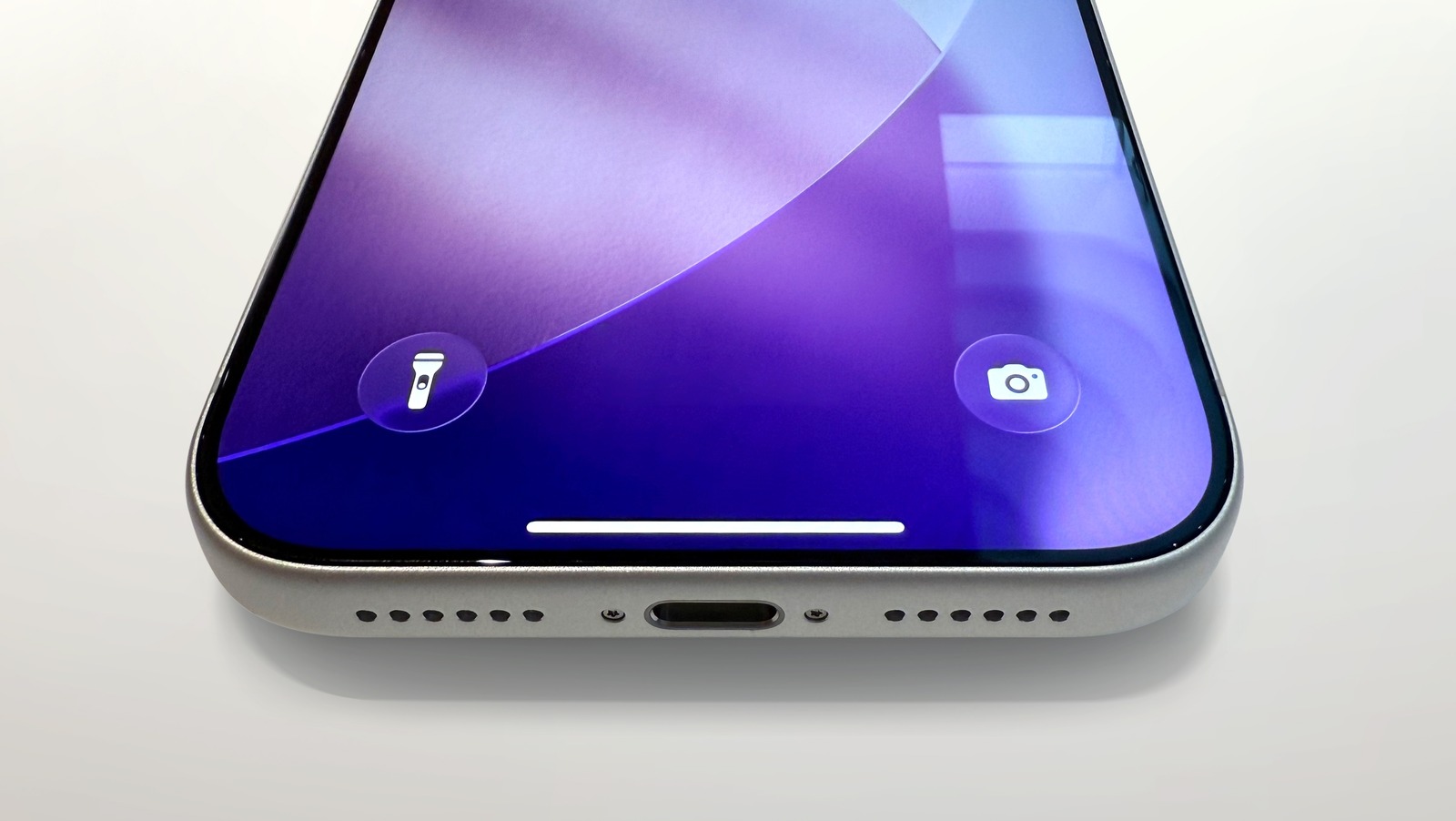
Although only iPhone Pro owners can change its brighness, the flashlight on iPhones is a very handy feature. You can set it up to be accessed in a few ways, including on the lock screen or in control center. Tap the icon when you need help getting your key in the door at night or finding something underneath furniture, and the camera flash will illuminate with a steady glow. If you’re fumbling with shopping bags or have your hands otherwise occupied, you can turn on the flashlight with a simple voice command. 

Tell Siri, “Hey Siri, turn on/off the flashlight,” and the built-in assistant will toggle the light as instructed. You don’t have to do anything special to enable flashlight control via Siri; as long as the voice assistant is enabled on your iPhone all you need to do is give the command. Activating your iPhone’s flashlight via Siri is especially helpful to illuminate a workspace while your hands are busy. This method also allows you to keep photos, messages, documents, or videos visible on your screen while lighting the flashlight.

Vocal shorcuts and lock screen customization
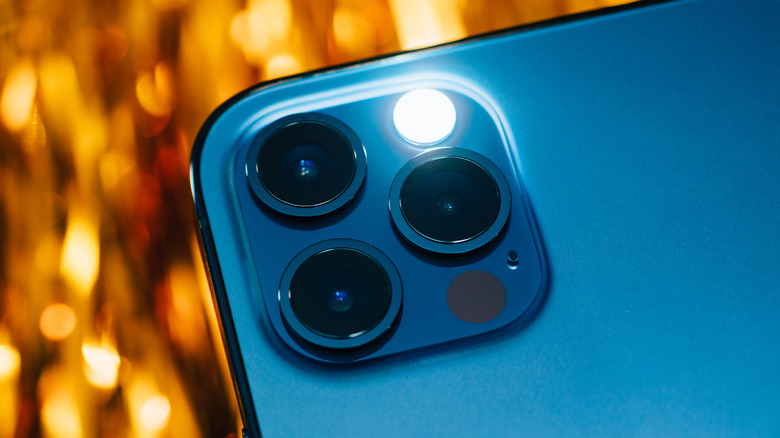

iPhone 12 camera lenses with flash/flashlight illuminated
Hadrian/Shutterstock

There’s a way to use voice commands to light and extinguish an iPhone flashlight that doesn’t even invoke Siri. You can configure Vocal Shortcuts in the Settings app under the Accessibility menu and assign words to specific functions. Harry Potter fans might choose to activate their flashlight with the word “Lumos” and turn it off with “Nox,” the words that turn on and off a light at the tip of the spellcaster’s wand in the books and movies. Vocal shortcuts don’t when the phone is locked, though; you’ll have to rely on Siri or a button (physical or on-screen) to toggle the flashlight with your screen locked.
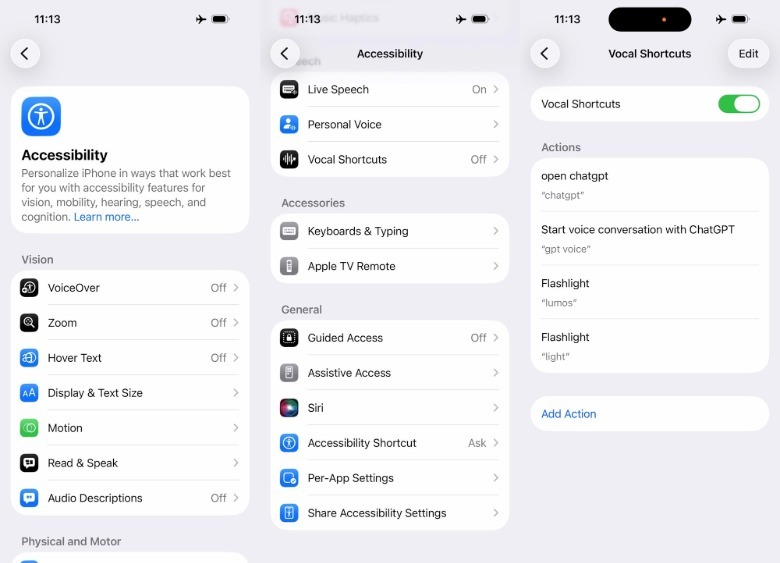
Setting up a Vocal Shortcut for the iPhone flashlight.Chris Smith

See our guide on how to change your iPhone lock screen icons if the flashlight doesn’t appear on yours, and there’s an easy way to remove it if you’re not using it. Touch and hold the lock screen, tap customize and then press the ‘-‘ above and to the left of the icon to remove the shortcut. With the customize screen still active, you an also press the “+” sign to add a new shortcut to the lock screen. This can be an app or iPhone action like opening the Apple TV virtual remote. You can also remove shortcuts from the lock screen so they don’t block parts of your wallpaper that you want visible.

iPhone flashlight advanced tips

iPhone's Control Center with person's thumb reaching for do not disturb toggle
Bendix M/Shutterstock

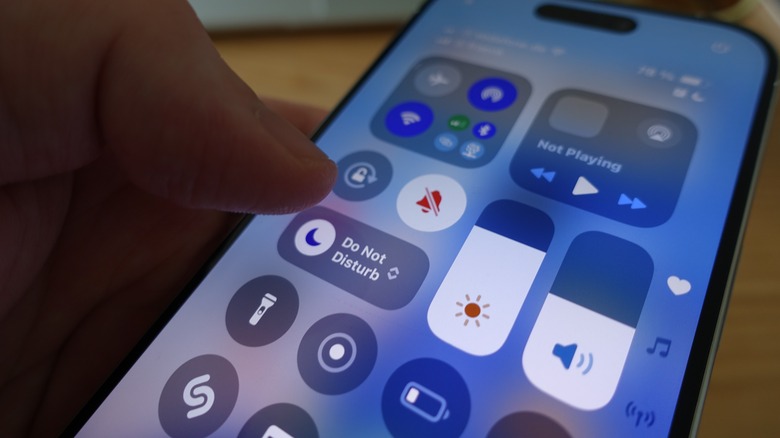
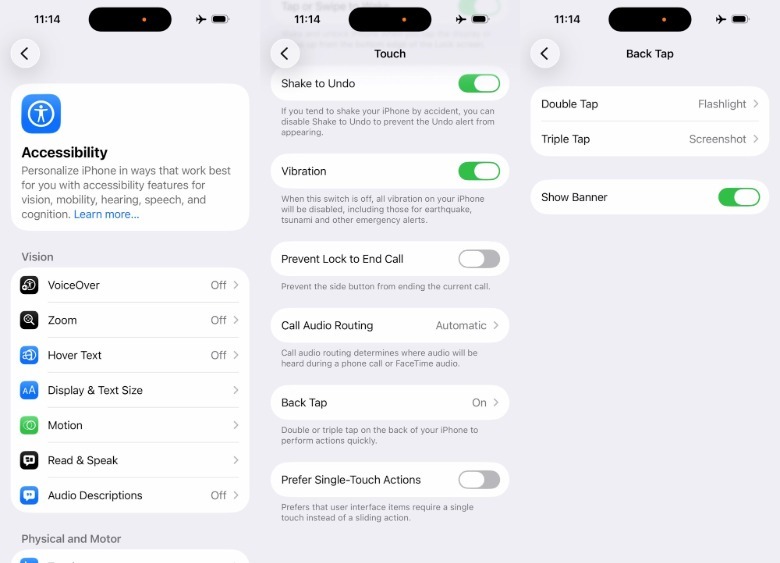
If your control center doesn’t have the flashlight icon, it’s easy to add. Open the control center by swiping down from the top right corner of a FaceID-enabled iPhone or up from the bottom on models with a home button. Tap and hold in an open spot on the screen to enter customize mode, then tap “add a control” at the bottom of the screen. Find the flashlight icon, tap to add it to your control center, then drag it to an open spot on the grid. European users have the same flashlight icon as everyone else, although it will be labeled ‘torch.’ The flashlight can also be linked to the action button on iPhone 15 Pro and later models. This is one of the best uses for the iPhone action button, but activating it will displace any existing trigger you have set up. Open the settings app, go to action button, and choose the flashlight from the list of actions. Many iPhone users don’t know about the hidden back tap feature, but it too can be used to toggle the flashlight.
Setting a Back Tap shortcut for the iPhone's flashlight.Chris Smith

 Open settings and go to accessibility > touch > back tap. In this menu you can pair the flashlight switch or a few other actions with a double or triple tap on the back of your iPhone. Enabling Siri alongside one of these hands-on ways to activate your iPhone flashlight gives you options for different situations, although it might take some experimenting to figure out which combination works best for you.




Sign Up For Daily Newsletter

Be keep up! Get the latest breaking news delivered straight to your inbox.
By signing up, you agree to our Terms of Use and acknowledge the data practices in our Privacy Policy. You may unsubscribe at any time.
Share This Article
Facebook Twitter Email Print
Share
What do you think?
Love0
Sad0
Happy0
Sleepy0
Angry0
Dead0
Wink0
Previous Article Social Media Content Curation Mistakes You Might Be Making | Social Media Content Curation Mistakes You Might Be Making |
Next Article Amazon slashes Apple Watch Series 11 to 9 heading into the new year Amazon slashes Apple Watch Series 11 to $299 heading into the new year
Leave a comment

Leave a Reply Cancel reply

Your email address will not be published. Required fields are marked *

Stay Connected

248.1k Like
69.1k Follow
134k Pin
54.3k Follow

Latest News

5 Of The Cheapest Wireless Apple CarPlay Adapters Still Worth Using – BGR
News
The Trust Layer: 8 Social Media Signals That Boost Brand and Product Credibility |
Computing
UK accounting body to halt remote exams amid AI cheating
News
Some iPhone 17 Users Report Wired CarPlay Issues – Here Are A Few Fixes – BGR
News

You Might also Like

5 Of The Cheapest Wireless Apple CarPlay Adapters Still Worth Using – BGR
News

5 Of The Cheapest Wireless Apple CarPlay Adapters Still Worth Using – BGR

10 Min Read
UK accounting body to halt remote exams amid AI cheating
News

UK accounting body to halt remote exams amid AI cheating

3 Min Read
Some iPhone 17 Users Report Wired CarPlay Issues – Here Are A Few Fixes – BGR
News

Some iPhone 17 Users Report Wired CarPlay Issues – Here Are A Few Fixes – BGR

5 Min Read
How Do You Tell What Type Of USB Ports You Have? – BGR
News

How Do You Tell What Type Of USB Ports You Have? – BGR

6 Min Read
//

World of Software is your one-stop website for the latest tech news and updates, follow us now to get the news that matters to you.

Quick Link

  • Privacy Policy
  • Terms of use
  • Advertise
  • Contact

Topics

  • Computing
  • Software
  • Press Release
  • Trending

Sign Up for Our Newsletter

Subscribe to our newsletter to get our newest articles instantly!

World of SoftwareWorld of Software
Follow US
Copyright © All Rights Reserved. World of Software.
Welcome Back!

Sign in to your account

Lost your password?