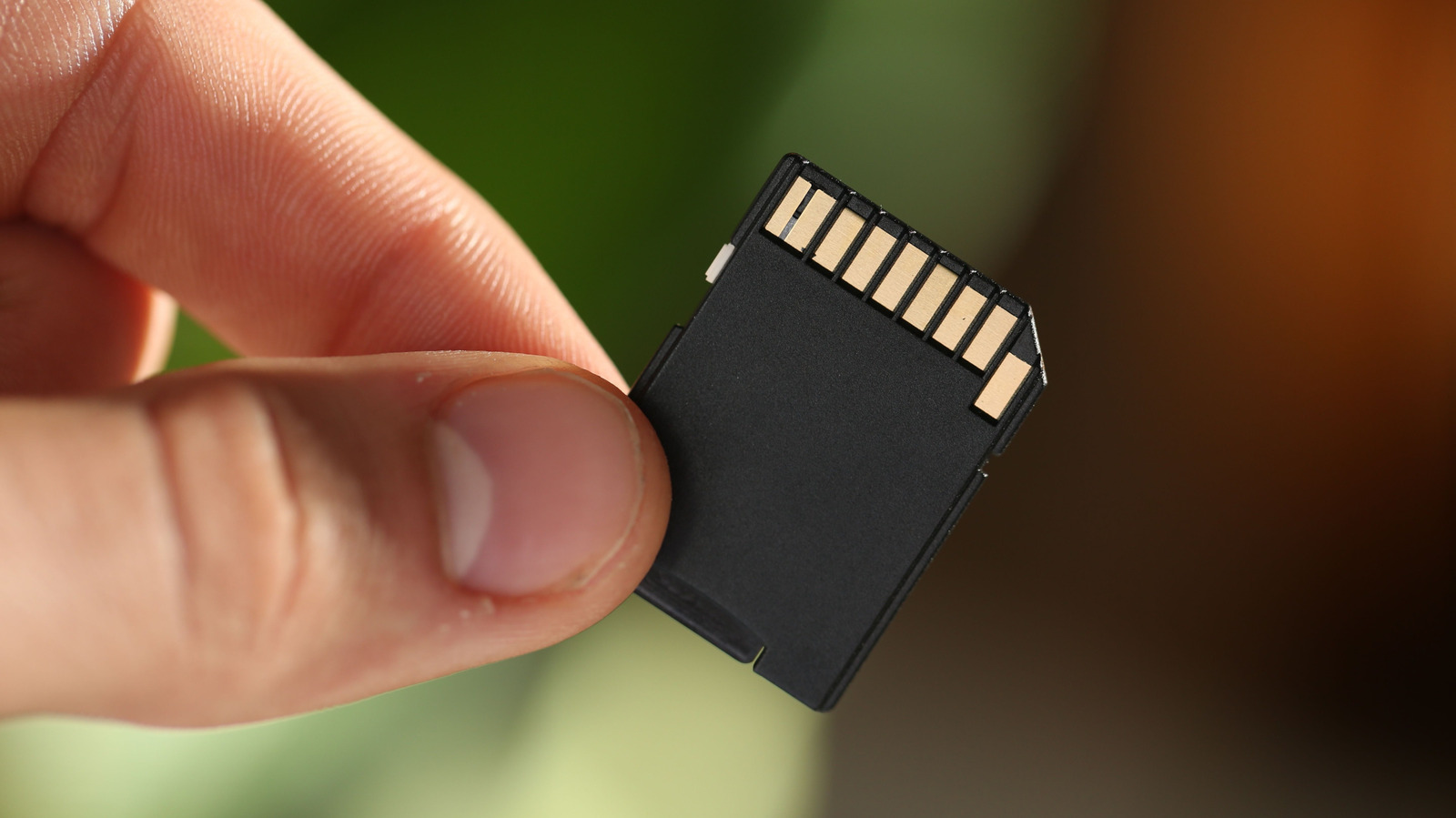
SD cards have been a ubiquitous part of our tech lives for going on 25 years now, having replaced older formats like MultiMediaCard. While our phones have mostly jumped off the microSD train in favor of faster NAND storage, there is no doubt that if you’re a tech enthusiast or have one in the household, you likely have a few spare SD cards you can repurpose. Of course, the older these cards get, the slower they are compared to newer cards, like how much faster the microSD Express cards used on the Nintendo Switch 2 are. But rather than leaving your aging cards to collect dust, there is actually a very elegant solution for what to do with your spare tech: Create bootable drives out of your old SD cards.
You can write a fully portable operating system to your spare SD card and run it by popping the card into any computer with an SD reader. It really is that simple, making for an easy way to test out different Linux distros or quickly boot into a separate Windows environment for troubleshooting, testing, and diagnostics. This way, you can carry a personal system with you without having to lug around a laptop. Whether you need to recover Windows from a blue screen error or simply want to test the latest Fedora Linux release, you can make your spare SD cards handier than many would assume.
Creating a bootable SD card is quite easy
There is no shortage of tools for creating bootable drives out of USB sticks and SD cards, especially now with the steady growth of Linux. One of the more highly recommended utilities for creating bootable drives for both Windows and Linux is Rufus. All it needs is a Windows or Linux ISO file, a spare SD card, a drive that can read it, and it’s set to create your own bootable drive.
Once you slap your SD card into a reader, your OS should see it as a drive. This means that your computer can see the card, so Rufus is also able to write to it. (If it doesn’t work, reinsert the card until it’s recognized or test a different card.) Before you start, back up the files on your SD card if you need them, because they will be erased in the process.
Now, open the Rufus app, select your SD drive, and select your ISO file. Simply click the start button once your ISO and SD card are selected, and the utility will write the OS to the SD card as a bootable drive, deleting any files stored on the card. If you don’t have an ISO on hand, you can use Rufus to download one, such as Windows 11 (making for an easier way to install 11 on devices that aren’t supported).
How to use your bootable SD card
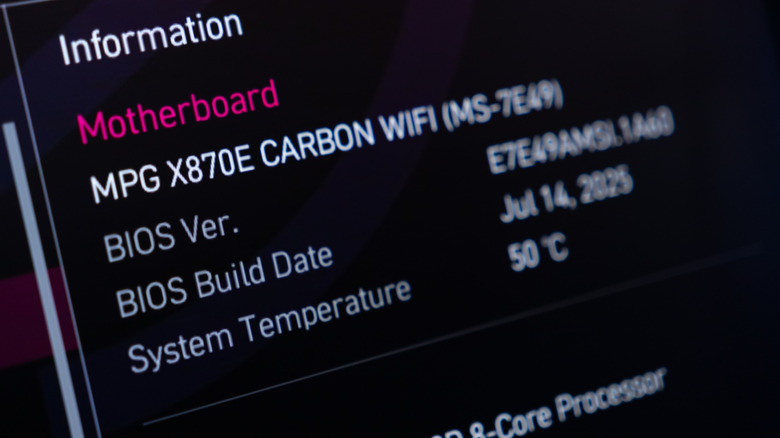
Now comes the fun part: accessing the boot menu to select your freshly written SD card as a bootable drive. Depending on your computer manufacturer, different key combos are used to access the boot menu. One of the more common methods is as simple as holding down the F2 key right as the computer boots, but WikiHow has a great guide on how to look up yours if that doesn’t work.
Once you’re in the boot menu, you can choose to boot from a specific drive, such as your SD card. You can even set your BIOS to boot from the SD permanently if you wish (if a computer’s hard drive is dead, for example), but this is recommended only for experts familiar with accessing the BIOS.
Once you’ve booted into your new SD card drive, you can accomplish a lot. Perhaps you need to reformat a hard drive you can’t currently overwrite in your locally installed OS. Or maybe you need to roll back an update on Linux that broke a function you rely on. You can make the necessary changes to the files in your primary OS from your SD card as a bootable drive. Just be careful when changing files in your main system. Since you have full control, it’s easy to break things by moving or deleting files. You also don’t want to install untrusted software in a bootable drive, since that software will have access to your main drive. But at the end of the day, you can easily use your old SD cards to troubleshoot issues with your primary OS or jump back and forth between different operating systems on your laptop without the need to split your main drive’s storage to dual-boot. That’s a lot of power gained by repurposing an old SD card.