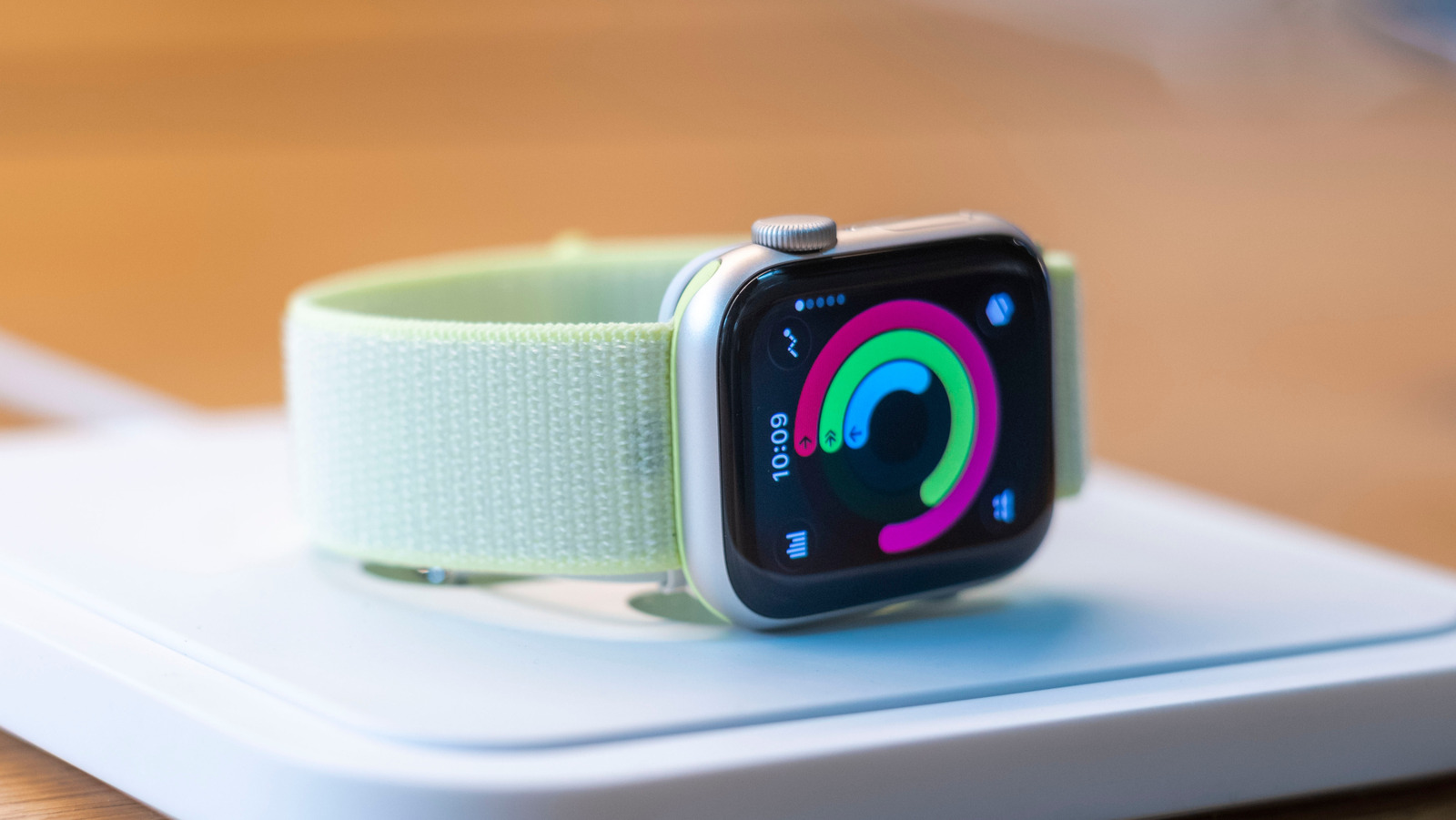
One of the best parts of owning a modern vehicle is having the ability to store a digital version of your car keys on everyday devices like phones and smartwatches. This prevents you from having to dig into your pockets or backpack for that overstressed carabiner. It’s also a great safety feature when parking in unfamiliar areas in the dark. More and more vehicles are getting the digital key treatment — including top brands like Toyota, Honda, and Hyundai — and big tech companies are following suit. One such company is Apple. Along with utilizing nifty tricks to get the best out of Apple CarPlay when driving, iPhone users can now quickly unlock their cars. Apple lets iPhone and Apple Watch owners store digital car keys using the iOS and watchOS Wallet app.
To do so, you’ll need a compatible car, an iPhone XS or SE (2nd generation) or later, or the Apple Watch Series 5 or later. Your device should also be running the latest version of iOS or watchOS. To get started, you’ll need to use your vehicle manufacturer’s companion app or the car’s display to set up a digital key. If the instructions tell you to, place the top-center of your iPhone on the key reader to allow your phone and car to sync up. This should automatically add the new key to your paired Apple Watch, but you can manually do so by opening the Apple Watch app on your iPhone and tapping Wallet & Apple Pay > Add beside your car key.
Lock, unlock, and start your car the Apple way
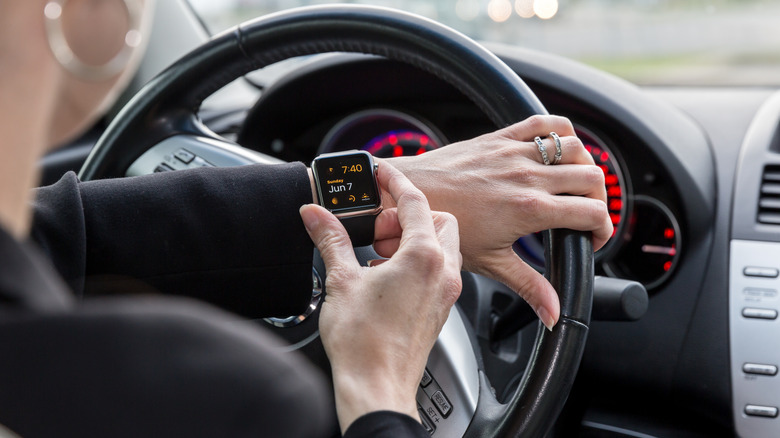
Now that your digital key is officially paired to your Apple Account and Wallet app, you’ll be able to lock, unlock, and start your car using your iPhone or Apple Watch. When Express Mode is enabled, you won’t even need to use Face ID, Touch ID, or a passcode to unlock your car. Depending on your vehicle make and model — as well as what iPhone or Apple Watch you own — you may also be able to use passive entry or the proximity function to lock, unlock, and start the car. While it’s not exactly a hidden feature, having digital keys linked to an Apple Watch is definitely an under-the-radar Apple Watch feature.
We also appreciate that the setup process doesn’t involve any janky, third-party apps. Fortunately, transferring a key to a new iPhone is pretty simple, too. In Setup Assistant on your new device, tap Wallet, select the key you want to transfer from your old device, then tap Continue to complete the process. Do keep in mind that if you decide to sign out of your Apple Account, though, you won’t have access to your digital key anymore.