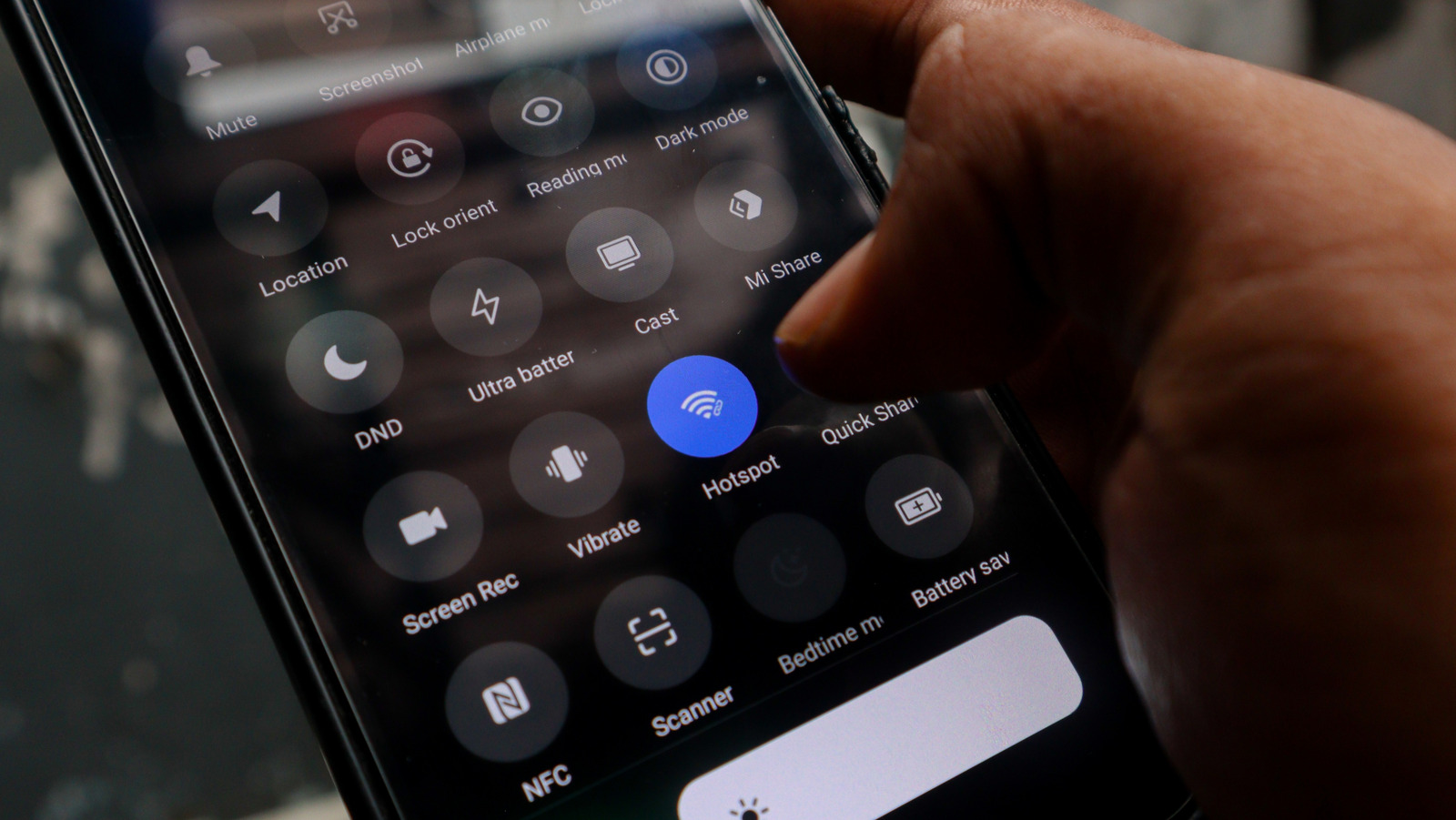
Over the last couple of years, it has become pretty much standard for phone brands to do an annual launch of new devices. Naturally, these come complete with the latest hardware and software improvements, encouraging users to make the switch. But then, what happens to your old phone after you upgrade? More often than not, it ends up getting tossed in a junk drawer, handed down to a younger sibling, or discarded as e-waste.
If your old phone still works fine and has an unlimited internet plan, though, you might want to reconsider disposing of it. Instead, you can convert it into something handy around the house. One of the best ways to repurpose your old Android or iOS device is to set it up as a mini router. You can then use it as a Wi-Fi provider in dead zones in your home, as a dedicated guest network, or as a portable router when you’re out and about.
The best part is that you don’t have to install any fancy third-party apps to make a router out of your old phone. The built-in hotspot feature is all you really need. Here’s a quick guide on transforming your old phone into a router.
How to configure your old phone as a router
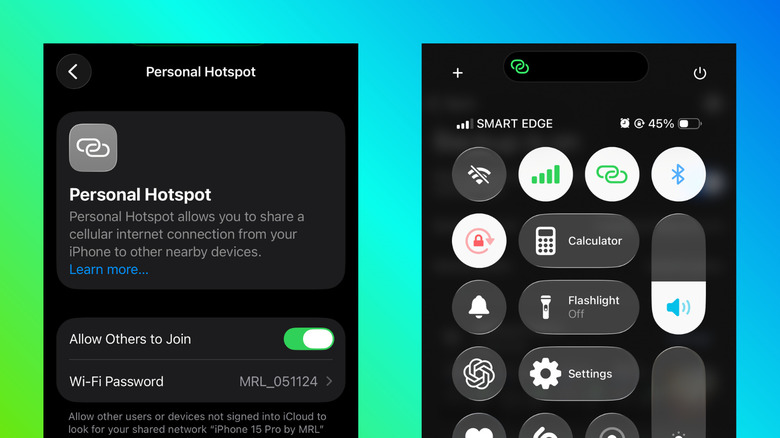
The process of turning your old phone into a router is identical for both iOS and Android devices. Follow these steps to do so:
- Open the Settings app and navigate to Personal Hotspot settings.
- Set up your mobile hotspot by entering a network name and creating a memorable password.
- If you have the option, set a timeout period. This automatically turns off the hotspot when no devices are connected to your phone, saving your battery.
- Finally, turn on the hotspot on your smartphone.
With your phone now broadcasting a Wi-Fi network, you can start connecting your other devices. The easiest way is via Wi-Fi. On the other device, simply look for your mobile hotspot’s name from the list of available networks, tap on it, and type in the password you set. You can also use Bluetooth to share your smartphone’s internet connection with other devices by pairing your two devices and making sure the other device is set to use the Bluetooth network. On Androids, you might also have to turn on Bluetooth tethering in the hotspot settings. However, there are hidden risks of leaving your phone’s Bluetooth on all the time, so only use this method occasionally.
If you prefer a wired connection, both iPhones and Androids support USB tethering. All you have to do is plug it into the computer via a USB cable. When prompted, click Trust on the Trust This Computer popup on your iPhone. On Android, you need to enable the USB tethering feature in the Settings. If your Android’s USB tethering isn’t working, try changing the cable, disabling Wi-Fi on your mobile, or updating Windows’ USB tethering driver.