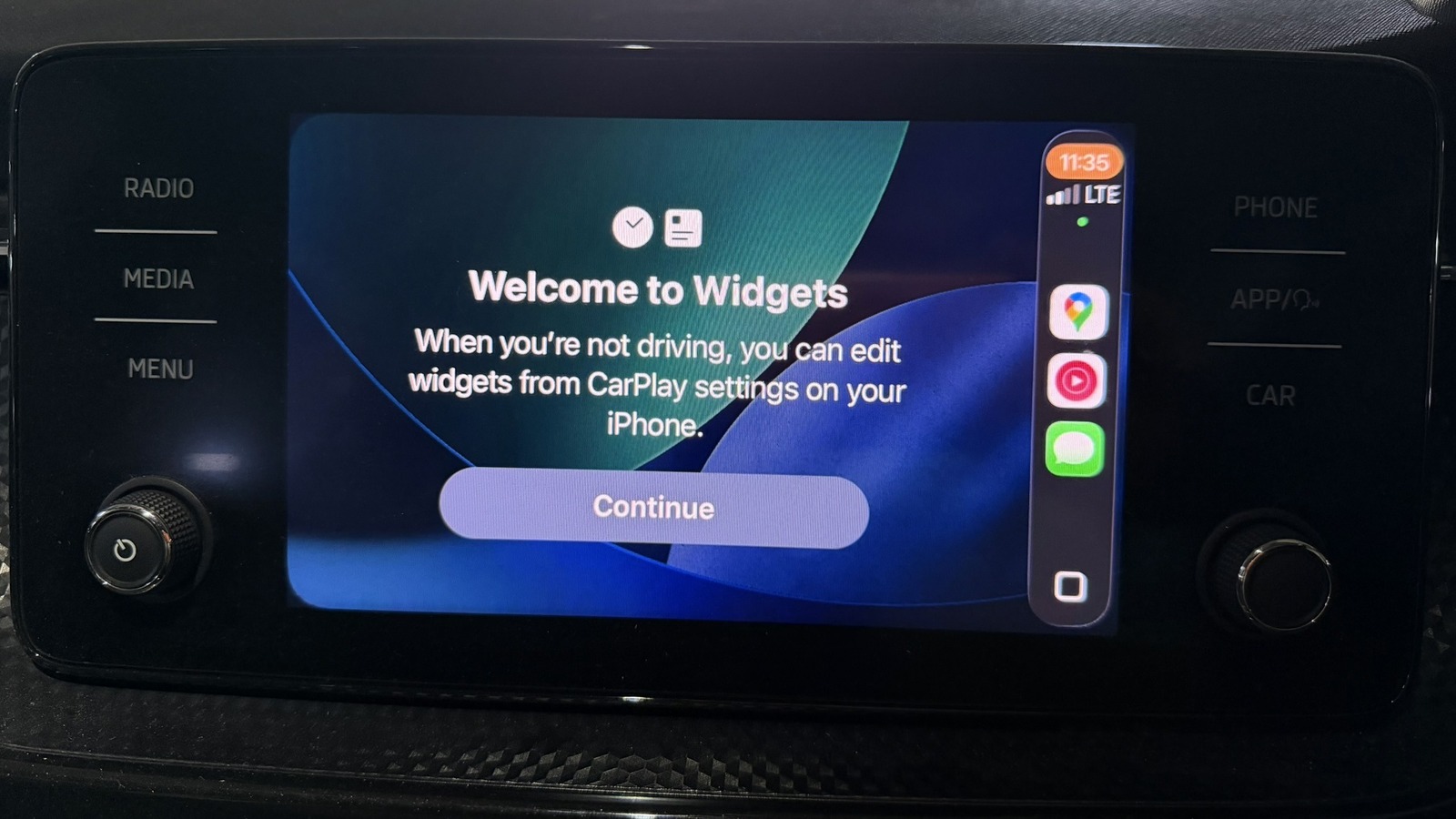
Apple’s iOS 26 update rejuvenated the CarPlay experience, letting users enjoy the company’s new Liquid Glass design on their car’s infotainment hub, along with Live Activities, less intrusive notifications, and most excitingly, customizable widgets that are no longer reserved for the premium CarPlay Ultra tier. These let you glance at important information hands-free, and are just as useful whether you’re a daily commuter or otherwise someone who spends long hours on the road.
If you’ve just upgraded to iOS 26, recently got a new iPhone, or finally bought a car that supports CarPlay, it’s important to know which widgets are actually worth using. CarPlay widgets don’t work the same way they do on the iPhone, and many popular apps, such as WhatsApp, are quite restrictive in what their CarPlay widgets can do. You’re also limited by the number of widget stacks, which depends entirely on your car’s screen size. Two stacks are the most common, and each stack supports up to five widgets, so you’ll really want to be selective about which widgets you use.
To save you the effort, we tested the most popular (and also a few lesser-known) widgets first-hand to see how they actually perform on CarPlay. Ultimately, we picked the five best options for this guide: Photos, Reminders, ChatGPT, Weather, and a live sports score widget. Together, they’ll not only show you useful information, but also add a personal touch to your car’s infotainment system.
Photos
Apple’s primary goal with introducing customization to CarPlay was to let you tune your car’s interface to your liking, adding personality to it. Using the Photos widget is arguably the best way to not only make CarPlay feel more personal, but also enhance its aesthetic appeal.
When you enable the Photos widget from your iPhone, you have the option to choose a specific album that CarPlay will pull images from. However, if you’re still relying on Apple’s built-in generic albums like WhatsApp or Instagram, that may not be the best choice. These albums usually contain a lot of clutter and unwanted imagery. For instance, having a photo of your electricity bill suddenly pop up while you’re driving would be awkward, to say the least.
That’s why we recommend going through the small extra effort of curating a dedicated album for CarPlay on your iPhone. Ideally, this should include photos you actually enjoy looking at, such as tasteful nature shots you’ve clicked, pictures of friends and family, memories from places you’ve visited, selfies you like, or even great food you’ve eaten. Of course, there’s nothing stopping you from creating multiple albums, such as “Friends,” “Family,” and “Nature,” and rotating between them every few days. This way, your CarPlay dashboard stays visually pleasing and genuinely personal.
Reminders
Adding the Reminders widget to your car’s dashboard essentially turns your car into a personal assistant. You can keep a grocery list, an errand list, or even a checklist of things you need to do once you reach the office, ensuring you don’t forget anything important. More importantly, it saves you from having to get back in the car later just to pick up that one item you forgot.
Even better, this CarPlay widget works almost exactly like it does on your iPhone. For instance, when you tap a reminder on the dashboard, it gets ticked off and is replaced by the next item on the list. However, there are a couple of key limitations. Firstly, using Siri is the only way to add new reminders while you’re driving: There’s no touch-based way to do so from the Reminders widget on CarPlay, so it’s best to make sure your lists are ready before you start the trip.
Secondly, while the widget shows the total number of reminders in the top-right corner, it doesn’t allow you to scroll through the list, so you can only see and interact with the reminders on screen. Also, depending on the size of your car’s infotainment hub, longer reminders (especially those with more than four or five words) can get cut off, meaning only the first few words will be visible. Keeping reminders short and concise is the only way to avoid this issue. For example, instead of cramming an entire errand list into one reminder, you can split it into multiple short reminders and tick them off as you go.
ChatGPT
ChatGPT’s rise as a search tool has given Google a real run for its money. According to research by Adobe, 77% of ChatGPT users in the U.S. now use it as a search engine, with around 24% starting their online searches directly in ChatGPT. The best part is that you can add the ChatGPT widget to your car’s interface, significantly boosting usability and convenience.
While the CarPlay widget supports all three options — text search, image search, and voice mode — it’s the latter that truly makes it stand out. Tapping it activates voice mode on your iPhone’s ChatGPT app, and lets you have a one-on-one conversation with the AI, complete with follow-up questions, as you drive.
You don’t need to look at the screen, and you don’t need a passenger to keep you occupied if you’re not in the mood for music, and most importantly, you can gather information on the go that you otherwise wouldn’t be able to access while driving. This helps you save time and crank up productivity.
Weather
Having the Weather widget on your car’s dashboard can give you crucial insights into what to expect when you hit the road. Plus, with different weather widget styles to choose from, you can access a wide range of weather-related information at just a quick glance. In total, there are four weather widgets available.
The first and most basic one shows the weather conditions at a location along with the day’s high and low temperatures. The second displays the forecast for a total of five days, including the current day, with the expected high and low temperatures listed for each day. This can be especially useful when you’re out on a long road trip and want a quick sense of what the weather’s like ahead.
The third style goes beyond just showing the current temperature and daily high and low for your location; adding details like wind speed, UV index, chance of precipitation, and more. The last, and arguably the most exciting, option shows the upcoming sunrise and sunset times for your current location. This can be handy if you’ve taken your car out specifically to catch a sunrise or sunset. It’s worth noting that while the first three widgets let you select a location, such as a place you’re traveling to, the sunrise and sunset widget doesn’t offer this option and is set to display timings for your current location by default.
Live sports scores
We’ve all been there: You’ve scheduled your day perfectly to arrive home in time for the start of your favorite team’s game, only to get stuck in traffic on the way. Or maybe you’re busy, at work or out with friends, and simply can’t catch the action live.
In such cases, having a live sports score widget (from apps like theScore for NBA, football, and boxing, or Cricbuzz for cricket) is a total game-changer. It turns your car’s dashboard into a scoreboard, while also saving you the trouble of pulling out your phone to check the score at every signal.
Since you can’t livestream a match on your dashboard while driving — even if your vehicle manufacturer supports video playback, it won’t allow it unless you’re parked — minute-by-minute score updates are easily the best alternative. In fact, native support for video apps is one of the features Apple CarPlay users want. Lastly, unlike the Photos widget, a live score widget is functional, adding real utility while also looking great, especially if you’re using CarPlay’s dark theme.