We may receive a commission on purchases made from links.
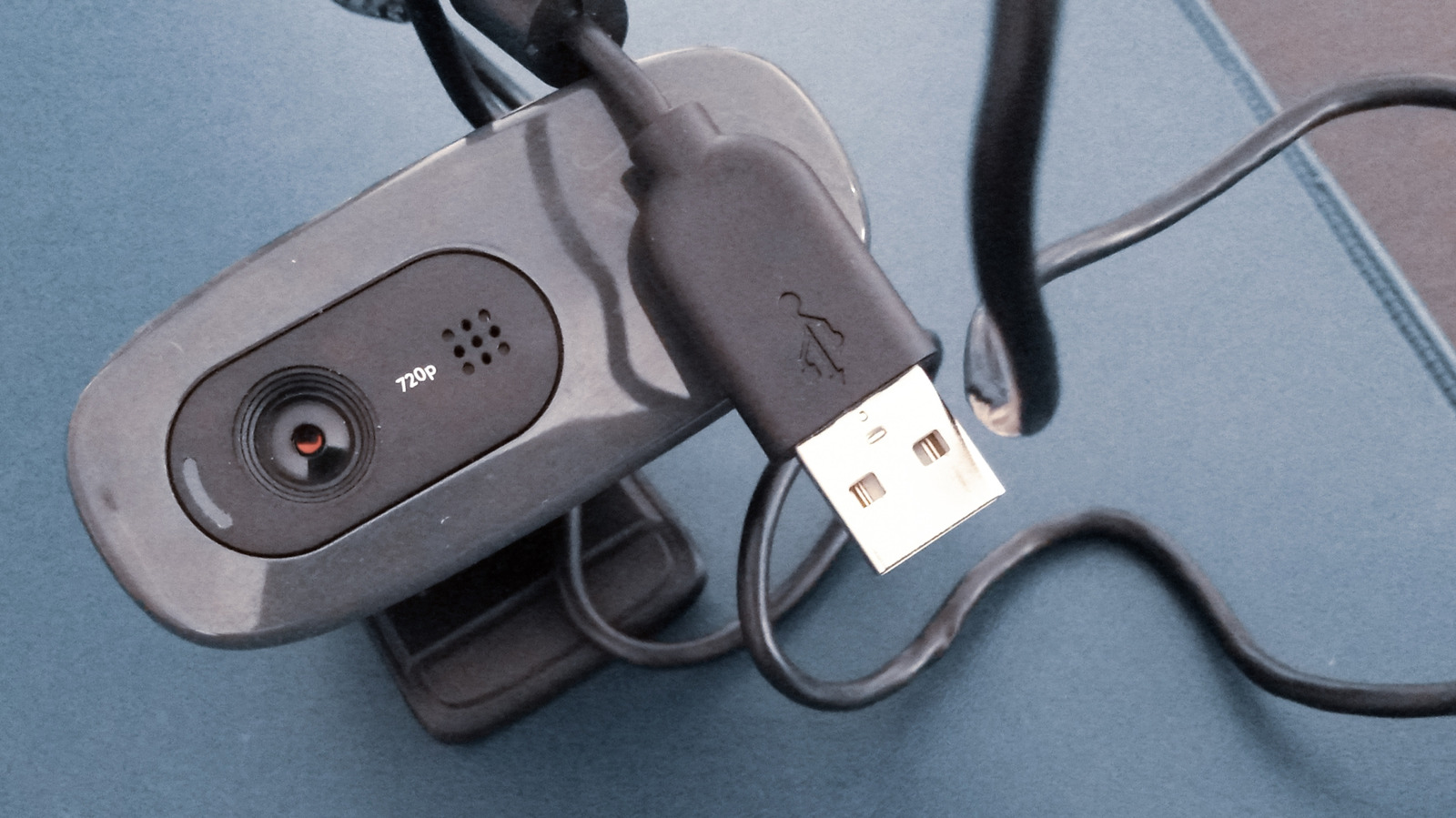
A webcam is one of the most essential USB gadgets there is. While some PC displays and laptops have webcams built right into them, not all of them do. There are still plenty of standalone webcams on the market, though unfortunately, like any tech peripheral, webcams do gradually age out or are rendered obsolete by newer models. If your old webcam still works, though, don’t just consign them to the eternal junk drawer, put them to use as a security camera, document scanner, or as part of a streaming rig.
If you have an old webcam that has well and truly kicked the bucket, there’s not much you can do beyond bringing it to a recycling plant and sending it off to its final rest. If it’s still in fairly good working order, though, you could potentially use that webcam for all kinds of handy purposes around the house, both practical and just for fun. Some of these ideas may require a Raspberry Pi or particular software, but if you’ve got the creative drive, you can reuse and optimize those webcams instead of just creating more e-waste.
Use it for document scanning
If you think about it in the broadest possible terms, a scanner is just a long camera being placed right up against your various documents. If all you need are some quick scans of your various documents and files, and don’t need them to be in color or particularly high quality, you don’t really need to invest in all the features of a full scanner when an old webcam can effectively do the same job.
Using an old webcam as a document scanner is one of the simplest things you can do with it, as it doesn’t require any special hardware or software. If you’re running Windows 11 on your PC or laptop, the default Camera app has a scanner feature. Just plug the old webcam in, select the Document button on the right-hand side of the app, and line up the document you want to scan in the blue box that appears. Click Take Document, and the ensuing capture will be added to the camera roll at the bottom right of the window. You can click on it to open it in a separate window and look it over, as well as zoom in, crop, rotate, and so on.
Use it for livestreaming or face capture
Livestreaming is one of the fastest-growing business and entertainment booms of the modern age. Becoming a livestreamer yourself doesn’t even necessarily require a webcam, as many streamers opt to just use a microphone and get footage from sources like video games. If you are going to use a webcam, an older one will work fine for capturing simple reaction shots, or offering multiple perspectives of your face if you already have a primary webcam set up. All you would need to do is plug the old webcam alongside a stream management device like a Stream Deck and an HDMI-connected capture card to create a convenient streaming setup.
Similarly, for those who want to do facial capture in order to use a VTuber model or for particular video games like VRChat, the old webcam can serve that same purpose. This will likely require some extra software; for a VTuber model, you’ll need a management tool such as VTube Studio, while facial capture and eye-tracking for video games need something like Beam Eye Tracker. VTube Studio is free to download, while Beam Eye Tracker does cost money, but both at least have plentiful setup guides and walkthroughs that should make the setup fairly simple.
Use it as a pet camera
One of the little headaches that comes with owning a pet is never knowing what, exactly, they get up to while you’re out of the house. To help assuage these concerns, you can get a variety of dedicated pet cameras on Amazon, such as the Roku Indoor Camera, which could be integrated into a smart home setup alongside other home monitoring gadgets. Before you drop the cash on something like that, though, you might want to try and put an old webcam on the task first.
Since a pet camera doesn’t necessarily need to have any advanced features like motion tracking, setting one up with an old webcam could be as simple as plugging it into your PC and leaving it running. The camera can continuously record footage, and you can check it when you return home. If you need some slightly more-advanced features, such as sending footage to your smartphone in real time, you may need to invest in dedicated security camera software, such as Blue Iris.
Use it as a security camera
In a similar vein to creating a homemade pet camera, an old webcam can also be used to keep an eye on your home and valuables, whether you’re there or not. You can use the webcam as a security camera in largely the same way as a pet camera, connecting it to your PC and supplementing it with security software for real-time updates and motion tracking. However, there is one major problem with this approach: requiring the camera to be connected to your PC means it’ll only be able to monitor the area around your desk. Theoretically, you could circumvent this with a very long USB extension cord, but then you would have that cord running all over the place, tripping people.
If you want a homemade security camera that can discreetly watch from a different angle, you might need to create a dedicated setup for it with the help of a portable computing unit like a Raspberry Pi. Said Raspberry Pi would also need to be loaded with specialized security and motion-tracking software, such as MotionEye. It’s definitely more of a production than simply buying a security camera on Amazon and syncing it to your phone, but it will allow you to reuse your old webcam, and in the event that old webcam fails, you can reuse the Raspberry Pi you built up with a different webcam, as well as mix in additional webcams later down the line if you’re feeling ambitious.
Use it to make a photo booth
A photo booth is a fun addition for parties and gatherings like weddings and graduations, though renting even a simple open-air selfie station will run you several hundred dollars just for a few hours of usage. Parties may be excuses for exorbitant spending, but if you’d prefer not to get quite so exorbitant, you can make your own homebrew photo booth with an old webcam.
Just plug the webcam into a PC or laptop, preferably the latter so you can move it around, and let partygoers use the camera app to take photos. The default camera apps in Windows and macOS admittedly don’t have much in the way of fun photo effects, so you could also install something with a little more razzle-dazzle like Photo Booth Pro. Any photos you take with this app can have filters and effects placed on them, after which they’ll be saved to the PC’s local storage for you to send to friends or post on social media.