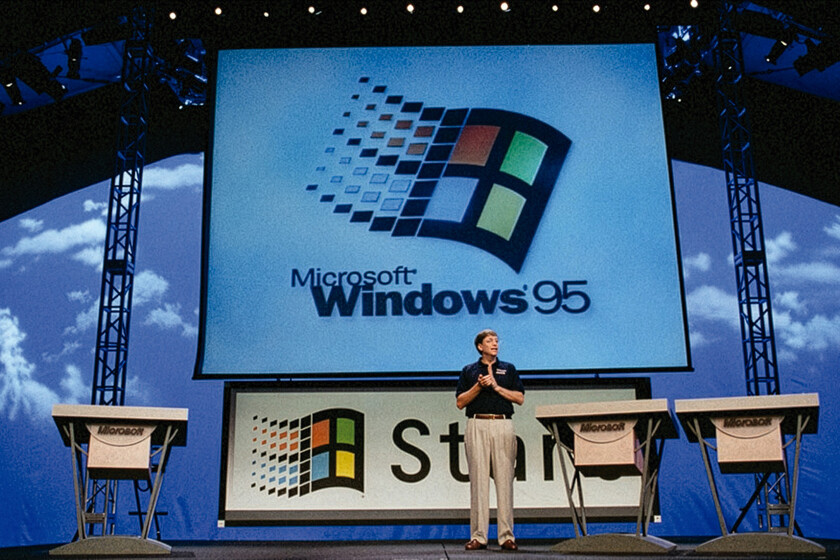
According to a survey, just over three in 10 (31%) US adults hang onto old devices because they are unsure what to do with them. Nearly one-fifth (19%) of those surveyed simply throw them away. When it comes to old PCs, there are plenty of other options. If that laptop or desktop were made within the last decade, you’d be surprised by how much useful life you (or others) can get out of it.
Some light upgrades may be required; if you can afford it, adding more RAM and a big new storage drive could benefit some (OK, probably all) of these projects. In many cases, the PC needs to be connected to the internet and/or able to access software stored on a USB flash drive. Otherwise, this advice applies to just about any PC. Here are just some of the options.
1. Experiment With a New, Lighter OS
(Credit: Google)
Even a downright elderly computer will feel young again with a freshly installed operating system. Most alternative OSes (translation: neither Windows nor macOS) are based on Linux, which comes in a variety of options called “distros.” Popular examples include Ubuntu, Mint, elementary OS, and Manjaro. You’ll find interfaces similar to Windows, and they come with software packages such as LibreOffice (a free, open-source equivalent to Microsoft Office). Most work well on PCs with 4GB of RAM or more but check the specifications.
You might also want to try building your own Chromebook. That’s typically a laptop running Google Chrome OS; it makes the Chrome browser and Google’s cloud services and storage the center of the OS. You can download and install ChromeOS Flex onto old PCs or Macs to approximate a Chromebook; it even runs from a portable flash drive.
Even if you’re a streaming service addict, you still might have hours of music, podcasts, and videos stored locally. And you’ll probably want to access it all on PCs, game consoles, tablets, and phones. For that, you need a media server.
“Theater software” such as Kodi makes this possible. Install the server software on any device running Linux, Windows, or macOS; jailbroken iOS devices; rooted Android devices; or even a Raspberry Pi. There are “remote control” apps for iOS or Android users who want to control Kodi from their phones, but again, they’ll have to be jailbroken or rooted.
Plex (above) has most of the same features. The server software works on PCs running Windows, macOS, Linux, and FreeBSD. It also works on NAS devices. The playback software is available for about every device you can imagine. Plex even offers some live TV options.
To get the best performance, put server software on an old PC with a clean OS install, and dedicate the system to playing media—nothing else.
3. Turn Your Old PC Into a NAS Home Server
A network-attached storage device is a server for your home or small-business network that stores files you share with all the PCs on the network (or externally via the internet). Prices vary from a pittance to hundreds of dollars. But you don’t need to buy a NAS device if you’ve got an old PC with lots of storage. Make one. Free, typically open-source software for doing just that is readily available. TrueNAS Core, Rockstor, FileCloud, XigmaNAS, and others can put your old PC at the center of their own version of the cloud.
4. Hack Together an Anonymous PC

(Credit: TAILS Project)
Everyone’s worried about privacy—and for good reason. Many tools can make your computer a more anonymous workstation when online. If you have a long-in-the-tooth PC that needs new life, turn it into a dedicated privacy PC with The Amnesic Incognito Live System (Tails).
Based on the Debian Linux distribution, Tails can run from a USB flash drive, SD card, or DVD. In other words, you can take it with you. It routes your internet traffic and requests through the Tor network. All the integrated applications, including the office suite, IM client, email software, and, of course, the browser, are preconfigured for security. Whonix and Qubes OS are other privacy- and anonymity-focused Linux distros.
5. Fire Up a Hotspot
Nothing’s worse than limited wireless network access. So turn that old PC into a Wi-Fi hotspot to share an internet connection. Naturally, you’ll need a PC with Wi-Fi capability.
To be honest, this job is better left to a router. But the option to connect via an old PC does exist, thanks to Connectify Hotspot. If you’ve already got a router with Wi-Fi, run an Ethernet cable to the laptop, and with Connectify, create a secondary network using the same internet backhaul connection. Connectify Hotspot Pro currently costs $14.99 for lifetime use on one Windows-based PC; the company offers a 30-day money-back guarantee.
With Windows, you can turn a laptop or desktop PC into a hotspot that shares your home internet without extra software.
6. Create a Starter PC for Distant Family

(Credit: Microsoft)
Everyone has a family member who just can’t handle technology. Worse, they ask for your help all the time. You may not even live in the same state or country! Troubleshooting over the phone or even via video chat is headache-inducing. So what do you do?
Take your old laptop, nuke the drive, and reinstall Windows. Then set it up so that the person you’re giving it to can’t install software without your permission. Go into Settings > Accounts > Family, and click Add someone. The goal is to make an account for you, the Administrator, and one for your loved one, a Standard User who can’t mess with settings (much). Set the User Account Control for the account (type UAC into the Start menu to launch it). If UAC is off, the Standard User can act like an Admin. Turn up the level on UAC, but don’t go too far; if you do, all the warnings thrown at the user (your family member) can get annoying. You have to figure out the right balance.
Treat that family member like a child: Under Add someone, you get the option to Add a child. (The child account needs an email invite for some reason, but you can create a quick one for them on Outlook.com.) Provide your phone number for password recovery if your user (child or not) forgets their password. Turn off the advertising and promos, and you’re almost set.
Visit account.microsoft.com/family for an overview of what everyone on your Microsoft Account has been doing. Here, you can block websites, select games and applications, and more.
Want to completely lock it down? Set up a feature on the account called Assigned Access, which places Windows in Kiosk Mode—making it akin to a PC in a public place that can access only one thing. For example, set the user account to have access to a browser only. That’s pretty limiting, but it’s better than answering endless tech-support questions.

Get Our Best Stories!
Your Daily Dose of Our Top Tech News

By clicking Sign Me Up, you confirm you are 16+ and agree to our Terms of Use and Privacy
Policy.
Thanks for signing up!
Your subscription has been confirmed. Keep an eye on your inbox!
Before you send that PC off to live with your loved one, install a remote-control program such as TeamViewer or set up the PC to use Microsoft’s Remote Desktop Connection (if it’s supported), so you can occasionally take over that system to perform updates. Better yet, use it to show your family on their own screen how to perform basic functions. When using the computer remotely, create restore points for future renewal of the PC when it inevitably gets screwed up.
7. Whip Up a Guest or Kitchen PC
Depending on the size of your old computer, it might be just right for occasional use only—say, when you need a recipe on-screen in the kitchen or when guests are spending the night and need to look something up. A lightweight Linux distro such as Zorin OS could work well for this, as it mimics the look of Windows and macOS quite well, so there’s not much of a learning curve.
8. ‘Make’ a Tablet

(Credit: mkarvonen at Instructables)
Have some mad DIY skills you want to put to the test? Take a down-on-its-luck laptop apart and convert it into a “tablet.” Of course, you’re not going to get an iPad-level touchscreen-quality experience. The system’s smarts typically still reside with the keyboard, which you’ll have to tether to the screen somehow. Take a gander at the website Instructables, and you’ll find many step-by-step lessons on how to pull it off, including one that will turn any screen into a touch screen. Honestly, it’s probably cheaper, and definitely easier, to simply buy a tablet…but where’s the fun in that?
9. Turn That PC Up to 11
Turn that ready-to-be-abandoned PC into a guitar amplifier. You need a special cable to connect a guitar to the PC via a USB port (try Ubisoft’s Rocksmith+ Real Tone Cable, which works on Windows and macOS PCs as well as game consoles), and a copy of Guitar Rig, an amplifier modeling program. For $199, the Pro version does it all, providing 21 amplifier emulations for guitar and bass, plus all the distortion effects.
10. Create Your Own Security Cam

(Credit: Rawpixel)
If that old laptop has an integrated webcam or you’ve got a stray webcam you can attach, put that extra eyeball to use. Download a copy of Agent DVR from iSpy. Once it’s set up, access your camera or camera via a web interface in the browser—no fiddling with router settings required. Setting out a PC as your camera is not as subtle as buying one of our top home security cameras, but it’s free for personal, local use.
You can also do this with a smartphone.
11. Go Old-School for Gaming
Older PCs can generally handle older games, and plenty of old-title ports work on the PC. With a fresh install of Windows, you’ll be ready to turn an older PC into a dedicated gaming system. Where do you get old games? Steam is always a top option, but GOG.com also has plenty. Here are six other sites where you can download old PC games.
Recommended by Our Editors
If you run into problems, read 4 Ways to Run Old Games on Your Modern PC. Grab an emulator for old systems, such as the Nintendo 64, to get up and running with really old game titles on a PC or Mac.
12. Contribute CPU Cycles
Even the oldest, crappiest PC has plenty of unused computing power in idle moments. Distributed computing projects—in which software ties together many internet-connected PCs to work on computationally massive problems—can put that power to good use.
Perhaps you’ve heard of SETI@home (the Search for Extra-Terrestrial Intelligence), a distributed computing project that went live in the 1990s. It was spawned at Berkeley and used volunteer PCs to analyze signals from space. SETI no longer needs our help, but other projects might.
Visit BOINC, which is the backbone for several projects you can choose from. Or use Folding@Home to help scientists learning about viruses by simulating protein dynamics. Set it up on that old PC, and let it run in the background. Voila, you’re a citizen scientist!
13. Save It for Zoom
A laptop or desktop can be dedicated to one function—say, video conferencing. Any browser works with services such as Zoom and Google Meet. Mac users can also use FaceTime to talk to people on iOS or iPadOS devices.
14. Tear It Down to Build It Up

(Credit: Zlata Ivleva)
If you have an old-school desktop tower or mini-tower PC, consider it an opportunity to learn what it takes to build a PC. Take it apart. Put it back together. See if it still works and try to figure out why or why not. Better yet—buy a new motherboard and some components, then Frankenstein that aged system into something new and aliiiive. You’re essentially using an old chassis rather than buying a new case, but the learning experience is worth your time.
For more on PC building, check out our series Rigged Up.
15. Serve Up Some Games

(Credit: Getty Images/Jakub Porzycki/NurPhoto)
With a game server, you can create a multiplayer spot just for you and your friends. The server stores all the game info, such as players’ locations and activity, but it doesn’t have to serve up graphics—that happens on players’ local client systems—so the it doesn’t have to be high-end. That’s a perfect job for an old PC, as long as the system can handle being on and networked full-time. It’s easier when everyone plays on the same network in the same location. You may need a dedicated static IP address for the PC to work remotely over the internet.
You’ll probably want to use a Linux distro on your game server PC. Then grab the dedicated server software for the game in question. Some games that support this are DOTA 2, Ragnarok, Counter Strike, and Minecraft. Some of them may require SteamCMD, a command-line version of Steam that keeps the software up to date.
16. Make a Digital Photo Frame
This option means finding a way to hang a display on the wall (easy enough with a VESA mount) and perhaps hiding away the PC, which might be tough with a big ol’ tower. But if you have the right setup, it’s easy: After a clean install of the OS, fill the computer’s drive full of photos and point some software at them, essentially running a digital memory screensaver full-time. Software like gPhotoShow Pro makes short work of it. The program can access Google Photos, so if the PC still has Wi-Fi access to the internet, the digital photo collection on display can continue to grow. It will also display videos and support multiple monitors if you want to create a whole-wall of panels. Other software to consider: DAKboard, or the classic image viewer IrfanView in slideshow mode.
17. Turn PCs Into Art
Even if you can’t find a useful way to use the PC, consider converting it into something else. You’ll see some interesting ideas on Pinterest under a search for “computer repurposed.” Why not make it into an aquarium, plant terrarium, or even a house for your pet?
Or collect all the internal parts you were going to trash and give them to your favorite jeweler to see what they can fashion from the materials. (People make bank with that kind of thing on Etsy.) Artisans will take old circuit boards and turn them into everything from wall hangings to wedding rings. The only limit for the right artist is their imagination.

How to Build a Maximum-RGB Gaming PC for Under $1,000
About Our Expert

Eric Griffith
Senior Editor, Features
Experience
I’ve been writing about computers, the internet, and technology professionally since 1992, more than half of that time with PCMag. I arrived at the end of the print era of PC Magazine as a senior writer. I served for a time as managing editor of business coverage before settling back into the features team for the last decade and a half. I write features on all tech topics, plus I handle several special projects, including the Readers’ Choice and Business Choice surveys and yearly coverage of the Best ISPs and Best Gaming ISPs, Best Products of the Year, and Best Brands (plus the Best Brands for Tech Support, Longevity, and Reliability).
I started in tech publishing right out of college, writing and editing stories about hardware and development tools. I migrated to software and hardware coverage for families, and I spent several years exclusively writing about the then-burgeoning technology called Wi-Fi. I was on the founding staff of several magazines, including Windows Sources, FamilyPC, and Access Internet Magazine. All of which are now defunct, and it’s not my fault. I have freelanced for publications as diverse as Sony Style, Playboy.com, and Flux. I got my degree at Ithaca College in, of all things, television/radio. But I minored in writing so I’d have a future.
In my long-lost free time, I wrote some novels, a couple of which are not just on my hard drive: BETA TEST (“an unusually lighthearted apocalyptic tale,” according to Publishers’ Weekly) and a YA book called KALI: THE GHOSTING OF SEPULCHER BAY. Go get them on Kindle.
I work from my home in Ithaca, NY, and did it long before pandemics made it cool.
Read Full Bio