Instead of posting manually, you manage TikTok as part of a scalable content system.
Here’s how to create, schedule, and publish a TikTok slideshow from SocialBee:
- From your dashboard, click “Create post” at the top to open the Post Editor.
- In the left sidebar, select the TikTok profile you want to publish from.
- SocialBee will automatically activate the “Customize each” option, allowing you to gain access to TikTok-specific settings. When prompted, click “Proceed.”
- Choose your post’s privacy setting from the drop-down menu. You can set it to “Public,” “Mutual Follow Friends,” or “Only me.”
- Use the available toggles to enable or disable comments, duets, and stitches.
- (Optional) Switch on the “Content disclosure” option and choose the appropriate label: “Your brand,” “Branded content,” or both. This will automatically apply the correct disclosure tag, such as “Promotional content” or “Paid partnership.”
- Upload photos for your carousel. You can include up to 12 images when posting directly to TikTok.
- Click the pencil icon on any image to edit it: crop, flip, or resize as needed.
- Write your caption in the text box, or use the AI assistant to generate a TikTok-ready caption.
- Find relevant hashtags using the Hashtag Generator (wand and hashtag icon). You can also save hashtag groups for future posts by clicking the “#” icon.
- Customize your caption with formatting options like bold, italic, or strikethrough, and add emojis if appropriate.
- Assign the post to a post category to organize your TikTok content by campaign, topic, or format.
- Decide when your post should be published:
- Select “Post now” to publish immediately.
- Choose “Post at a specific time” to schedule it for later. SocialBee will suggest the best posting times based on your previous performance.
- Turn on “Re-queue after posting” to automatically recycle the content, or enable “Expire post” to remove it after a selected date.
- Review the live preview panel on the right-hand side and make any final edits.
- Set the post status:
- Toggle “This is approved” to publish or schedule the post.
- Select “This is a draft” if it still needs review.
- Click “Create post.” SocialBee will automatically publish your carousel at the scheduled time.
5 Content ideas for engaging TikTok carousels (with examples)
If you’re not sure what to post next, it helps to rely on formats that already work. Instead of reinventing the wheel every time, you can use proven TikTok carousel ideas that naturally encourage people to keep swiping.
Here are five simple TikTok carousel ideas you can use to create more engaging slideshows:
- Share swipeable stats or fun facts, one per slide.
- Show progress by revealing each stage step by step.
- Present different variations people can compare.
- Highlight a clear before-and-after transformation.
- Tell a short story across multiple slides.
1. Share statistics and fun facts people actually want to swipe through
TikTok slideshows are a simple way to make statistics feel interesting instead of boring. When you give each number its own slide, people can focus on one idea at a time. It feels easy to follow, and that makes them more likely to keep swiping.
Start with a clear hook on the first slide, like “3 stats that changed how I post” or “Marketing numbers that might surprise you.” Then use one slide per stat. Keep the text short and readable. A big number. A quick explanation. One sentence about why it matters.
You don’t even have to use real data. Duolingo did this as a joke by parodying Spotify Wrapped. Instead of actual user stats, they shared exaggerated “fake stats” like “You’re in the top 0.001% of all yappers” and “If stalking your ex’s Duolingo was a sport, you’d win a Gold Medal.”

Each slide delivered one punchline, which made people want to swipe to see the next one.
2. Show progress or stages of a process
Another simple slideshow idea is to show progress. People naturally want to see how something changes from start to finish. A slideshow makes that easy because each slide can represent a stage.
You can show a before and after. A build in progress. A recipe step by step. A design going from sketch to final version. The key is that every slide moves the story forward.
Chipotle did this in a smart way. They didn’t just post a photo of a burrito bowl. They opened with a hook, “Can we finish this bowl in 20 bites?” and then used each slide to show the bowl at different stages. Bite by bite, the bowl changed. It created tension, but it also showed clear progress.

That’s why it worked. It wasn’t random photos. It was a sequence. When people can see something evolving, they keep swiping to see the final result.
3. Showcase variations or options people can compare
Another strong TikTok slideshow idea is to show different versions of the same thing. People love comparing options. It makes them feel involved.
You can use this format to show product variations, outfit combinations, logo drafts, packaging designs, color options, or even different headline ideas. Each slide presents one version.
Crocs has used this approach by showing the same pair of shoes styled with different charms and color combinations. The setup stayed simple, but each slide introduced a new variation. It turned a product showcase into something scrollable and interactive.
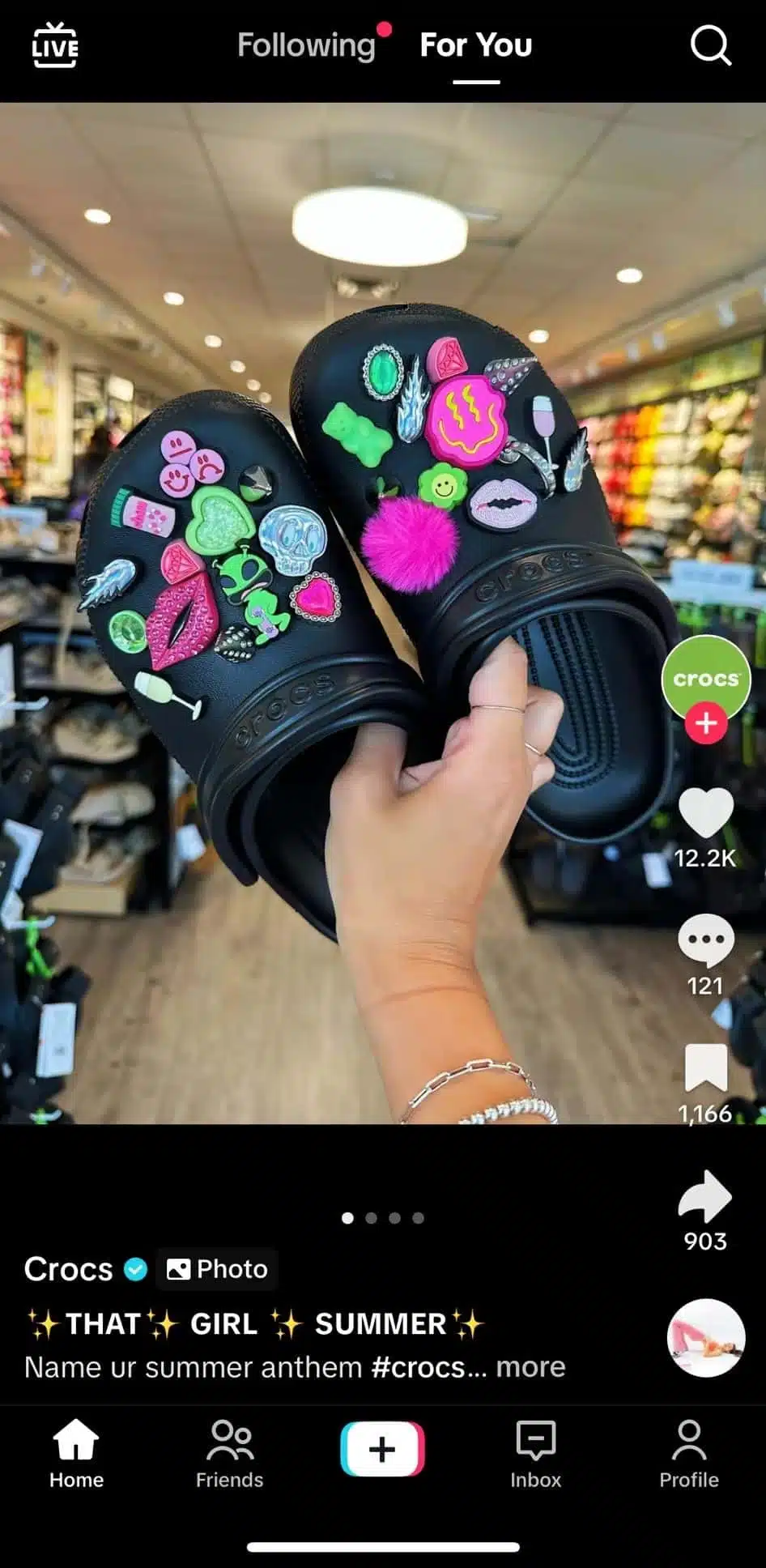
You can take it further by asking a question on the first slide, like “Which one are you choosing?” or “Version A, B, or C?” When people start picking favorites, they’re more likely to comment.
4. Share a before-and-after transformation
Before-and-after slideshows are simple, but they work. People naturally want to see change. When you put the “before” on one slide and the “after” on the next, it makes the difference clear and easy to understand.
You don’t need fancy editing. Just show the starting point, then show the result. If it makes sense, you can even add a middle slide to show progress along the way.
In the example below, the first slide shows the client at the beginning with her goal written on screen: “I want to lose body fat & grow glutes.” That instantly gives context. When viewers swipe and see the transformation, the story feels complete. They know what the goal was, and they can see the outcome for themselves.
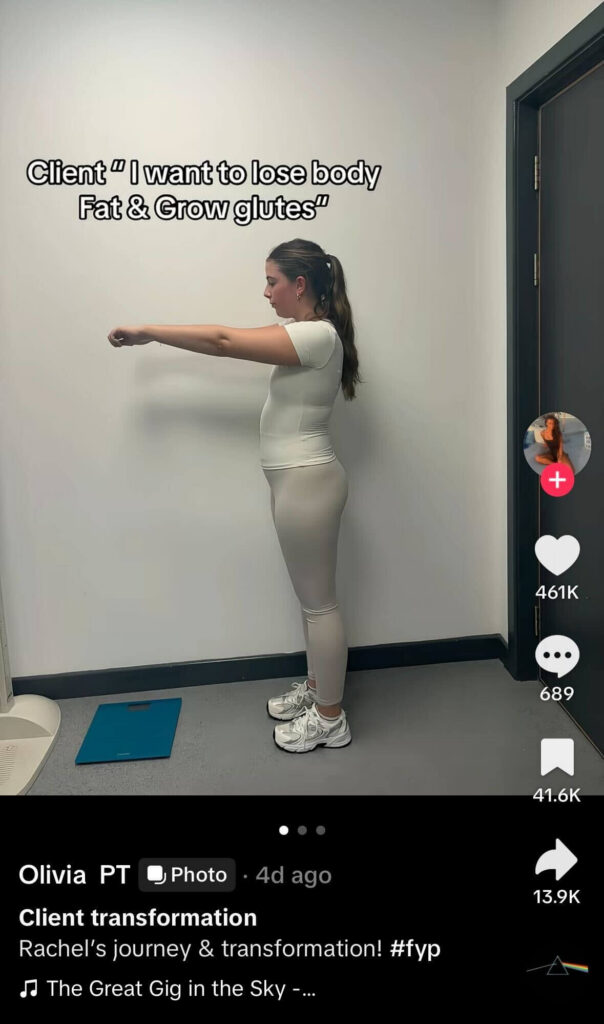
This format works because it’s honest and visual. People don’t have to read a long caption to understand what changed. They can see it. And when the change is clear, they’re more likely to keep watching, save the post, or ask how it was done.
5. Tell a short story people want to finish
Slideshows are perfect for storytelling or sharing memories. They give you space to build richer stories one slide at a time.
Instead of giving everything away in one post, you spread the story across multiple slides. Each swipe reveals a new piece of information.
Start with a strong headline on the first slide. Something that creates curiosity. It should make people think, “Wait, what happened?”
The example below does this well. The first slide reads: “Bondi hero’s unexpected move after becoming a multi-millionaire.” That headline doesn’t explain everything. It leaves a gap. You want to swipe to find out what the “unexpected move” was.

From there, each slide adds more context. Who he is. What happened. What changed. By the time viewers reach the final slide, they’ve followed a full story, step by step.
7 tips for creating an engaging TikTok slideshow
1. Lead with your strongest image thumbnail
The first image of your TikTok slideshow acts as your hook. Think of it as your video thumbnail, as it needs to grab attention immediately. Start with a high-contrast visual, an unexpected statement, or a question that makes people pause.
“Here is the biggest secret about the TikTok algorithm: it’s not just what you do, it’s when you do it. Your first three seconds are critical” says Robert Santerre, TikTok marketer.
For example, “Can you guess which design won?” works better than a generic logo shot. When you’re planning your sequence, assume half your viewers will decide whether to keep watching after the first two seconds.
2. Match your pacing to your purpose
Timing is what separates an average slideshow from one that feels intentional. Keep your photo duration and transitions aligned with your background music. A quick rhythm fits product reveals or challenges, while a slower tempo works better for storytelling or tutorials.
Preview your TikTok slideshow videos a few times before posting and trim any frames that drag, as tight pacing always performs better.
3. Keep text short and consistent
Most people will view your slideshow on mobile, so every caption and text overlay should be easy to read in one glance. Stick to six to ten words per frame, use large font sizes, and maintain consistent placement across all slides.
If your content includes instructions, break them into simple steps rather than dense paragraphs. Good text design helps your message land without distracting from the visuals.
Your video itself shouldn’t be too long either, as Mike Yanda, TikTok growth expert, points out: “Watch time is what matters most to getting views on TikTok, and it’s not just how long they watch the video; it’s the percentage of the video that they watched. Creating shorter videos is actually going to allow you to get a higher percentage of watch time and make it easier for you to go viral and grow in the beginning.”
4. Choose transitions that serve the story
Transitions aren’t just decorative; they set the tone of your slideshow. Use simple fades for tutorials or informative posts where clarity matters, and more dynamic transitions for emotional or entertaining content.
Limit yourself to one or two styles per post to keep the video cohesive. When in doubt, subtlety usually looks more professional.
5. Use your caption to complete the story
Your slideshow visuals draw attention, but the caption gives context. Use it to explain the idea behind your post, list key details (like prices or product links), or invite viewers to comment. Add relevant hashtags naturally within your caption to help TikTok’s algorithm surface your content to the right audience.
6. Test both slideshow formats
Audience behavior often varies by format. Instead of making a single post per idea, try posting both swipeable and non-swipeable versions of a similar slideshow to see which earns longer watch times and stronger engagement.
Some audiences prefer swiping through still images at their own pace, while others engage more with automatic transitions set to sound. Use your TikTok analytics to compare results and refine your mix.
Your audience may like one format more than the other, so it’s worth testing both.
7. Repurpose your best slideshows
Once a TikTok slideshow performs well, extend its lifespan. Export it and adapt it for other vertical formats like Instagram Reels, Pinterest Idea Pins, or YouTube Shorts. Update the captions and audio for each platform’s style, but keep the same visuals and structure.
Repurposing high-performing slideshows helps you reach new audiences without restarting from scratch.
Frequently asked questions
1. What photo format should I use for TikTok slideshows?
For TikTok slideshows, use high-quality photos in a 9:16 aspect ratio (vertical) to match TikTok’s full-screen display. Go for a JPEG or PNG format and avoid horizontal images as they’ll either get cropped weirdly or leave awkward blank spaces.
2. Can TikTok slideshows include videos?
Yes, TikTok lets you add videos along with photos in your slideshows. This means you can mix still images with video clips to create more dynamic and interesting content.
Just choose both when you’re putting your slideshow together. Switch from the image tab to the video one and select all the media you want to upload.
3. Can I preview my slideshow on the TikTok app before posting it?
Yes, TikTok lets you preview your photo slideshow before it goes live. After selecting your photos and videos, you can adjust the transitions, timing, and music, then watch how it all comes together.
This helps you make sure everything looks just right and gives you the chance to fix any mistakes before sharing it with your audience.
4. What is TikTok photo mode?
TikTok Photo Mode is a feature that lets you post pictures instead of videos.
You can upload a single photo or multiple photos in a swipeable or non-swipeable carousel, and they’ll appear in the feed just like regular TikTok videos. You can also add music, text, stickers, filters, and effects, just like you would with a video.
Here’s how to post images to TikTok using photo mode:
- Open the TikTok app and tap the “+” button at the bottom of the screen to create a new post.
- Where you see the options (10m, 60s, 15s), swipe until you select “Photo.”
- Tap the media square in the bottom-left corner to open your phone’s gallery.
- Select your photo or photos, then tap “Next.”
- Edit your post by adding music, text, stickers, filters, or effects.
- Tap “Next,” add your caption and hashtags, adjust your privacy settings if needed, then tap “Post.”
5. How do I delete a photo from my slideshow on TikTok?
If you haven’t posted the slideshow yet: On the editing screen, you’ll see all your selected images displayed at the bottom. Tap and hold the image you want to remove, and a delete option will appear. Tap it to remove the photo.
If you’ve already posted the slideshow:
- Go to your profile and open the slideshow.
- Tap the three dots next to the post
- Swipe until you see the “Delete and re-edit” option, then select it.
- Tap “Edit” in the top-right corner.
- You’ll be redirected to the editing screen, where all your images appear at the bottom.
- Tap and hold the photo you want to delete, then press the delete button.
Important: Choosing “Delete and re-edit” will permanently delete your original post. This means all likes, comments, shares, and views from that post will be lost and will not transfer to the updated version.
6. What editing features does TikTok offer for slideshows?
TikTok’s editor gives you most of the same tools you’d use to make a video. After adding pictures from your camera roll, you can add stickers, text overlays, filters, special effects, and adjust timing from the bottom bar.
You can also edit cover images, rearrange photos, trim clips if you mix in video content, and sync images to audio for a more customized slideshow. Whether you want to create slideshows with clean layouts or build something more dynamic, the TikTok editor makes it easy to adjust visuals and make a video easily without needing third-party apps.
7. What type of music can you use in a TikTok slideshow?
You can use trending sounds, original audio, voiceovers, or royalty-free music in your TikTok slideshow. When you create a slideshow in the app, tap “Add sound” at the top and use the search bar to find a music track that fits your content.
If you’re posting from a Personal account, you’ll typically have access to trending songs. Business accounts are limited to TikTok’s Commercial Music Library, which focuses on royalty-free music.
For autoplay slideshows, you can sync your photos to a music track using sound sync so your images change with smooth transitions. For swipeable slideshows, the music plays in the background while viewers move through the slides at their own pace.
Choosing the right audio depends on your goal. If you want to make a video on TikTok that feels emotional or cinematic, music matters. If you’re sharing tutorials or step-by-step visuals, a simple background track or voiceover often works better.
It’s time to create your own TikTok slideshow
Making a TikTok slideshow comes down to three simple steps: choose your format, customize your visuals and captions, then schedule your post for the right time. Whether you’re creating tutorials, product showcases, or brand stories, the key is consistency and clear structure.
If you’re batching slideshows across multiple brands or accounts, schedule them from one calendar in SocialBee to keep everything from captions to timing consistent.
Start your 14-day free trial to manage all your TikTok slideshow videos from one place and gain access to key features that will make your social media posting easier.