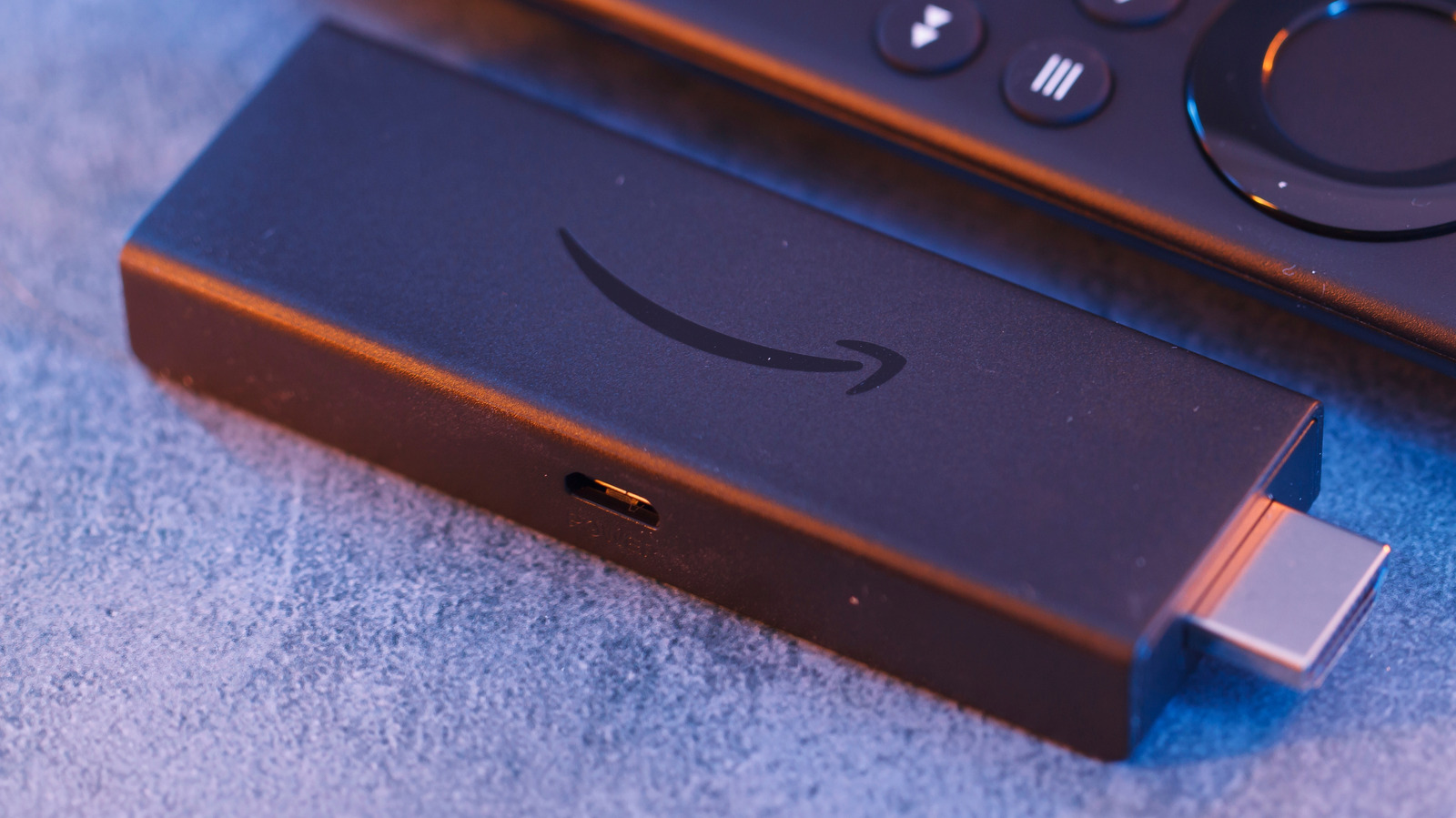
If you have an old Amazon Fire TV Stick sitting in a drawer, there’s a good chance that it will end up in the trash the next time you do a cleanup. That makes sense, especially if you already have a newer, faster model. Streaming sticks, given their low pricing, feel disposable, like an old keyboard or mouse that you replace without thinking twice.
As it turns out, an old Amazon Fire TV Stick can be a handy piece of tech, even if it isn’t as fast as it used to be. Of course, you won’t be using it as your primary streaming device, but it can solve other problems around the house, help you on trips, or even be put to use in a small business setup.
The best part is that repurposing an old Amazon Fire TV Stick doesn’t take too much time, effort, or money. You don’t have to tinker with the hardware or invest in supplementary equipment. These are simple ways you can reuse the streaming stick, save a few dollars, and cut down on e-waste, all at the same time.
Use it as a travel companion

First on the list, and one that will be helpful to a lot of people, is using the Fire TV Stick while traveling. Hotel TVs have come a long way, but the experience still isn’t always in line with our expectations. They are often slow, outdated, and sometimes, you can’t log into your favorite streaming apps. In more budget-friendly hotels, you might even have cable TV, where you are stuck with a bunch of random channels to choose from. This is where your old Amazon Fire TV Stick comes into the picture, letting you watch your favorite shows without relying on the existing TV’s setup.
Even if your Fire TV Stick has slowed down over the years, it will still be a huge upgrade over most hotel setups. Just plug it in, and your content is right there, just a few clicks away, whether it’s Netflix, Prime Video, or YouTube. The setup is super simple: Plug the Fire TV Stick into an available HDMI port, then power it up, switch the TV’s input to HDMI, and connect the Fire TV Stick to the hotel’s Wi-Fi. Some hotel networks have a login portal, but your Fire TV Stick should be able to handle that. If the sign-in screen doesn’t appear on the first attempt, try reconnecting to the network.
Also, if you travel frequently, it’s best to pack the original power adapter, an HDMI extender (if you have one), and the right plug adapter along with your Amazon Fire TV Stick.
Use it to test Wi-Fi signal strength
Whenever you run into streaming issues on a Fire TV Stick, it’s easy to blame the streaming service, the TV, or the stick itself. But there’s another factor that often gets ignored: Wi-Fi strength. If your Fire TV Stick isn’t getting a stable signal, streaming can start buffering or the resolution may drop. Instead of guessing, you can quickly check the Wi-Fi signal strength on your Fire TV Stick using the built-in Developer Tools Menu.
To do that, plug the Fire TV Stick into the TV you want to test and hold the “Center” and “Down” buttons for five seconds. Then release them, and press the “Menu” button to open the “Developer Tools Menu.” Here, turn on “System X-Ray.” You will now see a bunch of live parameters at the top of the screen, like the display resolution, CPU, memory, and network. The one we will focus on is RSSI (Received Signal Strength Indicator). If it’s around -50 dBm, the signal strength is good. But if it drops to around -75 dBm or lower, your Fire TV Stick isn’t getting a strong signal for streaming. When that happens, remove obstructions between the router and the TV, try moving the two closer, or use a Wi-Fi extender.
You could also use network tools on other devices to check the Wi-Fi signal strength, but since this is a streaming problem, a Fire TV Stick will be a more practical choice. You can similarly check for other Wi-Fi dead zones around the house and optimize the Wi-Fi setup.
Turn it into a mini gaming console
If you have kids in the house and a spare TV, your Amazon Fire TV Stick can double as a mini gaming console for lightweight games. It’s more of a casual setup to play puzzle games, educational games, or trivia games; basically titles that are not too resource-intensive and have simpler gameplay. Many of the games are available for free on the built-in Amazon Appstore, and can be played using the Fire TV remote.
If you have a newer Fire TV Stick and want to explore more titles, Xbox Cloud Gaming is another option. You will need a fast internet connection and a Bluetooth controller. Just install the Xbox App on your Fire TV Stick, sign into your Microsoft account or create one, and subscribe to the Xbox Game Pass. The experience is good, according to user reviews. It can also be your portable gaming console for vacations. Simply plug the Fire TV Stick into the HDMI port on any TV and start playing without carrying an actual console. Keep in mind that game availability may vary by region.
Turn your TV into a karaoke setup
An old Fire TV Stick plugged into your TV can work as a karaoke machine, and it’s simple. An easy way is to press the “Mic” button on the remote and say, “Alexa, play Karaoke Night.” You don’t necessarily need a dedicated karaoke app for it. On supported devices, the command will pull up a karaoke-style playlist, along with on-screen lyrics for the selected song.
In case you want a fancier setup, you can go with dedicated karaoke apps available on the Amazon Appstore. Stingray Karaoke is a popular option, though it requires a subscription. If you are looking for free alternatives, YouTube is still the best choice. Just search for the song name plus “karaoke,” and you should find a number of videos. If the audio is low, pairing a Bluetooth speaker will do the trick. The best part is how quick and simple this is. You are not investing in an elaborate setup or dealing with something too complicated. You are simply using a device you were about to throw away.
Set up a digital signage player
Another unexpected use for your old Amazon Fire TV Stick is for digital signage. If you run a small business, say a salon or a cafe, your Fire TV Stick can act as a budget-friendly digital signage player by showing promotions, menus, announcements, operating hours, and more. You can keep it simple by playing a slideshow or a video on loop, or use a dedicated signage app from the Amazon Appstore. The entire process shouldn’t take more than an hour or two. Just make sure to use a legible font size and style, and disable any power-saving options that might interrupt the display.
This is also a smart choice, since for digital signage, your Fire TV Stick doesn’t need to be new or fast. Even an older model should be able to play content for extended hours. It’s also a great way to test whether investing in a signage setup is a good idea for your business.