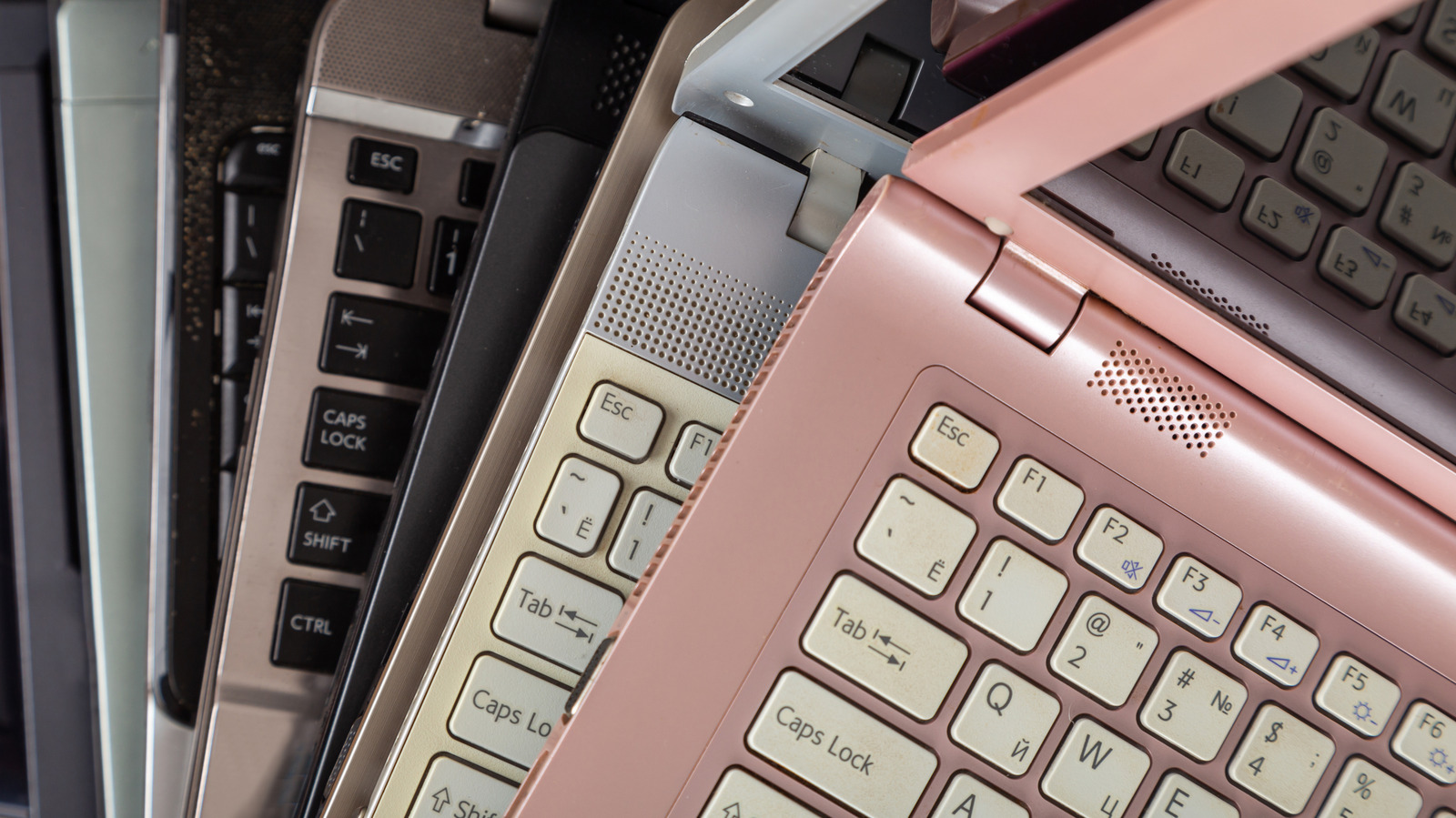
Laptops typically have a lifespan of 3-5 years, with some high-end models delivering optimal performance for up to seven years. But laptops don’t need to be replaced immediately after reaching this age, even if they feel slow. With a few cool gadgets, you can quickly breathe new life into old laptops and use them cleverly. Since it’s all external, you don’t need to unscrew the laptop or work with internal cables and components.
Before we get to that, it’s vital to understand when a laptop starts to feel old or obsolete. It’s either always low on storage, overheats during simpler tasks, has non-functional keys or a touchpad, or the display looks grainy. There are dedicated external gadgets to effectively tackle these problems, if not eliminate them altogether. And the best part about external upgrades is flexibility. You only have to get the gadgets your laptop really needs. With the right upgrades, you can make an old laptop feel faster, more modern, and practical.
1. Cooling pad
Old laptops often overheat while running resource-intensive tasks, and sometimes even during basic use, causing the system slow down. In most cases, this is due to clogged airflow vents or to computer fans running at low speed. And when a laptop overheats, the system automatically throttles performance to bring temperatures back to safe operating levels. Apart from that, higher system temperatures can damage internal components like the CPU, GPU, and motherboard.
One of the most cost-effective options to minimize overheating on any old laptop is to get a cooling pad. You will easily find one in the $15-50 range. A cooling pad basically blows air under the laptop, effectively dissipating heat and keeping the temperature under control. A basic cooling pad comprises a sturdy stand with 2-3 built-in fans, while slightly expensive models feature more fans and even RGB lighting.
If you need the cooling pad for home use, a basic one should suffice. You don’t need anything fancy unless you have a gaming setup. Before you get one, make sure it has multiple fans (or one large one) spread out across the surface, and that they are high-speed. In case you travel a lot, look for more portable models. I have been using one for the last 3 years and have rarely had overheating issues. Before you use a cooling pad, make sure to clean dust from the laptop’s fans and vents.
2. External mouse and keyboard
Old laptops often have worn-out or unresponsive keys, inaccurate trackpads, and non-functional mouse buttons. Since repairs can sometimes be expensive, people find upgrading laptops a more viable choice. But an external mouse and keyboard will do the trick by instantly streamlining your workflow.
Some external keyboards also feature a dedicated number pad, which is particularly useful for software developers, accountants, and others who work extensively with numbers. And since there’s no space constraint, external keyboards offer better key spacing, improving the typing experience. An external mouse is an even bigger upgrade for an old laptop, especially since it improves cursor precision and speed. Editing photos, playing games, or simply browsing the web feels much more convenient.
When choosing between wired and wireless options, go with the former for better precision, speed, and reliability, especially while gaming. Wireless options work best if you want a cleaner setup. Additionally, you can move these around or position them where they feel the most comfortable. If you are buying both, consider a keyboard-mouse combo. These are cost-effective, easier to set up, and come with a single dongle that connects to both devices, freeing up USB ports on your laptop.
3. USB hub
A decade ago, laptops didn’t have many USB ports, and even on models that did, most ports used older standards. I have an old laptop with 3 USB ports, of which only one supports USB 3.0. If you are in the same boat and constantly plugging and unplugging devices, a USB hub is a great addition.
A basic hub with 4 USB 3.0 ports starts at around $15. More expensive models include additional USB ports, a built-in card reader, an HDMI port, and an Ethernet port. So, a single USB hub plugged into a fast port on your system can be used to connect almost all devices, whether it’s a keyboard and mouse, storage drives, an external display, or an Ethernet cable for seamless internet connectivity. Even then, you will likely still have free empty USB ports, which you can use in many ways.
A USB hub eliminates one of the biggest limitations of old laptops: device connectivity. Once you get one, the old laptop no longer feels like a liability. It suddenly becomes far more useful. However, avoid connecting too many power-hungry or high-bandwidth devices to the USB hub at the same time, as they draw power from a single port. If you have to, a powered USB hub with its own built-in power adapter will be a smarter choice.
4. External storage drive
Storage is one of the most common limitations in older laptops, affecting both speed and capacity. After a few years of use, you have to periodically free up files to install OS updates or add new programs. Over time, the frequency of this cleanup increases until it no longer feels practical. That’s where an external storage drive comes into the picture.
When it comes to external storage, you have two options: HDD and SSD. HDDs are affordable and can be used for storing personal files and games. An SSD, on the other hand, is much faster and more reliable, but it’s also costly. SSDs are fast enough that you can even run Windows or other operating systems directly from one, provided it’s connected to a fast USB port.
So, if your old laptop is always low on storage, get an external HDD or SSD, store your personal files and games on it, and reserve the system drive for OS-related files. The best part is that external storage drives are compact and easy to carry. Also, if you work on multiple systems, it will streamline file transfers.
5. A secondary monitor
Most older laptops, and even modern ones, feature a 13- or 15-inch display. And the moment you start multitasking or want to open two or more apps, the screen limitations become obvious. It may feel small with low resolution. So, if there’s a gadget that can truly transform your old laptop, it’s a secondary monitor.
With an external monitor, you have two screens and many more possibilities. For instance, you can work on both displays, keeping one set of apps on the laptop’s screen while moving the more important ones to the monitor. Apart from that, you can duplicate the display or move it all to the second monitor. Remember, even everyday users benefit from an external monitor. Tasks like browsing the web, editing documents, or even playing games feel much more comfortable.
You don’t necessarily need an expensive monitor. Even a 24-inch monitor can do the job. And if your laptop doesn’t sport an HDMI port, you can go with a USB-C monitor, which uses the USB-C connector as the display interface. However, most older laptops’ USB-C ports are data only and don’t support video. So, before getting a USB-C monitor, check if your laptop supports it.