We may receive a commission on purchases made from links.
The Raspberry Pi is a popular minicomputer for tech hobbyists and DIY enthusiasts, largely because of the creative ways you can put it to use. You can use it to design smart home systems, as an education tool, or just experiment with different operating systems for the fun of it. The versatility is a big draw of the Raspberry Pi. However, while plenty of guides and official documentation share how to make the most of it, there are some small challenges for the uninitiated.
Right after you unbox the Raspberry Pi, your journey can lead anywhere from building a private cloud server to creating a custom retro-gaming console. However, before you can reach these heights, it’s important to get to know the brains behind the magic. The learning curve involves navigating Linux terminals, finding the right accessories, and getting into projects that are actually fun and useful.
Here are some helpful tips and tricks that bridge the gap between setting up the Pi for the first time and launching your inaugural project. These tips will help beginners learn to master the fundamentals and ensure your Pi serves as a solid foundation for any creative endeavor you can think of.
Pre-configure Pi OS before you even install
Unlike traditional computers, your Raspberry Pi won’t come with an operating system pre-installed. As you’re starting with a blank slate, you have to flash an OS on the system yourself. Pi OS is the recommended choice as it’s highly optimized and supports various Linux packages. To install Pi OS, you can plug in an Ethernet cable, hold down the Shift key, and use the network installer to proceed.
But the more traditional way is to use the Raspberry Pi Imager on another computer. Download and install the imager, and follow the on-screen instructions. During the install, use the Customization tab to configure things before you even boot up the Pi. For example, in the Hostname tab, name your Pi something like “Homeserver” to easily find it on your network. You can also set up your user and Wi-Fi credentials. Consider configuring SSH in the Remote Access tab if you plan to use the Pi as a server without connecting it to a display. This allows you to access the Pi’s terminal from a different computer on the same network.
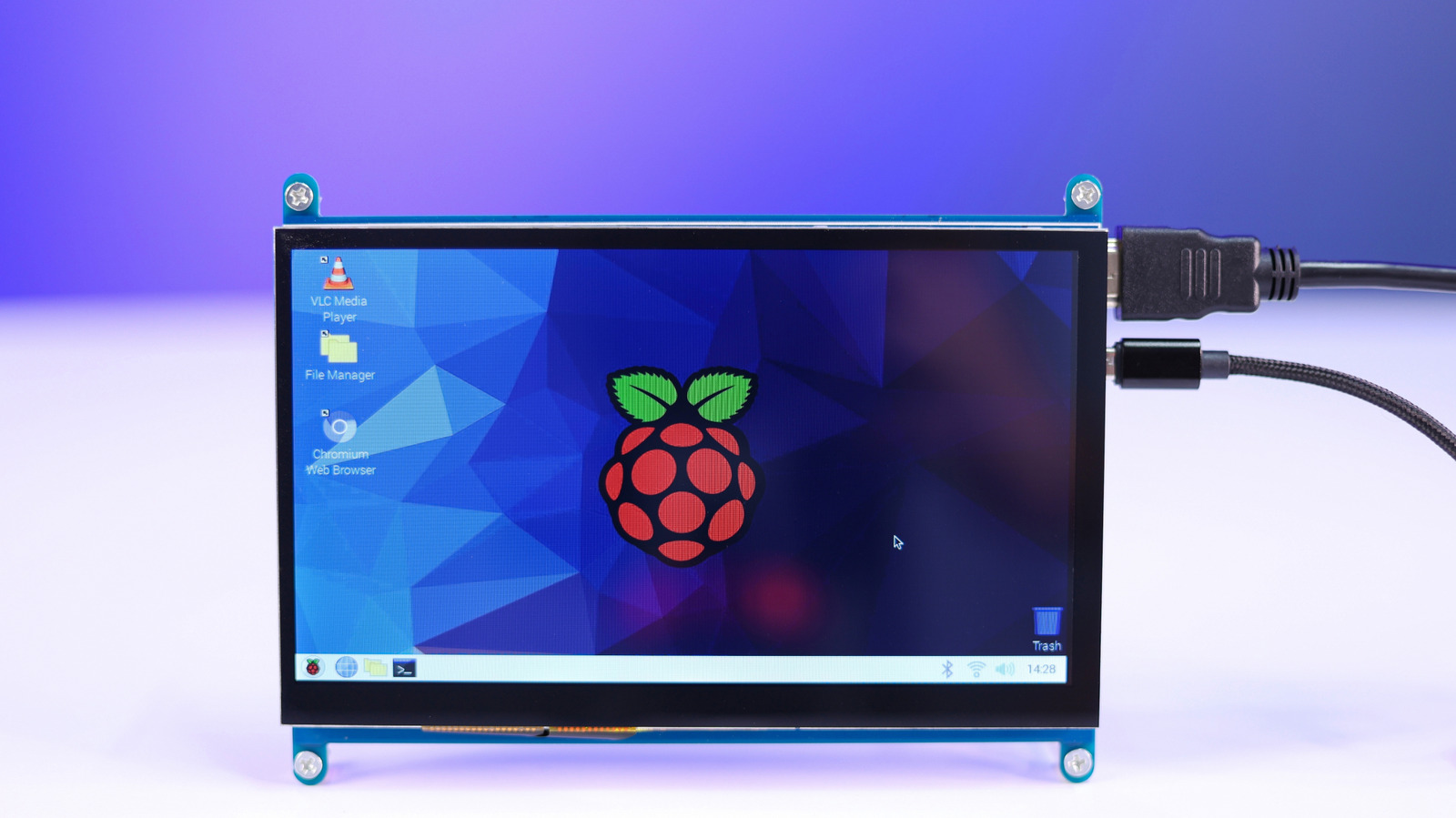
After configuring settings, flash the OS, plug in the storage media into the Pi, and boot into Pi OS. On the desktop, you’ll notice a toolbar above that houses your date/time, Wi-Fi, volume controls, and a handful of apps. Clicking the Raspberry Pi icon will give you a drop-down menu, where you can find a Preferences section to play around with more system settings.
Use an appropriate power supply and peripherals
The latest Raspberry Pi, the Pi 5, is significantly more capable than its predecessors. However, that extra performance does come with slightly higher power requirements. While you can reuse something like an old Type-C phone charger to power the Raspberry Pi 5, doing so may trigger low-voltage warnings during use. To avoid any problems, you need a high-quality 27W USB-C PD power supply. The official Raspberry Pi 27W USB-C Power Supply is the best option. If you don’t mind the DIY route, you can also power the Pi with a battery module.
For video output, the Pi 5 features two microHDMI ports, which are much smaller than standard HDMI ports found on TVs. Fortunately, microHDMI cables are easy to find, and the ones from CableMatters and Ugreen are solid. If you want faster storage, consider grabbing a case, such as this one from Amazon, that features an M.2 PCIe slot or an M.2 module to add support for M.2 SSDs. Any SSD will be faster than a microSD card, meaning you won’t run into storage-related performance issues.
The Raspberry Pi 5 features four USB ports, and two of them are USB 3.0 (the blue ones). Use these for any accessories that need fast data transmission, such as external hard drives or webcams. As for a mouse and keyboard, you can plug both of those into the black USB 2.0 ports.
Consider an SSD over a microSD card for storage
Performance is the main reason you’d want to use an SSD over a microSD card. Even if you use a slower SATA SSD with a USB adapter, you’ll still get speeds that far outclass even the best SD cards. If you own a Raspberry Pi 5, using an M.2 NVMe SSD is the best choice. The Pi 5’s SD card reader is limited to a speed of around 104 MB/s, but PCIe SSDs can utilize the Pi 5’s PCIe 2.0 lane to achieve speeds of up to 500MB/s. This is why even a cheap SSD will make the Pi desktop feel snappier.
Utilities like Home Assistant and Plex Media Server will be significantly more responsive with an SSD. On top of that, such utilities constantly write logs and database updates to storage. SD cards are more prone to failure, and SSDs have better wear levelingthat distributes writes across the drive for a longer lifespan. Use an SSD if you want your project to remain stable for years.
That said, there’s still a place for microSD cards for lighter uses. A RetroPie for retro gaming is one of the best Raspberry Pi projects you can make, and it’s a use case where you mostly read data rather than write it. In such situations, look specifically for A2-rated cards over the cheaper A1-rated options. The A1 cards are fine for basic storage, but A2-rated cards are built for higher read/write demands.
Install an active cooler to prevent throttling
For most use cases, Raspberry Pi models tend to do well without any active cooling. If your project involves simple coding, basic automation, or light web browsing, the board can usually manage heat in a well-ventilated area. But once you start moving towards more demanding tasks — 4K streaming, retro gaming, or running an AI assistant — the CPU works much harder, and the increased power consumption means more heat.
Without some form of cooling, your Raspberry Pi will start to throttle once the chip reaches a temperature of 80°C. In this case, you might see an overheating icon on the Pi desktop and experience slowdowns. To manage temperatures, you can choose between active or passive cooling. You’ll find passive cooling in cases like the Flirc, which uses thermal pads and the aluminum housing to lower temperatures.
However, if you’re running something like a 24/7 server or intensive background tasks, active cooling is the safer bet. The official Raspberry Pi Active Cooler features a temperature-controlled fan for such situations. If you’re unsure whether you need a cooler with a fan, open the terminal and type the “vcgencmd measure_temp” command to see temperature readings. If you’re consistently reaching 75°C to 80°C during your routine, it’s likely time to get an active cooler.
Use Pi-Apps to install software without complex commands
You’ve likely used Windows or macOS before as your main operating system, where you simply download apps from the web or respective app store and install them. Linux, which is what you’ll be using on the Raspberry Pi, works a bit differently. On Linux, you install programs directly from the terminal. For example, to install VLC media player, you’d use the command “sudo apt install vlc” in the terminal.
The terminal is the heart of the Linux experience, and getting comfortable with it allows you to be more efficient than you would be by clicking through menus. Of course, there’s a learning curve. Codecademy has a great command-line cheat sheet for the Raspberry Pi to help familiarize yourself with common commands.
However, you don’t have to do things the hard way right away. Pi-Apps is a community-driven graphical app store that’s designed specifically for Pi OS. It takes away those complex terminal commands and hides them behind a simple install button, similar to modern app stores on Windows or macOS. It features some of the most popular applications and is great for installing stuff like Discord, which requires a couple of complex commands on Pi OS.
Learn with a project instead of reading documentation
As you spend more time learning the ropes, it’s easy to get lost in the world of documentation, community forum posts, and technical guides. Reading about the Linux kernels and GPIO pinouts isn’t necessarily a bad thing, but a better way to learn is by doing. Instead of trying to learn everything about the Pi in isolation, pick a tangible project that solves a problem in your house.
One of the best Raspberry Pi projects for beginners is setting up the Pi-hole program. This is essentially a network-wide ad blocker that adds a check for DNS requests against a list of tracking domains. It’s a good first project because the installation is mostly automated, but you learn the basics of IP addresses and how your home network functions.
There are also more entertainment-focused projects you can try in your first week, such as RetroPie for gaming or a Kodi media center for organizing and consuming videos, music, or TV streams. A simple Google search will reveal easy-to-follow guides for either project. Learning this way is better because you now have an actual problem to solve, and the commands you type will stick in your memory as you’ll have practical application experience to go with your theoretical understanding.
Boost performance with the right tuning
If you want to squeeze every bit of value out of your Raspberry Pi, you’ll want to focus on software efficiency and resource management rather than just hardware tweaks. The latest Pi OS version does a good job of handling memory allocation, but you can gain a bit more overhead by preventing the desktop environment from loading. This is effective if you want to control the Pi remotely as a headless server. To achieve this, open the terminal and run the “sudo raspi-config” command. From the System Configuration Tool, select System Options, then Boot/Auto Login, and select Console.
If you have an active cooler and want to push the hardware further, you can also try overclocking. This is done by typing the “sudo nano /boot/firmware/config.txt” command and adding lines like “arm_freq=3000” and “gpu_freq=1000” to boost clock speeds for the CPU and GPU. Tom’s Hardware has a great guide on overclocking for you to follow along. Overclocking is generally safe and provides a noticeable performance uplift for tasks like emulation.
Keep in mind that every CPU in each Pi model is slightly different, meaning one Pi 5 model will run stable at 3.0GHz while another may crash if you go above 2.7GHz. You won’t necessarily brick anything, but an unstable overclock can cause crashes, in which case you should dial back the frequency clock changes. Active cooling and an adequate power supply are also crucial for a stable overclock.