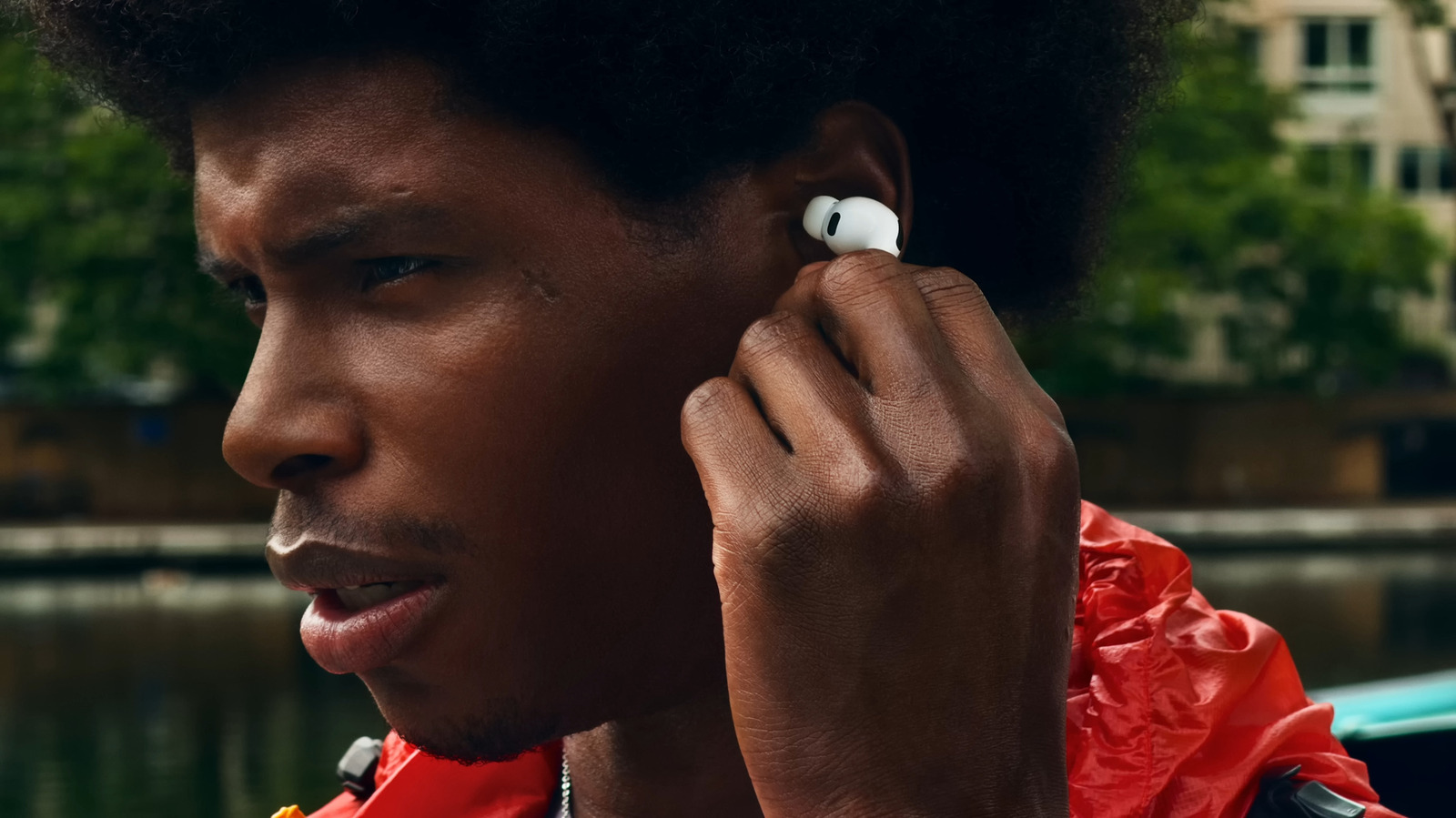
Apple’s AirPods Pro 3, the latest addition to the product lineup, come up as one of the best wireless earbuds for audiophiles in tech reports and user reviews – and for good reason. It delivers remarkable sound quality and equally impressive noise cancellation and transparency modes. Plus, compared to the basic AirPods, they include advanced features, such as heart rate sensing and longer listening time.
Because the AirPods Pro already work well out of the box, users may find the default configurations enough. But the earbuds are actually pretty customizable, as they offer several enhancements to sound quality and noise cancellation. You can easily find some of these settings in the AirPods Pro menu, while others are hidden away deep into the options in the Settings app. If you’re looking to make the most out of your Pro model, whether it’s the first or latest generations, we’ll walk you through some nifty settings to achieve that.
Use the right-sized ear tips
All three AirPods Pro generations are shipped with medium ear tips already fitted on the earbuds. This might sound convenient, but to further improve their audio quality, it’s important to find the right ear tip size for you. The best ones provide a snug fit that seals your ear, making sure you get rich bass from your music, more effective noise cancellation, and accurate heart rate data from the AirPod Pro 3’s built-in sensor. They should also feel comfortable enough for all-day wear. If you already feel comfy with the medium ear tips, you can use them. Otherwise, follow these steps:
- Grab another pair of ear tips in the Air Pod Pro box. You can’t use ear tips from a different generation, as they won’t fit.
- Replace the default ear tips.
- Put on the AirPods for about 15 minutes while moving around.
If the earbuds slip out, try a larger pair. If they apply uncomfortable pressure inside your ear, attach a smaller size. In case multiple sizes feel okay for you, you can see which is the ideal one by testing their acoustic seal on your iPhone. To do so, check this guide:
- Wear both your AirPods Pro.
- On your iPhone, launch Settings.
- Go to AirPods Pro at the top.
- Find Ear Tip Fit Test (on AirPods Pro 1 and 2) or Test Acoustic Seal (on AirPods Pro 3).
- Press Continue.
- Hit the Play button.
- Wait for the sound to stop playing.
It will then tell you if both left and right earbuds have a good seal. You might be prompted to replace the tips for both ears or only one ear.
Use Personalized Spatial Audio
Personalized Spatial Audio is one of the AirPods features you should know that has been around for some time. It creates a surround sound that feels like you’re in a theater, and it’s personalized to every user since it’s based on the size and shape of your head and ears. By default, this option is turned off and requires manual setup. Here’s how you can enable it:
- Open the Airpods case with the earbuds inside and place it next to your iPhone for pairing.
- Tap Settings on your iPhone.
- Select AirPods Pro at the top of the screen.
- Navigate to the Spatial Audio section.
- Choose Personalized Spatial Audio.
- Tap on Personalize Spatial Audio to start the setup.
- Hit Continue.
- Press Start Capture.
- Aim your front camera so that your entire face and ears are in the frame.
- Slowly turn your head all the way from side to side.
- Click Done to exit the setup.
Your personalized Spatial Audio is now ready for use. Keep in mind, though, that it only works when you’re using your AirPods with Apple devices. That means you’d need to be using an iPhone, iPad, Mac computer, Apple Watch, Apple TV, or Vision Pro to enjoy Spatial Audio.
After configuring Personalized Spatial Audio, try playing a video on YouTube while wearing your AirPods Pro. Then, go to the Control Center, long-press on the volume slider, and tap on Spatialize Stereo. You can then choose between Fixed and Head Tracked. Fixed means the Spatial Audio stays consistent even if you turn your head while listening. Head Tracked means that as you turn your head, the sound changes to make it seem like you’re turning away from the sound source.
Turn on noise cancellation for just one AirPod
While the AirPods Pro work best when both earbuds are worn, you might prefer to use just one side sometimes. Maybe you want to be more aware of your surroundings while studying in a café or out walking, or you simply need to preserve the battery life of the other earbud.
The problem with using a single AirPod, though, is that you normally can’t turn on noise cancellation. When you try to switch to this mode, you’ll get an error saying you’d need to have both on. But you can actually use the feature anyway, all thanks to an AirPods trick hidden in the Accessibility menu. Here’s how to turn it on:
- Connect your AirPods Pro to your iPhone.
- In the Settings app, open AirPods Pro at the top.
- Scroll down to Accessibility.
- Under Noise Control, toggle on Noise Cancellation with One AirPod.
Now, whenever you have only one earbud on, simply press and hold its stem to set it to noise cancellation mode. You can also change the mode by long-pressing on the volume slider in your iPhone’s Control Center and going to Listening Mode. If you have both earbuds on while using this feature, taking out one side won’t keep the mode active, as it will automatically switch to Transparency mode. To continue using noise cancellation, you’ll need to manually enable it. As for the listening experience, you’ll still notice a significant difference in noise reduction even with a single AirPod. External sounds get canceled, so the surroundings become quieter. However, you naturally won’t get the same effect as wearing both sides.
Adjust the EQ on your preferred music app
Unlike other popular wireless earbuds like Samsung’s Galaxy Buds 4 Pro and Sony WF-1000XM6, the AirPods Pro (and any of the models) don’t come with a built-in equalizer, a customization that lets you adjust exactly how the audio sounds — whether that means amplifying vocals or brightening the treble. While you can’t find an EQ setting in the AirPods Pro menu, you can still adjust sound on the music app of your choice. To do so on Apple Music:
- Open Settings.
- Scroll down to Apps.
- Tap Music.
- Under Audio, choose EQ.
- Pick one of the available EQ presets.
There’s no sample sound that plays when you switch to a new preset, so you’ll have to manually play a song on Apple Music and do trial and error to see which preset you like best. On Spotify, here’s what you need to do to adjust the EQ:
- Launch Spotify.
- Play a song.
- Tap your profile picture in the upper-left corner.
- Go to Settings and privacy.
- Select Playback.
- Under Listening controls, open Equalizer.
- Choose the EQ preset that sounds best for you.
If you don’t like any of the presets, you can always drag the dots in the equalizer at the top to change the levels to your liking.
Set up Custom Audio
Although the AirPods Pro don’t include a native way to adjust the EQ, a workaround allows you to set a custom audio for your music, videos, and phone calls. The Headphone Accommodations is one of iPhone’s accessibility features, and it’s a quick and user-friendly way to boost soft sounds and make them crisper. In fact, it only takes five minutes or so to enable it.
While configuring the custom audio for your AirPods Pro, it’s important to perform the setup in a quiet room, where you can wear your earbuds and focus on listening. Also, you should turn off Apple Music EQ in Music settings and set the Balance slider to 0.0 in the Audio & Visual settings, under Accessibility. Then, proceed with these steps:
- Open Accessibility in the main Settings screen.
- Under Hearing, tap Audio & Visual.
- Go to Headphone Accommodations.
- Press Custom Audio Setup and hit Continue.
- If you had a hearing test done before, select Add Audiogram (hearing test results). Otherwise, tap Don’t Use Audiogram.
- Press Continue.
- Listen to the audio playing.
- Tap Yes if you can hear the person speaking in the audio.
- Select Continue twice.
- Listen to the audio comparison and choose which one you like best. If they sound the same, select Version 1.
- Repeat for the next comparisons.
Afterward, you’ll get your recommended settings, which you can compare to the baseline by tapping on the Standard tab. If you prefer to go with the Standard Settings, select this option; otherwise, hit Continue to keep your customized adjustments. You’ll be redirected to the Transparency Mode Customization screen, where you can adjust the sliders and enable Conversation Boost as you see fit. Finally, hit Done to exit the setup.