By using this site, you agree to the Privacy Policy and Terms of Use.
Accept
World of SoftwareWorld of SoftwareWorld of Software
  • News
  • Software
  • Mobile
  • Computing
  • Gaming
  • Videos
  • More
    • Gadget
    • Web Stories
    • Trending
    • Press Release
Search
  • Privacy
  • Terms
  • Advertise
  • Contact
Copyright © All Rights Reserved. World of Software.
Reading: Is your Galaxy S26 Ultra causing eye strain? Here are 4 ways to fix it
Share
Sign In
Notification Show More
Font ResizerAa
World of SoftwareWorld of Software
Font ResizerAa
  • Software
  • Mobile
  • Computing
  • Gadget
  • Gaming
  • Videos
Search
  • News
  • Software
  • Mobile
  • Computing
  • Gaming
  • Videos
  • More
    • Gadget
    • Web Stories
    • Trending
    • Press Release
Have an existing account? Sign In
Follow US
  • Privacy
  • Terms
  • Advertise
  • Contact
Copyright © All Rights Reserved. World of Software.
World of Software > News > Is your Galaxy S26 Ultra causing eye strain? Here are 4 ways to fix it
News

Is your Galaxy S26 Ultra causing eye strain? Here are 4 ways to fix it

News Room
Last updated: 2026/03/21 at 11:07 PM
News Room Published 21 March 2026
Share
Is your Galaxy S26 Ultra causing eye strain? Here are 4 ways to fix it
SHARE

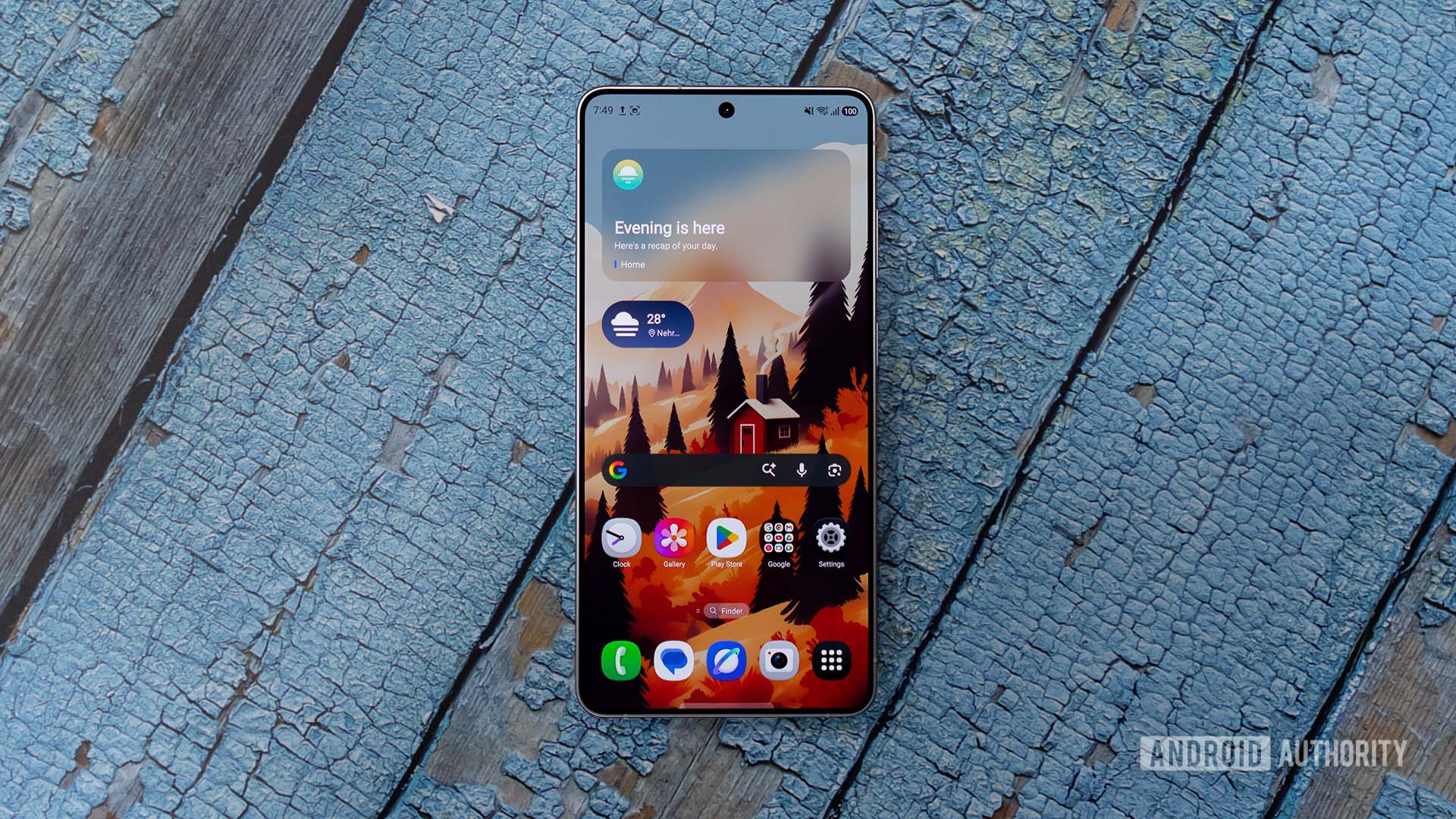
Aamir Siddiqui / Android Authority

The Samsung Galaxy S26 Ultra has been making headlines this week, and not in a good way. As more people get their hands on the phone, numerous reports have emerged about it causing eye strain.

What’s causing the Galaxy S26 Ultra’s eye strain? We don’t know for sure. It may relate to the S26 Ultra’s low PWM dimming rate, how the screen looks when using the new Privacy Display feature, or other general smartphone eye comfort issues. What we do know for sure is that a lot of people are complaining.

If you have an S26 Ultra and are also experiencing eye strain, here are a few tips to help fix it.

If you have a Galaxy S26 Ultra, is it giving you eye strain?

226 votes

Turn off Privacy Display

My first recommendation is to disable Privacy Display if you’re currently using it. The feature works by controlling the brightness of specific pixels on the screen, which makes the S26 Ultra’s display appear dim or blacked out when viewed from an angle.

To find the Privacy Display settings, open the main Settings app, tap Display, and then tap Privacy display.

If you have Maximum privacy protection enabled, it’s worth toggling that off and seeing if you still have eye strain while using the standard Privacy Display. If so, try disabling the feature altogether to see if that helps. Turning off the S26 Ultra’s hallmark feature isn’t ideal, but it’s worth a shot to see if it improves your eye comfort.

Set up Eye Comfort Shield

Speaking of eye comfort, you should enable the S26 Ultra’s Eye Comfort Shield if you haven’t already. This is a feature Samsung has included on its phones for years, and it might just be what you need to give your eyes a break.

Once again, open the Settings app and tap Display. This time, tap Eye comfort shield (below the Privacy display button).

After toggling Eye Comfort Shield on, it’s set to Adaptive mode, which adjusts your screen’s color temperature based on the time of day — including a much warmer temperature at night (helpful for reducing harsh blue light). You can also switch to Custom mode, which lets you manually select the schedule and color temperature for Eye Comfort Shield. And if that’s not enough, enabling Enhanced Comfort at the bottom of the screen will make even greater adjustments to your screen’s contrast and colors.

Reduce animations and transparency/blur

If you turn off Privacy Display, set up Eye Comfort Shield, and are still experiencing eye strain, another good tip is to reduce your phone’s animations, transparency, and blur. To do so, open the Settings app, scroll to the bottom of the page, tap Accessibility, and tap Vision enhancements.

You’ll need to scroll down a little bit to find these settings, but this is where you’ll find the toggles for Reduce animations and Reduce transparency and blur. The former disables some animations and screen effects (reducing overall screen movement), while the latter reduces the intensity of other visual effects throughout the UI.

These are more granular settings that may not have an impact for everyone, but they’re certainly still worth trying.

Use the Extra Dim setting

From that same Vision Enhancements page, there’s also an option for Extra dim. Turning this on dims the screen beyond the normal minimum brightness level, which can be particularly helpful if your eyes are sensitive to bright light or screens.

You can turn on a shortcut for the Extra Dim feature for easy access, and adjust the intensity to set how dim you want your S26 Ultra’s display.

What to do if your S26 Ultra is still causing eye strain

For some Galaxy S26 Ultra users, some or all of these tips might be the solution to squashing eye strain. But what if none of these things help? Unfortunately, you may need a different phone.

If you know PWM dimming is something you struggle with, and the Galaxy S26 Ultra is wreaking havoc on your eyes, the only real solution is to return it and buy a phone with a higher PWM dimming rate.

Don’t want to miss the best from Android Authority?

google preferred source badge light@2xgoogle preferred source badge dark@2x

Thank you for being part of our community. Read our Comment Policy before posting.

Sign Up For Daily Newsletter

Be keep up! Get the latest breaking news delivered straight to your inbox.
By signing up, you agree to our Terms of Use and acknowledge the data practices in our Privacy Policy. You may unsubscribe at any time.
Share This Article
Facebook Twitter Email Print
Share
What do you think?
Love0
Sad0
Happy0
Sleepy0
Angry0
Dead0
Wink0
Previous Article We’ve Already Found the Best Amazon Big Spring Sale Discounts of 50% or More on Headphones & Earbuds We’ve Already Found the Best Amazon Big Spring Sale Discounts of 50% or More on Headphones & Earbuds
Next Article Publisher pulls horror novel ‘Shy Girl’ over AI concerns |  News Publisher pulls horror novel ‘Shy Girl’ over AI concerns | News
Leave a comment

Leave a Reply Cancel reply

Your email address will not be published. Required fields are marked *

Stay Connected

248.1k Like
69.1k Follow
134k Pin
54.3k Follow

Latest News

New Career? Government Targets Gamers in Air Traffic Controller Recruitment Drive
News
Google finally admits the Pixel bootloop is a real problem and promises a fix
News
Microsoft denies shutting down operations in China · TechNode
Computing
How Apple’s iPhone Is Responsible For Futurama’s Most Memed Moment – BGR
News

You Might also Like

New Career? Government Targets Gamers in Air Traffic Controller Recruitment Drive
News

New Career? Government Targets Gamers in Air Traffic Controller Recruitment Drive

5 Min Read
Google finally admits the Pixel bootloop is a real problem and promises a fix
News

Google finally admits the Pixel bootloop is a real problem and promises a fix

4 Min Read
How Apple’s iPhone Is Responsible For Futurama’s Most Memed Moment – BGR
News

How Apple’s iPhone Is Responsible For Futurama’s Most Memed Moment – BGR

4 Min Read
I tried the redesigned Google Wallet app, and it fixes my 2 biggest complaints
News

I tried the redesigned Google Wallet app, and it fixes my 2 biggest complaints

1 Min Read
//

World of Software is your one-stop website for the latest tech news and updates, follow us now to get the news that matters to you.

Quick Link

  • Privacy Policy
  • Terms of use
  • Advertise
  • Contact

Topics

  • Computing
  • Software
  • Press Release
  • Trending

Sign Up for Our Newsletter

Subscribe to our newsletter to get our newest articles instantly!

World of SoftwareWorld of Software
Follow US
Copyright © All Rights Reserved. World of Software.
Welcome Back!

Sign in to your account

Lost your password?