Apache DolphinScheduler’s alerting system, powered by a sophisticated SPI plugin architecture, safeguards data workflows. Among these, email notification via the SMTP protocol serves as a vital link for timely information delivery.
When the status of a workflow or task changes—whether it completes successfully, fails, or times out—the alert system responds instantly, automatically triggering an email notification to ensure relevant personnel are informed immediately.
Notably, the system supports a wide range of alerting methods, including Email, DingTalk, WeChat Work, Scripts, SMS, Feishu, Slack, PagerDuty, WebexTeams, Telegram, HTTP, and Alibaba Cloud Voice, fully meeting the diverse needs of different scenarios and users.
This article focuses deeply on Email alerts, presenting a comprehensive guide to setup and usage. It covers everything from creating an Email alert instance and fine-tuning SMTP parameters to building alert groups and linking them with workflows. Additionally, it provides an in-depth analysis of the mail delivery mechanism, shares practical best practices, and offers troubleshooting methods for common issues to help you master and efficiently use the Email alert feature.
Core Architecture
The Email alert system consists of the following core components:
- AlertChannelFactory: Defines the parameters and creation logic for the email alert plugin.
- MailSender: Implements the actual email sending functionality.
- AlertGroupService: Manages CRUD operations for alert groups.
- AlertPluginInstanceService: Manages alert plugin instances.
Setup Steps
Step 1: Create an Email Alert Instance
-
Log in to the DolphinScheduler Web UI.
-
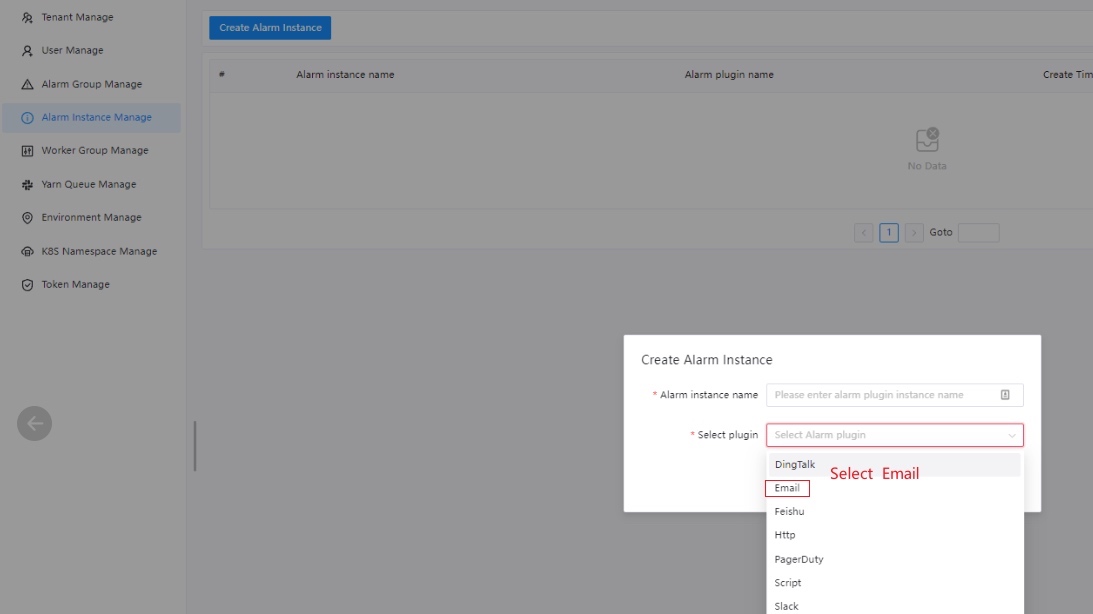
Navigate to “Security” -> “Alert Instance Management.”
-
Click “Create Alert Instance.”
-
Select “Email” as the alert plugin type.
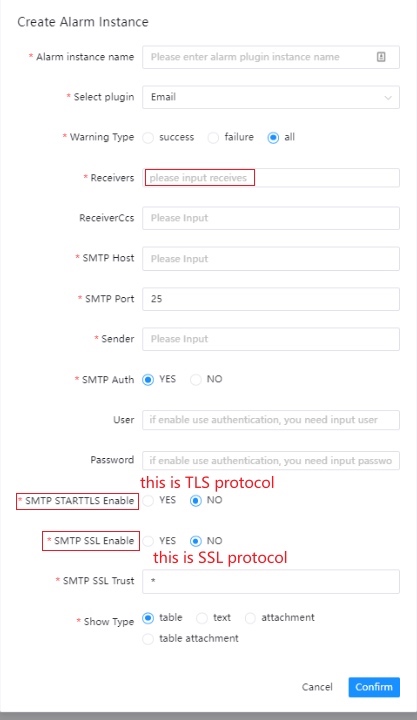
The Email alert instance requires the following key parameters:
| Parameter | Description | Required | Example |
|—-|—-|—-|—-|
| server | SMTP server address | Yes | smtp.gmail.com |
| port | SMTP port | Yes | 587 |
| sender | Sender email address | Yes | [email protected] |
| user | SMTP auth username | Yes | [email protected] |
| password | SMTP auth password | Yes | yourpassword |
| enableSmtpAuth | Enable SMTP authentication | Yes | true |
| enableTls | Enable TLS encryption | No | true |
| enableSsl | Enable SSL encryption | No | false |
| receivers | Recipient list | Yes | [email protected] |
Step 2: Create an Alert Group
An alert group is a collection of alert instances used to manage multiple alert channels uniformly:
- Navigate to “Security” -> “Alert Group Management.”
- Click “Create Alert Group.”
- Enter the alert group name and description.
- Select the Email alert instance created earlier.
- Save the configuration.
Step 3: Link to Workflow
Associate the alert group with a workflow definition:
- Go to the “Workflow Definition” page.
- Select or create a workflow.
- Configure the alert group in the workflow settings.
- Save the workflow definition.
Mail Sending Implementation
The core logic for sending emails is implemented in the MailSender class:
// Main steps for sending email
1. Create an SMTP session
2. Configure mail server parameters
3. Construct email content
4. Send the email
5. Handle the delivery results
The system supports HTML email templates for better readability.
Alert Trigger Scenarios
Email alerts are automatically triggered in the following scenarios:
- Workflow Success: When the workflow execution finishes.
- Workflow Failure: When the workflow execution fails.
- Task Failure: When a task node execution fails.
- Workflow Timeout: When the workflow execution exceeds the time limit.
- SQL Task Results: Sending SQL query results (requires extra configuration).
SQL Task Email Delivery
SQL tasks support sending query results via email; the following parameters need to be configured:
sendEmail: Enable email notification.title: Email subject.groupId: Alert group ID.
Best Practices
1. Security Configuration
- Use TLS or SSL encryption to ensure secure transmission.
- Regularly update SMTP authentication passwords.
- Limit the recipient scope to prevent information leakage.
2. Performance Optimization
- Set reasonable SMTP connection timeouts.
- Avoid sending massive volumes of alert emails during peak hours.
- Use mail queuing mechanisms to prevent blocking.
3. Monitoring and Maintenance
- Periodically test the email sending functionality.
- Monitor alert delivery success rates.
- Establish backup notification mechanisms for failed email deliveries.
Troubleshooting Common Issues
Email Sending Failed
- Check if SMTP server configurations are correct.
- Verify that authentication credentials are valid.
- Confirm network connectivity.
- Check AlertServer logs for detailed error messages.
Email Format Abnormal
- Check the email template configuration.
- Verify the recipient email format.
- Confirm the email content encoding settings.
Alert Not Triggered
- Confirm the alert group is correctly linked to the workflow.
- Check the workflow alert settings.
- Verify the status of the AlertServer service.
Summary
DolphinScheduler’s Email alert feature provides a complete workflow monitoring and notification mechanism. By properly configuring alert instances, groups, and workflow associations, you can ensure timely access to system status information. It is recommended to combine this with other alert channels (like DingTalk or WeChat) in production to build a robust monitoring system.
Notes
This document is based on DolphinScheduler’s SPI plugin architecture. Email alerting is a built-in plugin. The system supports custom extensions; for development, please refer to the GitHub Alert SPI documentation at: docs/docs/en/contribute/backend/spi/alert.md.