

By using this site, you agree to the Privacy Policy and Terms of Use.
Accept
World of SoftwareWorld of SoftwareWorld of Software
  • News
  • Software
  • Mobile
  • Computing
  • Gaming
  • Videos
  • More
    • Gadget
    • Web Stories
    • Trending
    • Press Release
Search
  • Privacy
  • Terms
  • Advertise
  • Contact
Copyright © All Rights Reserved. World of Software.
Reading: Apple buried these 3 genuinely useful iPhone features — here’s how to find them
Share
Sign In
Notification Show More
Font ResizerAa
World of SoftwareWorld of Software
Font ResizerAa
  • Software
  • Mobile
  • Computing
  • Gadget
  • Gaming
  • Videos
Search
  • News
  • Software
  • Mobile
  • Computing
  • Gaming
  • Videos
  • More
    • Gadget
    • Web Stories
    • Trending
    • Press Release
Have an existing account? Sign In
Follow US
  • Privacy
  • Terms
  • Advertise
  • Contact
Copyright © All Rights Reserved. World of Software.
World of Software > News > Apple buried these 3 genuinely useful iPhone features — here’s how to find them
News

Apple buried these 3 genuinely useful iPhone features — here’s how to find them

News Room
Last updated: 2026/03/04 at 4:31 AM
News Room Published 4 March 2026
Share
Apple buried these 3 genuinely useful iPhone features — here’s how to find them
SHARE

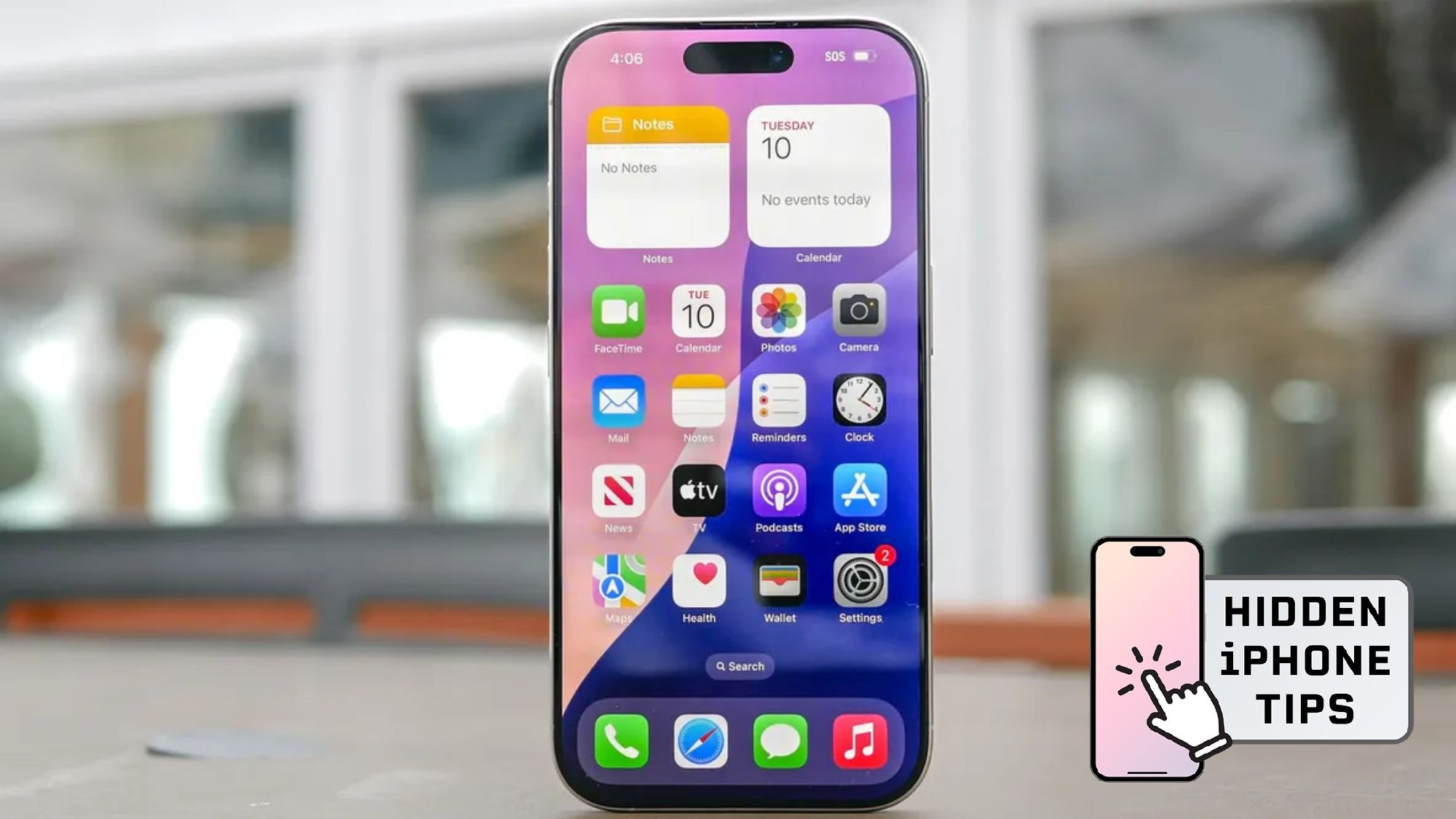
Hidden iPhone tips

(Image credit: Future)

Hi, I’m Kaycee. Welcome to Hidden iPhone Tips, a weekly column where I dig into the best iOS features Apple doesn’t tell you about.

Hidden iPhone features fall into two categories: the ones you try once for fun, and the ones you end up using every single day because they actually solve problems. The features that genuinely improve productivity tend to be less flashy, which is probably why Apple doesn’t advertise them and why most people never discover them.

I’ve found three iPhone features recently that fall into this category. They’re either buried in settings or require specific voice commands. And they all solve genuinely annoying problems.

1. Set timers that finish at specific times

Setting a timer through Siri on iPhone

Working to a deadline is stressful enough without having to calculate how many minutes until your meeting starts. Instead of figuring out “okay, it’s 10:47 now, so I need a timer for…73 minutes?” just tell Siri exactly when you need the reminder.

Say “Siri, set a timer to finish at 11 a.m.” (or whatever time you need). Your timer now counts down to that specific moment, giving you a constant visual reminder of how long you have left.

This is so useful because there’s nothing more annoying than having to do mental arithmetic when completing work before a deadline, and breaking concentration. Or worse, you could miscalculate and have to rush.

Setting a timer to a specific endpoint removes that friction completely. Your phone handles the countdown, and you can stay focused.

2. Make reminders actually impossible to miss

Urgent reminders on iPhone

The Reminders app has always felt easy to ignore. Notifications appear, you swipe them away, and suddenly it’s three days later and you forgot the thing you were supposed to remember. That’s changed with a recent update that most people don’t know about.

You can now mark reminders as urgent, which triggers an actual alarm at the due time, making reminders functionally impossible to miss.

Create a reminder normally by opening the Reminders app, tapping the plus button, and naming your reminder. Then simply tap the small info button (the “i” icon), then look for the “Urgent” toggle under date and time settings. Enable it, set your due date and time, and you’re done.

When that reminder comes due, your iPhone treats it like an alarm — full-screen alert, sound, the works. You can’t passively ignore it the way you can swipe away a notification. For genuinely important tasks you absolutely cannot forget, this is transformative.

3. Jump back through Settings

Moving through iPhone setting shortcut

You’re deep in Settings, six menus down, trying to change something obscure. When you’re done, the only way back seems to be tapping the back arrow repeatedly.

There’s a faster way nobody knows about. Tap and hold the back button in the top-left corner. A pop-up menu appears showing your navigation path. Tap any level to jump directly there instead of backing out one screen at a time.

This sounds minor until you’re buried in Settings trying to adjust something technical, or you’ve gone through multiple submenus and just want to get back to the main Settings screen. One long-press and one tap replaces multiple individual back-button taps.

It works throughout Settings and even in some other third party apps that use similar navigation structures. Once you know it exists, the old way of tapping back repeatedly feels absurdly tedious.


Google

(Image credit: Future)

Follow Tom’s Guide on Google News and add us as a preferred source to get our up-to-date news, analysis, and reviews in your feeds. Make sure to click the Follow button!



You may like


More from Tom’s Guide

Get instant access to breaking news, the hottest reviews, great deals and helpful tips.

Sign Up For Daily Newsletter

Be keep up! Get the latest breaking news delivered straight to your inbox.
By signing up, you agree to our Terms of Use and acknowledge the data practices in our Privacy Policy. You may unsubscribe at any time.
Share This Article
Facebook Twitter Email Print
Share
What do you think?
Love0
Sad0
Happy0
Sleepy0
Angry0
Dead0
Wink0
Previous Article AI project competition for SMEs AI project competition for SMEs
Next Article SmartCash offers 15% savings interest as user base hits 3 million SmartCash offers 15% savings interest as user base hits 3 million
Leave a comment

Leave a Reply Cancel reply

Your email address will not be published. Required fields are marked *

Stay Connected

248.1k Like
69.1k Follow
134k Pin
54.3k Follow

Latest News

How I Created a Donor Leaderboard in WordPress & Got More Donations
Computing
Audible Launches Cheaper Tier Amid Rising Audiobook Competition
News
Ubuntu Still Figuring Out A Plan For Dealing With California’s Digital Age Assurance Act
Computing
The Acer Aspire 14 is over 0 off at Amazon — buy now for 9.99
The Acer Aspire 14 is over $300 off at Amazon — buy now for $499.99
News

You Might also Like

Audible Launches Cheaper Tier Amid Rising Audiobook Competition
News

Audible Launches Cheaper Tier Amid Rising Audiobook Competition

4 Min Read
The Acer Aspire 14 is over 0 off at Amazon — buy now for 9.99
News

The Acer Aspire 14 is over $300 off at Amazon — buy now for $499.99

2 Min Read
Alibaba’s Qwen tech lead steps down after major AI push |  News
News

Alibaba’s Qwen tech lead steps down after major AI push | News

4 Min Read
You Can Use Dolby Atmos On Bluetooth Headphones And Speakers – Here’s How – BGR
News

You Can Use Dolby Atmos On Bluetooth Headphones And Speakers – Here’s How – BGR

5 Min Read
//

World of Software is your one-stop website for the latest tech news and updates, follow us now to get the news that matters to you.

Quick Link

  • Privacy Policy
  • Terms of use
  • Advertise
  • Contact

Topics

  • Computing
  • Software
  • Press Release
  • Trending

Sign Up for Our Newsletter

Subscribe to our newsletter to get our newest articles instantly!

World of SoftwareWorld of Software
Follow US
Copyright © All Rights Reserved. World of Software.
Welcome Back!

Sign in to your account

Lost your password?