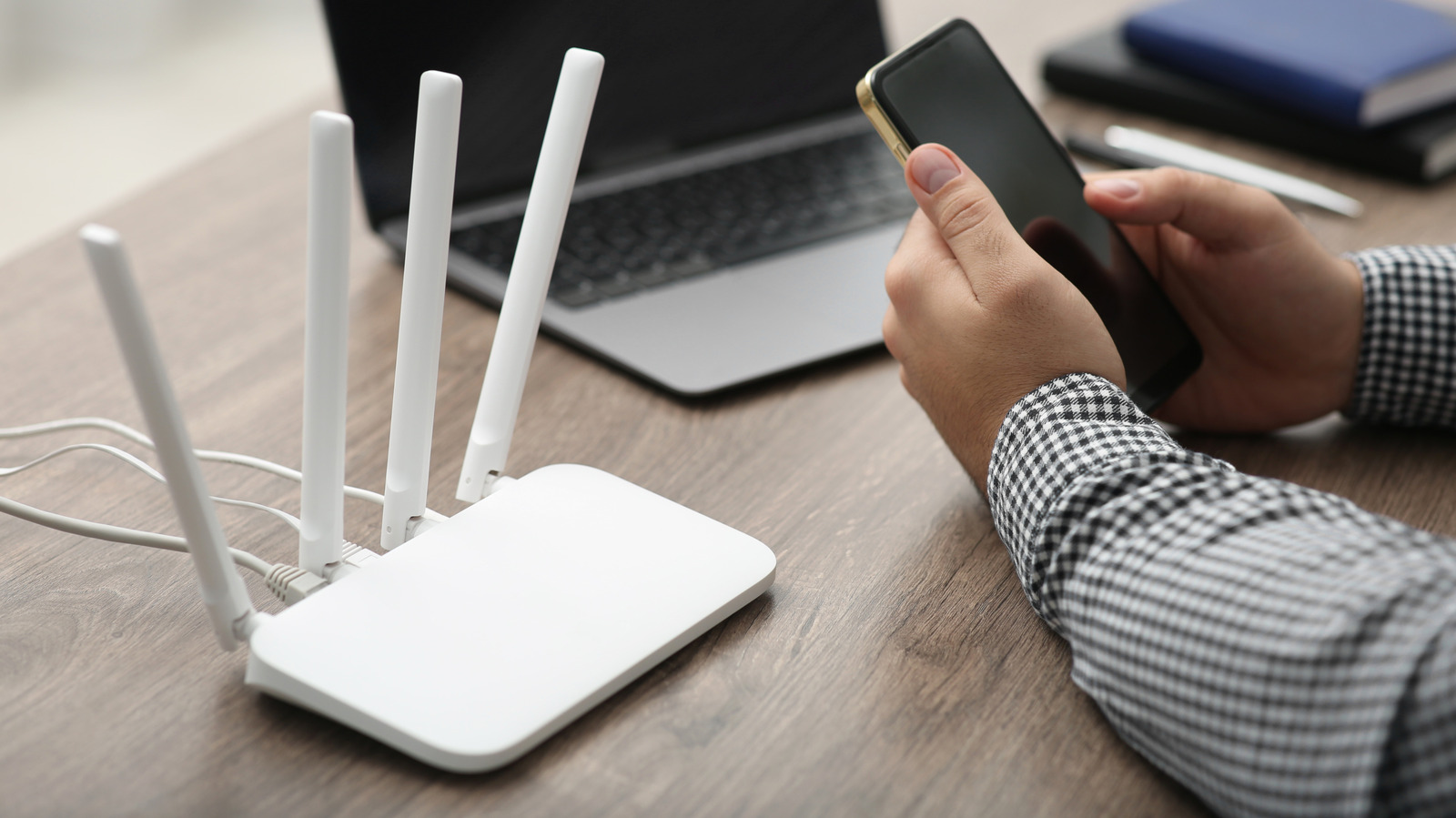
Wi-Fi internet has reached a point of utility and ubiquity that just about everyone wants it and needs it every day. Of course, much like unscrupulous individuals stealing cable, not everyone wants to pay for Wi-Fi, and some bad actors may attempt to hop onto any unsecured home signals they find. Random individuals using your personal Wi-Fi can lead to slowed speeds and compromised net security, so it’s important to have the right utilities and skills to monitor your network and kick them off.
While the best policy is always to keep your personal Wi-Fi password locked and never share it around, if anyone outside your family gets that password, they’ll be able to freely siphon your connection. Having a random individual run wild on your connection is bad news from both a convenience and safety perspective. Luckily, there are various ways to check which devices are connected to your Wi-Fi and, if necessary, boot them off, such as service-specific apps, third-party utilities, and built-in router interfaces. If you’re looking to improve your Wi-Fi speed, removing unauthorized devices is a great place to start.
Wi-Fi lurkers can slow your speed and compromise your security
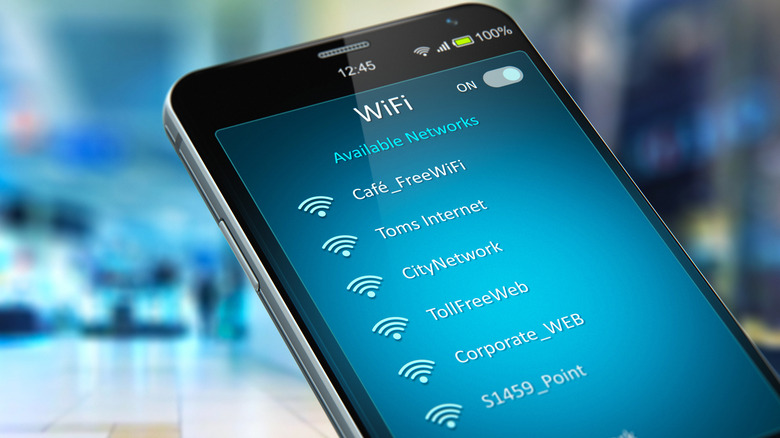
Home Wi-Fi plans are kind of like water systems; even if you have a great router with blazing fast Wi-Fi, you can still only get so much speed and data allocation at once. If only you and your family members are using it, this is easily managed, but if there’s some external bad actor lurking on your network with whom you have no direct contact, things can get out of control quickly. They’re already stealing your Wi-Fi, so obviously, they’re not going to care if they misuse it. If this bad actor uses bandwidth-heavy apps and services, everyone else will experience slower, spottier connections. Additionally, if your Wi-Fi plan has a data limit, the unwanted user could quickly exhaust it, leading to fees on your bill.
More worrisome than speeds and data is the state of your network security. If your Wi-Fi connection has been breached by a bad actor, they could use it to turn your router into their personal spy, stealing private data that’s coming and going, such as personal messages or banking info. Additionally, they could use your Wi-Fi to engage in illegal or malicious activities. Even if you’re not the one engaged in cybercrime, if it’s happening on your Wi-Fi, you could still find yourself in legal hot water with your internet service provider.
There are apps, functions, and services that let you check who’s on your network

The precise means by which you can check who or what is using your personal Wi-Fi will depend somewhat on what kind of Wi-Fi setup you have. Different Wi-Fi services and devices may make it easier to see what devices are currently connected than others. If you get your internet through a Google Nest Wi-Fi router, checking connections is as simple as opening the Google Home or Google Wi-Fi apps on your smartphone. On either app, you can check which devices are currently connected to your network and get identifying information like data usage and IP address. If there’s an address or device you don’t recognize on there, it might be time to change your password.
Alternatively, there are various third-party utilities that can be installed on your PC and used to check your network status, such as Wireless Network Watcher and Fing. Both of these apps will generate simple lists of every device currently connected to your router, showing their device name, address, network adapter, and other identifying information. Fing, in particular, lets you directly block connected devices, but again, a Wi-Fi password change will usually suffice for removing unauthorized users.
You can also try opening your web browser on your computer and typing your IP address into the address bar to open your router’s interface directly. This will show a list of connected devices and their addresses, though this information can be a little difficult to parse if you don’t know what you’re looking for.