For many SaaS platforms, the moment a user signs up is only the beginning of the real work. Most customers still need a website to establish an online presence and activate their business. Yet sending them to external builders breaks the experience, lowers engagement, and creates opportunities for churn.
The 10Web Website Builder API changes this dynamic. Instead of forcing users to piece their online presence together elsewhere, you can let them create a complete hosted website—either a clean WordPress install or a fully AI-generated site—directly inside your own product.
What makes this approach especially appealing is that you don’t need to build a website builder, hosting platform, or AI system from scratch.
The API gives you a full stack out of the box: provisioning, AI content and layout generation, hosting, managed performance, domains, SSL, backups, and white-label customization. This guide walks through the high-level steps to integrate the API.
What the 10Web Website Builder API enables
Before jumping into the steps, it’s important to understand what the 10Web Website Builder API handles for you. Through its managed WordPress infrastructure and a developer-friendly REST API, you can perform tasks like:
- Creating WordPress websites on demand
- Generating complete sites using AI based on business descriptions
- Managing domains, DNS records, and SSL certificates
- Triggering backups and restore points
- Handling cache, staging, and performance operations
- Auto-logging users into their website dashboards
- Applying plugin presets to all new sites
- White-labeling the WordPress admin area
- Receiving webhook notifications for website events
Because the system bundles hosting and lifecycle management, you don’t need to maintain servers, configure SSL, or worry about performance tuning. You simply orchestrate the flow from your SaaS, and 10Web takes care of the rest.
Step 1. Authenticate and prepare your integration
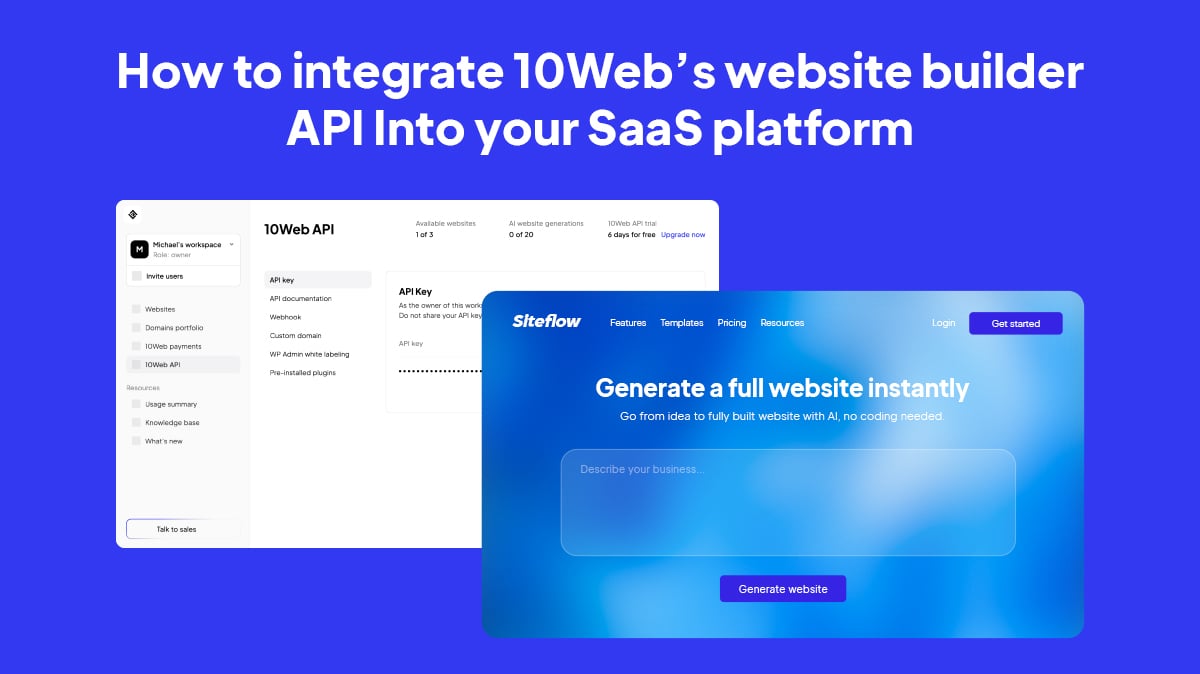
Everything starts in the API dashboard, where partners manage the entire integration:
- Custom domains
- White-labeling the WordPress admin’s API-related services
- Webhook URLs to receive real-time updates for supported events
- Select plugins to install on API-generated sites automatically
- Generate and manage sites
The API dashboard generates your private API key. This key is used to authorize each API request, so it belongs on your backend, not in client-side code.
This architecture keeps your integration secure, predictable, and easy to maintain.
Step 2. Create a new WordPress site
The first operational step is provisioning a fresh WordPress installation. The API exposes an endpoint for this, then you provide details like the subdomain, hosting region, and admin credentials.
A typical website builder integration looks like this:
- Your frontend triggers an action, like Create Website, and your backend makes the authenticated request to the 10Web API.
- The API generates a blank WordPress site and responds with a website_id.
- Your backend stores the id and associates it with the user’s account.
- You or your end users generate full site content with AI, or use the visual editor.
A sample API request for a blank website:
curl -X POST "https://api.10web.io/v1/website"

  -H "Authorization: Bearer YOUR_API_KEY"

  -H "Content-Type: application/json"

  -d '{

    "subdomain": "my-startup",

    "region": "us-central1-c",

    "site_title": "Sushi Wave",

"admin_username": "Admin",

"admin_password": "Strong-Password",

"is_demo": 0,

"demo_domain_delete_after_days": 7,

"enable_wp_ai_generation": false

}'
Sample response:
{

"status": "ok",

"data": {

 "website_id": 12345

}

}
This call asks 10Web to create a new, blank WordPress site in your chosen region. The API responds with a status and a website_id, which your platform will use for all future actions.
At this point, the new website appears in the API dashboard, where you can open the website in a visual editor and access the site’s WordPress admin.
Step 3. Generate a website using AI
Once you have a blank WordPress installation, you can turn it into a complete, functional website using the AI generation endpoint. Pass a few high-level details, and the API generates a full website:
- Page structures
- Layouts and sections
- Text for headings and sections (The language used in the business_description determines the site’s language. E.g., Un magasin d’équipement de sport results in a French-language site.)
- Visuals
- Optional ecommerce elements if you specify a store
An AI website generation request looks like this:
curl -X POST "https://api.10web.io/v1/ai/generate_site"

 -H "Authorization: Bearer YOUR_API_KEY"

 -H "Content-Type: application/json"

 -d '{

 "website_id": 12345,

 "business_type": "restaurant",

 "business_name": "Sushi Wave",

 "business_description": "A sushi restaurant with a modern twist"

 }'
Sample response:
{

 "msg": "Success",

 "status": 200,

 "data": {

 "url": "https://subdomain.domain.com"

 }

}
With a few lines about the business, the API uses AI to generate contextually relevant content for the blank website, resulting in a fully hosted, editable website.
Your product controls when the generation is triggered, so you can embed it into onboarding steps or post-signup tasks. With flexible integration and full-stack support for API sites, your team never has to manage servers, certificates, or optimization steps.
Everything leverages 10Web’s modern hosting infrastructure behind the scenes:
- Containerized isolation for each site
- Free SSL
- Caching and performance optimization
- Automated daily backups
- Staging environments
- Compatibility with the entire WordPress plugin ecosystem
Once the generation process completes, you and your end users can access the WordPress admin and edit the new website in a visual editor.
Step 4. Embed editing and management inside your UX
Once a website has been created, your platform needs a secure way for users to access its WordPress admin area without exposing or managing passwords. The 10Web API provides a dedicated single-use, 5-minute autologin token designed exactly for this purpose.
A typical autologin flow:
- Your backend requests an autologin token for a specific website.
- You construct the final login URL yourself using the returned token and the user’s email address.
- When the user visits that URL:
- If a WordPress user with that email already exists, they are logged in automatically.
- If not, a new administrator account is created for that email, and the user is logged in.
You can direct users to two locations depending on the URL parameters you append:
- WordPress Admin: https://{website_url}/wp-admin/?twb_wp_login_token={token}&email={email}
- AI Builder generation page: https://{website_url}/wp-admin/?twb_wp_login_token={token}&email={email}&page=twbb_ai_builder&open_ai_generation=1
A sample token request and example of building the URL:
const response = await fetch(

 "https://api.10web.io/v1/account/websites/{website_id}/single?admin_url={wp_admin_url}

,

 {

 method: "GET",

 headers: {

 "x-api-key": "YOUR_API_KEY"

 }

 }

);

const { token } = await response.json();

// Construct the final login link as documented

const email = "[email protected]";

const loginUrl =

 `https://mywebsite.example.com/wp-admin/?` +

 `twb_wp_login_token=${token}&email=${email}`;

// Redirect the user to WordPress admin

window.location.href = loginUrl;
This gives your SaaS a simple, secure way to hand off access to WordPress without ever storing or revealing credentials. Either approach keeps your product in control. Since the editor and the WordPress admin area can be white-labeled to represent your brand, users never see 10Web running behind the scenes.
Step 5. Add domains, and manage DNS & SSL certificates
Attaching a domain is a natural next step once a website is published. The API includes endpoints for:
- Adding a domain name to a website
- Managing the domain’s DNS records
- Generating, adding, and removing SSL certificates
This lets your product guide the user through domain connection without requiring them to touch external dashboards or copy records manually.
A simple domain-attachment request might look like this:
curl -X POST "https://api.10web.io/v1/hosting/websites/{website_id}/domain-name

"

 -H "Authorization: Bearer YOUR_API_KEY"

 -H "Content-Type: application/json"

 -d '{

 "domain_name": "sushiwave.com"

 }'
Sample response:
{

"status": "ok",

"data": {

 "domain_name": "https://sushiwave.com",

 "id": 12345,

 "message": "Domain name successfully saved",

 "nameservers": "["NS1", "NS2", "NS3", "NS4"]",

 "status": "ok"

 }

}
Your platform can guide users through the domain step, while 10Web handles DNS and SSL automatically.
You can also configure a branded default domain for temporary sites through the API dashboard. Instead of generic URLs, your platform can assign each site a subdomain under your own domain, preserving brand consistency.
Step 6. Support growth with webhooks and dashboards
As your platform grows and users begin managing many websites, you need a way to keep your internal dashboards, logs, or workflows up to date without continuously polling the API. The webhook system supports a focused set of webhooks that notify your backend when certain operational events occur:
-
- Staging environment operations (enabled/disabled)
- Environment sync operations (push or pull between staging and live)
- Backup events (backup created or restored)
These webhooks provide reliable signals for actions that typically:
- Run in the background,
- Take time to complete, or
- Affect the state displayed in your own dashboard.
With webhook notifications, your system can update UI states, trigger follow-up actions, or keep audit trails accurate, all without maintaining expensive polling loops or building custom schedulers.
The Website Builder API as a growth partner
Integrating the 10Web Website Builder API gives your platform a powerful new capability to create complete, hosted websites without ever leaving your product. The integration itself stays surprisingly lightweight—authenticate, create a site, generate with AI, embed management, handle domains, and hosting.
Because the API provides hosting, infrastructure, security, AI generation, and WordPress lifecycle management, your team can focus on your core product while delivering a high-value feature that improves activation, retention, and user satisfaction.
If you’re ready to explore further:
Request your API demo now
See how easy it is to integrate AI website generation into your platform!
FAQ
What does the 10Web Website Builder API handle for us, and what stays on our side?
The API handles WordPress provisioning, hosting, AI-based website generation, and a set of lifecycle operations (such as backups, staging, and cloning). Your platform remains responsible for user management, triggering API actions, storing returned identifiers (like website_id), and deciding how website creation fits into your product’s workflows. In practice, the API removes infrastructure and website-building complexity, but not application logic.
How tightly coupled is our product to 10Web if we use this API?
The generated websites are standard WordPress installations, not proprietary formats. Content, plugins, and configuration live inside WordPress, which reduces long-term lock-in concerns. While hosting and management are handled through 10Web, the sites themselves remain portable at the CMS level.
How much control do we have over what gets installed or enabled on user websites?
You can define plugin presets that apply to newly created sites, allowing you to standardize tooling (for example, SEO plugins or ecommerce extensions). Beyond that, sites behave like normal WordPress installations. This gives you a balance between consistency at creation time and flexibility afterward, without requiring you to maintain custom WordPress builds.
What’s the most practical way to evaluate whether this API fits our product?
Request access, then test the API with sandbox credentials and check out sample projects to get an idea of how integration works. This allows teams to assess the developer experience, the quality of generated sites, and how well the workflow aligns with their onboarding or product flows.